What comes across in an Evernote import?
The core of your Evernote account comes across intact:
- Notebooks — each
.enexfile arrives as its own notebook, named after the file. - Tags — carried over and applied to the right notes.
- Note content — text and formatting, including checklists and code blocks.
- Indents — an indented line comes across indented, including in notes from the older Evernote for Mac. Evernote’s old-style checkbox lines become real checklists. Notes you’ve already imported don’t change. To give them their indents, import them again.
- Attachments — PDFs, images, scans, and other files travel with their notes.
- Picture sizes — a picture you made bigger or smaller in Evernote is that size in Harbor. Notes you’ve already imported don’t change.
- Original dates — created and updated timestamps are preserved.
- Web clips — pages you clipped over the years come along too, with their source URLs.
- Links between your notes — they become Harbor links you can click. More on that below.
After the import, Harbor runs OCR on your attachments, so the words inside your scanned documents and photos become searchable. It reads the words inside your Word, Excel, PowerPoint and text files too. Give a large library a little time to index — it happens on our servers, in the background. Which files are searched.
Used Evernote’s Skitch? Harbor has that job built in. You can annotate the pictures in your notes, imported ones included, and on Mac and Windows you can set the screenshot hotkey to open each capture for markup.
Used to editing attachments in Preview or Word? That works too. On Mac and Windows, open a file from a note, change it and save, and the note gets the new version. Imported files included.
Because the import uses Evernote’s own ENEX export format, anything ENEX doesn’t carry can’t come across — by Harbor or by anyone else:
- Notebook stacks — ENEX has no field for a stack, so your notebooks arrive ungrouped. Drag them back into stacks once and you’re done.
- Tag hierarchies — every tag comes across, but nested tags arrive flat. Harbor’s tags nest up to three levels, so you can re-parent them.
- Note history — Evernote doesn’t include past versions in an export, so Harbor’s version history starts fresh from the day you import.
- Saved searches and reminders — neither travels in an ENEX file.
Links between your notes
A link from one Evernote note to another becomes a Harbor link. Click it and you’re in the other note, and that note lists it under Backlinks in its Note info.
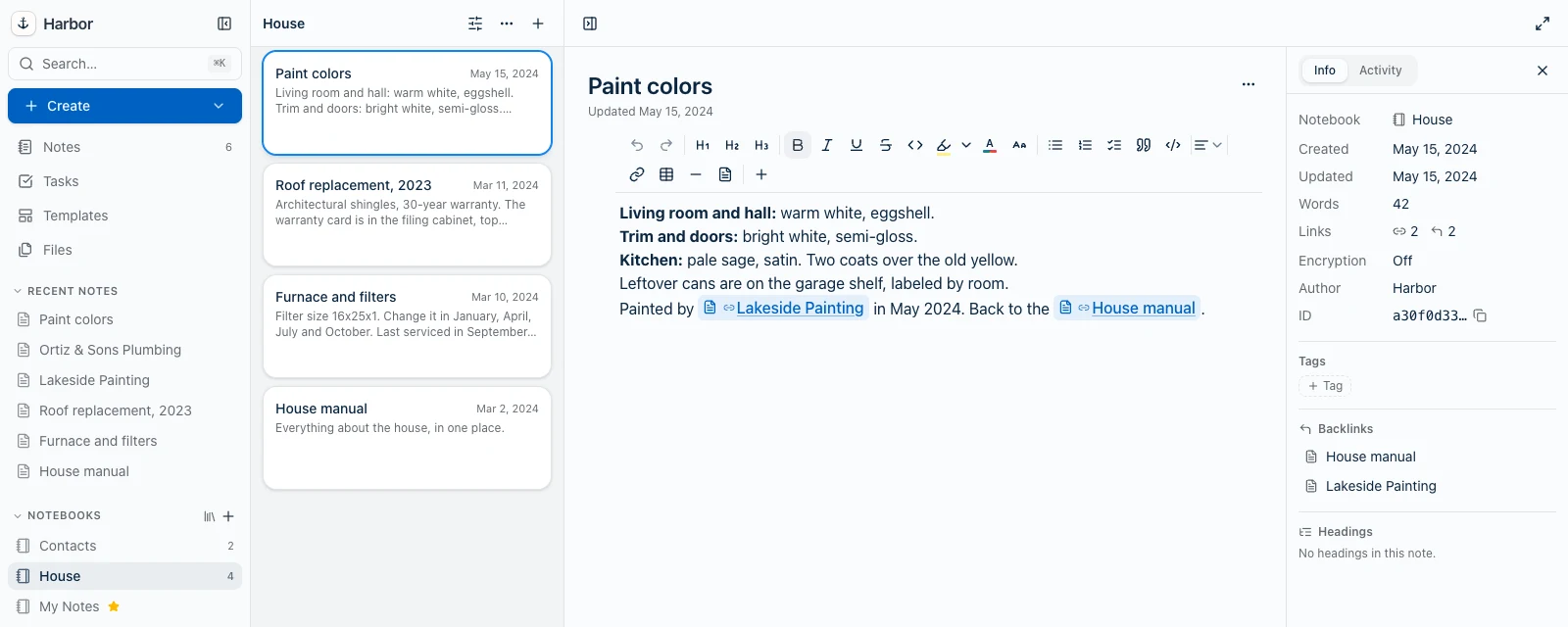
How Harbor finds the right note depends on how you exported:
- With evernote-backup and
--add-guid: each note carries its Evernote ID, so links are matched exactly. It works across notebooks and across separate files, imported in any order. How to export this way. - With Evernote’s own export: the file doesn’t say which note is which, so Harbor matches by title, looking in the same file first. A link works when its text is exactly the title of one note you’ve imported from Evernote. If no note has that title, or two do, it stays a link back to Evernote. Titles that repeat across notebooks can send a link to the wrong note;
--add-guidavoids that. - To a note you haven’t imported yet: the link stays a link back to Evernote. It turns into a Harbor link by itself once you import that note.
A few details:
- A Harbor link always shows the linked note’s current title, so a link with different words reads as the title instead.
- A link to a heading inside a note opens the note.
- A link to a note you didn’t import, like one in someone else’s shared notebook, stays a link back to Evernote. So do links inside web clips, and a link wrapped around a picture or a whole block of text.
- A link inside a code block comes across as plain text, because a Harbor code block holds only text.
Importing now is safe. Apart from links inside code blocks, nothing you import loses its links. A link Harbor can’t match yet waits as a link back to Evernote, and switches over when its note arrives.
Notes you imported earlier
They’re repaired once, in the background. An Evernote link in them becomes a Harbor link when its text is exactly the title of one note you imported from Evernote.
Some older links can’t come back. If an old import shows a link as plain words, with no link at all, Harbor couldn’t keep it. Indents are the same: a note that came in flat before Harbor kept indents stays flat. To get either back, import the notebooks again:
- Remove the old import, or delete each notebook on the web and choose Move notes to Trash (not Move notes to the default notebook). Otherwise you keep the old copies and get new ones beside them.
- Empty the Trash, or delete those notes from it for good. Harbor still counts notes in the Trash when it matches titles, so leftover copies leave links unmatched.
- Import them again, exported with
--add-guidif you can. If you use it, use it for every notebook: a file exported that way only matches notes that came in with their IDs too.
Bring back every notebook that links to the ones you re-import, too. Links from a notebook you keep would still point at the deleted copies. And anything you changed in those notes since the first import goes with them.
The full walkthrough, with the export step, is at Import Evernote into Harbor.
If something in your library doesn’t look right after an import, email help@harbor.my — we want to see it. Making the move from Evernote painless is the thing we care most about getting right. Start at Switching from Evernote.
Related questions
Need more help?
Still stuck? Send us a message and a real person will get back to you.