Can I edit an attachment in another app?
Yes. Open a file from a note in the app you’d normally use, change it, save, and the note shows the new version in the same spot. You don’t download it and attach it again.
That’s how it works on Mac, Windows and Android. On iPhone and iPad, you mark up PDFs without leaving Harbor. And in every app, the web included, Replace file… swaps in a new version you pick yourself.
Don’t see it? Update Harbor to the latest version.
On Mac and Windows
- Find the file in your note and pick Open in Default App. On a picture, it’s in the ⋯ menu. On a PDF, it’s the square-with-an-arrow button in the bar above the pages. For a Word document or any other file, click the file itself.
- Change it in Preview, Word, Paint or whatever opens it, and save.
- A couple of seconds later, the note shows your change and Harbor says File replaced.
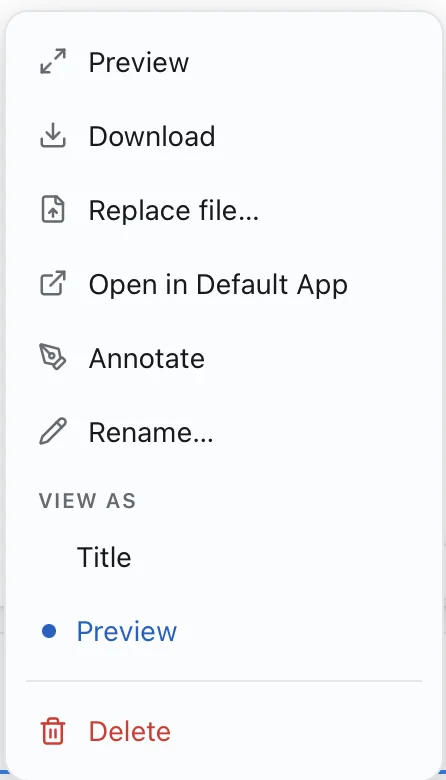
Save again and the note updates again. Harbor keeps an eye on the file while you work.
If Harbor was closed when you saved, or you were offline, or encryption was locked, the change comes in the next time Harbor opens, reconnects or unlocks.
Some apps save a copy somewhere else instead of saving over the file. Then nothing comes back, and you can bring that copy in with Replace file….
It works on a file you open from a note you can change. A file opened from the Files screen is only a copy. Saving it changes nothing in Harbor, and Harbor deletes it the next time it starts, so save your changes somewhere else.
Two things on the Mac:
- Preview saves on its own, about 15 seconds after you change something, even if you never press ⌘S. Your change reaches the note even if you close Preview without saving.
- Pages doesn’t save back. Open a Word document in Pages and save, and Pages makes a new Pages file instead. Nothing comes back to Harbor. Use Word, or export from Pages and use Replace file… to bring it in.
On iPhone and iPad
PDFs. Tap Open in the bar above the PDF to see it full screen, then tap Edit with Markup, the pen-tip button next to Close. The PDF opens in Apple’s Quick Look. Tap Quick Look’s own Markup button to get the pens, then draw, write or sign. When you’re done, tap Close, and the note gets the marked-up PDF.
If you’re offline or encryption is locked, Harbor holds your Markup and says Markup not saved yet. It goes into the note once you’re back online or unlocked. Harbor holds it for up to half an hour, while the app is still running. After that, you’ll need to mark it up again.
Pictures. Use Annotate. It has arrows, boxes, text, crop and rotate, and saves straight back into the note.
Other files, like a Word document or a spreadsheet, open in Apple’s Quick Look when you tap them. You can read and share them there, but not edit them. To change one, share it to an app that can edit it and save the result to Files. Then come back and use Replace file… in Quick Look’s top bar to pick it.
On Android
Most files. Tap a Word document, a spreadsheet or any other file, and pick Edit… from the menu. Choose an app, change the file, save, and come back to Harbor. The note gets the new version.
Pictures and PDFs. Open them full screen first. For a picture, tap it, then its ⋯ button, then Open. For a PDF, tap Open in the bar above it. Edit… and Replace file… are in the top bar.
Some Android apps save a copy somewhere else instead of saving over the file. When that happens, nothing changes in the note, and Harbor tells you once: “If your editor saved a copy instead, use Replace file… to bring it in.”
Replace file…
Every Harbor app has it, on every file in a note, next to Download:
- On the web, hover over the file. It’s the page-with-an-up-arrow button in the row that shows up.
- In the apps, it’s in the ⋯ menu on a picture, a video or a recording, in the bar above a PDF, and in the buttons on any other file.
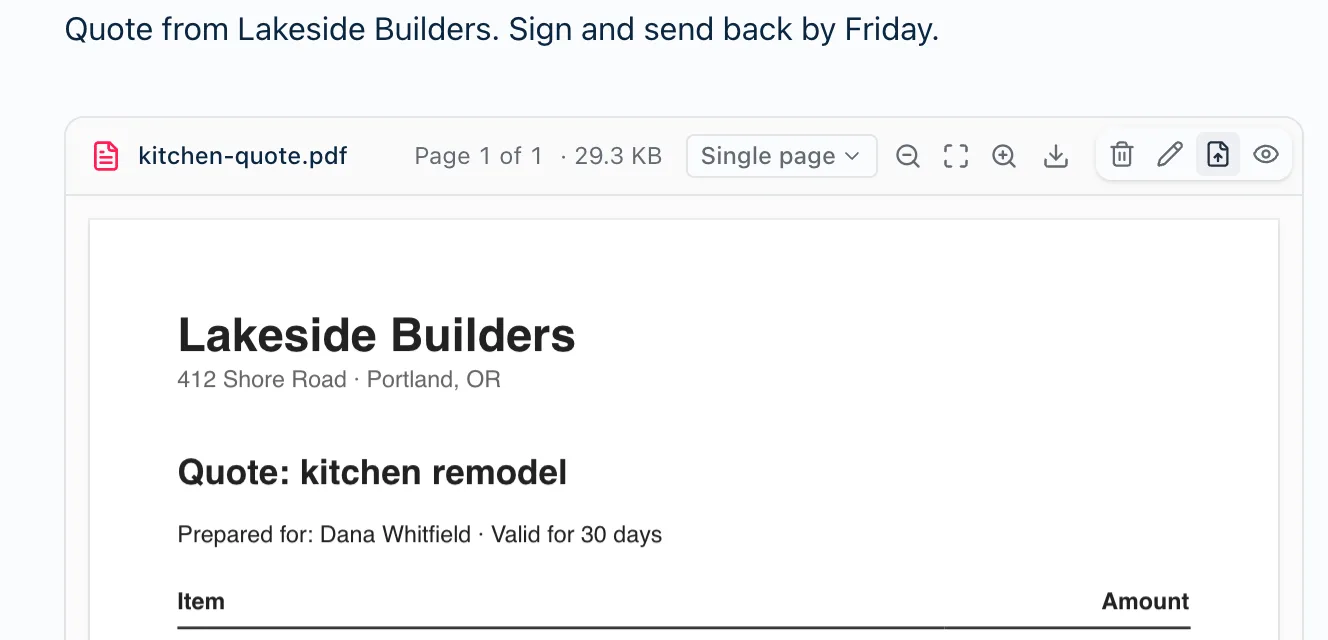
It’s also in the full-screen viewer, when you’ve opened a file from a note. Pick a file, and it takes the old one’s place.
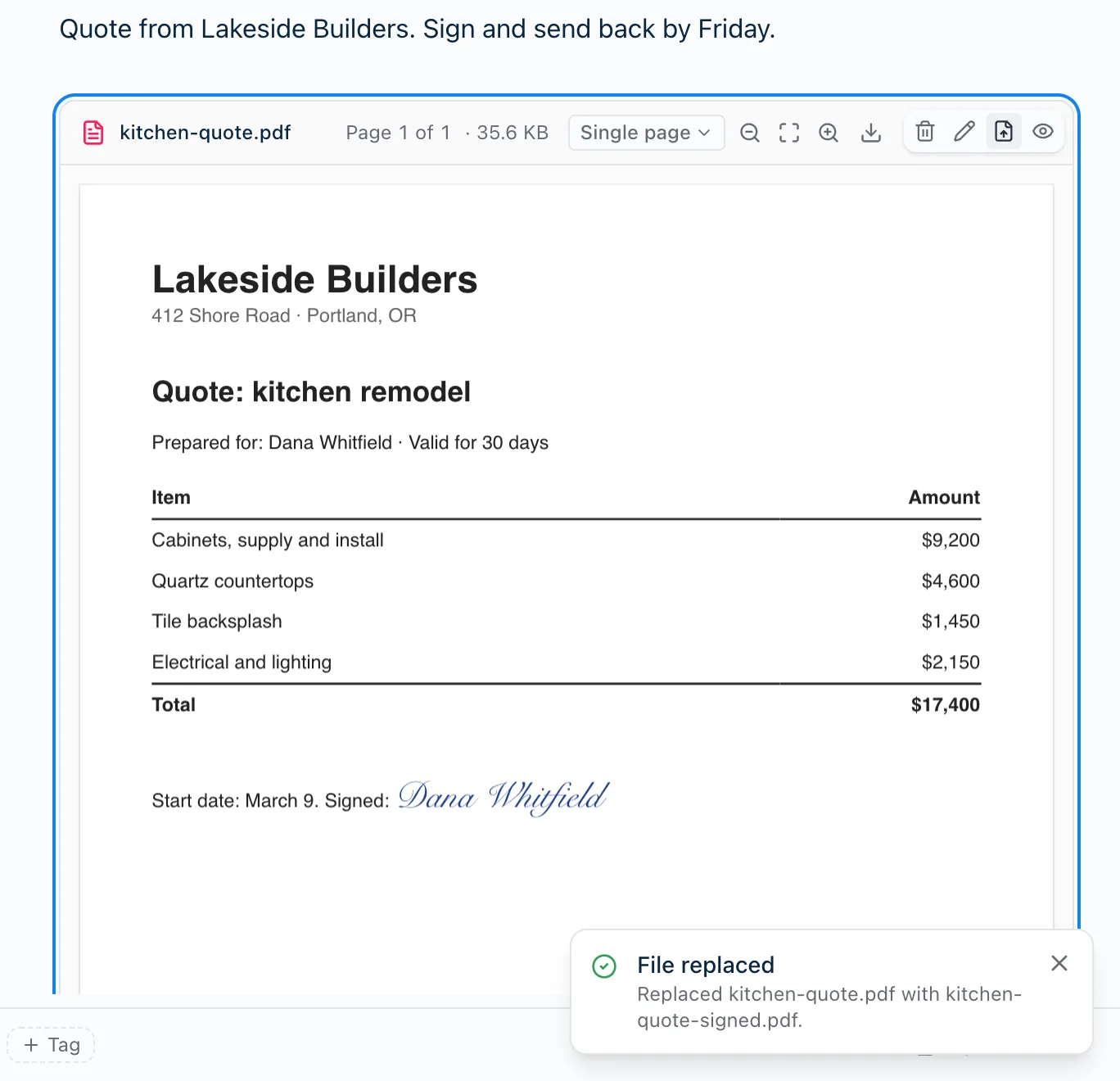
On the web, it’s how you edit an attachment: download it, change it, then use Replace file… and pick the edited copy. A browser can’t hand a file to another app and watch for the save.
You won’t find Replace file… on the Files screen, or on a note you can’t change, like one in the Trash or an encrypted note that’s still locked. It needs a connection.
What to expect
- Same spot, same name. The new file goes where the old one was. If the file is in the note twice, both change. It keeps the old file’s name, but the ending follows the new file, so
report.pdfreplaced with a PNG becomesreport.png. - The same file does nothing. Pick the file that’s already there and Harbor says That’s the same file.
- The old file is deleted. Undo won’t bring it back. Neither will restoring an older version of the note. That version shows the file as missing. If you might want the old one, download it first.
- It doesn’t use up your file limit. The new file takes the old one’s place, so replacing works even when you’re at the free plan’s limit. The exception is a file that’s in more than one note. See below.
- Encrypted notes work the same way. The new file goes into the note encrypted. The copy you open in another app isn’t, because that app has to read it. On Mac and Windows, Harbor deletes that copy after a week without changes, or when you sign out.
- A sketch stops being a sketch. Replace an iPad sketch, or mark it up, and the note gets the new PDF, but you can’t edit it as a sketch any more.
Two things can leave the old file behind:
- The same file is in another note. That note keeps the old one, so the new one counts as one more file. At the free plan’s limit, there’s no room for it and Harbor can’t replace it.
- Harbor couldn’t remove it. You’ll see “The old file wasn’t removed,” with a Try again button. Your new file is in the note either way. The old one is still in Files until you try again or delete it.
If you take a file out of its note, or delete the note, before you save your edit, Harbor won’t put it back. It says “Couldn’t save your changes to report.pdf — it’s no longer in the note.” On Mac, Windows and Android, it offers Save as new note, so the edit isn’t lost.
Coming from Evernote
If you’re used to opening an attachment from Evernote, editing it and saving, it works the same way here on Mac and Windows. That includes the files in the notes you imported from Evernote.
Related questions
Need more help?
Still stuck? Send us a message and a real person will get back to you.