How do I undo an import?
Imports go wrong. You picked the wrong file, the pictures didn’t come with it, or you ran the same one twice. You can take an import back in one step, and nothing is lost straight away.
Remove an import
Do this on the web, at app.harbor.my. The Harbor apps don’t have the button, but most imports you start in them are listed there too.
- Open Import & export in the sidebar.
- Under Past imports, find the import. Each one shows the file, the app it came from, the date and how many notes it brought in.
- Press Remove imported notes… and Harbor tells you how many notes will go. Press Move to Trash.
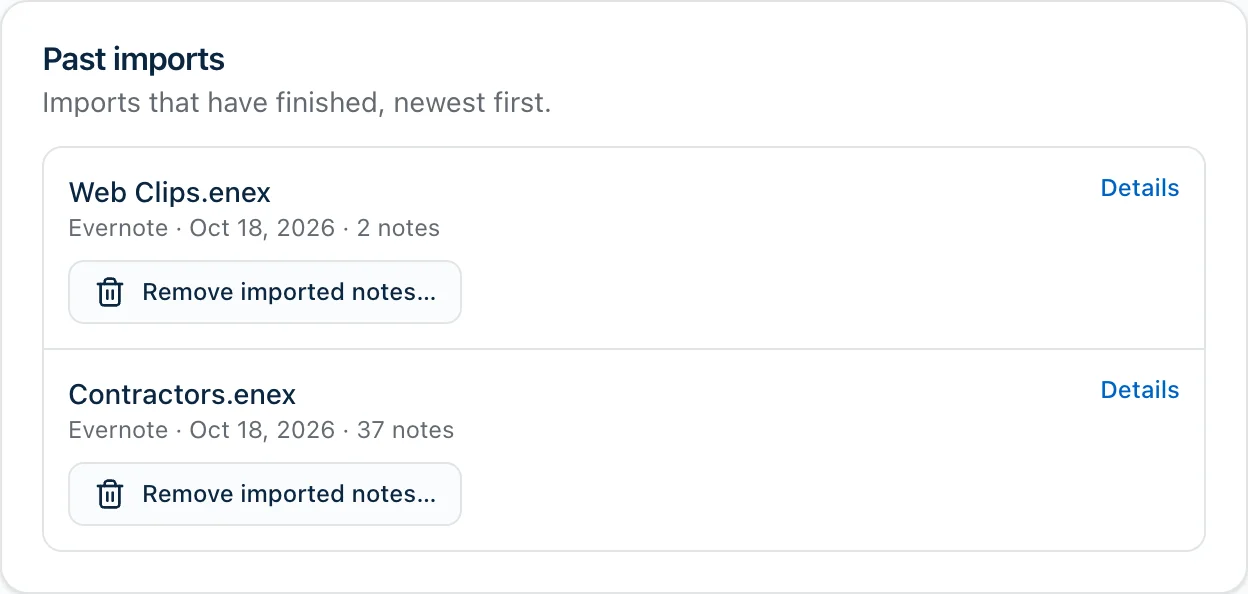
The same button is on the import’s own page, behind Details.
It runs on our servers, so you can leave the page. Progress shows in the import’s row and at the bottom of the sidebar. When it’s done, the row says when it was removed and how many notes went to the Trash.
If it stops partway, the row says so. Press Remove imported notes… again to finish the job.
What goes
- Every note the import made goes to the Trash, including notes you’ve edited since. Notes already in the Trash are left alone.
- Notebooks the import made are deleted, as long as nothing else is in them. A notebook you already had stays, even if the import added notes to it. So does your default notebook.
- Tags stay. Delete any you don’t want.
Changed your mind?
Restore the notes from the Trash, like any other deleted note. If a note’s notebook was deleted, it goes back into your default notebook. Do this on the web. Some versions of the Harbor apps put the note back in its deleted notebook, where you can’t see it.
Removing only runs once. After it’s done, the button doesn’t come back, and restored notes from a deleted notebook all land in your default notebook. So restore the notes you want, not the whole import.
Emptying the Trash
The Trash empties itself after 30 days. To get rid of the notes sooner, open Trash and press Empty trash. That takes everything in the Trash, not only the import, so restore anything you want to keep first.
A big Trash takes a minute or two. On the web, it says Emptying the Trash… until it’s done.
When Harbor can’t remove an import
Harbor records which notes each import makes. For imports from before it did, it works that out from when the notes arrived. If two of those older imports ran at the same time, their notes are mixed together, and Harbor won’t guess. The import says so: “This import overlapped another one, so its notes can’t be told apart.”
Some imports aren’t in the list at all:
- Imports that ran on your own device. That’s a Standard Notes import in the Mac app, and any import with Encrypt notes as they import switched on.
- Anything older than your last 50 imports.
For an import that overlapped another, or one that isn’t listed, delete its notebook instead. In the sidebar on the web, right-click the notebook (or open its … menu) and choose Delete. Pick Move notes to Trash, then press Delete notebook.
That takes everything in the notebook, not only what the import brought in. It’s the right tool when the import had a notebook to itself.
If it’s your default notebook
The default notebook can’t be deleted. Press Delete on it and Harbor says so, and lets you pick a new default right there: choose a notebook under New default and press Make default. Then the usual delete choices appear. No other notebook to pick? Press New notebook to make one.
In some versions of the Harbor apps, Delete is greyed out or missing on the default notebook. Do it on the web.
Tell us what went wrong
If an import let you down, email help@harbor.my. We’d rather fix the importer than have you run it twice.
Related questions
Need more help?
Still stuck? Send us a message and a real person will get back to you.