How do I indent text in a note?
Press Tab. The line moves in one step. Press Shift+Tab and it moves back out.
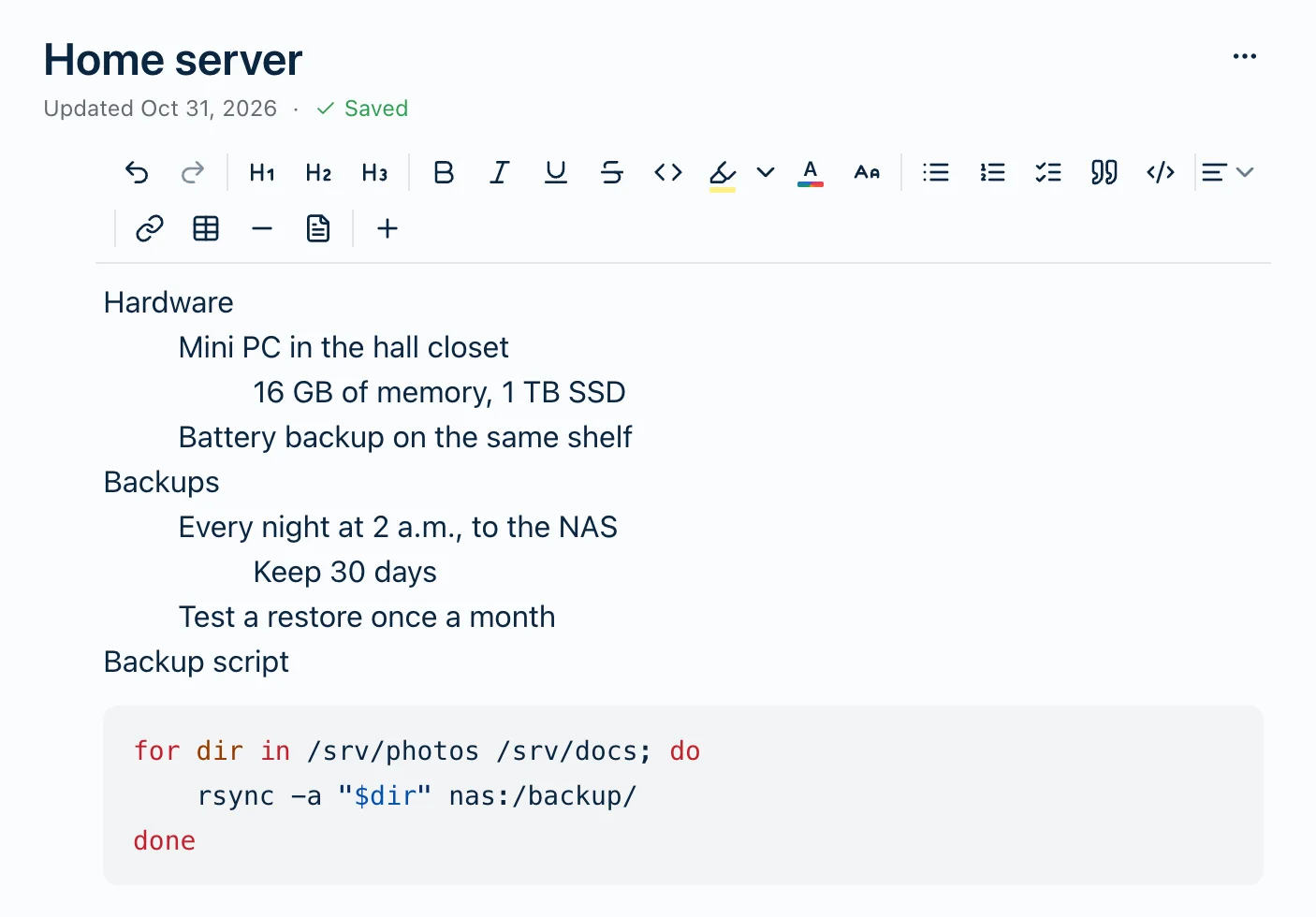
It works on any ordinary line or heading, the way it does in Google Docs. Select several lines and Tab moves them all at once. Press Enter on an indented line and the next line starts at the same indent, so an outline builds itself as you type.
There are 8 steps. Past the eighth, Tab does nothing, and so does Shift+Tab on a line at the margin. Undo takes back one press at a time.
It’s the same in every Harbor app: the web, Mac, Windows, iPhone, iPad and Android. Don’t see it? Update Harbor to the latest version.
Lists, tables and code
Where your cursor is decides what Tab does:
- In a list or checklist, Tab nests the item under the one above, as it always has. Shift+Tab brings it back out.
- In a table, Tab moves to the next cell and Shift+Tab to the one before. In a list inside a cell, Tab nests the item instead.
- In a code block, Tab works like a code editor’s: it adds spaces up to the next 4-space stop. Select several lines and it adds 4 spaces to the start of every one, leaving blank lines blank. Shift+Tab takes up to 4 spaces off the start of each line. It’s always spaces, never a tab character, so your code lines up the same wherever you paste it.
- In a quote, Tab does nothing.
Lines inside a list, a table or a quote don’t take an indent. Lists nest instead. Turn an indented line into a list item or a quote and its indent goes.
On a phone or tablet
On iPhone, iPad and Android, the bar above the keyboard has an indent and an outdent button, just after the list buttons. They’re icons: a few lines with a small arrow pointing right to indent, or left to outdent. They do what Tab and Shift+Tab do, on ordinary lines, headings, code blocks and lists. A button goes grey when there’s nothing for it to do. Both hide in a quote, and in a table cell unless your cursor is in a list there.
With a keyboard attached, Tab and Shift+Tab work too.
Leaving the note from the keyboard
Since Tab indents, it can’t take you out of the note. Press Esc, then Tab.
- On the web, Mac and Windows, Esc takes you out of the text and puts a blue outline around the note. Tab then goes on to the next thing, like the tag box under the note, and Shift+Tab goes back to the one before. Click the text to carry on typing.
- If a menu is open, like the / menu, Esc closes it first. Press it again to leave the text.
- In focus mode, the first Esc leaves the text and the second leaves focus mode. In the template builder, the second Esc closes the builder.
- On iPhone, iPad and Android, Esc stays in the note. There’s no keyboard way out of the text there.
Pasting
Paste indented text from Google Docs or Word and the indents come with it.
Coming from Evernote
Indented lines in your Evernote notes come into Harbor indented. That goes for notes from the older Evernote for Mac too. And Evernote’s old-style checkbox lines come in as real checklists.
If a note that’s indented in Evernote came into Harbor flat, it was imported before Harbor kept indents, and it won’t get them back by itself. To bring them back, remove that import and import those notebooks again. Anything you’ve changed in those notes since goes with the old copies, so do it before you’ve put much work into them. Here are the steps.
Where the indent goes
It’s saved with the note, so it’s the same on every device, on a shared link, and in an Evernote (ENEX) export. Markdown has no way to indent a line, so a Markdown export comes out flat.
Update Harbor on every device you use. An older version doesn’t know about indents, and it drops them when it saves a note.
Related questions
Need more help?
Still stuck? Send us a message and a real person will get back to you.