Evernote import
Import your Evernote notes into Harbor.
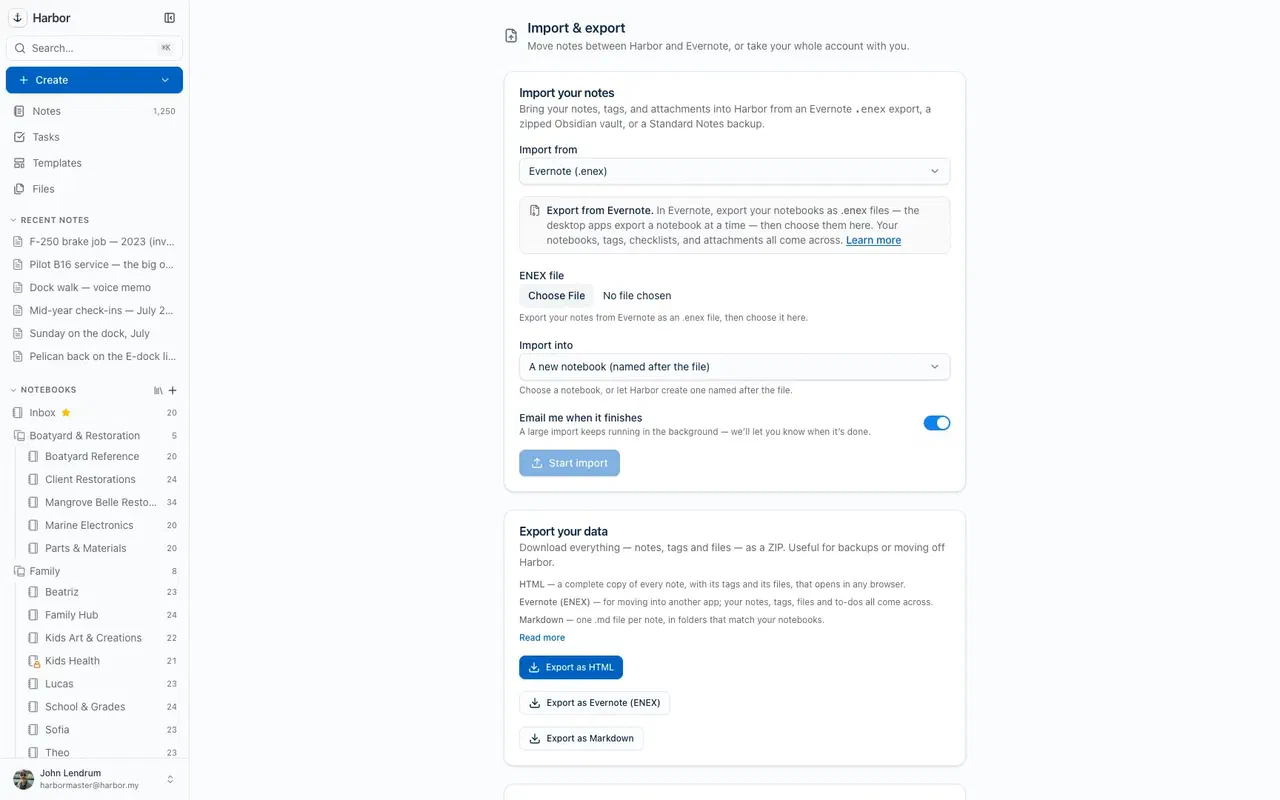
Export your notebooks as ENEX, drop the files into Harbor, and watch a live progress bar bring across your notes, tags, attachments and original dates. Here's exactly how it works — and the handful of things Evernote's export format leaves behind.
Free plan to start · No credit card
How it works
Three steps, and no command line.
Export from Evernote
In Evernote's desktop app, right-click a notebook and choose Export. You'll get a .enex file. Do this one notebook at a time — the reason why is below, and it decides whether your structure survives.
Drop the files into Harbor
Open Harbor's importer on the web, Mac or Windows app and choose your .enex files. Large imports keep running in the background while you get on with something else.
Watch it land
A live counter shows exactly where it is — “42 of 900”, not a spinner. Your notes are readable as they arrive, and OCR starts indexing your attachments behind them.
The part that trips people up
One .enex file becomes one notebook.
An ENEX file is a flat list of notes. There is no notebook name anywhere inside it — Evernote puts it in the filename. Harbor reads that filename and creates a notebook to match, so Recipes.enex arrives as a notebook called Recipes.
That single detail decides how your migration turns out:
Export notebook by notebook
You get one file per notebook, and your library rebuilds itself on the way in. This is the way to do it.
Export everything at once
You get one enormous file, and it lands as one enormous notebook. Nothing is lost — but the filing you spent years on is.
If you'd rather send a file somewhere specific, Harbor lets you pick the destination notebook at import time instead of taking the name from the file.
No surprises
What carries over — and what doesn't.
Most pages about importing Evernote only publish the first list. The second one matters more, because it's the one that surprises you a week later. Here's both.
Comes across
- Your notes — Rich text, formatting, checklists and tables, as they were.
- Notebooks — One file per notebook, named to match — or a destination you choose.
- Tags — Carried over and applied to the right notes.
- Attachments — PDFs, images, scans and files travel with their notes.
- Original dates — Created and updated timestamps are preserved, so your library keeps its real timeline.
- Web clips — Pages you clipped arrive with the URL you clipped them from.
Then Harbor's search goes to work: OCR runs over your attachments, so the words inside your scans, photos and PDFs become searchable — on every plan, including the free one.
Doesn't — and can't
- Notebook stacks — There is no field for a stack anywhere in the ENEX format, so no importer can recover them. Your notebooks arrive ungrouped and you re-stack them in a couple of minutes.
- Tag hierarchies — Every tag comes across, but nested tags arrive flat. Harbor nests tags up to three levels — you re-parent them once and it's done.
- Note-to-note links — Evernote writes internal links as evernote:/// URLs that only resolve inside Evernote. They survive as text, but they won't take you anywhere.
- Note history — Evernote doesn't put past versions in an export at all. Harbor's version history starts fresh from the day you import.
- Saved searches and reminders — Neither travels in an ENEX file. Saved searches are quick to recreate — and Harbor's search is doing more of that work anyway.
This isn't Harbor being modest about a limitation — it's the ceiling of Evernote's own export format. Any app that tells you stacks and tag hierarchies survive an ENEX import hasn't checked.
Both lists verified against Harbor's importer — August 17, 2026. Something behave differently for you? Tell us at help@harbor.my and we'll correct this page.
Big libraries
Years of notes, not a weekend project.
It runs in the background
Close the tab, use another device, come back later. A big import keeps going on our servers, not in your browser window.
Queue as many files as you like
Drop in a whole folder of exported notebooks. They import one after another, each into its own notebook.
Nothing is destructive
Your ENEX files are untouched, so a re-run is always available. Test with one notebook before committing the library.
The honest caveat on timing: an attachment-heavy library takes longer than a text-heavy one of the same note count, because every PDF and photo is uploaded and then queued for OCR. The notes themselves are usable straight away — searching inside the attachments catches up in the background.
Recommended
The order we'd do it in
- 1 Export one notebook and import it Pick a small, messy one. You'll learn more from twenty real notes than from any checklist — including this one.
- 2 Search for something you know is in an attachment This is the test worth running. If Harbor finds a word inside a scanned PDF, the part of Evernote you were paying for is covered.
- 3 Export the rest, notebook by notebook Evernote's desktop app caps a multi-note export selection at 100 notes at a time — the export guide covers the workarounds, including a free CLI that dumps the lot.
- 4 Re-stack and re-nest Drag your notebooks into stacks and re-parent any nested tags. This is the only manual step, and for most libraries it's a few minutes.
- 5 Keep the ENEX files Park them on a drive somewhere. They're your backup, and they cost nothing to keep.
Questions about importing
How do I import Evernote notes into Harbor?
.enex files — one notebook at a time — then open Harbor’s importer on the web, Mac or Windows app and choose the files. A live counter shows the progress, and big imports keep running in the background. The full export guide →What file format does Evernote export?
.enex file is a flat list of notes with their attachments embedded, and the notebook name lives in the filename rather than inside the file.Do my notebooks and tags survive the import?
Why did all my notes land in one notebook?
Can I import more than 100 notes at once?
Will importing change or delete anything in Evernote?
.enex files you give it — your Evernote account is untouched and your export files are left exactly as they were. You can re-run an import as many times as you like.Can I try the import before paying?
Can I get my notes back out of Harbor later?
Bring it all across
Your Evernote, moved in one sitting.
Start free, import a notebook to prove it works, and bring the rest over when you're ready. Your export files stay yours either way.
Free plan to start · No credit card