Blog ·October 18, 2026 ·Cloudmanic Labs
How to keep your Evernote note links when you move
If you built a wiki in Evernote, the links are the wiki. A project note points at its meeting notes, the meeting notes point at the people, and the people point back at the projects. Move it to another app the usual way and those links are the first thing to break.
It doesn’t have to. One flag on a free tool keeps them, and Harbor turns them back into links you can click.
Why links break
Every link from one Evernote note to another carries the ID of the note it points to. It looks something like this:
https://www.evernote.com/shard/s321/nl/4567890/1b8e4c27-5f3a-4d9e-b2c7-6a0f3e1d9c22/
The long string at the end is the note’s ID. Older Evernote apps write an evernote:/// address instead, with the same ID in it.
Evernote’s own export keeps the link, ID and all. What it never writes down is each note’s own ID. So the app you import into sees a link to note 1b8e4c27… and has no way of knowing which of your notes that is.
Some importers leave the link pointing back at Evernote. Some guess from its words: if a link says “Paint colors” and you have one note called Paint colors, that’s probably the one. That works until you have two notes called “Meeting notes”, or a link whose words aren’t the note’s title.
One flag fixes it
evernote-backup is a free, open-source tool that downloads your whole Evernote account and writes it out as .enex files. It has a flag, --add-guid, that writes each note’s ID into the file next to the note. With that, nothing has to be guessed.
We didn’t come up with this. A reader in our subreddit pointed us at evernote2obsidian, which rebuilds Evernote links for Obsidian by reading evernote-backup’s database. evernote-backup’s author confirmed that an export with --add-guid carries everything you need to do the same. Credit to both.
Install it with Homebrew on a Mac (brew install evernote-backup), or get a ready-made download for your computer. Then it’s three commands:
evernote-backup init-db
evernote-backup sync
evernote-backup export --add-guid evernote-export/
init-dbsigns you in to Evernote and sets up a local database.syncdownloads every note into it. A big account takes a while the first time. You can stop it and run it again, and it picks up where it left off.export --add-guidwrites one.enexfile per notebook into theevernote-exportfolder, with each note’s ID inside. Notebooks in a stack go in a subfolder named after the stack.
It’s a third-party tool that signs in to your Evernote account, so read its README before you run it. Our Evernote export guide has more on it.
Import into Harbor
Open Import & export in the Harbor web app, Mac app or Windows app, and choose one of the .enex files. It becomes a notebook named after the file. When it’s done, do the next one. The help article has the full steps.
The order doesn’t matter. If a note links to one in a notebook you haven’t imported yet, that link stays a link back to Evernote for now. Import the other notebook and it turns into a Harbor link by itself.
What you get
Links between the notes you’ve imported become Harbor links. Click one and you’re in the other note. Open Note info on that note, and Backlinks lists every note that links to it.
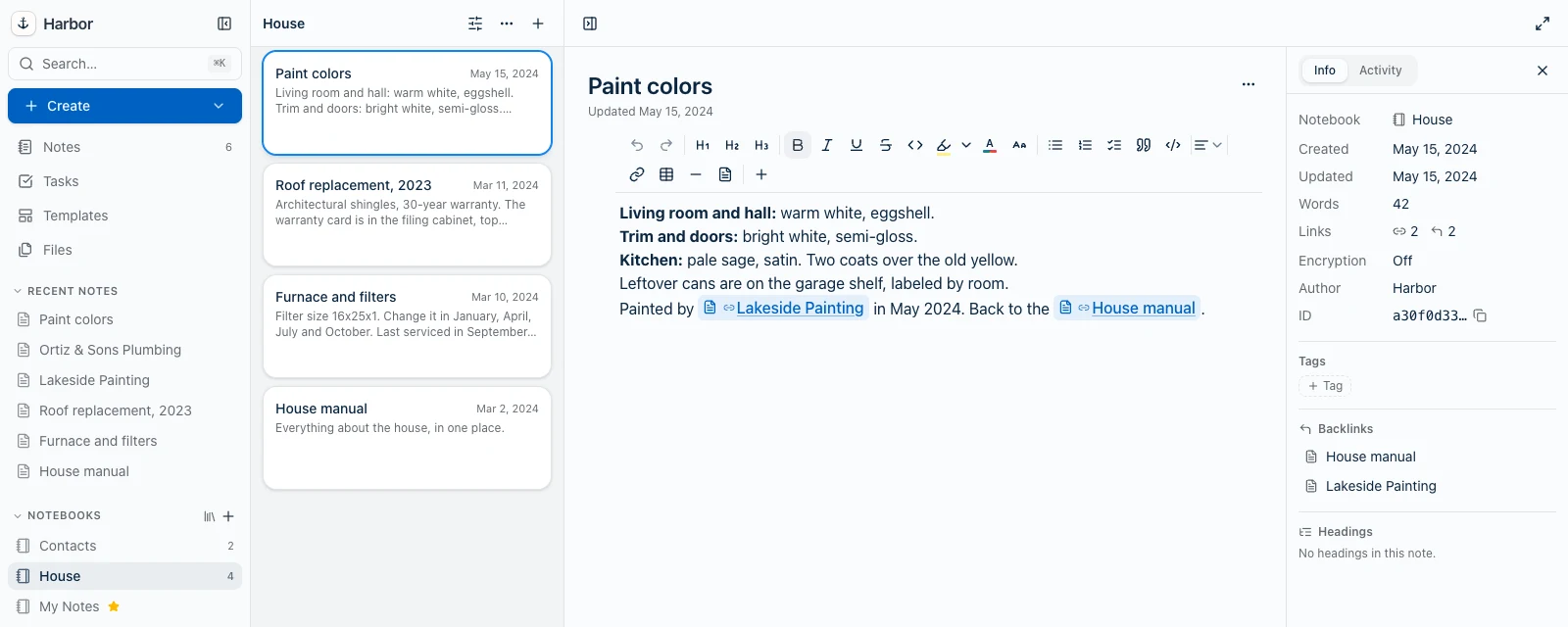
It works across notebooks and across separate files. Above, Paint colors came in with the House notebook, and Lakeside Painting with Contacts, a second file imported afterwards.
A Harbor link holds the note itself, not its title. It shows the note’s current title, and it keeps working when you rename the note or move it to another notebook. More on Harbor’s note links.
What doesn’t carry
- Links into other people’s notes. If someone shared a notebook with you and it isn’t in your export, links into it stay links back to Evernote.
- Heading links. A link to a heading inside a note opens the note.
- Links in web clips and code blocks. A link inside a web clip stays a link back to Evernote. A link inside a code block comes across as plain text, because a Harbor code block holds only text.
- Links wrapped around a picture or a whole block of text stay links back to Evernote. A Harbor link shows only the note’s title, so it would drop what it wraps.
A link to a note you left out of the export, like one in your Evernote trash, stays a link back to Evernote too, until you import that note.
No evernote-backup?
Evernote’s own export still works. Harbor matches its links by title: a link works when its text is exactly the title of one note you imported from Evernote. If two notes share that title, or none has it, the link stays a link back to Evernote.
When you link a note in Evernote, it uses the note’s title as the link’s words. So a link matches unless you’ve reworded it, renamed the note since, or used the same title for two notes. Harbor looks in the same file first, so a title that repeats across notebooks can send a link to the wrong note. --add-guid takes the guessing out.
Already imported?
Notes you imported into Harbor earlier are repaired once, in the background. An Evernote link in them becomes a Harbor link when its text is exactly the title of one note you imported from Evernote.
Some older links can’t come back. If an old import shows a link as plain words, with no link at all, Harbor couldn’t keep it. Getting those back means importing the notebooks again, and there’s a right way to do it, so follow the steps in our help article.
About to import for the first time? Go ahead. Apart from links inside code blocks, nothing you import loses its links.
Frequently asked questions
Why do my Evernote note links break when I export?
How do I export Evernote notes with their IDs?
evernote-backup tool. Run evernote-backup init-db, then evernote-backup sync, then evernote-backup export --add-guid <folder>. The --add-guid flag writes each note’s Evernote ID into the .enex files.Do I have to import my notebooks into Harbor in a particular order?
--add-guid. A link to a note you haven’t imported yet stays a link back to Evernote, and turns into a Harbor link by itself once you import that note.What if I exported with Evernote's own app?
--add-guid avoids.