Can I keep code in a note?
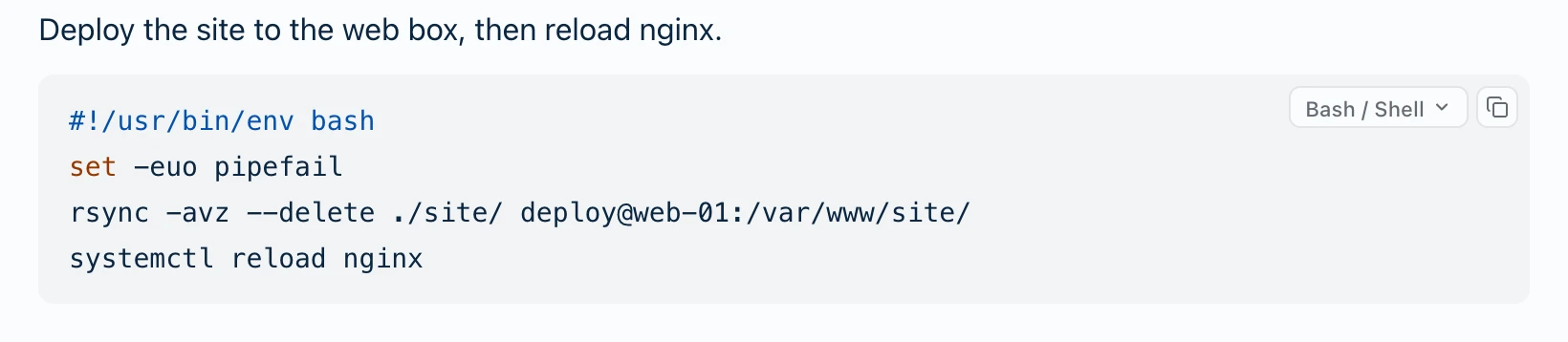
Yes. Put it in a code block. It keeps every space and tab, shows your code in a fixed-width font, colors it once you tell it the language, and copies the whole thing with one click.
Making one
The quickest way is to type three backticks and a language at the start of an empty line, then press Enter. ```bash gives you a Bash block. Short names work too, like ```py, ```js and ```yml. Leave the language off for plain text.
Stick to lowercase letters after the backticks. ```cpp works, but ```c++ stays as ordinary text. If a name won’t take, make the block first and pick the language from its menu.
You can also make one from a menu:
- The / menu, in every app. Type / on an empty line and pick Code block.
- The toolbar, on web, Mac and Windows. Click the code block button. On a Mac it’s also under Format › Code Block.
- The + menu, on web, Mac, iPhone, iPad and Android. Pick Code block.
To get out of a block, press Enter three times at the end of it.
Colors
Pick the language from the small menu in the block’s top-right corner. Harbor colors Bash / Shell, C, C#, C++, Clojure, CSS, Dart, Diff, Dockerfile, Elixir, Erlang, Go, GraphQL, Haskell, HTML, INI, Java, JavaScript, JSON, JSX, Kotlin, Lua, Makefile, Markdown, Nginx, Objective-C, Perl, PHP, PowerShell, Python, R, Ruby, Rust, Scala, SCSS, SQL, Swift, TOML, TSX, TypeScript, XML and YAML.
A block in any other language isn’t colored, but it keeps its language. A block marked cobol in another app still says cobol in Harbor. We don’t rewrite it.
The colors are only on screen. They’re never saved into the note, and the Copy button leaves them behind.
Copying
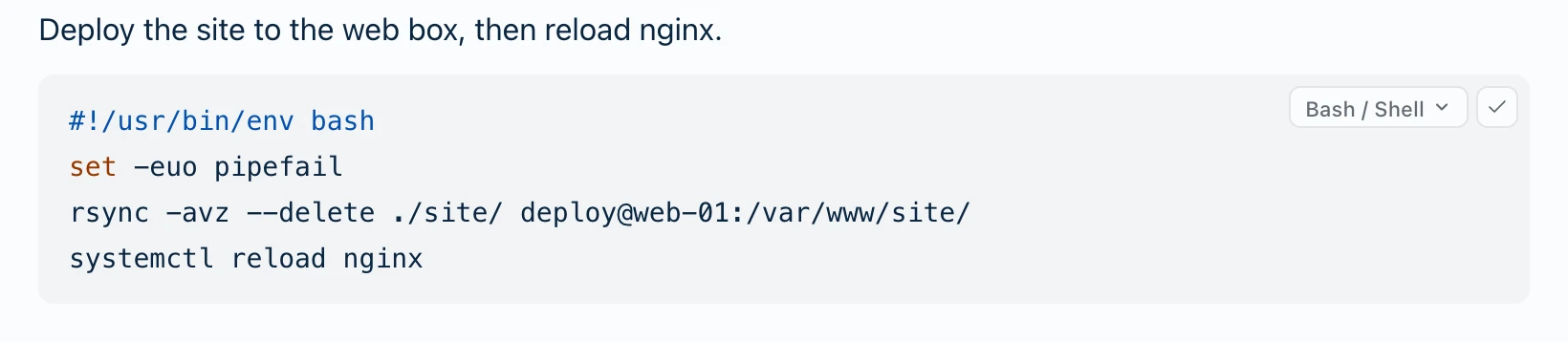
The button next to the language menu copies the whole block: every line, with the spaces and tabs exactly as you typed them. The icon turns into a check mark for a moment, so you know it worked.
- It’s in every app: web, Mac, iPhone, iPad, Android and Windows.
- On a computer, the button and the language menu show when your pointer is over the block or your cursor is in it. On a phone or tablet, they’re always there.
- On the web, it’s also on a shared note’s public page and in version history. Version history on Mac and Windows shows old versions as plain text, so there’s no button there.
- If the browser won’t let Harbor copy, you’ll see an ✕ instead of the check mark. That can only happen on the web. The apps copy straight to your clipboard.
- On the web, from the keyboard, Tab to the button and press Enter.
Two smaller things
- No spell-check. It’s off inside code blocks in every app, so
systemctlandnginxdon’t get red lines under them. - Pasting Markdown never asks. Anywhere else in a note, Harbor asks what you want when you paste Markdown. Inside a code block it pastes it as is, because raw Markdown is what you’d want there.
Coming from Evernote
Evernote code blocks arrive as Harbor code blocks. Evernote doesn’t save a language with them, so they come in as plain text. Pick the language once and they’re colored from then on.
Related questions
Need more help?
Still stuck? Send us a message and a real person will get back to you.