How do I resize a picture in a note?
Click the picture, or tap it on a phone or tablet. A blue outline goes around it, with a small square on each corner. Drag any corner to make the picture bigger or smaller. It keeps its shape, so a photo never gets stretched or squashed.
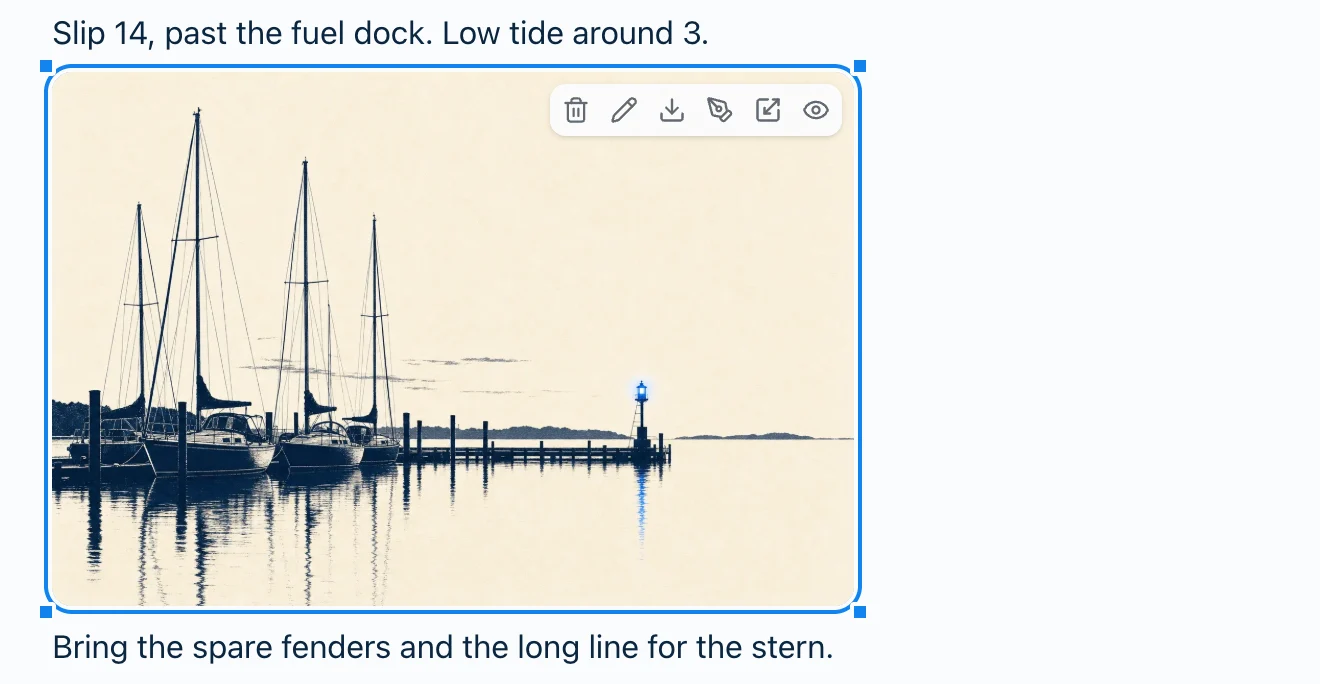
Let go, and that’s the picture’s size. It’s saved with the note, so it’s the same size on every device. Changed your mind halfway through a drag? Press Esc and the picture goes back.
It works the same way in every Harbor app: the web, Mac, Windows, iPhone, iPad and Android. Don’t see the corners? Update Harbor to the latest version.
How big, how small
- As wide as the note. A picture can grow past its full size, right up to the edge of the note. It can’t go any wider.
- 48 pixels on its short side. That’s as small as it gets. A picture that’s already smaller than that can only grow.
- Full size is sticky. Drag close to the picture’s full size and it snaps there.
On a narrower screen, like a phone or a small window, a picture that’s wider than the note shrinks to fit. Make the window wider and it goes back to the size you gave it.
Resizing doesn’t touch the file itself. Download and Save all attachments still give you the whole picture.
Putting it back
Undo puts the old size back. Each drag is one step, so Undo never takes your typing with it. Redo brings the new size back.
Original size puts the picture back to its full size, or the width of the note if that’s smaller:
- On the web: it’s in the picture’s toolbar, between Annotate and View.
- In the apps: it’s in the picture’s ⋯ menu, after the View as choices and just above Delete.
You’ll only see it on a picture that’s been resized, whether you did it in Harbor or it came in that way from an import.
On a phone or tablet
Tap the picture to select it, then drag a corner with your finger. Each corner is a bigger target than it looks, so you don’t have to land on the square. A drag anywhere else on the picture scrolls the note, the same as always.
Here’s the web app in a phone’s browser:
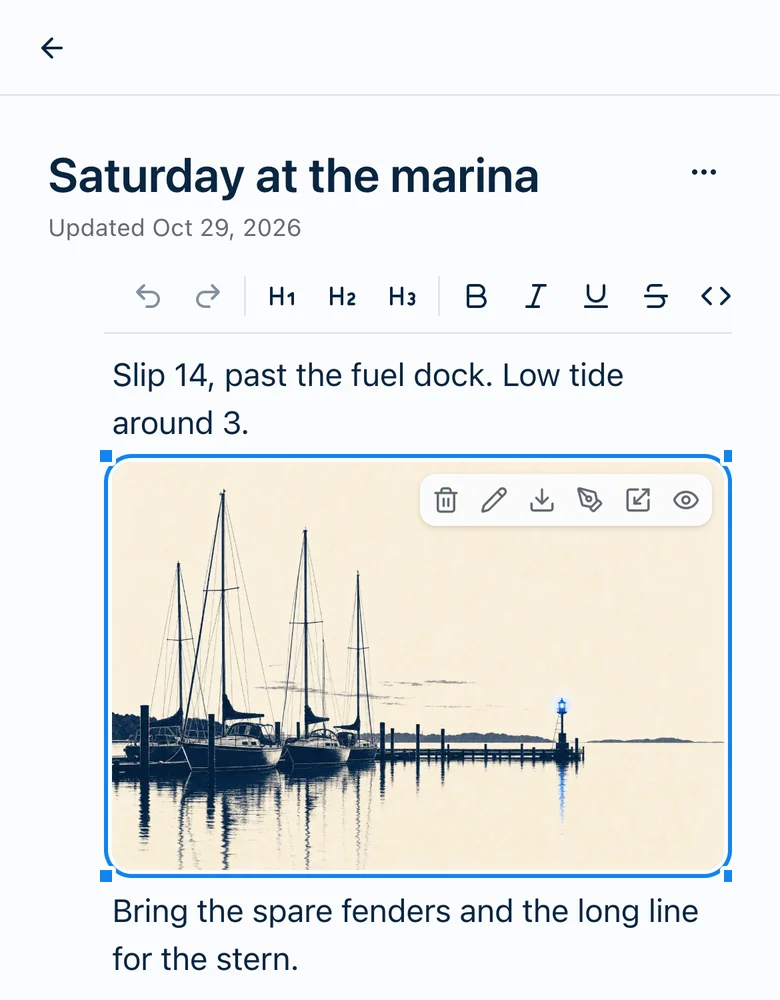
The iPhone, iPad and Android apps have a ⋯ button in the picture’s top-right corner instead of that toolbar. Open, Share, Annotate and the rest are in its menu. In a note you can’t change, a tap on a picture opens a menu with Open and Share instead.
On Android, the keyboard stays down after you tap a picture. Tap the text to bring it back.
The size goes where the note goes
- Every Harbor app. Resize a picture on your Mac and it’s that size on your iPad too. If the note is narrower there, the picture shrinks to fit.
- Shared notes. Anyone opening your shared link sees the picture at the size you gave it.
- Exports. PDF, HTML, Markdown and Evernote (ENEX) keep the size. Markdown has no way to say how big a picture is, so a resized picture comes out as an HTML
<img>tag with a width. - Imports. A picture you resized in Evernote comes in at that size. From an Obsidian vault or an UpNote export, so does an
<img>tag with a width, and in Obsidian a picture like![[photo.png|300]]. Notes you’ve already imported don’t change.
What you can’t resize
Only pictures resize. PDFs, videos and other files don’t.
And not in a note you can’t change: one in the Trash, a clipped web page, an encrypted note that’s still locked, or any note while your account is read-only.
Related questions
Need more help?
Still stuck? Send us a message and a real person will get back to you.