Blog ·September 27, 2026 ·Spicer Matthews
Tag it, find it, 🎉

None of these three is big on its own. You’ll use all three every day.
Tag a note without leaving the sentence you’re writing. Get to any notebook or tag from the keyboard. Put a 🎉 in a note without hunting for it. They shipped together, so here they are together.
Type # to tag a note
Until now, tagging meant stopping, reaching down to the tag row, and finding your place again. Now you type # wherever you are, and Harbor shows your tags.
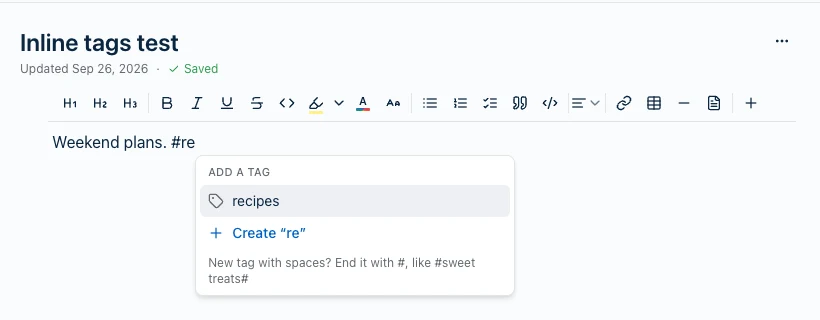
Keep typing to narrow it down, then pick one. The word turns into a small blue chip, and the note is tagged. That’s it.

If the tag doesn’t exist yet, choose Create and Harbor makes it. Enter on its own won’t. It just starts a new line. We did that on purpose: writing “Ticket #1234” or “we’re #1” shouldn’t quietly fill your tag list with junk.
A few things we sweated so you wouldn’t have to:
- Tags with spaces work.
#kids hstill finds Kids Health. For a brand-new one, close it with a second#, like#sweet treats#. - Headings still work.
#with a space on an empty line is a heading, like always.#grocerieswith no space is a tag. - The chips and the tag row agree. Delete the chip and the tag comes off. Rename the tag and every chip follows.
One thing to know if you encrypt notes: tags aren’t encrypted, and that includes these. That was already true of the tag row. Typing a tag right into the text just makes it easier to forget. The full rundown is in How do I tag a note while I’m typing?
Jump to a notebook or tag from quick search
Quick search used to find notes. Now it finds the places notes live, too.
Press ⌘K (Ctrl+K on Windows) and type part of a name. Matching notebooks, stacks and tags show up above your notes. Press Enter and you’re there.

If you have forty notebooks, you know why this matters. The sidebar is fine for the five you use daily. For the other thirty-five, typing four letters beats scrolling every time.
A notebook shows which stack it’s in, and a tag shows its parent, so two tags with the same name don’t trip you up. It all runs on your device, so it works offline.
On a phone, it’s the search button. Same results, just tap one.
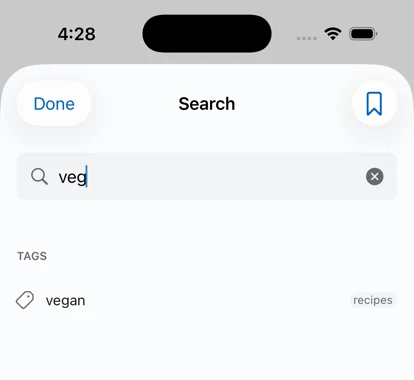
More in the search help page.
Emoji
You could always paste an emoji into a note. Now Harbor helps.
There are three ways in:
- Type
/emoji, or pick Emoji from the insert menu, and a picker opens. It keeps your recent ones at the top, and you can search by name. - Type
::mid-sentence and the same picker opens right there. - Type
:and a couple of letters, like:smi, and Harbor suggests matches at your cursor. Enter or Tab picks one.
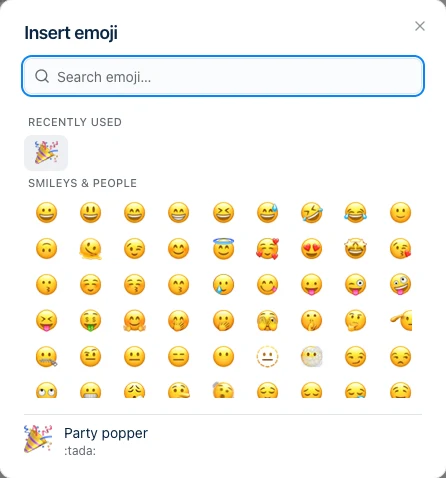
The picker shows each emoji’s :shortcode: at the bottom. Use it a few times and you’ll stop needing the picker.
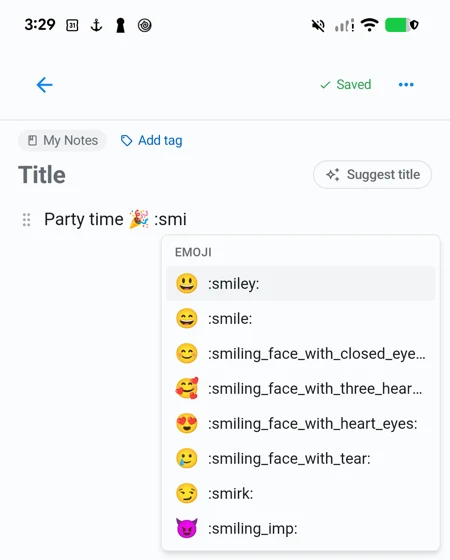
It stays out of the way when you don’t want it. 3:30, Note:, a link, a :) — none of those set it off. And what goes into your note is a plain emoji, so it syncs, searches and exports like any other text.
What it doesn’t do yet: emoji in note titles, or skin tones. Those are fair things to want, and we’d like to hear if you do.
Which version you need
All three came out together. Here’s the version each app got them in:
| App | Version |
|---|---|
| Web app | 1.0.55 |
| Mac — direct download | 1.0.48 |
| Windows | 0.2.20 |
| Mac — Mac App Store | 1.0.51 |
| iPhone & iPad | 1.0.51 |
| Android | 1.0.25 |
The web app needs nothing from you. The Mac and Windows apps update themselves, or you can grab the latest build. The phone and App Store versions will show up as soon as Apple and Google approve them. That part is out of our hands.
Small things like these are most of what makes an app pleasant to live in. If Harbor is getting in your way somewhere, tell us. A real person reads every one.
Not using Harbor yet? Start free. No credit card, and everything you write is yours to export, always.