How do I add emoji to a note?
Type :smi in a note and Harbor suggests 😃, 😄 and friends. Pick one and keep writing.
That’s the quick way. There are three ways in, and you can use whichever suits you.
Three ways in
/emoji opens the picker. On an empty line, type /emoji and press Enter. You can also pick Emoji from the + menu in the toolbar.
:: opens the same picker mid-sentence. Type two colons after a space and the picker opens right where you’re typing. The :: goes away, and whatever you pick lands in its place.
: and a name suggests as you type. Type : and at least two letters, like :tad. A short list of matches opens at your cursor. Use ↑ and ↓ to move, and Enter or Tab to pick. Keep typing to narrow it down.
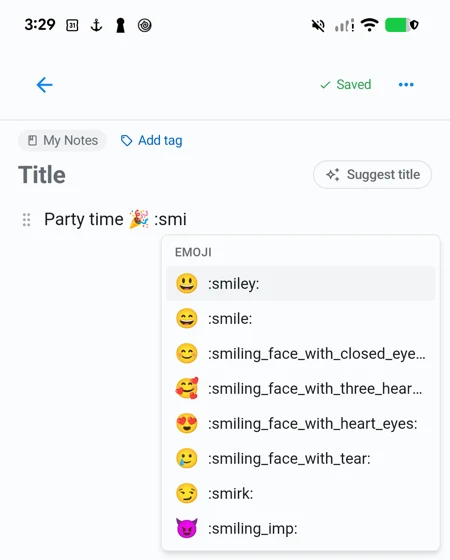
Using the picker
The search box has focus the moment the picker opens, so start typing. party finds 🎉 and heart finds ❤️.
Without a search, you’ll see every emoji in groups, like Smileys & People and Food & Drink. Recently used sits at the top, so the ones you reach for most are always one click away.
Arrow keys move around the grid, Enter inserts, and Esc closes. Or click or tap the one you want.
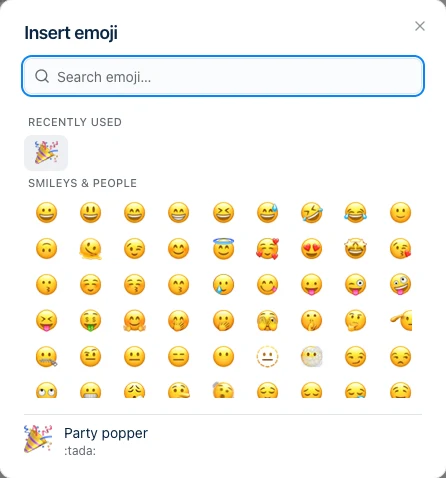
The bottom of the picker shows the emoji’s name and its shortcode, like :tada:. Learn the shortcodes for your favorites and you’ll rarely need the picker.
Your recently used list lives on each device. Your phone and your laptop each keep their own.
When : won’t pop up
A colon only starts a suggestion when it comes after a space or at the start of a line, and it waits for two letters. So normal writing isn’t interrupted:
3:30,Ratio 2:1andhttps://— the colon follows a character, so nothing happens.Note:— same thing.:)and a lone:— not enough letters.:30— numbers alone never count.- Inside code, nothing happens at all.
Changed your mind? Esc closes the list and leaves what you typed alone. On a phone, keep typing — a space closes it.
Emoji are just text
What goes into your note is the emoji character itself, the same as if you’d pasted it. So it copies, syncs, searches and exports like any other text, and it shows up on every device.
The same emoji can look a little different on a Mac, a Windows PC and an Android phone. Harbor uses your device’s own emoji style, the one you see in every other app. That’s normal.
Emoji in note titles and skin tones aren’t supported yet. You can still paste either in.
Where it works
- Web — Harbor 1.0.55 and later.
- Mac, direct download — Harbor 1.0.48 and later.
- iPhone, iPad, and the Mac App Store version — Harbor 1.0.51 and later.
- Android — Harbor 1.0.25 and later.
- Windows — Harbor 0.2.20 and later. The Emoji item in the + menu comes in the next release;
/emoji,::and:work now.
Not sure what you’re on? Here’s how to check.
Related questions
Need more help?
Still stuck? Send us a message and a real person will get back to you.