Blog ·November 17, 2026 ·Spicer Matthews
Harbor as a cold archive
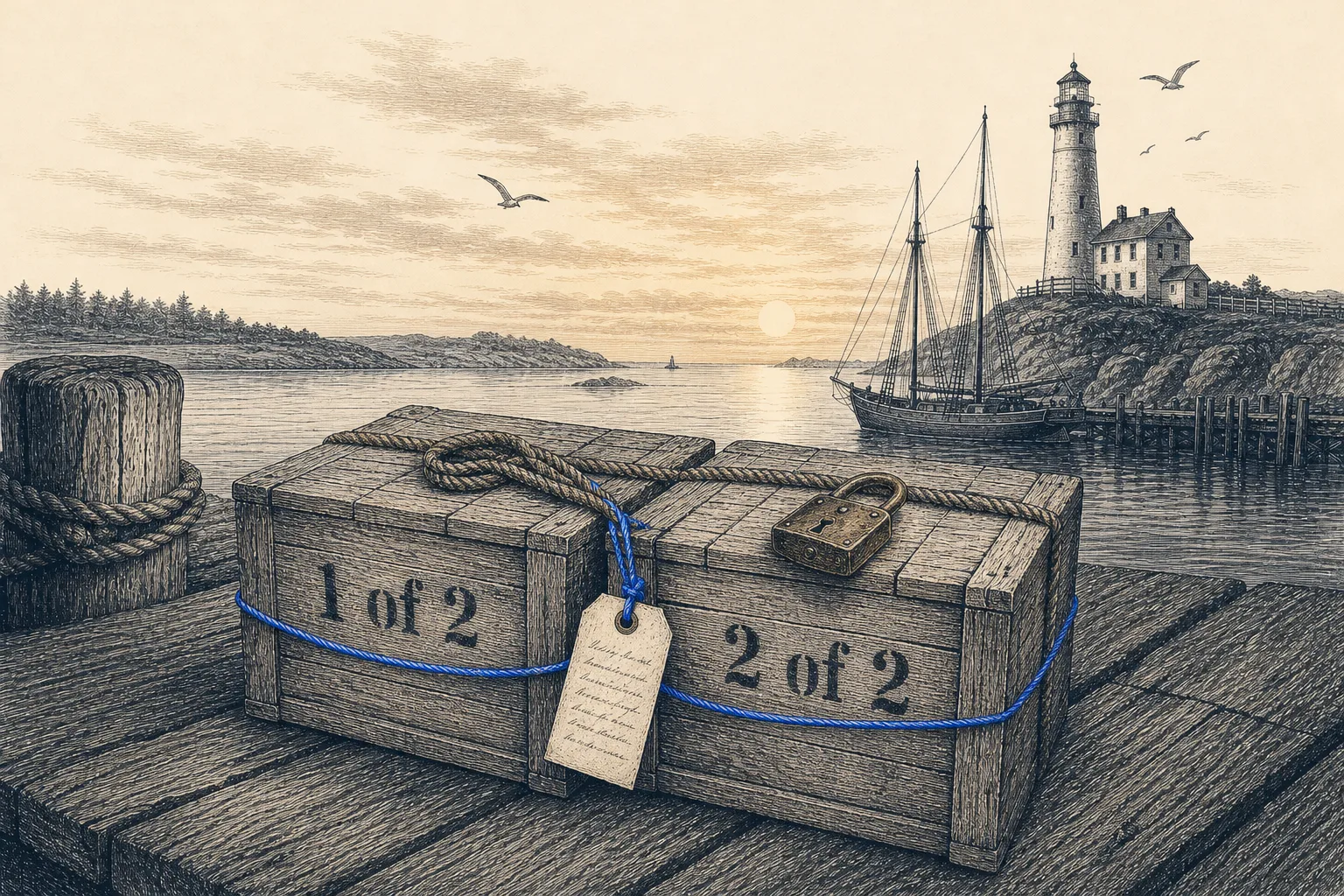
I had a zip file I’ll probably never open again.
899 MB. Everything from an old client project. The work’s done and nobody needs it now.
“Probably never” is doing a lot of work in that sentence, though. The day somebody does ask, that zip is the only answer. So deleting it was out. And leaving it on an external drive, in a folder called old-clients, is how files quietly disappear. The drive dies. Or it survives and nobody remembers what’s on it.
Everything else we know about that client already lives in Harbor. The meeting notes, the reports, the odds and ends. The zip belonged there too.
One problem. Harbor takes files up to 500 MB. This one was 899.
So we cut it in half.
A zip is just bytes
That’s the whole trick, and it’s older than most of us.
A file is a long row of bytes. You can cut the row into pieces. Later you glue the pieces back together in the same order and you get the original back, byte for byte. Nothing gets compressed, converted or re-encoded on the way. The pieces aren’t zips themselves. They’re the first half and the second half.
You don’t need special software for any of it. Every Mac, Linux machine and Windows PC can glue files together with a command that comes with the system.
Can’t you squeeze it smaller instead? Usually not. A zip is already compressed, and photos and video barely compress at all. Zipping a zip again buys you almost nothing.
Why not let the zip tool make a split archive? Most can. We didn’t, for one reason: a plain byte split works on any file, whether it’s a zip, a video, a disk image or a database dump, and putting it back needs nothing but the computer you’re sitting at. A split zip needs an unzip tool that understands split zips, and not all of them do.
What it looks like in Harbor
Three notes, all in the same notebook as everything else about that client:
- Part 1 of 2, with the first half attached.
- Part 2 of 2, with the second half.
- How to Rejoin the Zip, which links to both parts and explains how to put them back together.
The zip belongs to a real client, so the screenshots below come from our demo account instead. That account belongs to a made-up boatyard, and its version of the story is every photo and video from a boat refit it finished in 2023. Same file size to the byte, same steps, same three notes.
Here’s what a search for the boat brings back:
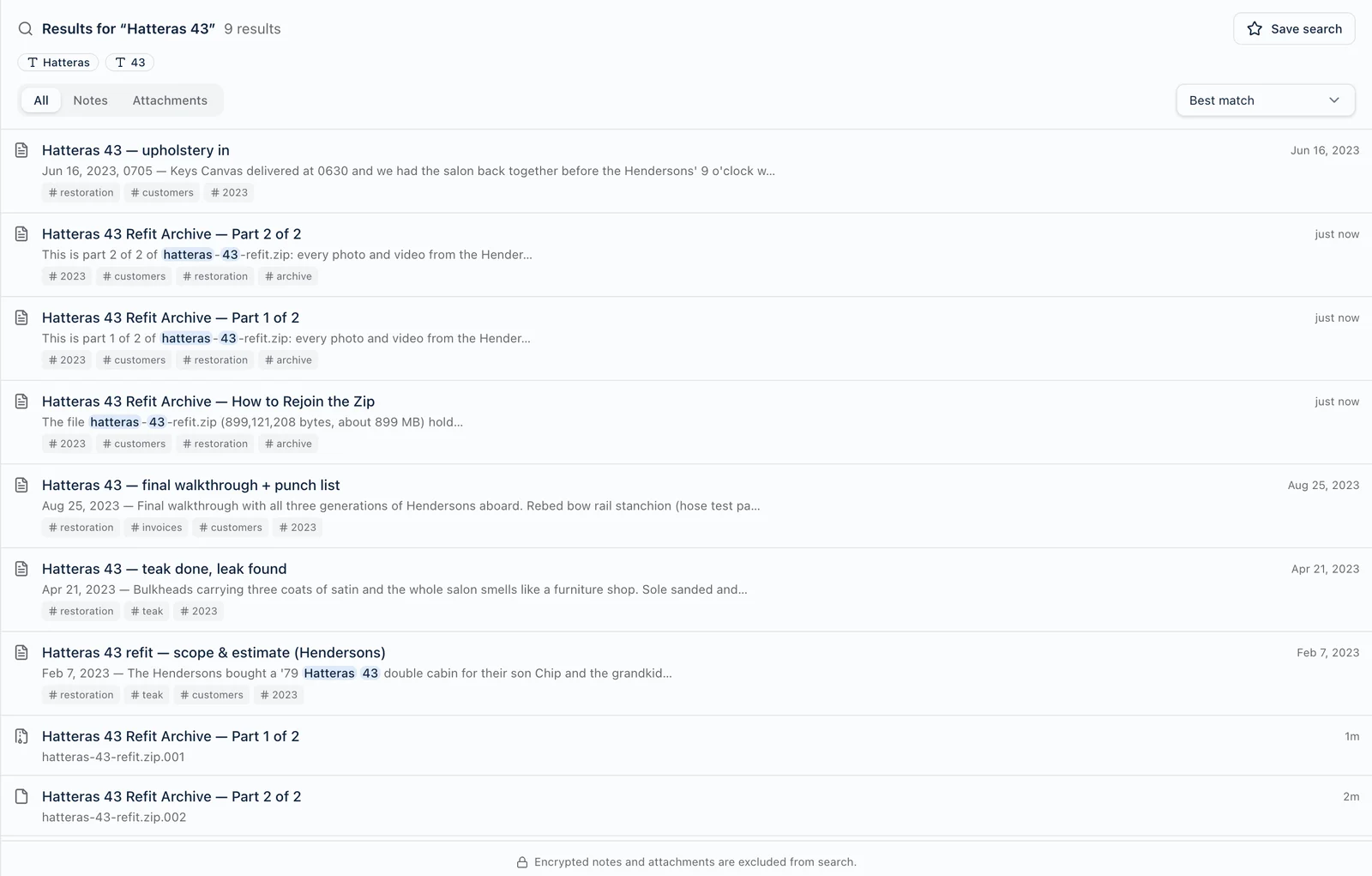
That’s the point of doing it this way. The archive isn’t sitting in a folder somewhere. It’s right next to the estimate, the change order and the final walkthrough, and one search finds all of it.
Each part gets its own note
A part note is short. It says what the file is, that this half won’t open on its own, and where the instructions are.
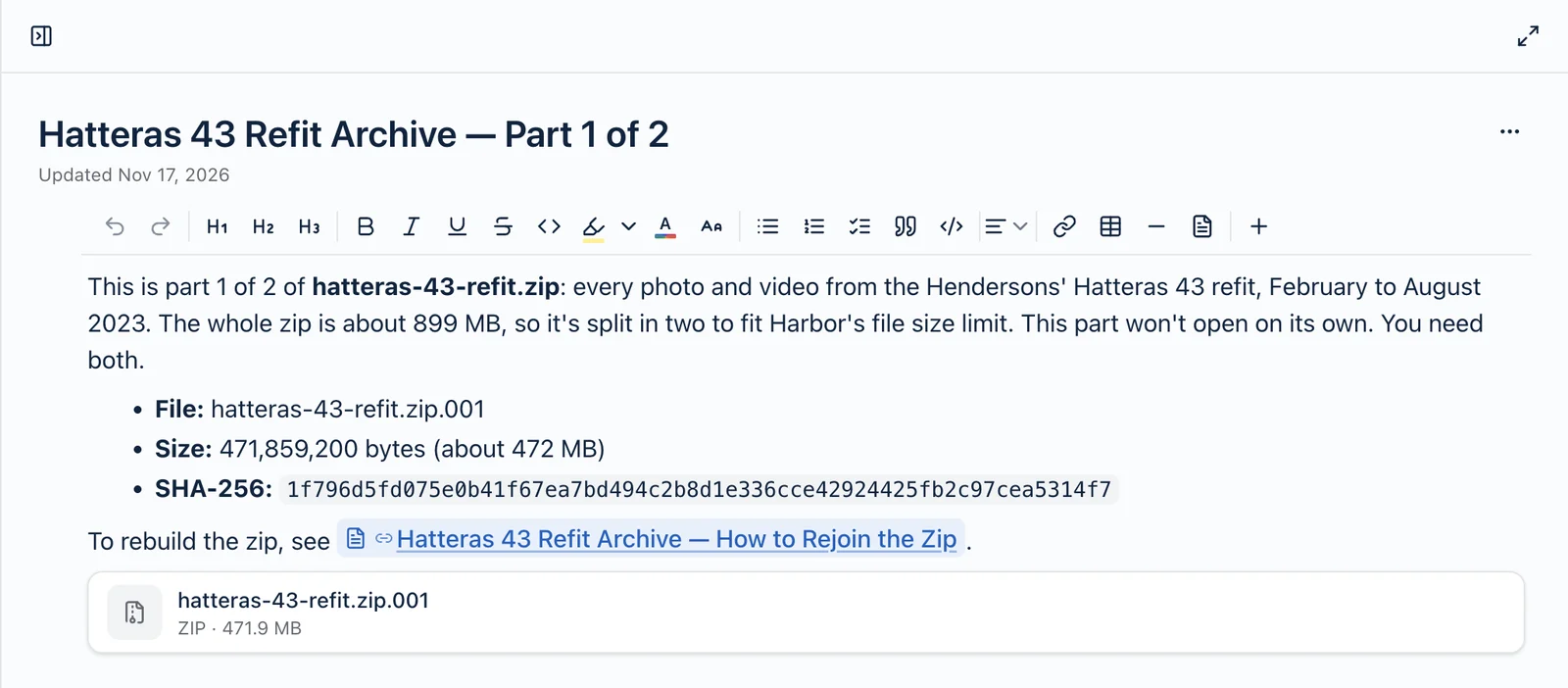
Every part note has:
- “Part X of Y” in the title. If you ever count the notes and come up short, you’ll know.
- The file name, size and SHA-256 checksum. More on the checksum in a minute.
- A link to the guide. Whichever note you find first, the instructions are one click away.
- The file itself.
The guide is the note that matters
Two years from now you won’t remember how you split this, which part goes first, or what command glues them back together. You shouldn’t have to.
So the third note spells it out:
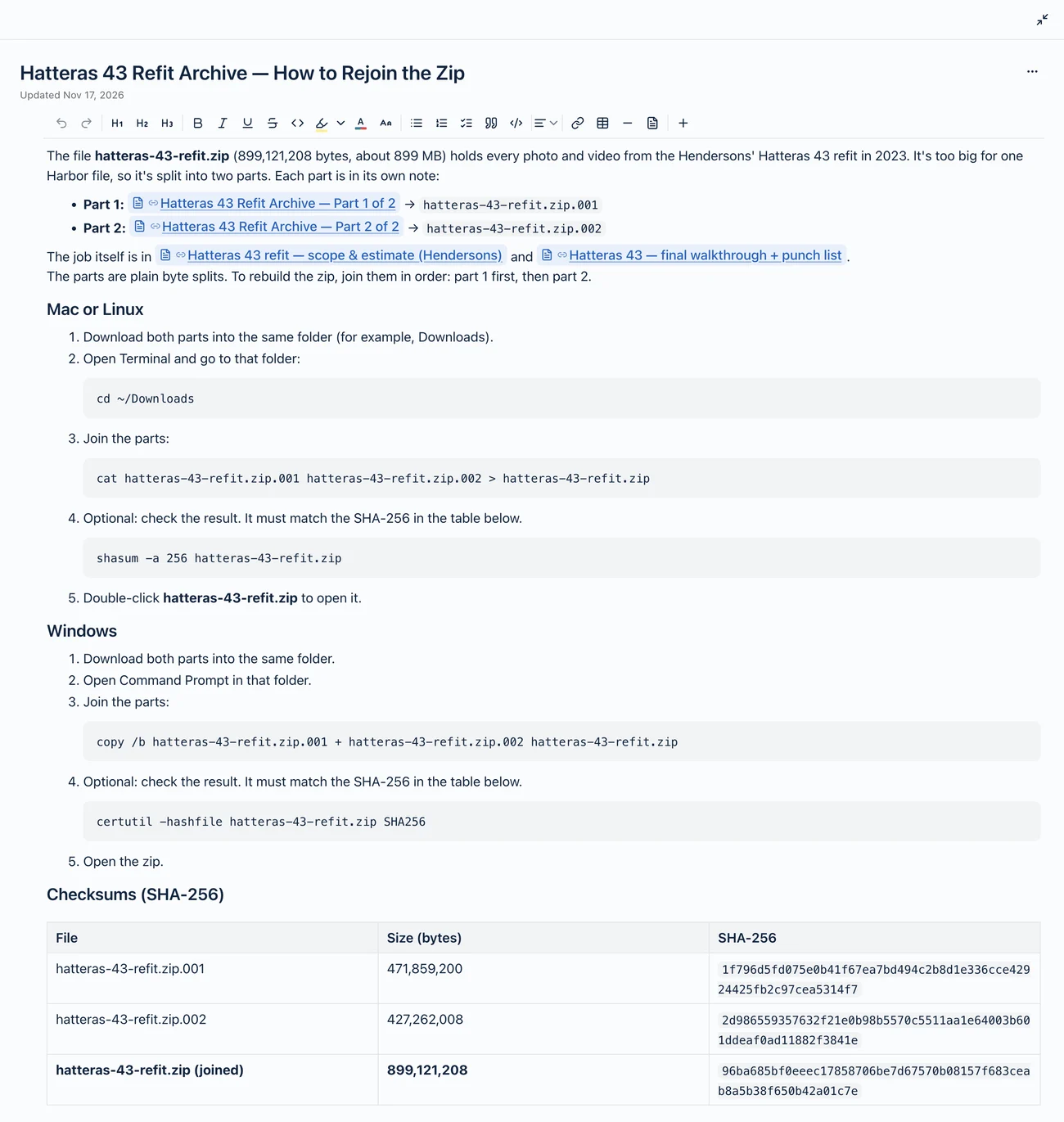
It links to both parts and to the notes about the job, so it works as a small index note for the whole archive. Then come the steps for Mac and Linux, the steps for Windows, and a table of checksums.
Linking is the boring part that makes all of this hang together. Type [[ in any note, pick the note you want, and Harbor makes a link that survives renames and moves. The guide links to the parts, the parts link back to the guide, and you can start from any of the three and reach the other two.
How it actually got done
I didn’t do any of this by hand. I asked Claude Code to.
Harbor has a command-line tool, and harbor skill install teaches a coding agent how to use it properly. So the agent did the whole job from the terminal: split the file, proved the split, uploaded both parts, wrote the three notes, linked them, and checked its own work. Most of the time went to the upload.
You don’t need an agent, though. Here’s every step, if you’d rather do it yourself.
1. Split the file
Pick a part size well under the limit. We used 450 MB. That leaves room to spare, and two parts were enough.
On a Mac or Linux:
split -b 450m -a 1 hatteras-43-refit.zip hatteras-43-refit.zip.part-
mv hatteras-43-refit.zip.part-a hatteras-43-refit.zip.001
mv hatteras-43-refit.zip.part-b hatteras-43-refit.zip.002
The renaming is optional, but .001, .002 is the usual way to name split files. The order’s obvious at a glance, and tools like 7-Zip recognize it.
On Windows, 7-Zip’s File → Split file does the same job and names the parts that way for you.
| Part | Size (bytes) |
|---|---|
| hatteras-43-refit.zip.001 | 471,859,200 |
| hatteras-43-refit.zip.002 | 427,262,008 |
2. Prove the parts join back correctly
Do this before you upload anything. It’s the step that turns “I think this worked” into “I know it did.”
A checksum is a fingerprint of a file. Change one byte and the fingerprint changes completely. So fingerprint the original, glue the parts back together, and fingerprint the result:
# The original
shasum -a 256 hatteras-43-refit.zip

# The parts, joined back together
cat hatteras-43-refit.zip.001 hatteras-43-refit.zip.002 | shasum -a 256
Both printed the same thing:
96ba685bf0eeec17858706be7d67570b08157f683ceab8a5b38f650b42a01c7e
If they don’t match, stop and split it again. While you’re there, fingerprint each part too. All three go in the notes.
3. Upload the parts
Drop each part into its own note in Harbor, or use the CLI:
harbor files upload hatteras-43-refit.zip.001
harbor files upload hatteras-43-refit.zip.002
We sent both at once, and they were up in a couple of minutes.
Harbor files every upload under its SHA-256 fingerprint, the same kind of checksum you worked out in step 2. So the hash Harbor shows for each file is the same one in your note, which makes it easy to see you’ve got the right file in the right place.
4. Write the notes and link them
Write the two part notes, then the guide, then go back and link each part to the guide.
Give the guide its own note rather than putting the instructions at the top of Part 1. It’s the note you’ll search for, it can point at every part equally, and it doesn’t care how many parts there are.
5. Check your work
In the app, click each link and make sure it lands where it should. From the CLI, harbor notes links lists everything a note points to and flags any link that’s broken, and harbor notes backlinks lists the notes pointing back. On our guide, the first showed four links (both parts and two notes about the job) with nothing broken, and the second showed both parts linking back.
Then tidy up. The split parts on your computer can go. So can the original, once you’re satisfied. Getting it off your machine is usually the point.
Getting it back
This is what the whole setup is for, so it’s worth being specific.
Search Harbor for the archive and open the “How to Rejoin” note.
Open each part and download its file into the same folder.
Join the parts, in order.
On a Mac or Linux, in Terminal:
cd ~/Downloads
cat hatteras-43-refit.zip.001 hatteras-43-refit.zip.002 > hatteras-43-refit.zip
On Windows, in Command Prompt:
copy /b hatteras-43-refit.zip.001 + hatteras-43-refit.zip.002 hatteras-43-refit.zipUse Command Prompt, not PowerShell. In PowerShell,
copyis a different command and doesn’t understand/b. 7-Zip’s File → Combine files works too.If you want to be sure, check the fingerprint against the one in the note.
- Mac:
shasum -a 256 hatteras-43-refit.zip - Linux:
sha256sum hatteras-43-refit.zip - Windows:
certutil -hashfile hatteras-43-refit.zip SHA256
It has to match
96ba685b…a01c7eexactly. If it does, you have the original file back, byte for byte.- Mac:
Open the zip.
Why a notes app, and not a drive
Fair question. A cloud drive would take all 899 MB in one piece. If all you want is somewhere to put a big file, use one. We’re not going to pretend splitting a file is more convenient than not splitting it.
But a drive keeps the file, not what it means. Two years from now, a zip in a folder tells you its name and its date. That’s it. You won’t remember which job it came from, why you kept it, or whether it’s the final version or the one before.
In Harbor, the archive sits next to everything that explains it.
- The file’s next to its context. The estimate, the change order, the final walkthrough. Search for the client and the archive comes up with the rest.
- The instructions are next to the file. You don’t have to remember how you split it, because the note tells you.
- You can prove it’s complete. The checksums are written down. Rebuild the file, compare, done.
- Getting it back needs nothing special. Every computer already has the command that joins the parts.
- The notes are searchable even though the file isn’t. Harbor can’t read inside a split zip. It reads the notes you wrote about it, and those are what you’ll be searching for anyway.
A second brain isn’t only for what you’re working on this week. Part of its job is holding the things you’ve put down so you can stop carrying them around.
When not to do this
This is for “probably never.” It’s a bad fit for:
- Files you open often. Every time, you’d download every part and join them again. That gets old by the second try.
- Files you still edit. Change anything and you’re splitting and uploading the whole thing again.
The good fits are the opposite: finished projects, raw footage from a job that’s wrapped, old exports and backups, anything you’re keeping “just in case.”
Before you start
- Leave room under the limit. With a 500 MB limit, 450 MB parts are safe.
- Encrypted notes have a 100 MB limit per file. Cut those parts at around 90 MB, which would make our zip ten parts. Encrypted notes also stay out of search, so the one-search trick won’t find them.
- Number the parts with leading zeros.
.001,.002and.010sort in the right order..1,.2and.10don’t. - Put “Part X of Y” in every title, so a missing part is obvious.
- Test the join before you upload. It takes a minute, and it’s the only point where a mistake costs nothing.
- Write the checksums into the notes. They’re how future you proves the file is whole.
- Give the guide its own note, and link it from every part.
- Bigger files work the same way. A 2 GB file is five parts instead of two. On a Mac or Linux,
cat hatteras-43-refit.zip.0* > hatteras-43-refit.zipjoins any number of them, because the leading zeros keep them in order.
The numbers
| What | How much |
|---|---|
| Original file | 899,121,208 bytes (about 899 MB) |
| Harbor’s limit | 500 MB per file (100 MB in an encrypted note) |
| Part size | 450 MB |
| Parts | 2 |
| Notes | 3: two parts and a guide |
| Upload time | a couple of minutes, both parts at once |
I’ll probably never open that zip. But if somebody asks, I know exactly where it is and exactly how to put it back together.
That’s all an archive has to do.