How do I contact support?
Whenever you need a hand, Contact Support is built right into Harbor — every app has it, and a real person answers. Prefer email? That works too. Either way, we typically get back to you within 24 hours.
Where to find Contact Support
It lives in the same place on every platform:
- Web — open Settings → Contact Support. It’s also in the account menu in the top corner.
- Mac — Settings → Contact Support (also under Help).
- iPhone and iPad — Settings → Contact Support.
- Android — Settings → Contact Support.
- Windows — Settings → Contact Support.
- Command line — run
harbor support(see below).
What the form looks like
The form is short on purpose. Your name and email are already filled in from your account — we reply to that address, so there’s nothing to type there. You pick a category, add a subject and a message, and optionally attach screenshots or files.
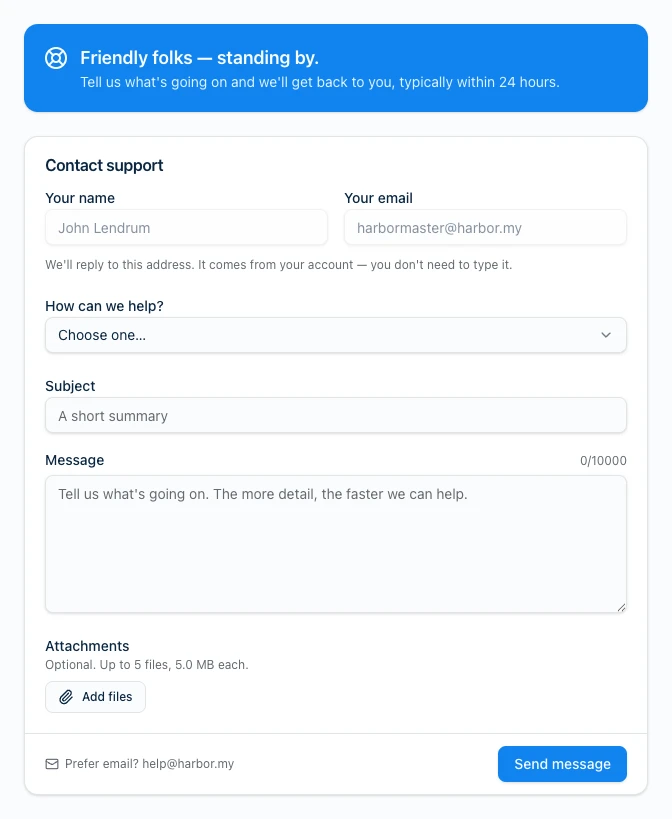
When you send it, you get a confirmation on the spot — the request reaches our team and someone gets back to you, typically within 24 hours.
The categories
Picking one helps us route your message to the right place:
- I’ve got a feature request
- I’m not sure how something works
- I’ve got an access / login problem
- I think something’s broken
- I have a billing question
- I’ve got an emergency
- Other
Attachments
A screenshot is worth a thousand words. You can attach files right on the form — up to 5 files, 5 MB each — so send along a screen recording, a photo of the problem, or a file that won’t import.
From the command line
Prefer to stay in the terminal? The harbor CLI files a request too:
harbor support \
  --category bug \
  --subject "Sync stuck on my iPad" \
  --content "It has been syncing for an hour and won't finish." \
  --attach ~/Desktop/stuck-screen.png
Pass the category and subject as flags, write the message with --content (or --file / --stdin), and attach one or more files with --attach. Run harbor support --help for the full list of categories and options.
What to include for a fast reply
The more we know up front, the fewer round trips it takes. Helpful things to mention:
- What you were doing, what you expected, and what actually happened.
- Which app and device you’re on — say, the Mac app, or Chrome on Windows.
- A screenshot or screen recording if anything looks wrong. Attach it right to the message.
Prefer email?
You can always skip the form and write to us directly at help@harbor.my — the same inbox, the same people, no ticket numbers and no bots. However you reach us, a real person reads every message and replies, usually within a day. Not sure where to start? The Get help page points you the right way.
Ready to try it? Start free — no credit card.
Need more help?
Still stuck? Send us a message and a real person will get back to you.