How do I save a web page from my phone?
Share it to Harbor. On a phone or tablet, the share button is your web clipper.
Harbor saves the article, not just the link: the words and the pictures, without the menus, ads and clutter. It’s the same Simplified article the desktop clipper saves, so it’s still there to read after the page changes or disappears.
Don’t see this? Update Harbor to the latest version.
iPhone and iPad
In Safari, tap Share, then Harbor. Not in the row? Here’s where iOS hides it.
Harbor’s sheet tells you what you’ll get, in one line under the title:
- Reading the page… — it’s still looking.
- Saves the article — it found one. The title changes to the article’s title, unless you’ve typed your own.
- Saves the link. This page doesn’t look like an article. — a video, a short post, or a page Harbor couldn’t read.
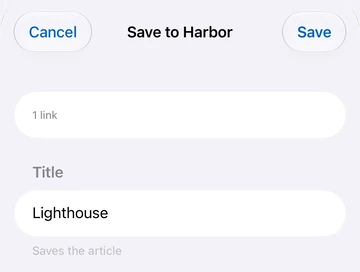
Pick a notebook and tap Save. From Safari, the article is usually ready by the time the sheet opens. Tap Save while it still says Reading the page… and you get just the link.
Other browsers and apps work too. What changes is where Harbor gets the page:
- From Safari, Harbor reads the page you’re looking at, so pages you’re signed in to come through. It works offline, too. The page is already on your screen, so Harbor saves the text, and the note shows up the next time you open Harbor. Pictures that couldn’t download stay linked to the website.
- From anywhere else, Harbor loads the page itself, without your logins, so you get what someone who isn’t signed in would see. Offline, you get the link.
Android
In Chrome, or any app, tap Share and pick Harbor. You’ll see Saving the article… at the top of the screen, and when it’s done, the clip opens. You can go back to the browser while it saves. It keeps going.
There’s no notebook to pick. The clip goes to your default notebook. If you’re in a workspace that doesn’t include it, the clip goes to one of that workspace’s notebooks.
If you’ve turned off Open note after capture (in Settings, under Capture), Harbor stays put and says Saved to a new note instead.
When the page isn’t an article, Harbor saves the link and tells you why:
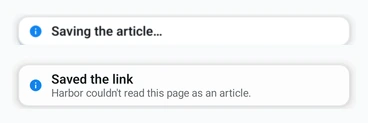
Harbor loads the page itself, without your logins, so you get what someone who isn’t signed in would see.
When you get the link instead
When Harbor can’t find an article, it saves a note with the link. That happens when:
- The page isn’t an article: a video, a short post, a home page.
- The page won’t load: the site’s down, the link isn’t a web page (a PDF, say), or the page is huge or slow.
- Your phone is offline. Safari on iPhone and iPad is the exception, above.
Harbor only reads the page when you share a single web address. If an app sends some words along with the link, you get a note with those words instead.
Pictures
An article keeps up to 500 pictures, the same as the desktop clipper.
A picture Harbor couldn’t save, or that took too long to download, stays linked to the website, so it shows as long as the site keeps it. So do the rest of the pictures if you hit your plan’s file limit partway through. A picture built into the page itself, with no web address to fall back on, becomes a line that starts This image wasn’t saved to Harbor.
Encrypted notebooks
Share into a notebook that encrypts new notes and the article is encrypted on your phone before it’s uploaded, pictures and all. Encryption has to be unlocked for that.
- iPhone and iPad: the note finishes the next time you open Harbor. If encryption is locked then, Harbor says Unlock to save a shared note. Unlock it and the note saves. Harbor says Note captured when it’s in.
- Android: if encryption is locked, Harbor saves nothing and says Encryption locked, with the notebook’s name and encrypts new notes. Unlock encryption to add one. Unlock it, then share the page again.
Encrypted notes give up a few things, like search inside them. Here’s the trade-off.
Where it ends up
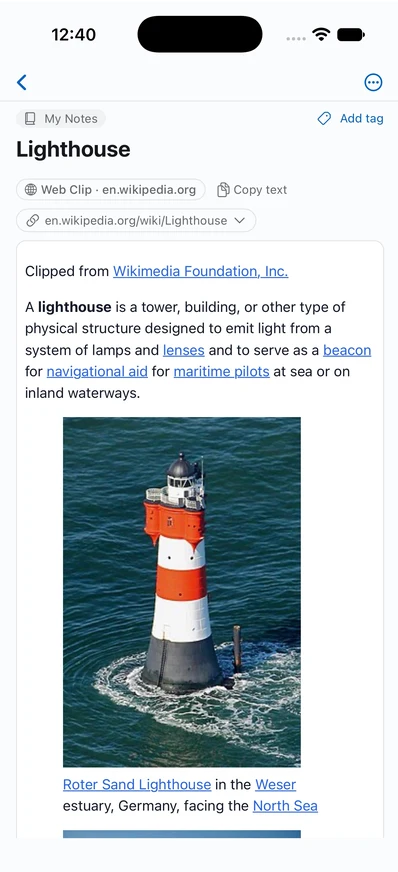
Wikipedia’s Lighthouse article, saved from iPhone. Article text CC BY-SA 4.0. Photo by Walter Rademacher / Wikipedia, retouched by Lämpel, CC BY-SA 3.0, cropped and resized.

It’s a web clip, on every device. It starts with a Clipped from line linking back to the site, and it remembers the page’s address, so you can search for the site later, the same as a desktop clip.
Only part of the page came through
From Safari, Harbor reads the page the way Safari shows it on your phone. Sites that fold their sections shut on a phone, like Wikipedia, come through with just the opening section. For the whole thing, clip it on a computer with the Web Clipper.
Related: How do I save a photo to Harbor from my iPhone or iPad? · Does Harbor work offline?
Related questions
Need more help?
Still stuck? Send us a message and a real person will get back to you.