What are workspaces?
A workspace hides everything you aren’t working on right now.
Make one called Work, tell it which notebooks belong to it, and Harbor shows you only those — their notes, their tasks, their tags, their trash. Make a second called Personal and you can flip between the two, or back to Everything, whenever you like.
Nothing moves and nothing is deleted. A workspace is a filter over what you see, applied across the whole app at once.
Setting one up
Open Settings → Workspaces, create one, give it a name and a color, and tick the notebooks that belong to it.
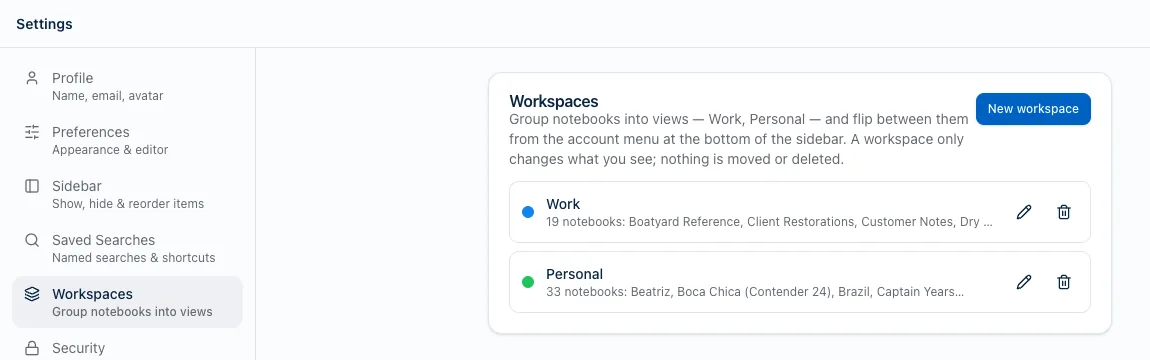
A notebook belongs to exactly one workspace. That’s the whole model — notes always follow their notebook, so there’s nothing to assign note by note. A notebook you don’t put in any workspace isn’t hidden; it simply lives under Everything.
Switching
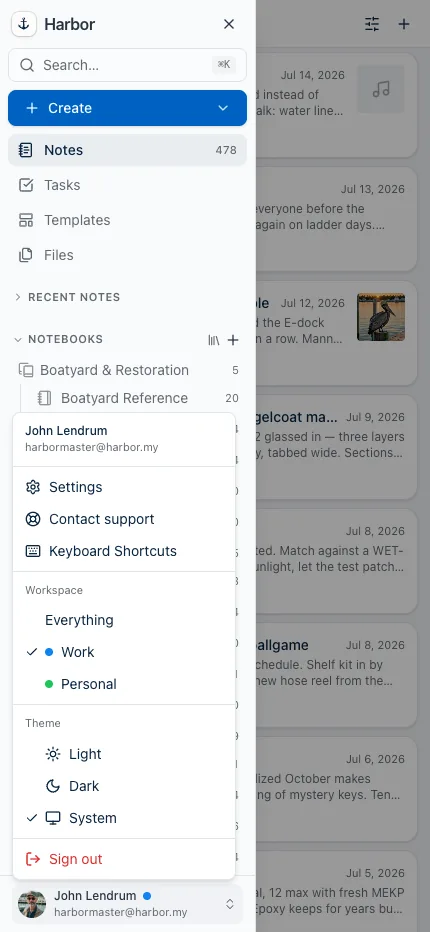
Once you have a workspace, a Workspace section appears in the account menu at the bottom of the sidebar — the same pop-up that holds Settings, Theme and Sign out. Everything is at the top, then each of your workspaces.
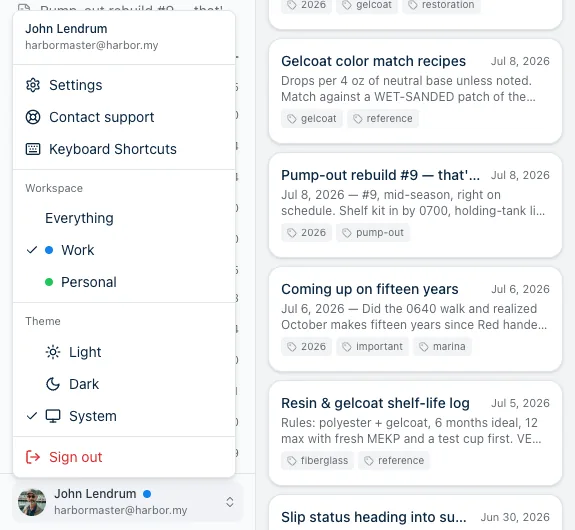
Pick one and the app narrows to it. To tell where you are at a glance, look for the workspace’s color dot next to your name at the bottom of the sidebar — no dot means you’re in Everything.
Here’s the same sidebar in two workspaces. Same account, same notes, nothing moved:
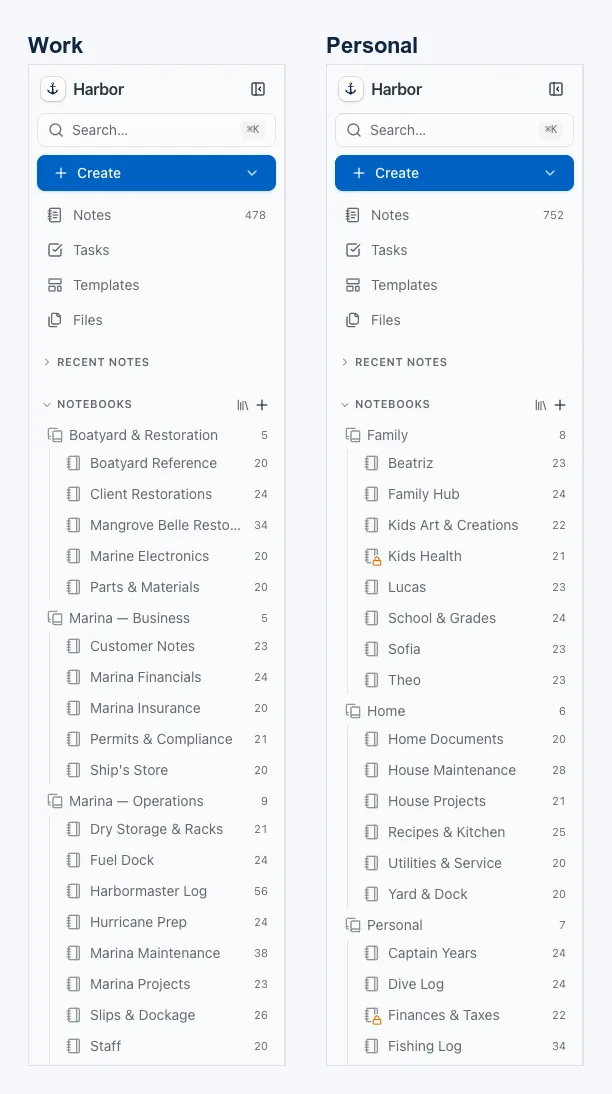
The switcher only appears once you’ve made a workspace. If you never want this, you’ll never see it.
It’s per device
Which workspace you’re looking at is a setting on that device, not on your account. Your laptop can sit in Work while your phone sits in Personal, and neither disturbs the other.
The workspaces themselves — their names, colors, and which notebooks belong to them — do sync. Set them up once and they arrive everywhere.
What narrows
Inside a workspace you see:
- Notes from that workspace’s notebooks.
- Notebooks that belong to it.
- Tasks — the ones attached to those notes, plus any standalone task you assigned to the workspace.
- Trash, and Empty trash only clears what this workspace put there.
- Tags that are actually used on notes in the workspace.
- Saved searches assigned to the workspace.
Tags sort themselves out
You never assign a tag to a workspace. A tag shows up in a workspace if something in that workspace carries it.
So a tag used on both sides of your life appears on both sides — with different counts, on purpose. receipts can read 1 in Work, 1 in Personal and 2 in Everything. All three numbers are correct; each is counting what that view can see.
Nothing is ever out of reach
A workspace narrows what’s in front of you, never what you can get to:
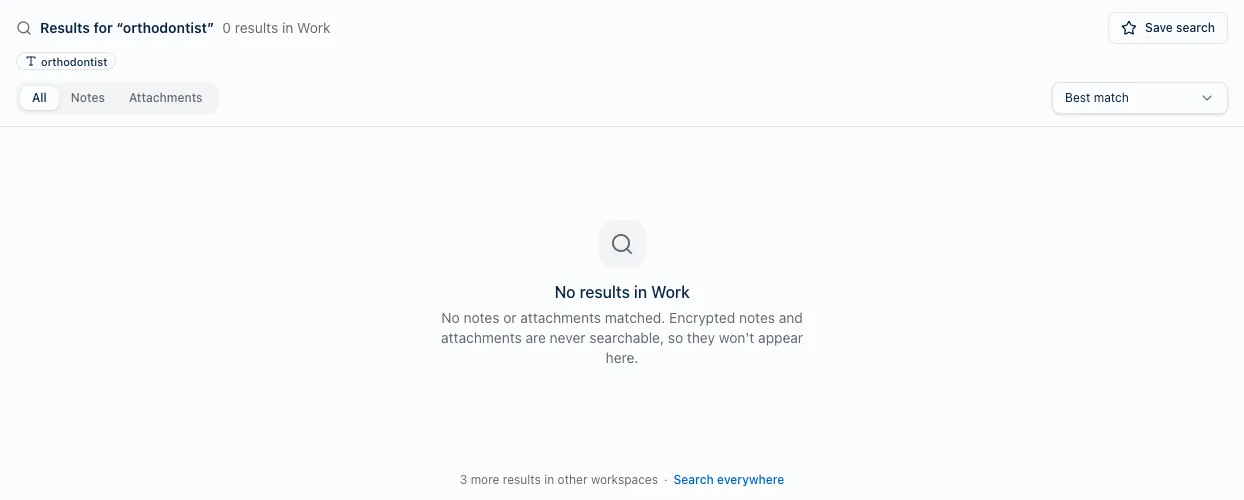
- Search tells you when there’s more. Instead of a bare “no results”, you get a line like 3 more results in other workspaces with a Search everywhere link — one click away.
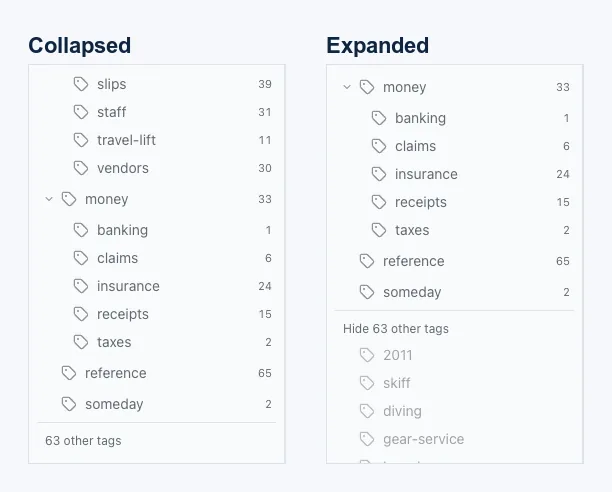
- The tag list keeps a door open. Under the tags in view sits a quiet 63 other tags row that expands the rest inline.
- Choosing a tag while writing always offers every tag you have, not just this workspace’s. Filing is never restricted; only the sidebar list is.
Where new things go
Anything you make in the app while a workspace is active lands in that workspace — a new notebook, a new saved search, a new standalone task. A new note goes into one of that workspace’s notebooks.
Anything captured automatically behaves exactly as it always has: a page saved with the Web Clipper, an emailed note, a file dropped into a watched folder, or an import all land in your default notebook — and turn up wherever that notebook lives.
Things you never assigned
A saved search or a standalone task you never put in a workspace isn’t lost. It shows up under Everything, which is also where every unassigned notebook lives.
Deleting a workspace
Deleting a workspace removes the grouping and nothing else. Notebooks, notes, tasks and saved searches all stay exactly where they were — they simply stop being filtered — and any device sitting in that workspace snaps back to Everything.
What a workspace is not
Worth being blunt about, because the words “Work” and “Personal” promise more than this feature delivers.
It is not privacy. Anyone holding your unlocked device can open the account menu, choose Everything, and see the lot. A workspace tidies your own view; it doesn’t keep anything from a person at your screen. Harbor’s note encryption is a separate feature and has nothing to do with workspaces.
It is not a separate account. It’s all one Harbor account — one sync, one export, one bill — and it reaches every device you’ve signed in on.
On a Mac, note titles still go to Spotlight whichever workspace you’re in, so a work note can surface in a system-wide search while you’re sitting in Personal.
If you need your data genuinely kept apart, use two Harbor accounts. Sign up a second time with a different email address and sign into it only on the devices that should see it. That’s real separation — a workspace isn’t, and isn’t trying to be.
Where it works
Every Harbor app: web, macOS, iPhone, iPad, Windows and Android. On phones and tablets the same Workspace section sits in the app’s account menu.
On Mac and Windows, each workspace also remembers its own tabs. Leave four things open in Work, switch to Personal, and Work’s tabs are still there when you come back.
If you’re only just getting your bearings, how notebooks and tags work is the piece underneath all of this — workspaces are simply a way to look at a few notebooks at a time.
Related questions
Need more help?
Still stuck? Send us a message and a real person will get back to you.