How do I save a photo to Harbor from my iPhone or iPad?
Open the photo, tap Share, tap Harbor, tap Save. That’s the whole thing.
It works from anywhere iOS offers a share button — Photos, Safari, Files, Mail, another app’s screenshot. Photos is just the common case.
The three screens
Open the photo and tap the share button — bottom left.

Harbor is in the row of apps.
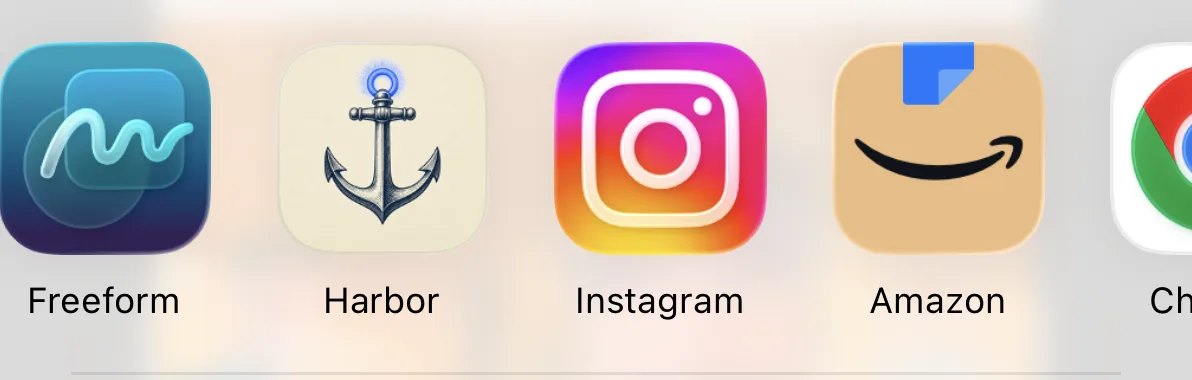
Don’t see it? Scroll that row to the end and tap More, then switch Harbor on. iOS hides apps you haven’t shared to yet, and it decides the order itself — the more you share to Harbor, the further left it drifts.
Then you get Harbor’s own sheet:
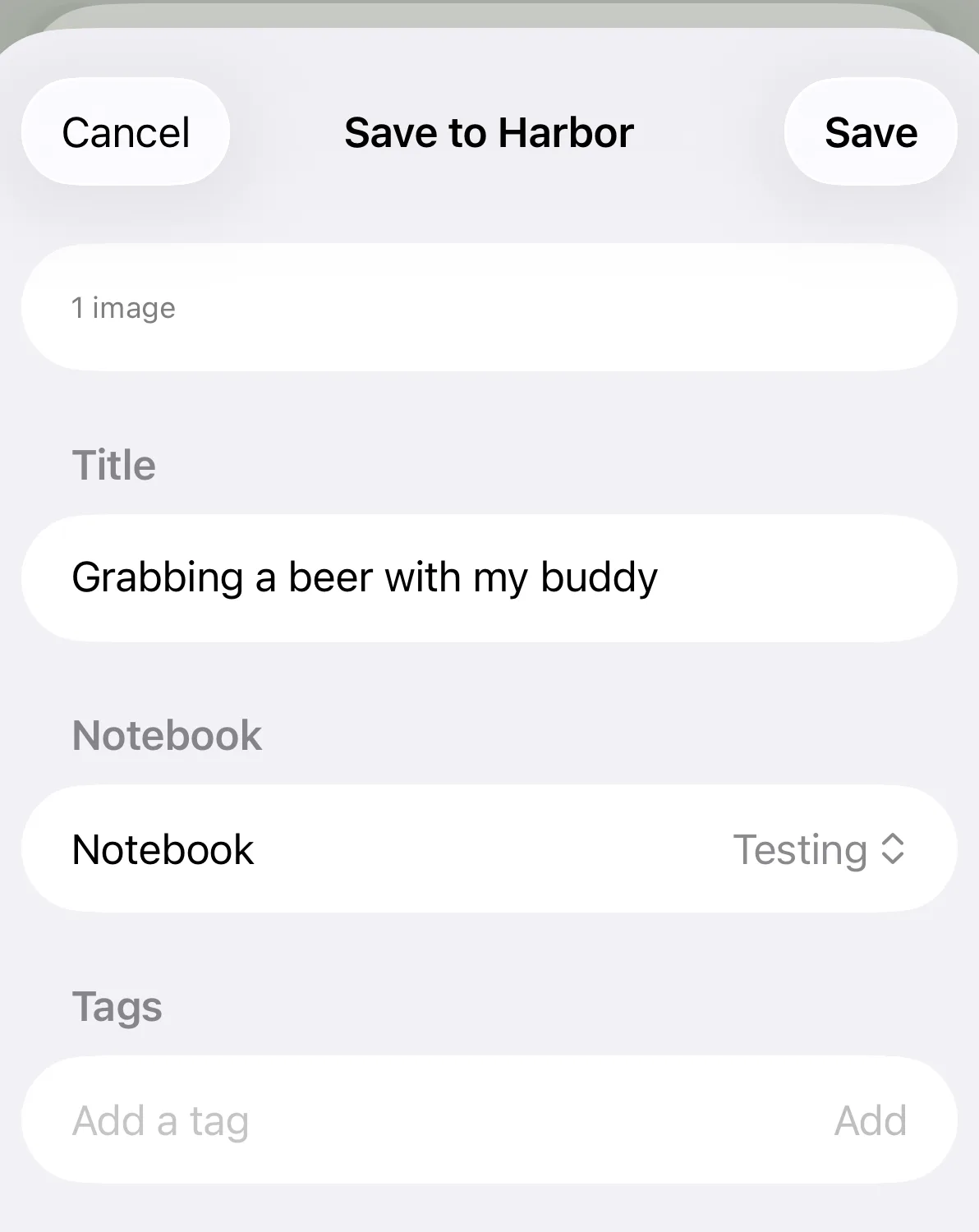
Four things, all optional except the last:
- Title — leave it blank and you get the filename, which is how you end up with a notebook full of
IMG_3761. Ten seconds here saves a search later. - Notebook — where it lands.
- Tags — add them now or never; nobody goes back and tags things.
- Save — done.
You don’t have to open Harbor afterwards
The upload happens while that sheet is on screen. Tap Save, keep scrolling your photos, and the note is already in your account.
A few kinds of share still wait for you to open the app: anything going into an encrypted notebook, and anything shared while you’re offline or on a connection that gives up mid-upload. Those are held safely and finish the next time you open Harbor. Nothing is dropped, and nothing is uploaded twice.
Sharing several photos at once
Select them in Photos first, then share. Harbor’s sheet counts what it’s got — 3 images — and they land as one note, in the order you picked them. That’s usually what you want for a receipt with three pages or a whiteboard shot from two angles.
“I saved it and it’s not there”
Almost always one thing: the note went to a notebook outside the workspace you’re looking at.
Workspaces filter what you see. If the share saved into a notebook that isn’t part of your current workspace, the note is in your account and syncing normally — it just isn’t in the view you’re staring at. Switch workspaces, or open All Notes, and there it is.
Two ways to stop it happening again:
- Check the Notebook row before you tap Save. It remembers, but it’s worth a glance.
- Update to the current version. Older builds defaulted the share to your account-wide Inbox even when Inbox sat outside your active workspace, which made saved photos look lost when they weren’t. That’s fixed — the share now defaults to a notebook inside the workspace you’re actually in.
If you’re on the current version, in the right workspace, and the note genuinely isn’t there, tell us — that’s a bug and we’d want to know.
Where the photo ends up
As a note, with the image in it — on every device, before you’ve thought about it again.

Harbor runs OCR over it, so the words inside the picture — a receipt total, a serial number, a whiteboard — become searchable like any other text. You don’t do anything to make that happen.
Related: Can I search inside PDFs and photos? · How do I scan a document? · Does Harbor work offline?
Related questions
Need more help?
Still stuck? Send us a message and a real person will get back to you.