Blog ·August 27, 2026 ·Spicer Matthews
Work over here, life over there
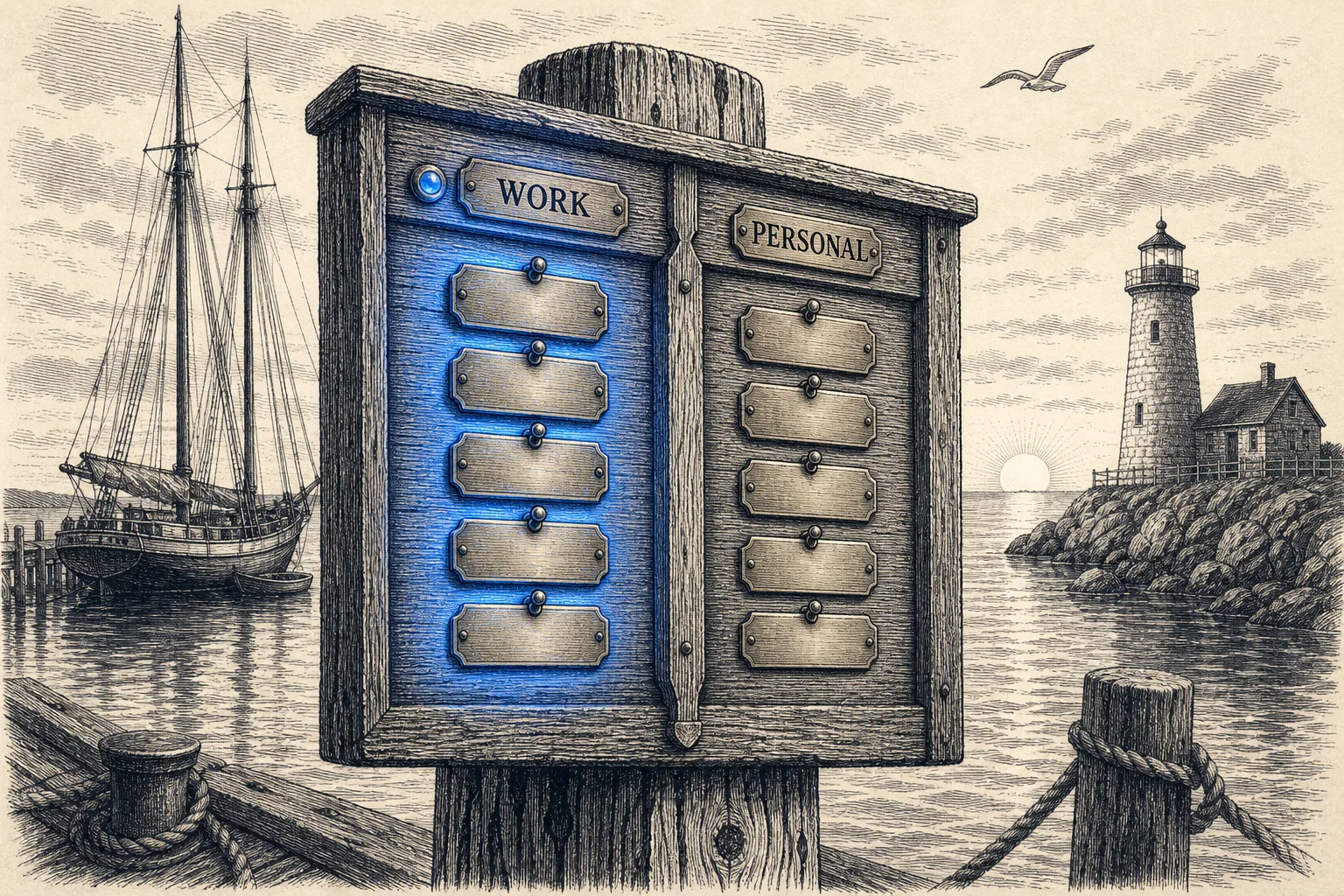
Most people keep one Harbor account and two lives in it.
The marina books and the hurricane prep and the client restorations sit two rows above the kids’ school reports, the dive log, and the recipe you keep meaning to try. Every notebook you own, in one list, all the time. You scroll past half your life to get at the other half, and you do it forty times a day.
Workspaces fix that. They’re live now, on every Harbor app.
What a workspace is
A workspace is a group of notebooks with a name and a color. Make one called Work, tick the notebooks that belong to it, and Harbor shows you only those — their notes, their tasks, their tags, their trash, their saved searches. Make a second called Personal and you can flip between the two, or back to Everything, whenever you like.
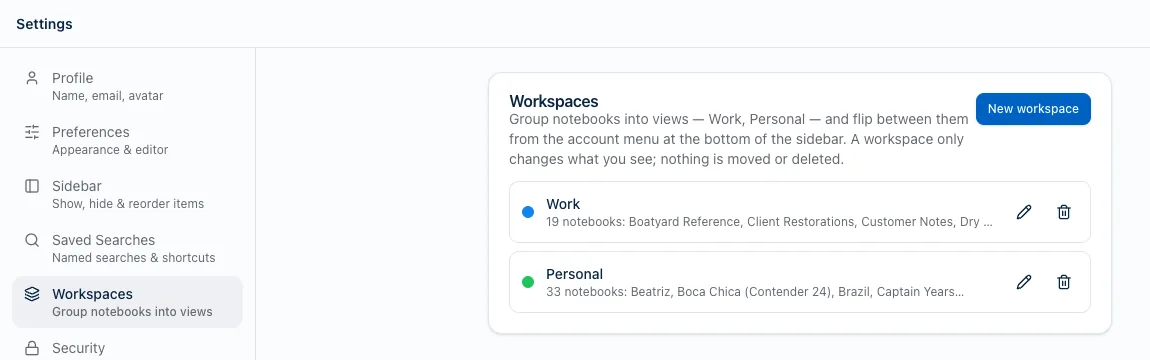
A notebook belongs to exactly one workspace. That’s the whole model. Notes always follow their notebook, so there is nothing to file note by note, no second tagging system to keep up with, and no way to get it half-done. Any notebook you don’t put in a workspace isn’t hidden — it just lives under Everything, the way it always has.
Nothing moves. Nothing is deleted. It’s a filter over what you see, applied across the whole app at once.
Switching takes one click
Once you’ve made a workspace, a Workspace section appears in the account menu at the bottom of the sidebar — the same pop-up that already holds Settings, Theme and Sign out.
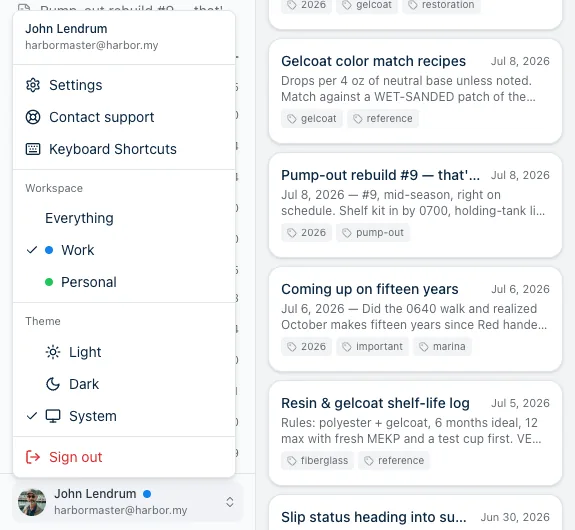
Pick one and the app narrows to it. The workspace’s color dot sits next to your name at the bottom of the sidebar so you always know where you are — no dot means Everything.
Here’s the same sidebar in two workspaces. Same account, same notes, nothing moved:
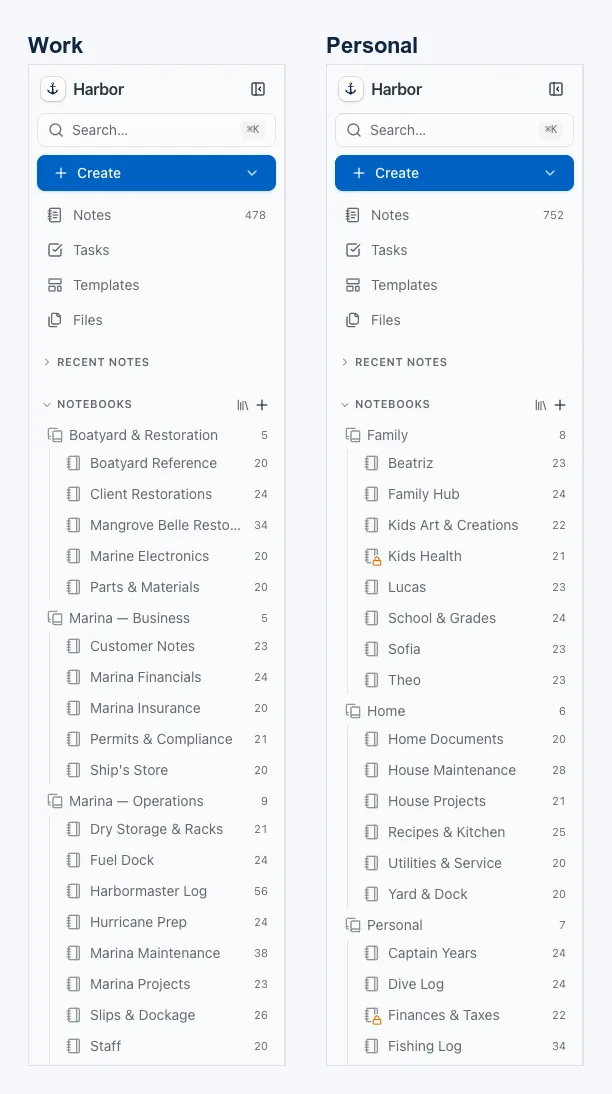
478 notes on one side, 752 on the other. Neither list has anything in it you didn’t put there.
If you never make a workspace, you’ll never see the switcher and Harbor looks exactly as it does today. This is a thing you opt into.
The workspace you’re in is a setting on that device
We went back and forth on this one, so it’s worth saying out loud.
Which workspace you’re looking at lives on the device, not on the account. Your laptop can sit in Work all day while your phone sits in Personal — and switching on one doesn’t yank the other out from under you. That’s the behaviour we wanted: the desk is for work, the phone in the evening isn’t, and neither should be arguing with the other.
The workspaces themselves do sync. Their names, their colors, and which notebooks belong to them arrive on every device. Set them up once.
Narrowing your view never hides anything from you
This is the part we spent the most care on, because it’s where a feature like this usually goes wrong. A filter that quietly swallows things is worse than no filter at all — you stop trusting your own search results.
So a workspace narrows what’s in front of you, never what you can reach:
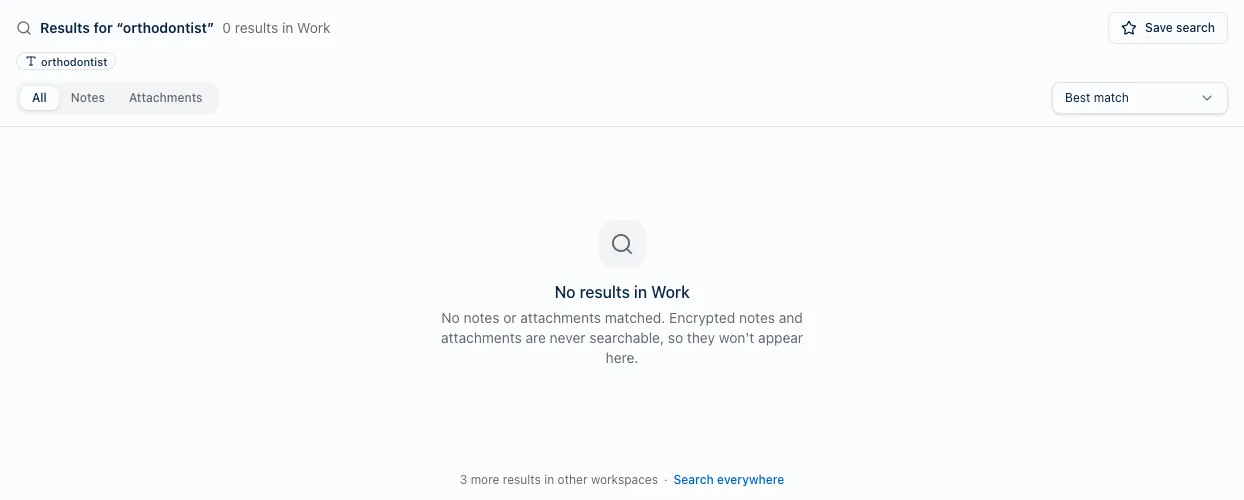
Search tells you when there’s more. Look for something that isn’t in this workspace and you don’t get a bare “no results” — you get a count of what’s elsewhere and a link straight to it.
The tag list keeps a door open. Under the tags in view sits a quiet 63 other tags row that expands the rest inline.
Picking a tag while you’re writing always offers every tag you have, not just this workspace’s. Filing is never restricted — only the sidebar list is.
You never assign a tag to a workspace, either. A tag turns up in a workspace if something in that workspace carries it, which means a tag used on both sides of your life appears on both sides, with different counts. receipts can read 1 in Work, 1 in Personal and 2 in Everything. All three are right; each is counting what that view can see.
What a workspace is not
We’d rather be blunt about this than have you find out the hard way, because the words “Work” and “Personal” promise more than this feature delivers.
It is not privacy. Anyone holding your unlocked laptop can open the account menu, choose Everything, and see the lot. A workspace tidies your own view; it does not keep anything from a person standing at your screen. Harbor’s note encryption is a separate feature and has nothing to do with workspaces.
It is not a separate account. One sync, one export, one bill, and it reaches every device you’ve signed in on.
On a Mac, note titles still go to Spotlight whichever workspace you’re in — so a work note can surface in a system-wide search while you’re sitting in Personal.
If you need your two lives genuinely kept apart, the honest answer is two Harbor accounts: sign up a second time with a different email and sign into it only on the devices that should see it. That’s real separation. A workspace isn’t, and isn’t trying to be. We could have shipped this with softer language and let you assume otherwise. We’d rather you knew.
Where it works, and which version you need
Every Harbor app got it. Here’s the release it arrived in — if you’re on this version or newer, you have it:
| App | Workspaces landed in |
|---|---|
| Web app | 1.0.29 |
| Mac — direct download | 1.0.27 |
| Mac — Mac App Store | 1.0.26 |
| iPhone & iPad | 1.0.26 |
| Android | 1.0.10 |
| Windows | 0.2.8 |
The web app needs nothing from you — it’s already there. The others update themselves, or you can grab the latest build if you’d rather not wait.
On phones and tablets the same Workspace section sits in the app’s account menu. And on Mac and Windows, each workspace remembers its own tabs: leave four things open in Work, switch to Personal, and Work’s tabs are still sitting there when you come back.
Go make two
Settings → Workspaces. It takes about a minute, and the first time you flip to Personal and your entire work life politely leaves the room, you’ll see the point of it.
The full details — how tags resolve, where new notes land, what happens when you delete a workspace, and what the Web Clipper and emailed notes do — are in What are workspaces? in the help center. If you’re still getting your bearings, how notebooks and tags work is the piece underneath all of this.
This one came out of people telling us their sidebar had become unusable. If Harbor is getting in your way somewhere, tell us — a real person reads every one of them.
Not using Harbor yet? Start free. No credit card, and everything you write is yours to export, always.