How do I use a coupon code?
Coupon codes are redeemed in the web app at app.harbor.my, inside the upgrade window. It’s tucked behind a small link, so here’s exactly where to click.
You only need to do this once. Whatever you unlock on the web applies to your whole account — every app, every device.
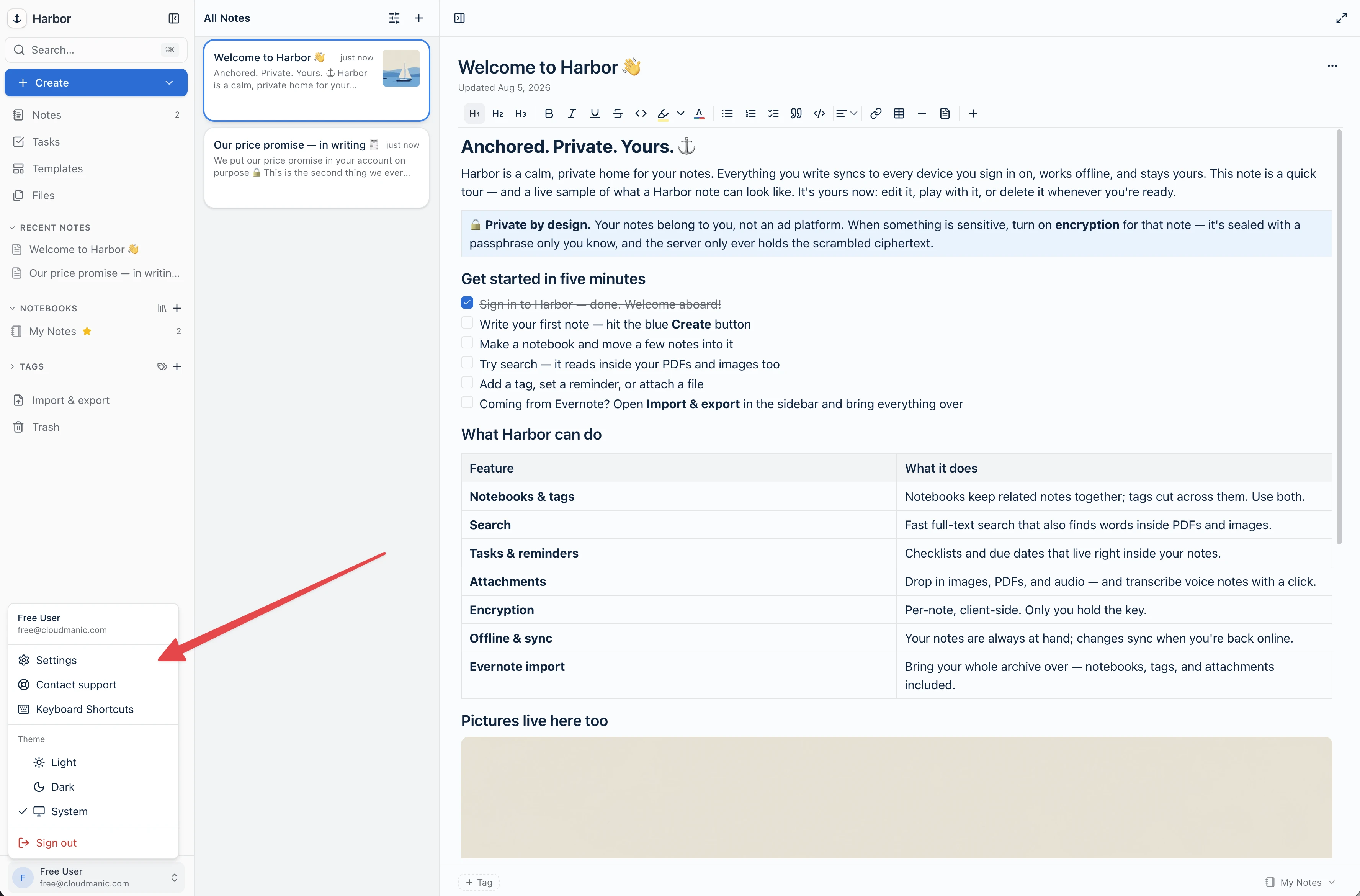
Step 1 — Open Settings
Click your name at the bottom-left of the sidebar, then choose Settings.
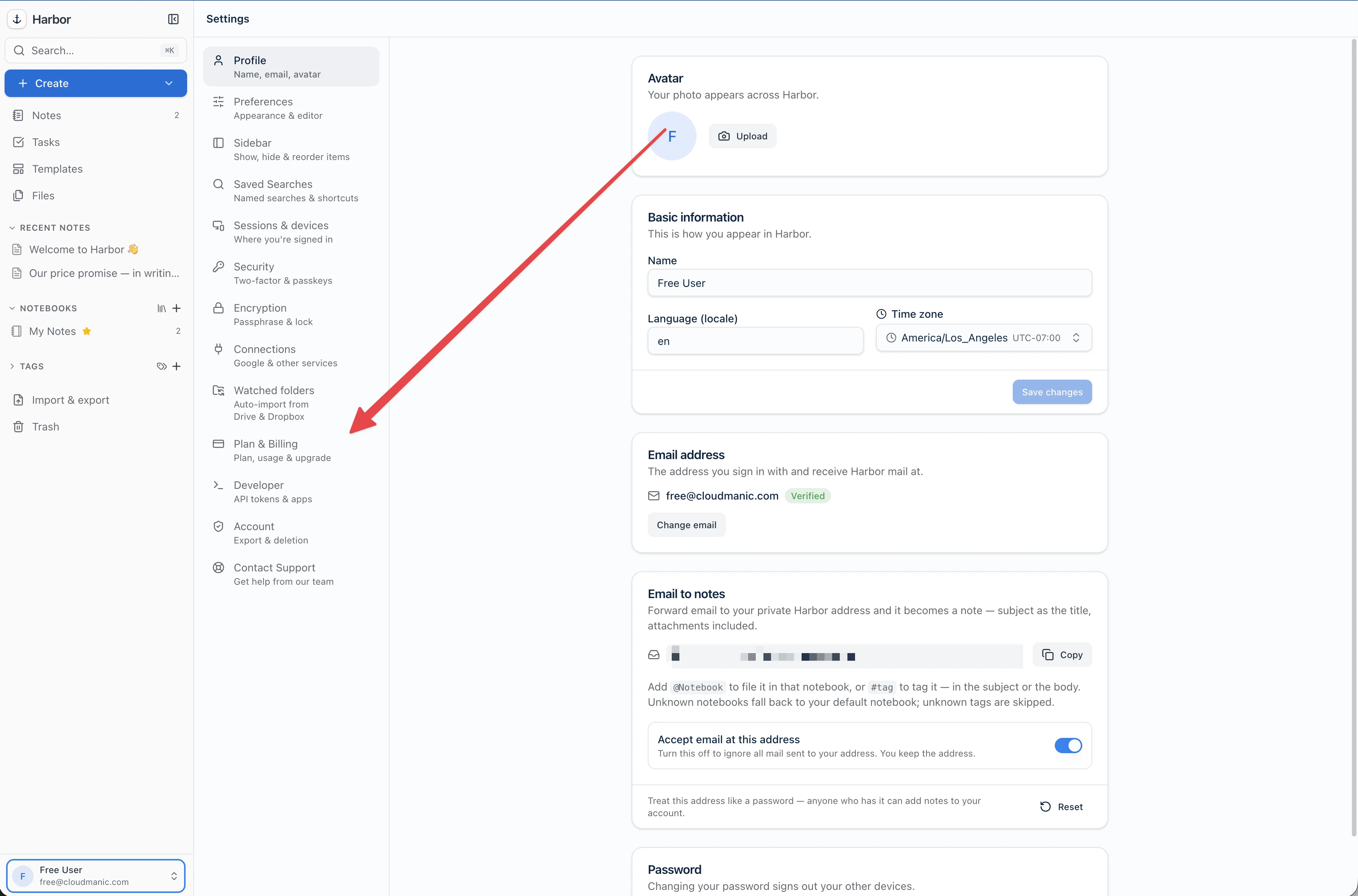
Step 2 — Go to Plan & Billing
In the Settings column on the left, choose Plan & Billing.
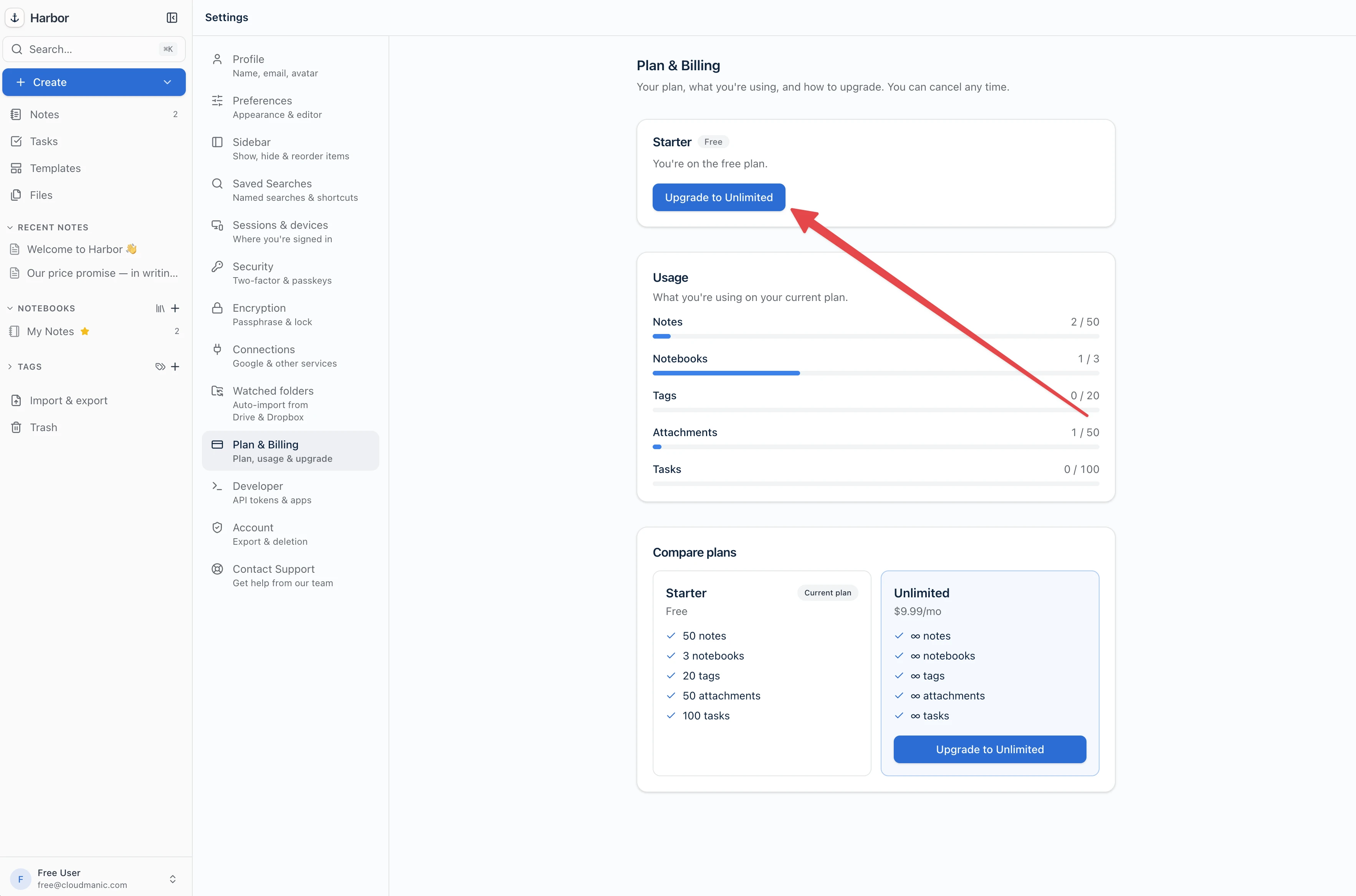
Step 3 — Click Upgrade to Unlimited
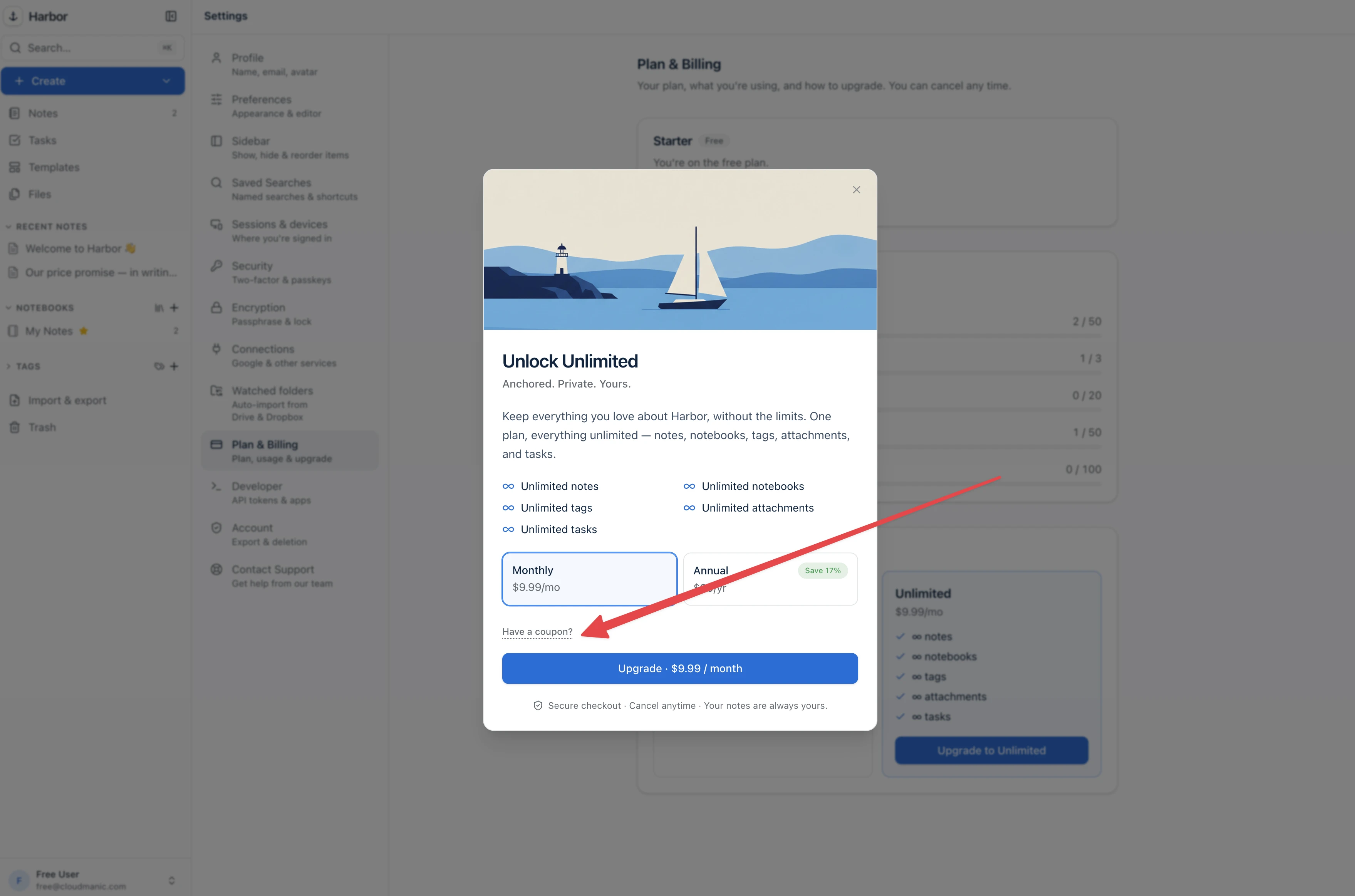
Step 4 — Click “Have a coupon?”
The Unlock Unlimited window opens. Pick Monthly or Annual first, then click the small Have a coupon? link underneath.
This is the part people miss — it’s a plain grey link, not a button.
Step 5 — Enter the code and click Verify
Type or paste your code, then click Verify.
A green panel confirms the discount and shows exactly what you’ll pay today and what you’ll pay after. The button at the bottom updates to match.
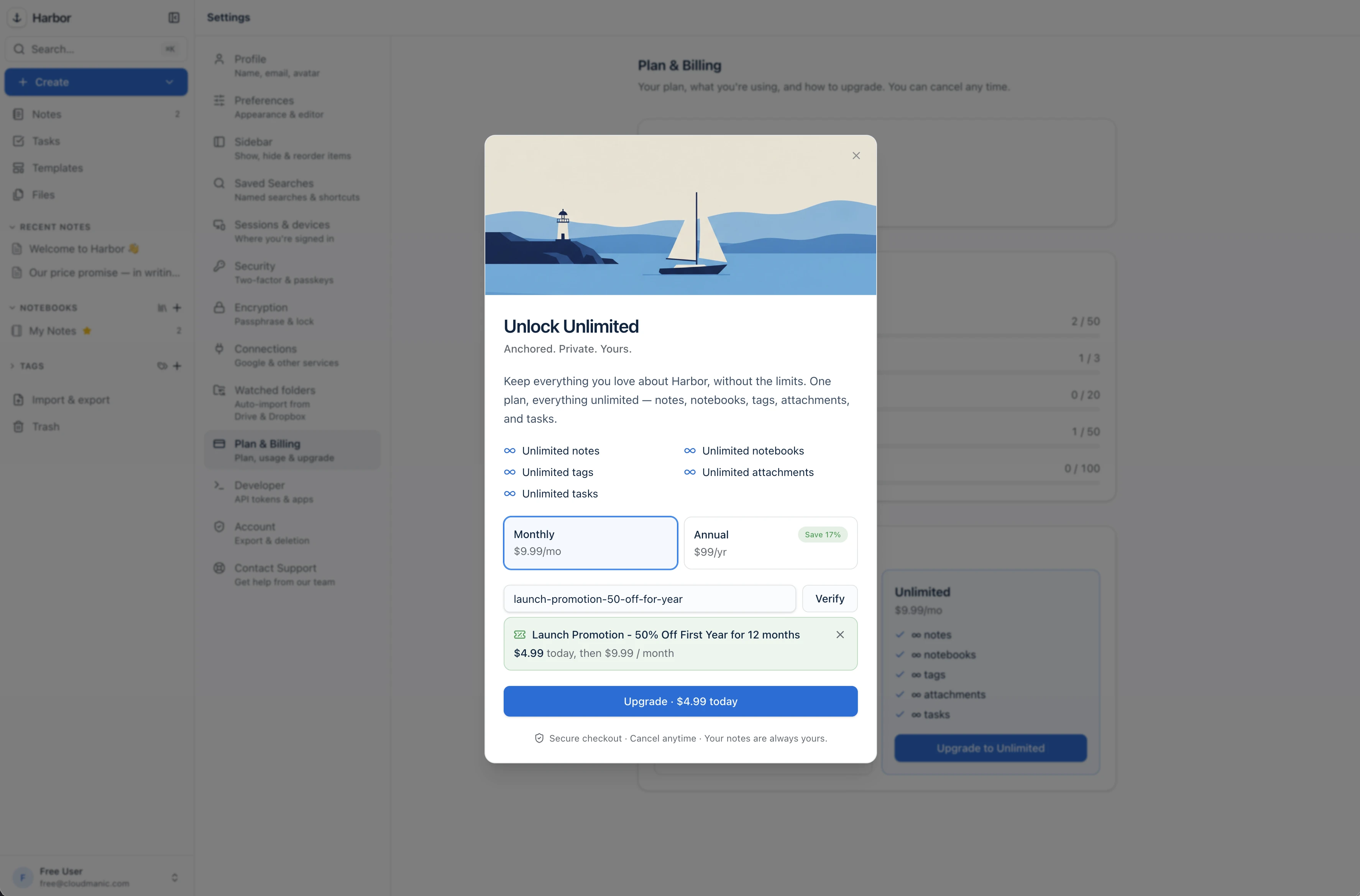
Check the numbers, then click Upgrade. That’s it — your account switches to Unlimited immediately, and every app you’re signed in on picks it up on its next sync.
If you change your mind before paying, the ✕ on the green panel removes the coupon and puts the price back.
Coupons work on the web, not in the app stores
If you got Harbor from the App Store, the Mac App Store, or Google Play, there’s nowhere to type a coupon — and that’s Apple’s and Google’s rule, not ours. They handle the payment on those builds, they take their cut, and they don’t accept our codes.
The way around it takes about a minute:
- Subscribe on the web at app.harbor.my, following the steps above.
- Open your app-store copy of Harbor and sign in with the same account. It’s already Unlimited. Nothing else to do.
Your subscription lives on your Harbor account, not on the app you happened to buy it in. Store builds affected:
- iPhone and iPad — always from the App Store.
- Mac — only if you installed it from the Mac App Store. There’s also a direct download of the Mac app, which bills through us and is otherwise the same app. If you have the App Store copy and would rather not, you can switch to the direct build any time.
- Android — always from Google Play.
Windows isn’t affected. It’s a direct download and always has been.
If the code doesn’t take
- Check for a stray space at the start or end when pasting.
- Codes are one per account, and some have an expiry date.
- Already subscribed? A coupon applies at checkout, so it won’t attach itself to a subscription that’s already running. Email us before you do anything drastic — we’ll sort it out.
Still stuck, or the code should work and doesn’t? Email help@harbor.my and we’ll fix it on our end. See How do I contact support?
Related: Is there a free plan? · How do refunds work? · Will you raise the price?
Ready to try it? Start free — no credit card.
Need more help?
Still stuck? Send us a message and a real person will get back to you.