How do I make an index note?
Select the notes you want listed, click Index note, and Harbor writes a new note that links to every one of them.
It’s the fastest way to give a pile of related notes a front door: an index for a research project, a hub for a trip, a syllabus, or the first page of a small public site.
An index note is a snapshot of the notes you picked. If you’d rather have a list that keeps itself up to date as you tag new notes, use a table of contents instead. And if you’re after a contents list for the headings inside one note, that’s the Headings list in Note info. See How do I jump to a heading in a long note?
Making one
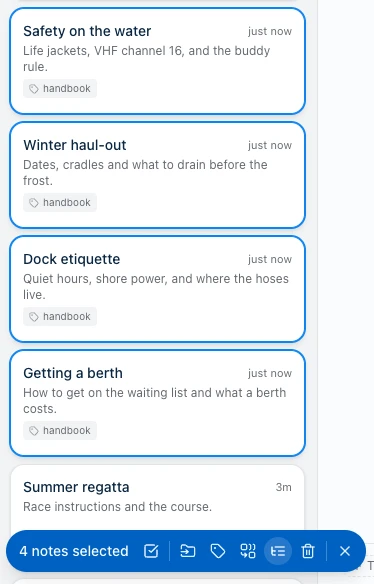
Select two or more notes in the list. The bulk actions bar appears along the bottom. Its buttons are icons. Index note is the indented-list one, fifth along, between merge and delete. Hover it and it tells you its name.
That opens a small dialog with three things to decide, all of them prefilled:
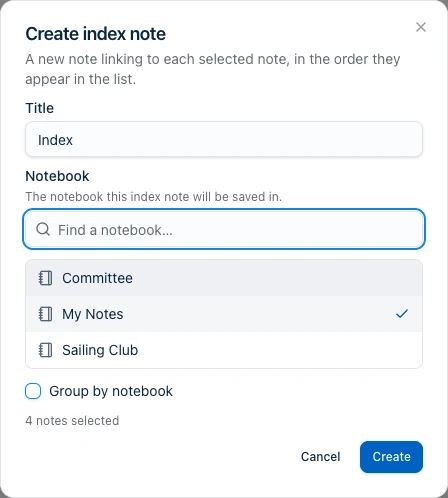
- Title starts as Index. Type over it.
- Notebook starts as the notebook you’re browsing. If you’re not in one, it’s your default notebook. Change it to anything, or type a new name to create a notebook on the spot.
- Group by notebook is off for a selection that lives in one notebook, and on for one that spans several. More on that below.
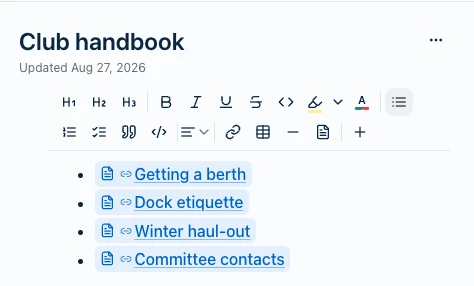
Click Create and Harbor writes the note and opens it:
Nothing is created until you click it. Cancel leaves your account exactly as it found it, including a notebook you were about to create.
You can list up to 100 notes in one index note.
The order is the order you were looking at
Entries come out in the same order the note list was sorted in, not the order you clicked them.
So if you want a particular order, sort the list first, then select. Sort by title for an alphabetical index, or oldest first for something that reads chronologically. What you see in the list is what you get in the note.
Renaming a linked note updates the page by itself
This is the part worth knowing. An index note doesn’t store the titles. It stores links, and each one looks up its title at the moment you read it.
Rename a note six months later and the index says the new name. Rename ten of them and it’s still right. There’s nothing to regenerate and nothing to go stale.
Move a note to another notebook and the link still works too. The only thing that breaks it is deleting the note.
What an index note won’t do is pick up new notes. It lists the ones you selected, and that’s it. For a list that grows on its own, use a table of contents.
Grouping by notebook
When your selection spans more than one notebook, Harbor pre-ticks Group by notebook. You get a heading per notebook with that notebook’s notes underneath, notebooks in alphabetical order and notes in display order within each.
Untick it and you get one flat list instead. Tick it on a selection that’s all in one notebook and you’ll get a single heading over the whole thing, which is why Harbor leaves it off in that case.
Which apps have it
Web, Mac, iPhone, iPad, Android and Windows. Everywhere you can select more than one note at a time. The wording and the options are the same on all six.
The Harbor CLI has no equivalent command.
A note on encrypted notebooks
An index note is a normal new note, so it follows the destination notebook’s rule. File it in a notebook that encrypts by default and the index is encrypted too.
Encrypted notes can still be listed in one. The links are just IDs, and Harbor doesn’t need to read a note to link to it. What changes is what you can do with the result: an encrypted note can’t be made public, so an encrypted index can’t be the front page of a public site.
Related questions
Need more help?
Still stuck? Send us a message and a real person will get back to you.