How do I jump to a heading in a long note?
Open Note info and look at the bottom. The Headings section lists every heading in the note, in order. Click one and the note jumps to it.
On a long note, that’s the fastest way around. It’s a contents list for the note you’re in, built from your own headings, and it’s in every Harbor app: web, Mac, iPhone, iPad, Windows and Android.
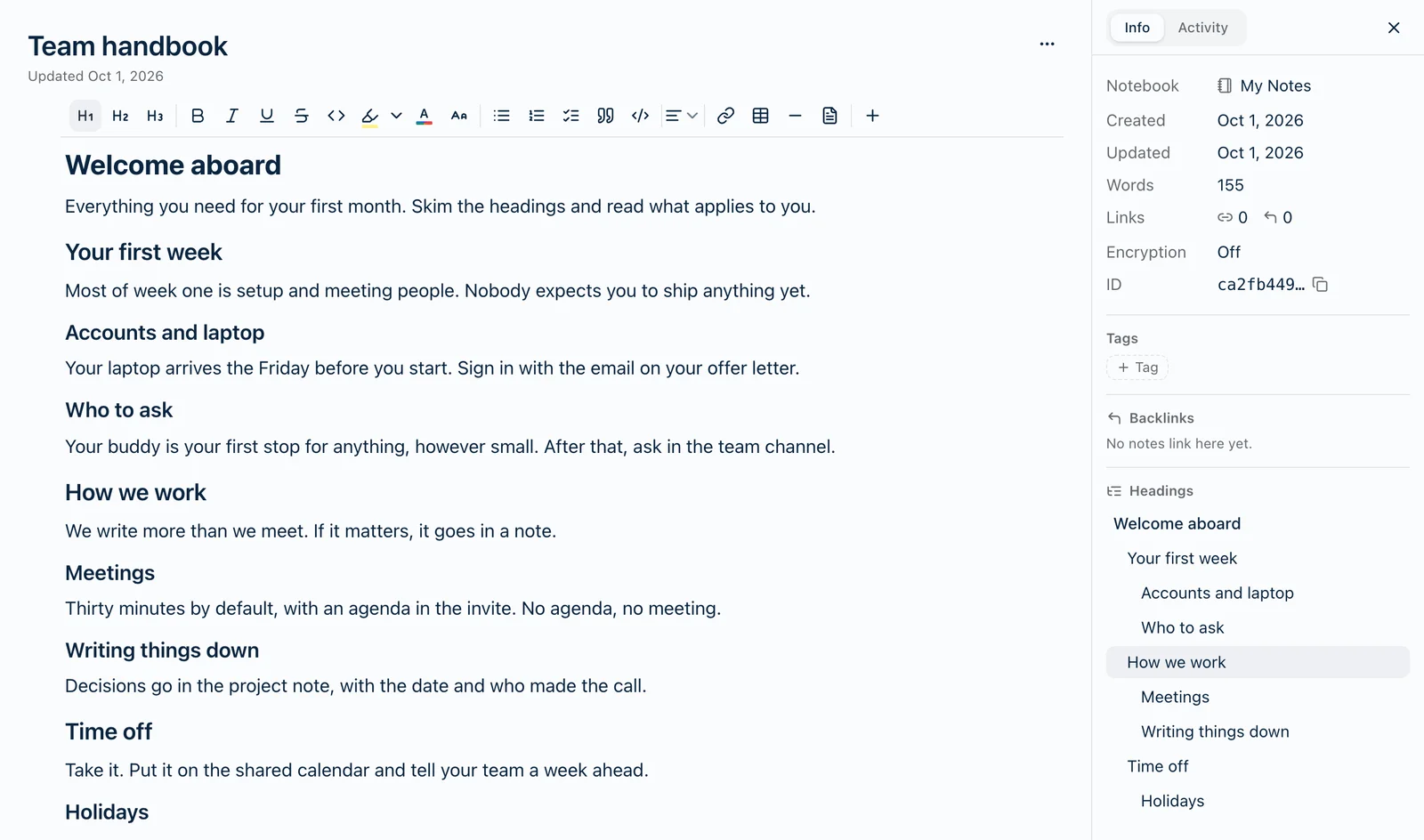
Opening Note info
Open the note, open its ⋯ menu, and choose Note info. Headings is the last section on the Info tab, just below Backlinks.
There’s a shortcut too: ⌘I on a Mac, or on an iPad or iPhone with a keyboard, and Ctrl+I on Windows. While your cursor is in the note body, those keys make text italic instead. The web app and Android have no shortcut, so use the menu.
Where Note info opens depends on the screen:
- Mac, Windows, and a wide browser window — a panel beside the note.
- iPhone, iPad, Android, and a narrow browser window — a sheet over the note.
Going to a heading
Click a heading in the list, or tap it. The note scrolls so the heading sits at the top. On a computer, your cursor lands at the start of it, ready to type. Near the end of a note there may not be enough left to scroll that far, so the heading lands a little lower.
On a phone or tablet, the tap closes the Note info sheet first and then takes you there, without bringing up the keyboard, so nothing covers what you came to read.
Smaller headings are indented under bigger ones, so the list reads like an outline of the note.
Folded sections open by themselves
If the heading is inside a folded section, Harbor opens the folds hiding it and nothing else. Headings hidden inside a fold are still in the list, so you can always get to them. If the heading you pick is folded itself, Harbor takes you to it but leaves its own section closed.
Opening a fold this way isn’t an edit. Looking at a note shouldn’t change it, so nothing is saved and Undo won’t fold it back. If you go on to edit the note, it saves the way it now looks, with that section open.
Filling the list
The list is your note’s headings, so making a heading is what puts something in it. Pick a heading size from the formatting toolbar, or type / on an empty line and pick Large heading, Medium heading, Small heading or Extra-small heading. Typing # and a space at the start of a line works too.
Every heading counts, including ones inside a quote, a table or a list. An empty heading is left out. The list keeps up as you type.
When there’s nothing to show
- No headings in this note. The note doesn’t have any yet.
- Unlock to see headings. The note is encrypted and locked. Harbor builds the list from the note itself, on your device, so it needs the note unlocked.
- Web clips have no Headings section.
Switching notes
On a computer — Mac, Windows, or a wide browser window — Note info stays open when you move to another note, and the Headings list follows you. It stays on whichever tab you had open, Info or Activity.
On a phone or tablet, Note info is a sheet over one note, so it closes when you open another.
Not the same as a table of contents
Harbor also has a Table of contents, which is a different thing: it builds a new note that links to other notes. Headings is the contents list inside one note. If you’re after the other one, see How do I make a table of contents?
Related questions
Need more help?
Still stuck? Send us a message and a real person will get back to you.