How do I move a note to another notebook?
Drag it. Grab the note in your note list and drop it on a notebook in the sidebar.
That works in the web app, on the Mac and on Windows. iPhone, iPad and Android don’t have dragging, so you use the menu there instead. Dragging not working on your computer? Update Harbor for Mac or for Windows.
Prefer the keyboard? Every app has a shortcut for this too.
Several notes at once
Select the notes first. ⌘-click them one by one (Ctrl-click on Windows), or Shift-click to select everything in between. Then drag any one of them, and the whole selection goes. A small pill under your pointer says how many, like 3 notes.
Drag a note that isn’t in the selection and only that note moves.
Where you can drop them
- Any notebook in the sidebar.
- A notebook inside a stack. If the stack is closed, hold the notes over it for a moment and it opens, so you can reach the notebooks inside.
- A notebook you’ve pinned to Shortcuts.
A notebook gets a blue outline when it’s ready to take the drop. If every note you’re dragging is already in that notebook, it doesn’t light up, because there’s nothing to move.
You’ll see where they went
When the move finishes, a message names the notebook. One note gets Note moved, with “Receipts” named under it. Several get Moved 3 notes to “Receipts”. If any couldn’t be moved, the message says how many, and those stay in the notebook they were in.
Use the menu
Every Harbor app has Move to notebook. It does the same thing, and it’s the way to do it on a phone or tablet.
- Web: open the note and choose Move to notebook… from its ⋯ menu, or click the notebook name at the bottom of the note.
- Mac and Windows: right-click the note in the list and choose Move to Notebook…, or click the notebook name at the bottom of the open note.
- iPhone, iPad and Android: open the note, tap ⋯, then Move to notebook.
Then pick the notebook. If you have a lot of them, type a few letters to find the one you want.
For several notes, select them and use the move button in the bar that appears. On a phone or tablet, press and hold a note and tap Select notes to start, and the button says Move. On a computer it’s an icon: a folder on the web and Mac, a notebook on Windows.
Use the keyboard
Every Harbor app has a key that opens Move to notebook. It moves one note, even if you’ve selected several. For a batch, use the move button instead.
| App | Press | Where it works |
|---|---|---|
| Web | m on its own | Anywhere you’re not typing. It won’t work in the note text, the title or any other text box. From the note text, press Esc, then Tab, then m. |
| Mac | ⌃⌘M | The note list and the note text. It’s also in the menu bar, under Note ▸ Move Note to Notebook… |
| iPhone and iPad | ⌃⌘M | The note list and the note text. You need a hardware keyboard. |
| Windows | Ctrl+Shift+M | The note list and the note text. |
| Android | Ctrl+Shift+M | The open note, or a note in the list you’ve reached with Tab or the arrow keys. You need a hardware keyboard. |
The web gets a plain letter because browsers already claim many key combinations. In a text box, that letter just types an m. That’s what the Esc and Tab are for.
The search box is ready the moment the picker opens:
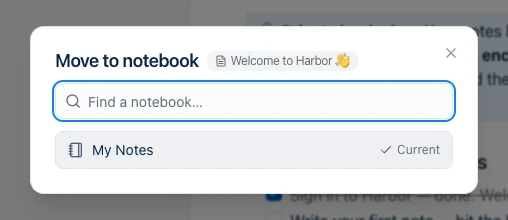
- Type a few letters of the notebook’s name.
- Use the arrow keys to pick it. On Android, press ↓ to get from the search box down to the list.
- Press Enter.
That’s the move, and anything you’d just typed is saved before it happens. Picking the notebook the note’s already in does nothing. If the notebook you pick encrypts new notes, Harbor asks first.
Changed your mind? Press Esc. The picker closes, the note stays where it was, and you’re back where you started. On an iPhone or iPad, the first Esc might only clear the search box, so press it again.
The key does nothing while a menu or dialog is open, for a note in the Trash, or while your account is read-only. On a phone or tablet without a keyboard, use the menu.
To see it with the rest of Harbor’s shortcuts, press ⌘/, or Ctrl+/ on Windows. On the web, the Mac and Windows, you can change it there too. Android lists Harbor’s keys in its own shortcuts screen instead: press Meta+/ with a keyboard attached.
Moving into an encrypted notebook
A notebook can be set to encrypt new notes by default. Move a readable note into one and Harbor encrypts it on the way in. It asks first, and if you say no, nothing moves. Notes that are already encrypted just move.
Encrypting a note takes it out of search and deletes its version history. Read what you give up before you say yes.
Moving a notebook instead
Everything above moves notes. To put a whole notebook into a stack, use Move to stack in the notebook’s own menu.
For how notebooks, stacks and tags fit together, see How do notebooks and tags work?
Related questions
Need more help?
Still stuck? Send us a message and a real person will get back to you.