How do I change the buttons above the keyboard?
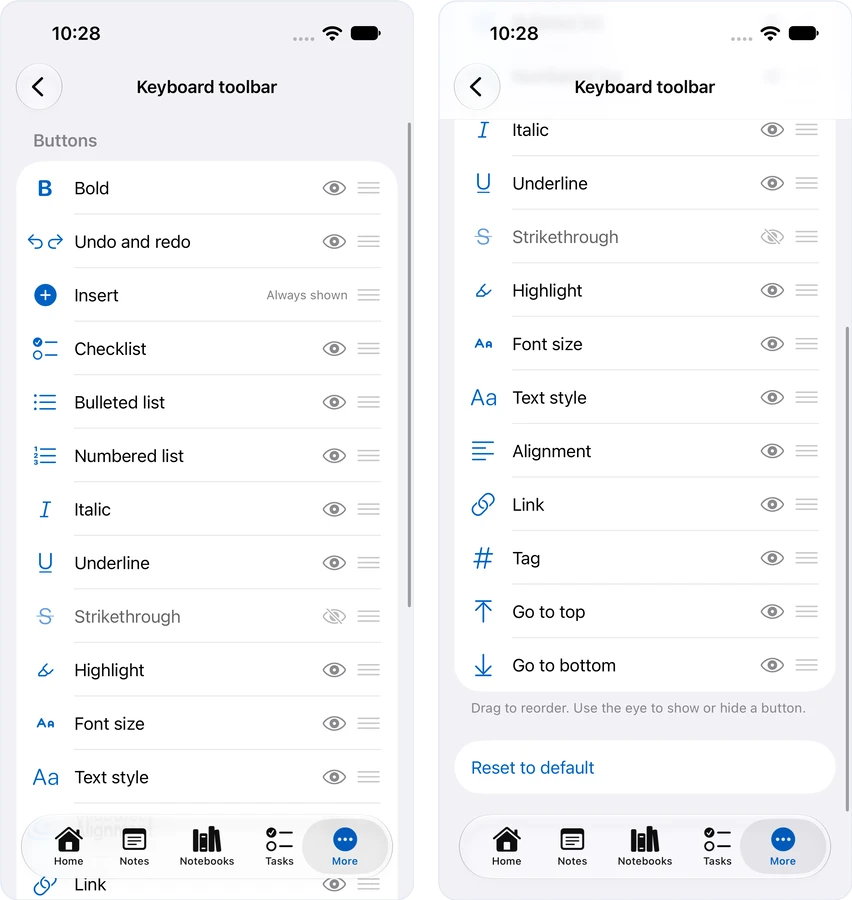
Open Settings → Keyboard toolbar. Put the buttons in any order you like, hide the ones you never use, and turn on Tag, Go to top and Go to bottom.
On a phone the buttons don’t all fit, so the bar scrolls sideways. Put the buttons you use most at the front. The ones you never touch are just in the way.
Getting there
- iPhone and Android — the More tab, then Settings.
- iPad — Settings, at the bottom of the sidebar.
If your iPhone is showing a sidebar, like an iPhone Duo opened up or a big iPhone on its side, Settings is at the bottom of the sidebar there too.
Scroll to Keyboard, just below Editor, and tap Keyboard toolbar.
Moving and hiding buttons
- To move a button, drag it by the handle on its right.
- To hide one, tap the eye. A hidden button fades in the list. Tap the eye again to bring it back.
- Insert can’t be hidden. It says Always shown instead of having an eye. You can still move it.
- Reset to default puts the order and every button back the way Harbor ships.
The bar changes as soon as you do. There’s nothing to save and no need to restart the app.
Using VoiceOver or TalkBack? The buttons in the list have Move up and Move down actions, so you can move one a step at a time without dragging.
Tag, Go to top and Go to bottom
These three start hidden, so your bar doesn’t change until you want it to. Tap the eye next to each one you’d like.
- Tag types
#and opens your tag list. That’s one tap instead of digging through the keyboard’s symbols. Tap it right after a word and it puts a space in first, because a tag can’t start in the middle of a word. On an empty line, the list opens straight away. - Go to top takes you to the start of the note, the first line under the title.
- Go to bottom takes you to the end of the note.
Both put your cursor there and keep the keyboard up, so you can carry on typing. To land somewhere in the middle of a long note, jump to a heading instead.
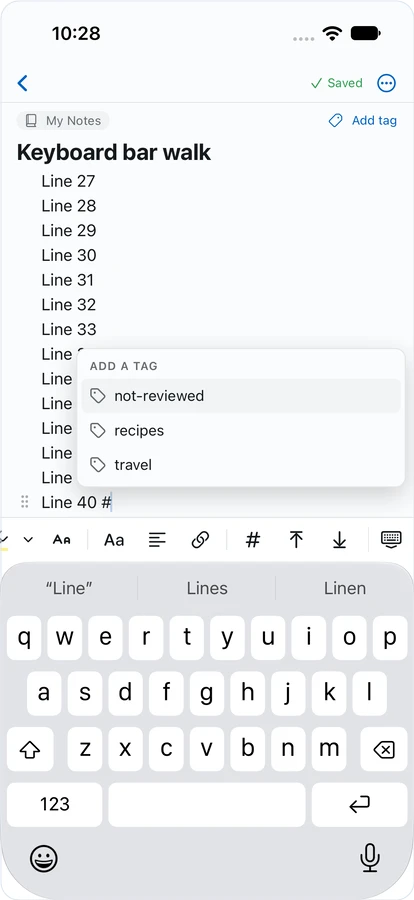
Picking a tag from the list works the same as typing # yourself. More in How do I tag a note while I’m typing?
Templates don’t have tags, so Tag doesn’t show up on the bar while you’re editing a template.
Buttons that aren’t in the list
A few buttons aren’t in Settings, because they come and go on their own or never move:
- Indent and Outdent sit right after your last list button. Hide all the list buttons and they move to just after Insert.
- The link menu shows up just after Insert when your cursor is in a link.
- The table menu, on Android only, shows up just after Insert when your cursor is in a table.
- Dismiss keyboard always stays at the right end of the bar.
Saved on this device
Your bar is saved on the device you set it up on and doesn’t sync, so your phone and your tablet can each have their own.
Where it works
iPhone, iPad and Android. The Mac, Windows and web apps don’t have a bar above a keyboard, and their formatting toolbar can’t be changed.
Don’t see it? Update Harbor to the latest version.
Related questions
Need more help?
Still stuck? Send us a message and a real person will get back to you.