How do I export my notes as Markdown?
Markdown is the plainest thing your notes can become: one .md file per note, readable in any text editor written in the last forty years. Harbor exports it at three scales — a single note, one notebook, or everything — and imports it back.
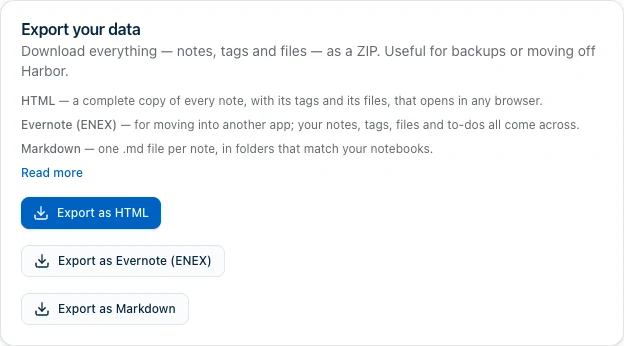
Your whole account
On the web, Mac and Windows it’s under Settings → Account, or on the Import & export screen. On iPhone and Android, open More and tap your name at the top; on iPad, open Home in the sidebar and tap your avatar.
Press Export as Markdown. We build the ZIP on our servers and email you a link when it’s done, so you can close Harbor and walk away.
One notebook
Right-click a notebook in the sidebar — or use the menu on its header, or on its row in Manage → Notebooks — and choose Export…. The same three formats appear.
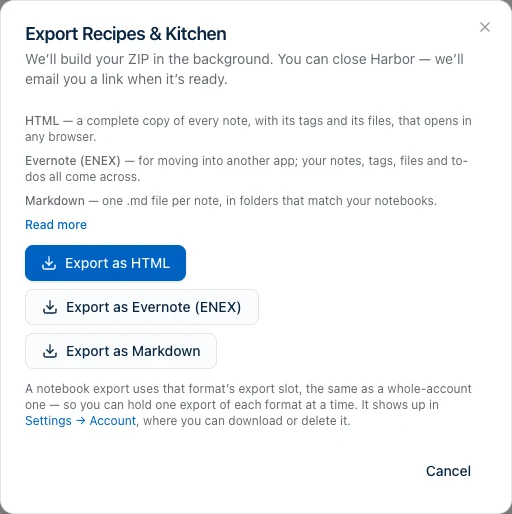
A notebook export is an ordinary export job — same progress, same email, same link. It uses the same Markdown slot as a whole-account one, so you hold one Markdown export at a time either way.
One note
Open the note, click the ⋯ menu, and choose Download Markdown. This one comes straight to you — no email, no waiting.
You get a .md file if the note has no attachments, and a .zip holding the .md plus a files folder if it does.
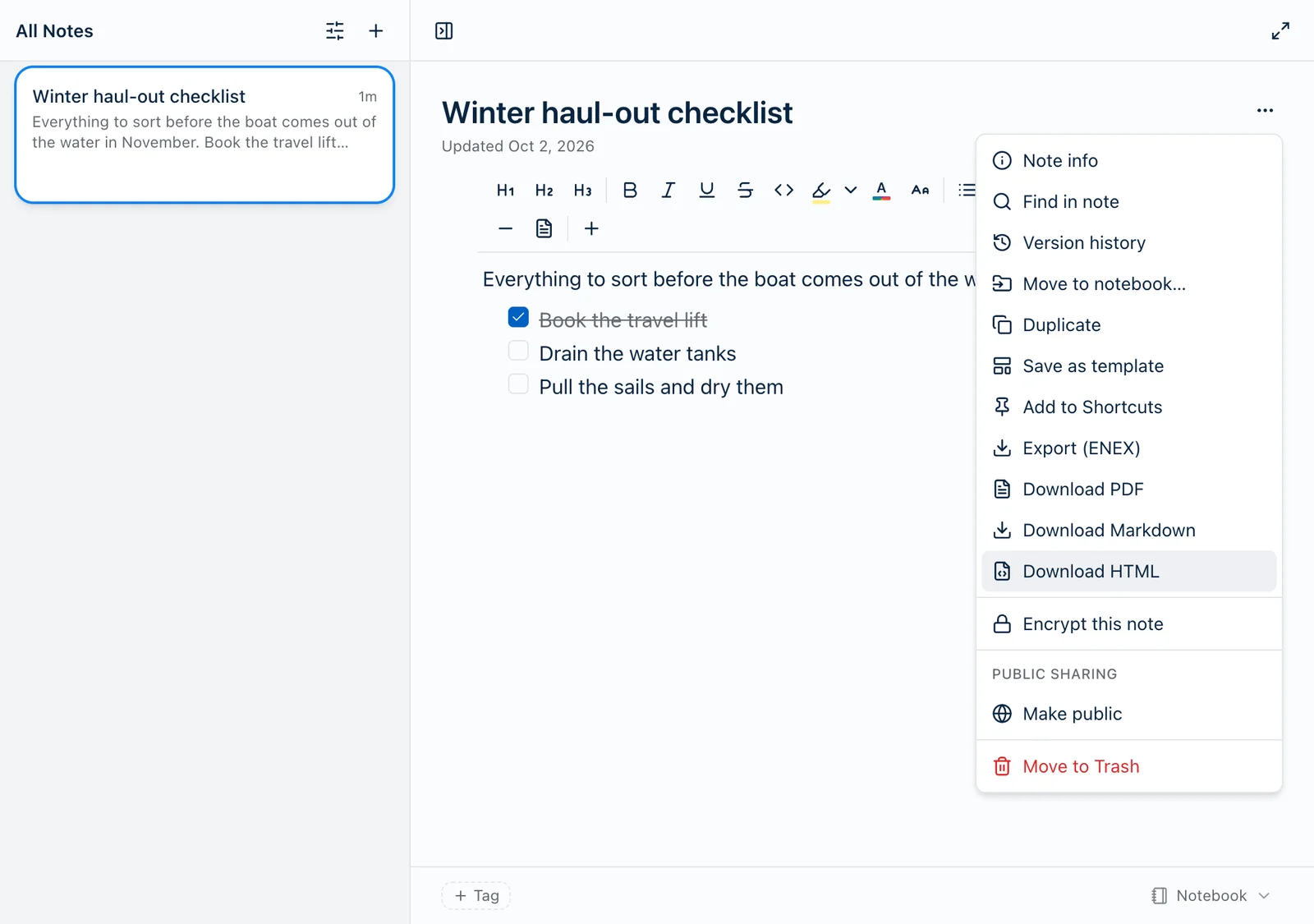
The same menu also exports the note as ENEX, PDF or HTML. How do I export a single note? covers all four, on every app.
What’s in the ZIP
A folder per notebook, a .md per note, and every attachment once in a files folder at the top:
manifest.json
Boatyard Reference/Mangrove Belle — hull survey.md
Boatyard Reference/Winter haul-out checklist.md
Recipes & Kitchen/Sourdough, third attempt.md
files/hull-survey-2026.pdf
files/port-chine.jpg
That is an Obsidian vault as it stands. Point Obsidian at the unzipped folder and it opens — no conversion step, no importer.
Each note carries its details in YAML frontmatter at the top:
---
title: "Mangrove Belle — hull survey"
tags: ["boatyard", "survey"]
created: 2025-08-20T00:00:00Z
updated: 2025-08-20T01:00:00Z
source: "https://example.com/survey-standards"
---
## Findings
Moisture readings were **high** at the port chine.
- [x] Sound the hull
- [ ] Re-core the soft patch
[hull-survey-2026.pdf](files/hull-survey-2026.pdf)

tags and source only appear when the note has them. Links between your notes come out as [[Wikilinks]], which is what Obsidian expects — and a link to a note that isn’t in the export becomes a full Harbor URL rather than a broken one.
It comes back
This is the part worth knowing: the Markdown Harbor writes is the same Markdown Harbor imports from an Obsidian vault. Export it, edit it in Obsidian for a year, zip it up, import it — your notebooks, tags, dates and attachments all land back where they belong.
Very few notes apps will let you leave and come back. That’s deliberate.
Tasks come back as checklists — read this bit
A Harbor task is a real record with a due date, a reminder, a repeat and a flag. Markdown has no such thing, so we write those details into the line itself using the Obsidian Tasks convention — the one the rest of the Markdown world already reads:
- [ ] Re-core the soft patch 🔁 every week 📅 2025-08-20 ⏰ 2025-08-19 00:00 🚩
- [x] Sound the hull 📅 2025-08-20 ✅ 2025-08-21
Nothing is hidden and nothing is dropped. But if you import that Markdown back into Harbor, those come back as plain editor checklists, not tasks — the dates and repeats stay as text on the line, and Harbor won’t put them back in your task list. If a lossless task round trip is what you’re after, export as Evernote (ENEX) instead; ENEX carries every task field as a real field.
Tasks attached to a note but not placed in its body aren’t lost either — they’re appended under a ## Tasks heading at the end of the file.
What Markdown can’t carry
Markdown is a small format, on purpose. These come out as plain text:
- Highlight and underline
- Superscript and subscript
- Text colour and font choices
Everything structural survives — headings, bold, italic, lists, checkboxes, tables, code blocks, quotes, links and images. If you want a copy that looks exactly like Harbor does, export as HTML instead; that’s the pixel-faithful one.
Encrypted notes aren’t included
Encrypted notes are built so we can’t read them, and the Markdown export runs on our servers — so it has ciphertext and nothing else. They’re skipped, and counted, and Download Markdown doesn’t appear in the menu of an encrypted note.
If you need a readable copy of one, open it in the Mac or Windows app and use Download HTML or Export (ENEX) in its ⋯ menu — those are built on your own computer, where the key is. For many at once, unlock them and use the local Export as HTML on the Import & Export screen. Neither HTML copy includes attachments. It’s the same trade-off that keeps encrypted notes out of search.
The mechanics
- It builds in the background. Close the app, shut the laptop — we email you a link when it’s ready, and email you if it fails.
- The link lasts three days, then we delete that copy from our storage. Start another whenever you like.
- One Markdown export at a time, and it’s independent of your HTML and Evernote ones — all three can exist at once.
- From the terminal:
harbor account export --format markdown --wait --download ./harbor.zip, orharbor notes export <note-id> -o note.mdfor a single note. See the CLI.
For the whole picture on exports — every format, and what each one is best at — see Can I export everything?
Related questions
Need more help?
Still stuck? Send us a message and a real person will get back to you.