How do I export a single note?
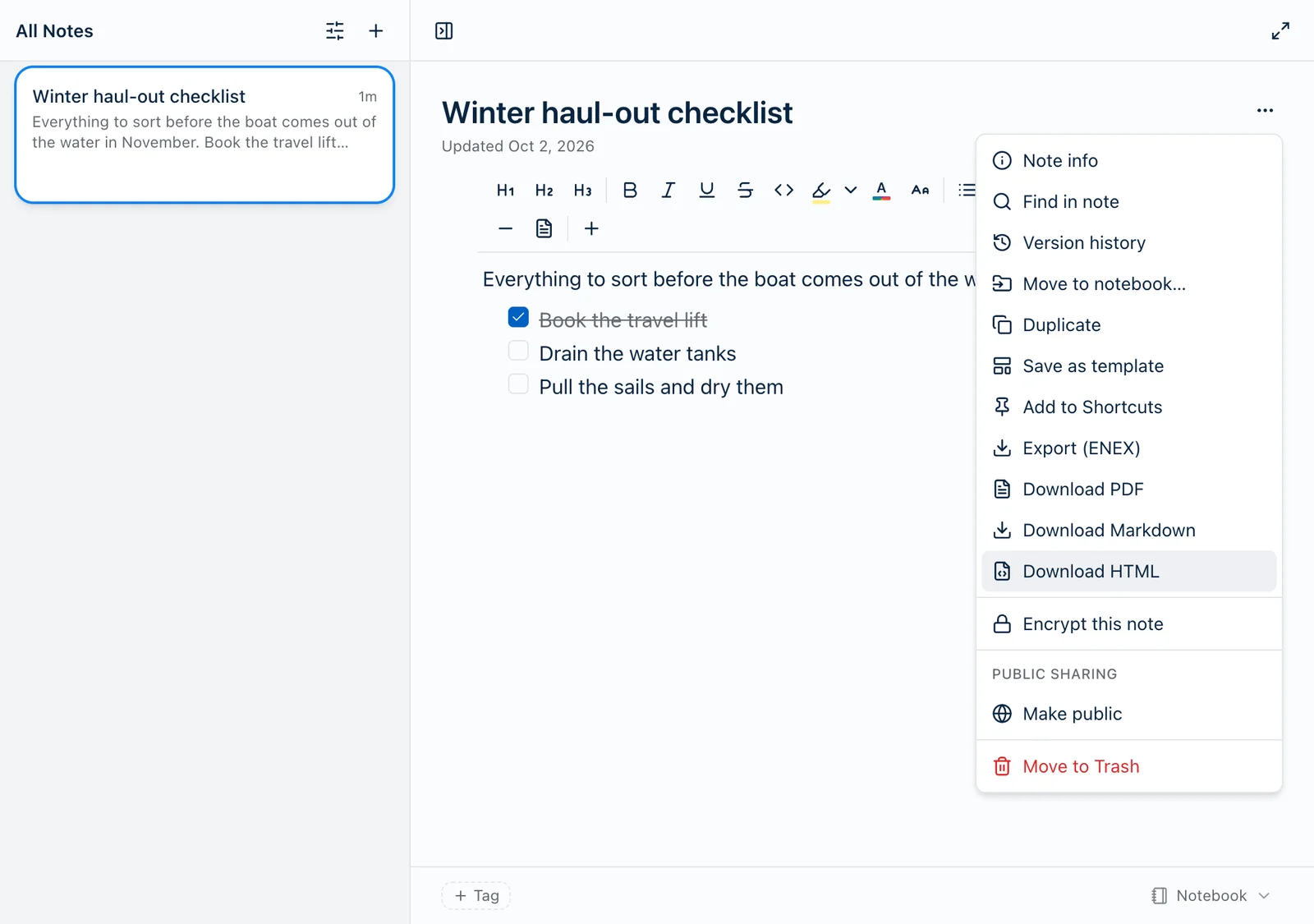
Open the note, open its ⋯ menu, and pick a format:
- Export (ENEX)
- Download PDF
- Download Markdown
- Download HTML
Every Harbor app has the same four, in the same order. The file comes straight to you. No email, no waiting.
Which one to pick
- ENEX is Evernote’s format. Use it to move a note into Evernote or another notes app, or to keep a copy Harbor can import again. Attachments ride inside the file.
- PDF is for sharing and printing. Images sit where they are in the note, and any PDFs attached to it are added after the note, so you send one document instead of several.
- Markdown is plain text for other apps: Obsidian, Bear, iA Writer, any text editor. A note with attachments comes as a
.zipholding the.mdand afilesfolder. More on that in exporting as Markdown. - HTML is one web page that opens in any browser, even with no internet. Images and attachments are inside the file, and checklists keep their boxes and ticks.
If you want to read the note somewhere else, take HTML. If you want to edit it somewhere else, take Markdown.
Where the menu is
- Web: the ⋯ at the top right of the note. Your browser downloads the file.
- Mac: the ⋯ in the note, or right-click the note in the list. A save window opens with the name filled in.
- Windows: the ⋯ in the note, or right-click the note in the list. It’s in a note’s own window too. A save window opens with the name filled in.
- iPhone and iPad: the ⋯ in the note. The share sheet opens, so you can save to Files, AirDrop it, or send it to another app.
- Android: the ⋯ in the note, just below Tags. The share menu opens so you can pick where it goes.
When it’s done, Harbor tells you: Export downloaded, PDF downloaded, Markdown downloaded or HTML downloaded. On iPhone and iPad, that message shows once you’ve finished sharing, so cancelling the share sheet shows nothing.
File names
The file is named after the note. Accents and emoji stay. A few characters that file systems don’t like, such as /, :, ? and #, turn into _.
PDF is stricter: plain letters and numbers, with dashes for spaces. Accented letters and emoji drop out, so “Welcome to Harbor 👋” saves as Welcome-to-Harbor.pdf.
Encrypted notes
Encrypted notes are locked with a key only you hold. These exports are built on our servers, and our servers can’t read them. So it depends on the app:
- Web, iPhone, iPad and Android: the four items don’t appear on an encrypted note.
- Mac and Windows: two of them stay, Export (ENEX) and Download HTML. Harbor builds the file on your computer from the unlocked note. If the note is locked, you’ll need your passphrase. Download PDF and Download Markdown don’t appear.
Built on your computer, the ENEX keeps the note’s attachments, but the HTML has no images or attachments. If an attachment can’t be opened, it’s left out of the ENEX, and on Windows the message tells you how many.
If a note gets encrypted on another device while its menu is open, the export stops with Encrypted notes can’t be exported. and nothing is saved.
Good to know
- PDF and HTML stop at 100 MB. A note with big attachments can get there. You’ll see The exported file is too large. Markdown has no limit.
- Attached PDFs have two limits. A note with more than 25 attached PDFs can’t be exported as one PDF. And if one is damaged or password-protected, it’s left out and the message tells you how many, like “1 attachment(s) could not be combined”.
- Folded sections come out open. A file has nothing to click, so a folded section would otherwise just be missing.
- Read-only accounts can still export. If your subscription lapses, all four keep working. So do web clips.
- Notes in the Trash don’t have these. Restore the note first.
- Want more than one note? A whole notebook or your whole account exports from a different place. See Can I export everything?
From the terminal
The Harbor CLI does the same four:
harbor notes export <note-id> --format pdf
--format takes markdown (the default), pdf, html or enex. The file lands in the folder you’re in, with the same name the apps use. Add -o to save it somewhere else. An encrypted note stops with Encrypted notes can’t be exported. in every format. Here’s how to find a note’s id.
Related questions
Need more help?
Still stuck? Send us a message and a real person will get back to you.