How do I find a note's ID?
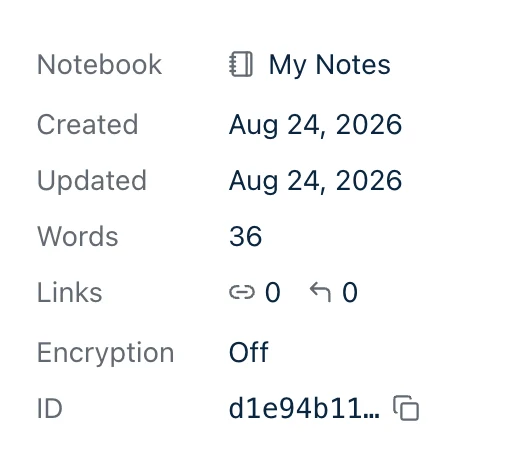
Open the note, open Note info, and click the ID row. That copies it.
Every note in Harbor has an ID — a 36-character identifier that belongs to that one note and never changes, even if you rename it, move it to another notebook, or edit it beyond recognition. It looks like this:
9c2e7b10-1234-4abc-89ab-0123456789ab
You’ll never need it for ordinary note-taking. You need it the moment you want something outside the app to work on a specific note — the Harbor CLI, the API, or an AI assistant connected over MCP. All three address a note by its ID.
Where the ID row is
It’s the last of the detail rows in the note’s Info panel — under Notebook, Created, Updated and whatever else that particular note has, and just above the Tags section. Which rows appear above it varies from note to note; the ID is always the last one.
Getting there is the same everywhere — open the note, open its ⋯ menu, choose Note info. Where the panel lands differs:
- Mac, Windows, and a reasonably wide browser window — beside the note.
- iPhone, iPad and Android — a sheet over the note. In a browser window narrow enough to get the phone or tablet layout, it fills the screen instead.
There’s a keyboard shortcut on most of them: ⌘I on a Mac, iPad or iPhone, Ctrl+I on Windows. Same catch everywhere — while your cursor is in the note body, that combination is italic instead. The web app and Android have no shortcut for it; use the menu.
The harbor CLI has no Info panel and doesn’t need one — harbor notes list prints every note’s ID already.
One click copies the whole thing
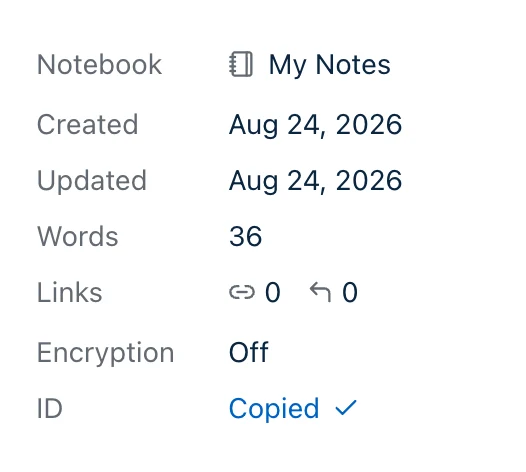
The row shows only the first eight characters, because all 36 would overflow the panel. Clicking it — tapping, on a phone — copies the full ID. The short form is never what lands on your clipboard.
The row flashes Copied for a couple of seconds. That’s the confirmation; there’s no dialog to dismiss.
What to do with it
In the CLI — most commands that act on one note take the ID:
harbor notes get 9c2e7b10-1234-4abc-89ab-0123456789ab
harbor notes update, harbor notes tag, harbor notes append and harbor share publish all take the same ID in the same place.
In the API — it’s the path segment:
GET /api/v1/notes/9c2e7b10-1234-4abc-89ab-0123456789ab
With an AI assistant over MCP — the get_note and update_note tools both take an id. Paste the ID into your chat and ask for what you want:
Read note 9c2e7b10-1234-4abc-89ab-0123456789ab and turn the second half into a checklist.
That’s usually the fastest way to put an assistant on the exact note you mean, with no chance of it working on a near-miss.
Encrypted notes have an ID too
The row is there on an encrypted note and copies the same way. What differs is what the other end can do with it, and it isn’t the same for all three:
- An MCP tool gets a short marker saying the note is encrypted, and no title or body. That’s deliberate — it’s the assistant that shouldn’t be reading your locked notes.
- The API returns the note, with the title and body as ciphertext. Our servers hold nothing else, so that’s all there is to send.
- The CLI runs on your computer, so it can decrypt. Give it your passphrase through
HARBOR_PASSPHRASEandharbor notes getprints the note in the clear. Nothing leaked — you handed over the key. It’s the one case worth knowing about before you set that variable somewhere an agent can reach, and there’s more on it here.
There’s a wrinkle while an encrypted note is locked. The ⋯ menu is hidden on a Mac, on Windows and in a browser, because every item in it acts on content that session can’t read. On a Mac, Note info is still there on ⌘I, or by right-clicking the note you have open; on Windows, Ctrl+I still opens it. In a browser there’s no way in until you unlock. iPhone, iPad and Android leave the menu alone — Info is metadata, not content.
What we’d actually do with it
Don’t collect IDs. Copy one at the moment you need it, use it, and forget it — an ID is a handle for a job you’re doing right now, not something to keep a list of.
The exception is a note you automate against repeatedly — a running log a script appends to, say. That one is worth pasting into the script once, because the ID survives everything you might do to the note afterwards.
Related questions
Need more help?
Still stuck? Send us a message and a real person will get back to you.