Can I drag files in to make notes?
Yes. Select the files on your desktop, drag them onto the notes list or a notebook, and let go. Each file becomes its own note, named after the file, with the file inside. Twenty PDFs make twenty notes.
It works in the web app, on the Mac and on Windows. On the Mac you need Harbor 1.0.65 or later, and on Windows 0.2.27 or later. Here’s how to check.
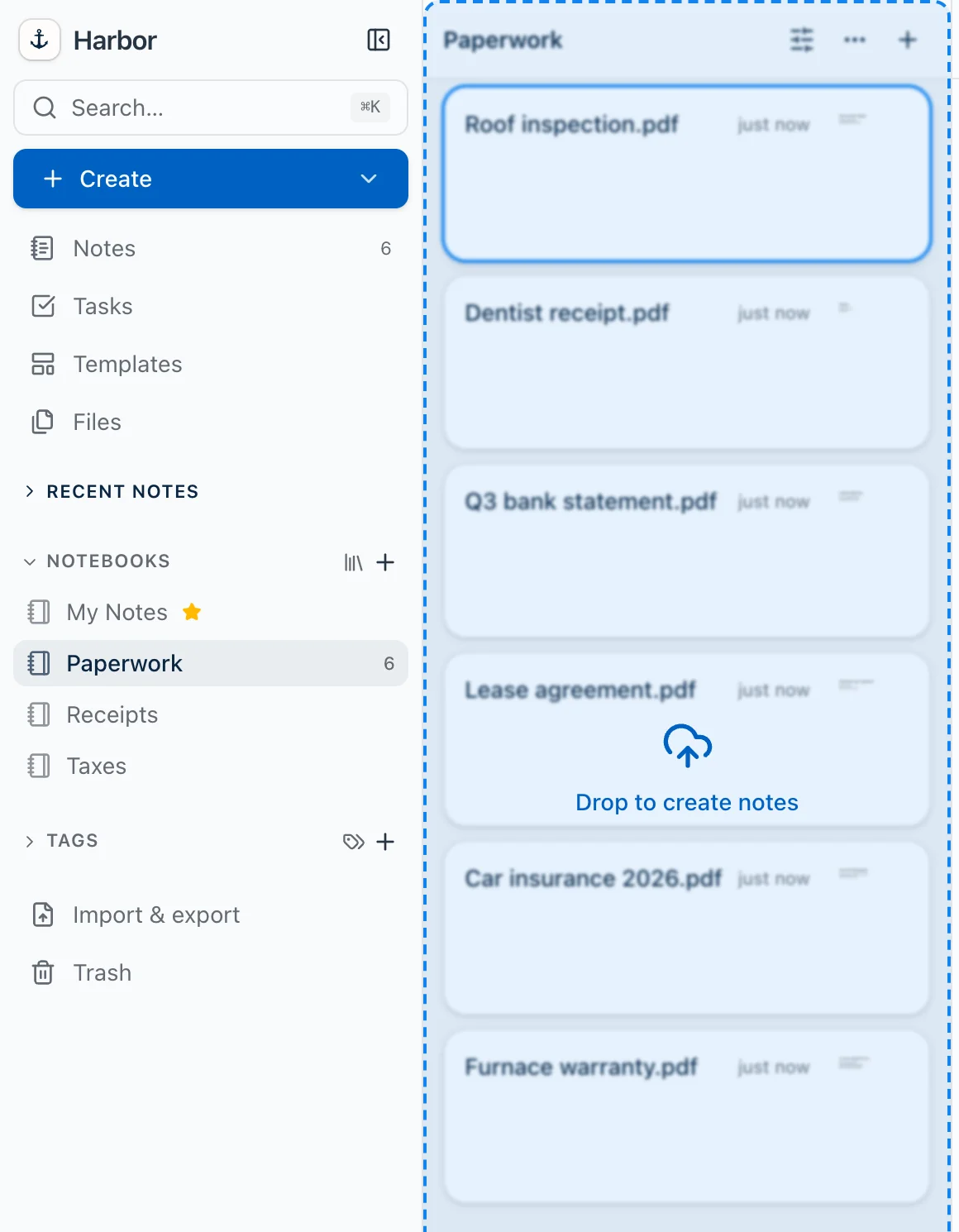
Where you can drop them
Four places:
- The notes list. The whole pane, even when it’s empty. While you drag, a box reading Drop to create notes covers it. Search results take a drop too.
- A notebook in the sidebar.
- A notebook inside a stack. Hold the files over a closed stack for a moment and it opens.
- A notebook pinned in Shortcuts.
A notebook lights up with a blue outline when you’re over it.
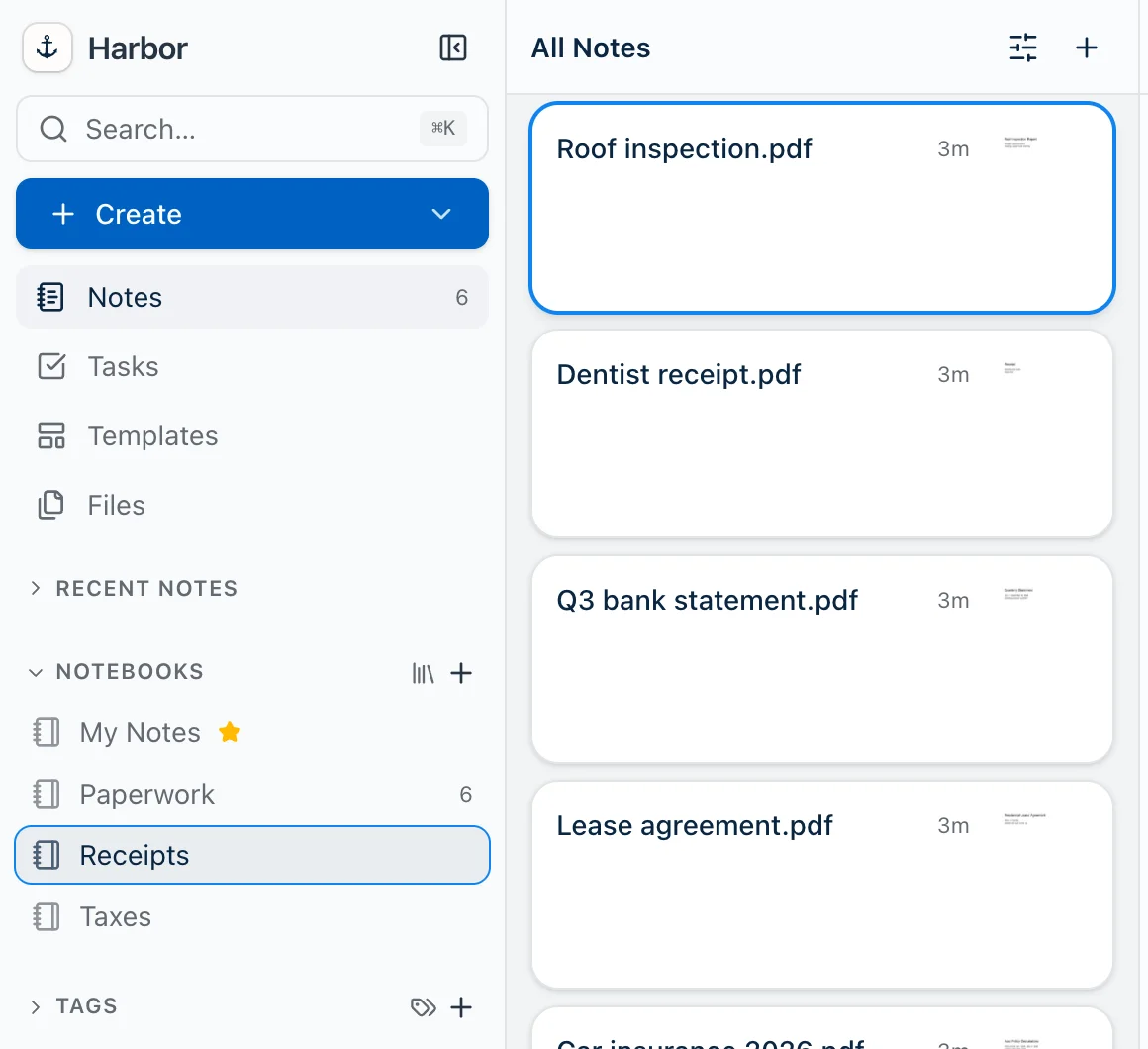
Nothing else takes files: not a tag, not the Trash, not the stack itself. Dropping a file into an open note still attaches it to that note, like it always has.
Where the notes go
Drop on a notebook and the notes go in that notebook.
Drop on the notes list and they go where New note would put them. If you’re looking at a notebook, they go in it. From All notes, a stack, a tag or search results, they go in your default notebook. In a workspace, they go to one of its notebooks: your default notebook if it’s in that workspace, otherwise the workspace’s first notebook from A to Z.
Two things that trip people up:
- Dropping in a tag view doesn’t tag the notes. New note doesn’t either.
- A search filtered to one notebook doesn’t file them there. They go to your default notebook, like any other drop on search results.
When it’s done, Harbor says where they went: Created 20 notes in “Paperwork”. Nothing opens and your view stays put.
What each note is called
The full file name, extension and all. Q3 report.pdf makes a note called Q3 report.pdf. That’s the same rule watched folders use.
Want a better name? Clear the title and press Suggest title. Harbor offers one from what’s inside the note.
In a notebook that encrypts its notes, a very long file name can get cut short in the title. The file inside keeps its full name.
Which files work
Any file Harbor takes as an attachment, not only PDFs and pictures. A Word document, a voice memo, a spreadsheet: each gets its own note. PDFs and images go through OCR like always, so a little while later the words in them are searchable.
Folders aren’t added. Harbor won’t open a folder and go through it. If your drop has one in it, you’ll see “Folders weren’t added”, and the files beside it still come in. To add what’s inside a folder, open it and drag the files.
Encrypted notebooks
Drop onto a notebook that encrypts by default and the notes and their files are encrypted on the way in. If encryption is locked, Harbor asks you to unlock once for the whole drop, not once per file. Cancel and nothing is made.
Encrypted files skip OCR and search. That’s the encryption trade-off.
Limits
A drop plays by the same rules as any other upload: the file size limit, and your plan’s limits on notes and files. Every file makes a note, so a drop counts against both.
Harbor checks the whole pile before anything uploads. If only part of it fits, the first files that fit are added and you’re told about the rest. Say you have room for three more notes and drop ten: you get three notes and a message that you’ve hit your plan’s limit, with an Upgrade button.
If the server stops a drop partway through, the notes already made stay.
When an upload fails
On the web, a file that fails to upload never leaves an empty note behind. Retry it from the upload tray and it still becomes a note, with a short message of its own.
On the Mac and Windows, a file that can’t upload right now still gets its note, and the file goes up when it can. That works offline too. The web app needs a connection, like any upload.
iPhone, iPad and Android
Not there. Those apps don’t have a notebook list beside the notes, and dragging with a finger is a different gesture.
Share the files to Harbor instead. They arrive together in one note, not one note each. On iPhone and iPad, that’s Share, then Harbor, then Save. Here’s that with pictures. On Android, tap Share and pick Harbor.
Drag, or a watched folder?
Drag when the pile is already in front of you: twenty PDFs on the desktop, a year of receipts you finally got around to. You do it once and you’re done.
Use a watched folder for files that keep arriving, like the folder your scanner saves into. Set it up once and every new file turns into a note without you touching it. A watched folder can also tag what it brings in and name each note from what’s on the page. A drop does neither.
Related questions
Need more help?
Still stuck? Send us a message and a real person will get back to you.