How do I delete a file?
Open Files in the sidebar, hover over the file, click its three-dot menu, and pick Delete… at the bottom. Or click the file to open its details and use the Delete… button there.
It works the same way on web, Mac and Windows.
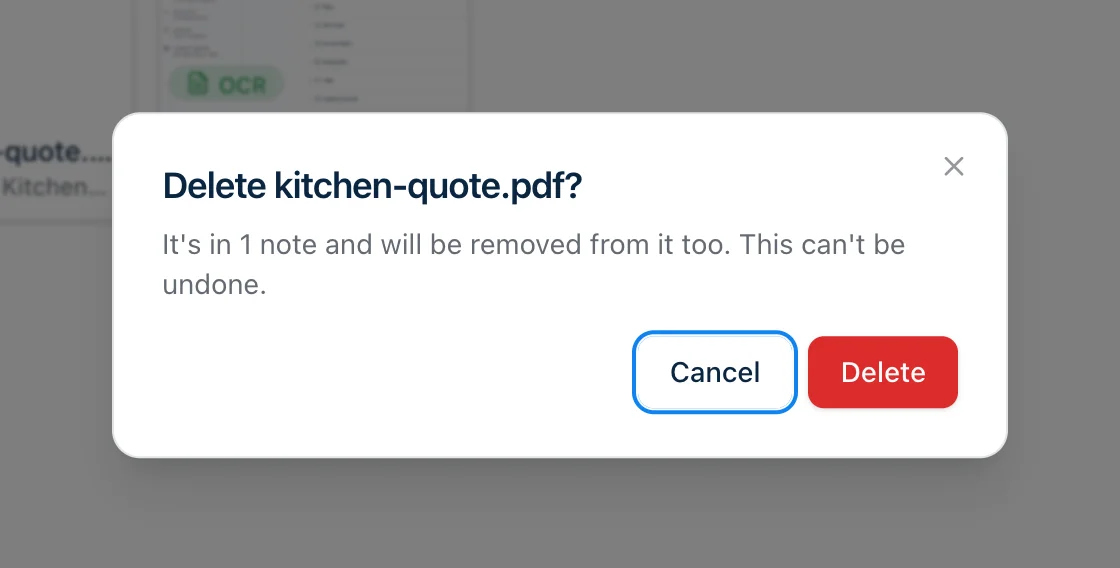
Before you commit, Harbor tells you how many notes use the file. Click Delete and it’s gone, from Files and from every one of those notes.
There’s no undo. A deleted file doesn’t go to the Trash.
You need to be online to delete a file. Offline, Delete… is greyed out.
What happens to the notes
Each note that used the file loses it, including notes in the Trash. The rest of the note stays the same, but it counts as just edited, so it may move up a list sorted by date.
Templates lose it too. The count in the dialog doesn’t include them, so if you rely on a template, open it first and see whether it uses this file.
A note’s version history still has the older versions that showed the file. Open one and the file shows as missing. Restoring that version won’t bring it back.
Finding files that aren’t in a note
Take a picture or a file out of a note and Harbor doesn’t delete it. It stays in Files until you do, and those add up.
The In a note or not menu at the top of Files picks which files you see. It has three choices:
- In a note or not shows everything. It’s the default.
- In a note shows files that at least one note uses.
- Not in a note shows the leftovers: files you took out of notes, and uploads you never put anywhere.
A few things that might surprise you:
- A note in the Trash still counts as a note. A file whose only note is in the Trash shows under In a note, not under Not in a note. Empty the Trash and the file goes with the note.
- A file that only a template uses shows under Not in a note. Delete it and it comes out of the template as well.
- Notes you imported may not have caught up. If you imported notes from Evernote, Standard Notes or Obsidian, a picture you take out of one of them may still show under In a note.
If you use workspaces, Not in a note shows leftovers from every workspace, not only the one you’re in. A file that isn’t in a note doesn’t belong to a workspace. Harbor shows a line that says so.
Files you can’t delete from here
Files in an encrypted note. Harbor can’t read inside an encrypted note, so it can’t take the file out for you. You’ll see Can’t delete this file instead. The file’s details show which note it’s in. Open that note, remove the file there, and then delete it from Files. If the note is in the Trash, restore it first. If it still won’t delete, get in touch.
Your profile picture. Harbor tells you when you try. Change or remove your profile picture in Settings first, then delete the old file.
Deleting frees up room on the free plan
Every file counts toward the free plan’s file limit, leftovers included. Delete one and it stops counting.
That works even when your account has gone read-only. If files are what put you over, deleting some is how you get back under. More on that in Is there a free plan?
iPhone, iPad and Android
The phone and tablet apps don’t have a Files screen. You can take a file out of a note there, but to delete it for good, use the web, Mac or Windows.
Related questions
Need more help?
Still stuck? Send us a message and a real person will get back to you.