Can I change the font size in a note?
Yes, and there are two ways to do it. They do different jobs, so it’s worth knowing which one you want.
| What it changes | Where it is | |
|---|---|---|
| The Aa button | Just the text you selected. It’s formatting, like bold or a color. | The editor toolbar, right after font color |
| The Font size setting | The text in every note, all at once. It’s a comfort setting. | Settings → Preferences → Editor |
If one note needs some text bigger or smaller, use the button. If all your notes feel too small to read, use the setting.
Resize the text you selected
Select some text, click the Aa button and pick a size:
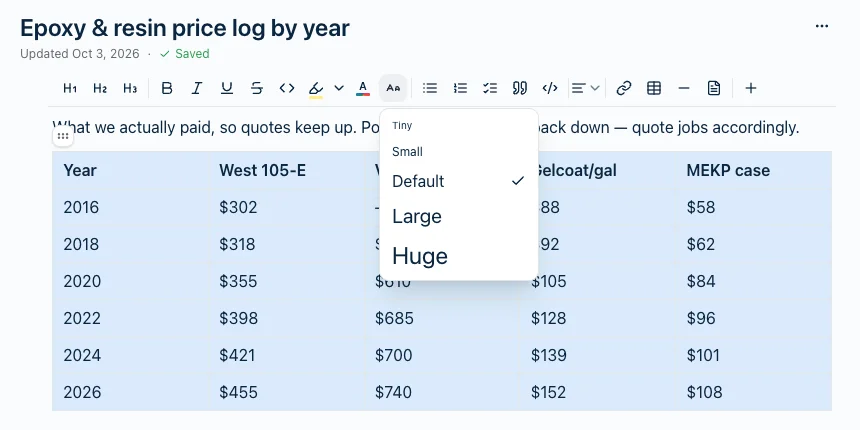
There are five sizes: Tiny, Small, Default, Large and Huge. Each one is drawn at its own size in the menu, so you can see what you’re getting before you pick it. The check mark shows the size the selected text has now.
On web, Mac, Windows and Android, the same button is also in the little bar that pops up when you select text, so you don’t have to reach up to the toolbar.
With nothing selected, pick a size and start typing. What you type comes out in that size.
What “Default” does
Default isn’t a size. It means “no size of my own.” Pick it and the text goes back to following your Font size setting in Preferences.
That’s why the two don’t fight. Say you make one heading Huge and leave everything else alone. Later you raise your Font size setting from 16 to 20 because your eyes are tired. Every ordinary word in every note gets bigger. The Huge heading stays exactly where you put it, because you gave it a size on purpose.
So if a word looks stuck at the wrong size after you’ve changed your setting, that’s the word with its own size. Select it and pick Default.
Fit a wide table on screen
This is the one most people want it for. A table with lots of columns runs off the right-hand edge, and shrinking the text is the quickest way to fit more of it in.
- Click the first cell of the table.
- Hold Shift and click the last cell. The whole table is now selected.
- Click Aa and pick Small or Tiny.
Every cell changes at once.
One thing it won’t do: the rows stay about as tall as they were. The words get smaller, but each line keeps the height of your normal text, so a table gets narrower without getting much shorter. That’s how the editor lays out lines, not something you’ve done wrong.
Resize every note at once
The Font size setting changes the text in all your notes together. Pick any size from 10 to 32. Headings grow and shrink with it, so a note keeps its shape.
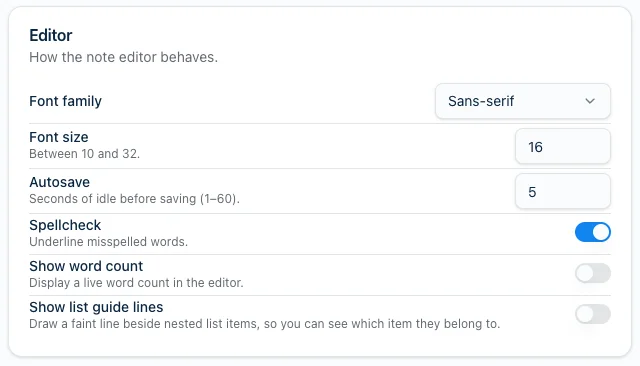
- Web, Mac and Windows: Settings → Preferences → Editor → Font size.
- iPhone and iPad: Settings → Editor → Font size. On iPhone, Settings is on the More tab.
It’s saved to your account, so your other devices pick it up too. It only changes how notes look to you. Nobody else sees your notes any bigger or smaller because of it.
The Android app doesn’t have this setting yet. It does have the Aa button.
Sizes that come in from elsewhere
- Evernote imports keep their sizes. If you made text bigger or smaller in Evernote, it arrives in Harbor the same way. More on what comes across in an import.
- Pasting keeps sizes too, the same way it keeps colors. To paste without any formatting, use ⌘⇧V (Ctrl+Shift+V on Windows).
- Odd sizes stay as they are. An imported 9-point word isn’t one of the five sizes, so nothing in the menu gets a check mark. Point at the Aa button and the tooltip shows the real size, like Font size: 9pt. Pick any size from the menu to replace it.
Where it works
The Aa button is in web, Mac, iPhone, iPad, Windows and Android. On a phone or tablet, look for it in the formatting bar above the keyboard.
Sizes are part of the note, so they sync like everything else. A public share link shows them too.
Related questions
Need more help?
Still stuck? Send us a message and a real person will get back to you.