How do I zoom into a picture, or make text bigger?
They’re two different jobs. For a picture, open it full screen and zoom in there. For text, turn up Font size in Settings. In the Harbor apps, pinching a note’s text won’t make it bigger.
Zoom into a picture
On iPhone and iPad
- Tap the picture, then tap its ⋯ button and pick Open. In a note you can’t change, like one in the Trash, tapping the picture brings up a short menu with Open in it.
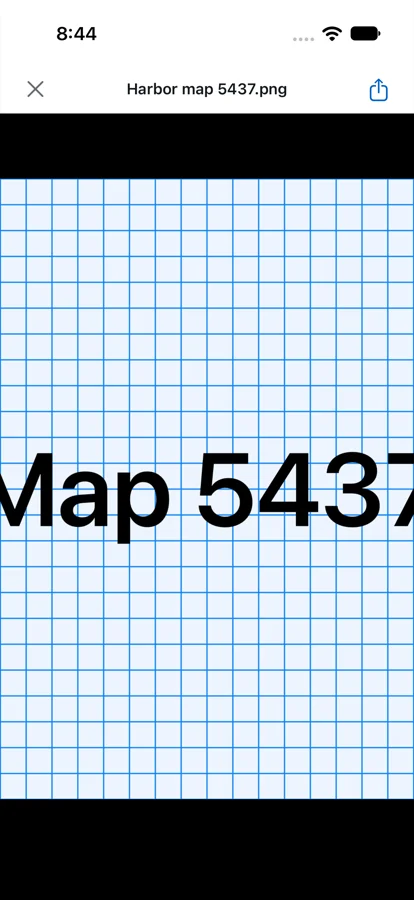
- The picture fills the screen. Pinch to zoom, or double tap the part you want a closer look at. Double tap again to see the whole picture.
- While you’re zoomed in, drag to look around.
To close it, tap the X, or swipe down when you’re not zoomed in. Esc works too on an iPad with a keyboard. Share is in the top-right corner.
On Android
It works the same way. Tap the picture, then its ⋯ button, and pick Open. Pinch or double tap to zoom, and drag to move around. The X, Back or a swipe down closes it.
On the web
Point at the picture and click View, the eye at the end of its row of buttons. On a touch screen, tap the picture first.
At the top of the viewer, − and + zoom out and in. The label between them says how far in you are: Fit when the whole picture is on screen, or a percent of its real size, like 150%.

There are faster ways in:
- Pinch on a trackpad, or hold Ctrl and scroll. ⌘ and scroll works on a Mac too. Each one zooms around the spot under the pointer.
- Double-click to jump in on that spot. Double-click again to go back to Fit.
- ⌘= zooms in, ⌘− zooms out and ⌘0 goes back to Fit. Not on a Mac? Use Ctrl instead of ⌘.
Once you’re zoomed in, scroll or drag to move around.
In a phone’s browser, the − and + buttons are hidden to make room for the file’s name. Pinch with two fingers or double tap instead.
On Mac
Double-click the picture, or pick Preview from its ⋯ menu. The − and + buttons at the top zoom out and in. Click the percent between them to go back to Fit.
On Windows
Double-click the picture, or pick Preview from its ⋯ menu, to open it in the viewer. The Windows viewer doesn’t zoom yet.
How far you can zoom
On iPhone, iPad, Android and the web, a picture opens at Fit: the whole thing on screen. A picture smaller than the screen opens at its real size. Harbor won’t stretch it and make it blurry.
From there, you can zoom to five times Fit, or all the way to the picture’s real size if that’s further. So even a long web clip or a full-page scan, which fits very small, zooms in far enough to read.
Make text bigger
Font size changes the text in every note at once. Pick any size from 10 to 32. It starts at 16.
- Web, Mac and Windows: Settings → Preferences → Editor → Font size.
- iPhone and iPad: Settings → Editor → Font size. On iPhone, Settings is on the More tab.
- Android: More → Settings → Editor → Font size. Tap − or + to change it.
It’s one setting for your whole account. Turn it up on your phone and your computer’s notes get bigger too. Nobody you share a note with sees it any differently.
Want one heading or one table bigger, and nothing else? That’s the Aa button in the editor toolbar. Here’s how it and Font size work together.
Why a pinch doesn’t zoom a note
In the Harbor apps, spreading two fingers on a note’s text does nothing. That’s on purpose.
A pinch that changed Font size would change it on every device you own, which isn’t what anyone expects from a pinch. So text gets bigger with Font size, and pinching is for the picture viewer.
In a phone’s browser, a pinch on a note zooms the whole page, the same as on any website.
Want to point something out in a picture, not just look closer? Annotate it. Annotate has its own zoom.
Related questions
Need more help?
Still stuck? Send us a message and a real person will get back to you.