How do I save a PDF to Harbor from any Mac app?
In any app on your Mac, choose File → Print. Open the PDF menu at the bottom left of the print dialog, and pick Save PDF to Harbor.
Coming from Evernote? It’s our version of Save PDF to Evernote. Same menu, same spot, one click.
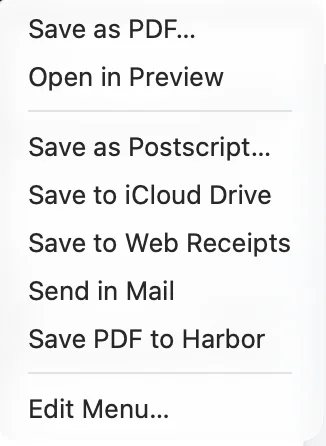
It works in any app that uses the Mac’s own print dialog, which is nearly all of them. Chrome has its own print screen first: click Print using system dialog… at the bottom of it to get the PDF menu.
What you get
A new note in your default notebook, the one with a star next to it in the sidebar. If you’re in a workspace that doesn’t include that notebook, the note goes to a notebook inside the workspace instead.
The note is named after what you printed, and the PDF is inside it. Harbor opens the note and tells you where it went: PDF saved to My Notes, or whatever the notebook is called.
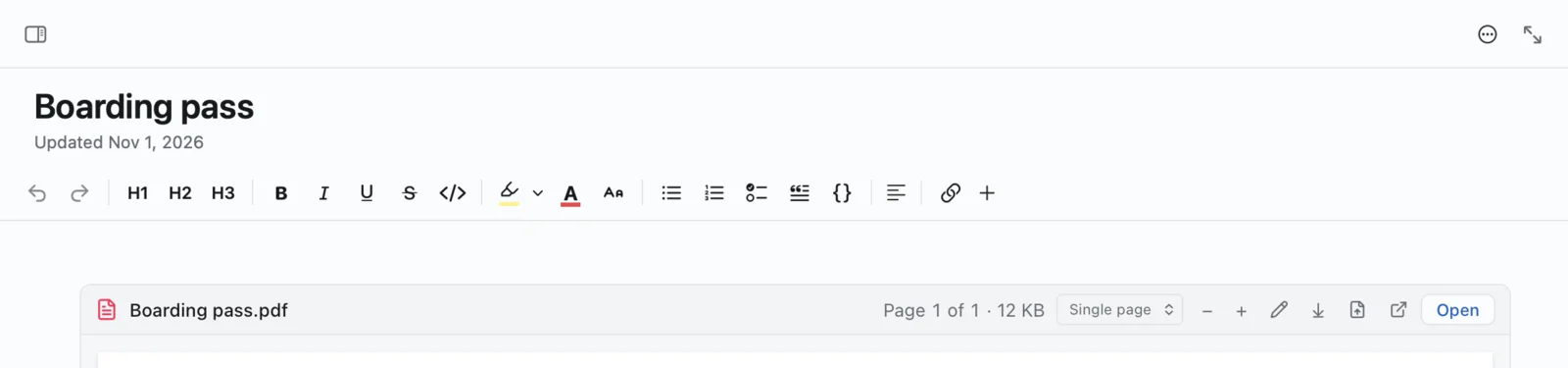
From there it’s a normal note. Rename it, tag it, or move it somewhere else.
- Harbor doesn’t have to be open. If it’s closed, printing to it opens it and saves the PDF.
- Signed out? Harbor asks you to sign in, then saves the PDF.
- Does your default notebook encrypt new notes? Then the note and the PDF are encrypted too. If encryption is locked, Harbor asks for your passphrase first.
- The words in the PDF are searchable, the same as any other PDF in Harbor. Encrypted ones aren’t. That’s the trade-off you make when you encrypt.
Switching it on
There are two Harbor builds for the Mac, and this is one of the places they differ. Not sure which one you have?
If you downloaded it from harbor.my
It’s already there. Harbor adds Save PDF to Harbor to the menu every time it opens, so there’s nothing to switch on.
If you got it from the Mac App Store
It takes two clicks.
- Open Settings → Preferences and scroll down to the Print menu card.
- Click Add to Print Menu….
- A panel opens. Click Add to Print Menu in it.

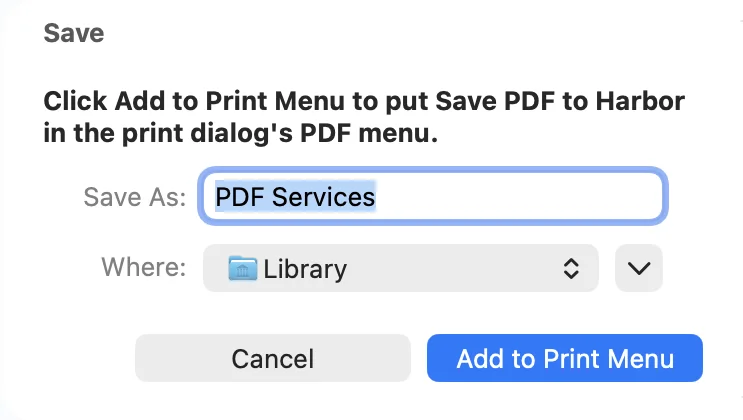
The panel is there because Apple asks you before an App Store app adds anything to that menu. Harbor only asks once.
If your Mac doesn’t have a PDF Services folder yet, the panel is a Save dialog with that name filled in and Library picked. Leave both alone. That’s the folder the PDF menu is built from, and the button makes it. If you already have the folder, the panel opens on it instead. Same button.
Removing it
Open Settings → Preferences, go to the Print menu card, and click Remove from Print Menu.

It stays gone. The harbor.my download won’t put it back the next time it opens. Want it back? Click Add to Print Menu on the same card.
Not in the menu?
Look at the Print menu card in Settings. It always says whether Save PDF to Harbor is in the menu.
Downloaded from harbor.my? First check that Harbor is in your Applications folder, then quit it and open it again. Harbor won’t add the item while macOS is still running it from where it was downloaded.
If the card still says Not in the Print menu, click Add.
No card at all? Update Harbor to the latest version.
On Windows
Harbor for Windows doesn’t have this. Print with Microsoft Print to PDF, then drag the file into Harbor. Or save it into a watched folder, and Harbor picks it up by itself.
Related: How do I import from Evernote? · How do I update Harbor for Mac? · How do I save a photo to Harbor from my iPhone or iPad?
Related questions
Need more help?
Still stuck? Send us a message and a real person will get back to you.