How do I print a note?
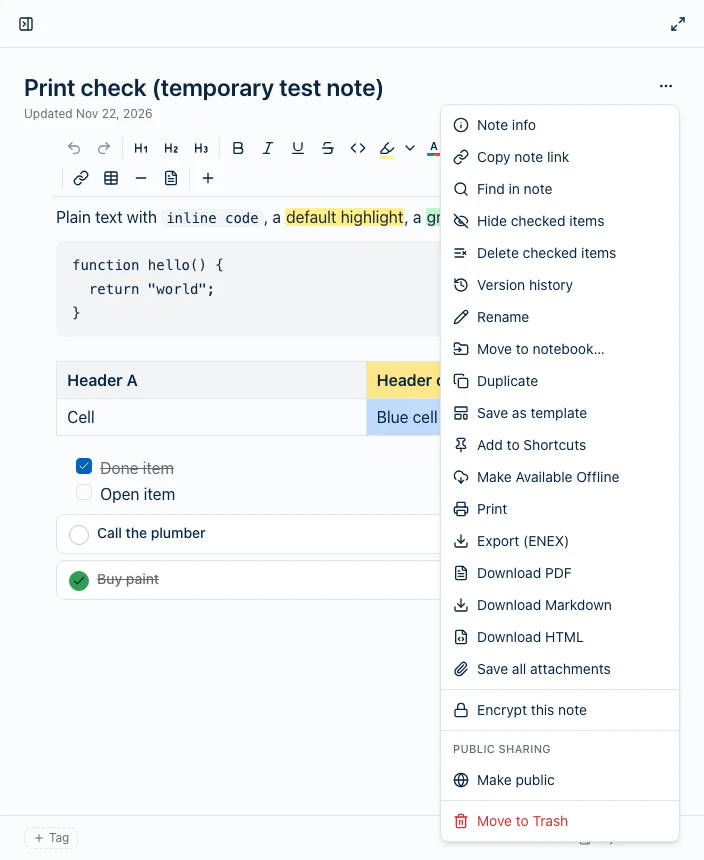
Open the note’s ⋯ menu and pick Print. It’s right above Export (ENEX) in every Harbor app: web, Mac, Windows, iPhone, iPad and Android. Or press Ctrl+P, or ⌘P on a Mac or an iPad with a keyboard. Don’t see it? Update Harbor to the latest version.
The print dialog opens. Pick a printer, or save the note as a PDF instead.
On each app
Web
The ⋯ menu, or Ctrl+P. On a Mac it’s ⌘P. It works the same in a browser tab and in the web app installed as an app.
Your browser’s print dialog opens. For a PDF, pick Save as PDF. Firefox calls it Save to PDF, and on a Mac, Safari keeps it in the PDF menu at the bottom left.
Mac
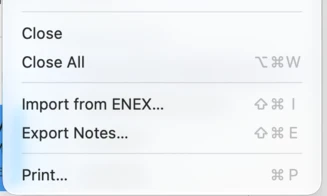
The ⋯ menu, File → Print… in the menu bar, or ⌘P.
The Mac’s print dialog opens over the note. For a PDF, open the PDF menu at the bottom left and pick Save as PDF.
Windows
The ⋯ menu, or Ctrl+P. Both work in a note’s own window too.
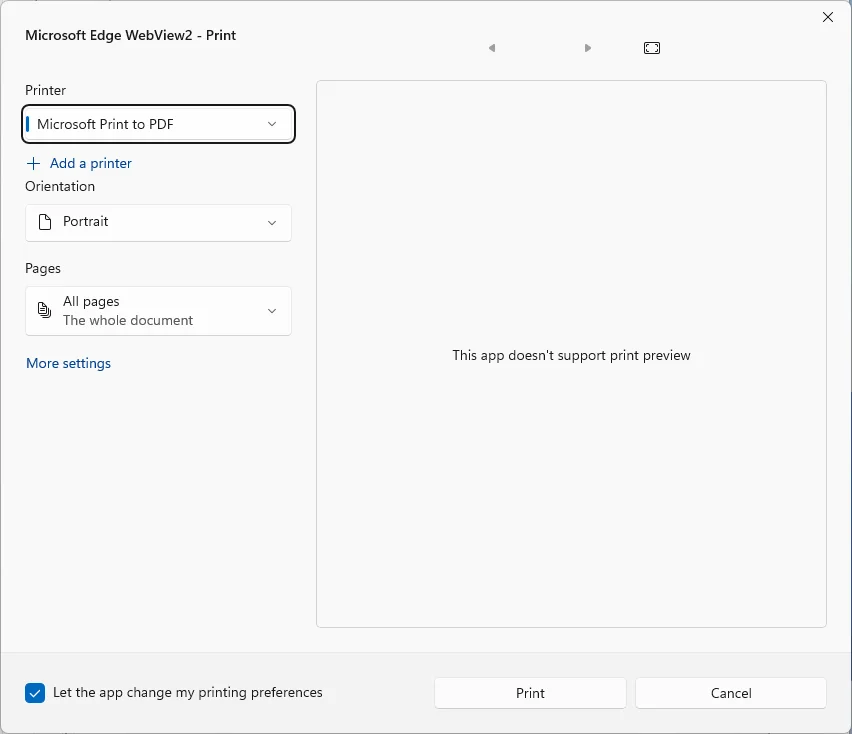
For a PDF, pick Microsoft Print to PDF as the printer. On Windows 11 the dialog is called Microsoft Edge WebView2 - Print, and it has no preview. That’s normal: WebView2 is the Microsoft engine the app uses to show your note. To check the page before you use paper, print to PDF and open the file.
iPhone and iPad
The ⋯ menu. On an iPad with a keyboard, ⌘P works too.
The print options open. For a PDF, tap the share button at the top and pick Save to Files.
Android
The ⋯ menu, or Ctrl+P with a keyboard.
Android’s print screen opens. For a PDF, pick Save as PDF from the printer menu at the top, then tap the round PDF button and choose where it goes.
If you’ve set an app passcode, Harbor locks while the print screen is open, the same as when you switch to another app. The print still goes through.
What prints
The note’s title, then the note as it shows on screen: text, pictures, tables, checklists, and tasks with their ticks. Nothing around it prints: no toolbar, no menus, no tags, no sidebar or note list. It’s the same page from every app.
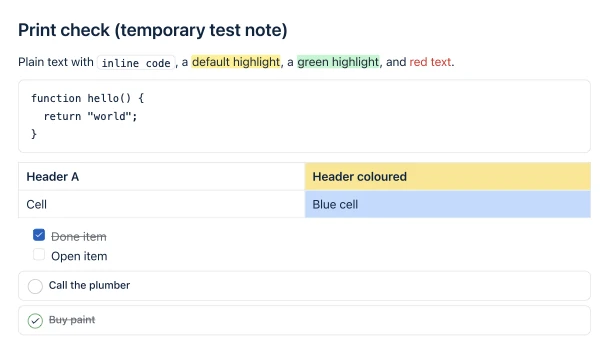
- The page is white, even when Harbor is in dark mode. The text prints dark.
- Your colors print. Highlights, text colors and the colors you gave table cells come out on paper, even when the print dialog is set to leave backgrounds out.
- Harbor’s own gray doesn’t. Code gets a thin border instead of a gray box, and table headers have no fill. It still reads as code, and it saves ink.
- Folded sections print open. Paper has nothing to click, so a folded section would otherwise just be missing.
- Hidden checked items print too. Hiding them only changes what you see in the editor.
- Wide tables fit the page, and long lines of code wrap instead of running off the edge.
Paper, margins and page numbers
Harbor doesn’t add any of its own. Paper size, margins and orientation are whatever you pick in the print dialog.
On the web, your browser may put the date, the page’s address and page numbers in the margins. To drop them, turn off headers and footers in the print dialog.
The keyboard shortcut
| App | Key | In the list of shortcuts |
|---|---|---|
| Web | Ctrl+P, or ⌘P on a Mac | Print note, under General |
| Mac | ⌘P | Print Note, under File |
| Windows | Ctrl+P | Print note, under General |
| iPad with a keyboard | ⌘P | Print Note, under File |
| Android with a keyboard | Ctrl+P | Print note, in Android’s own list (Android 16 and earlier) |
It works while you’re typing in the note. To see it with the rest of Harbor’s shortcuts, press ⌘/ on a Mac or iPad, or Ctrl+/ on Windows and Linux. On the web, the Mac and Windows, you can change it there too.
On Android 16 and earlier, press Meta+/ with a keyboard attached to see Harbor’s keys in Android’s own list. Android 17’s new list doesn’t show any app’s own keys.
Already put that key on another shortcut? You keep yours, and Print note starts with no key. Give it one in the list if you want it.
With no note open, on a locked note or on a web clip, there’s no note to print. In the apps the key does nothing then. On the web it’s your browser’s own print, same as on any other site, and that prints the whole screen.
In the Windows app, the key does nothing while one of Harbor’s dialogs is open, the same as its other shortcuts. On Android, it does nothing while a picture or a PDF is open full screen, or while you’re in Annotate, the sketch pad or the template builder.
Save as PDF or Download PDF?
Both give you a PDF. They’re made in different places.
- Save as PDF comes from the print dialog, on your device. It’s the same white page you’d print.
- Download PDF is built on our servers. Any PDFs attached to the note are added at the end, so you send one file instead of several. How do I export a single note? has the details.
If you want it to look like the note, print it. If the note has attached PDFs you want to send along, download it.
Encrypted notes
Encrypted notes print while they’re unlocked, in every app. Print uses what’s on your screen, so nothing goes to our servers. While the note is locked, Print isn’t in the menu.
That also makes it the way to get a PDF of an encrypted note. Download PDF doesn’t appear on one, because it’s built on our servers, and they can’t read it.
On the web, iPhone, iPad and Android, an encrypted note has no exports at all, so Print sits right above Save all attachments there.
Good to know
- Web clips don’t have Print. A clip shows inside a frame, and a frame can’t split across pages, so a long clip would stop after page one.
- A PDF in the note prints only the pages you’ve scrolled to. The rest come out blank. Scroll through it first, or open the PDF and print it on its own.
- Read-only accounts can still print. If your subscription lapses and the account goes read-only, Print stays.
- The first print on a Mac may ask to find devices on your network. That’s the Mac’s print dialog looking for printers. Allow it to see a printer on your network. Save as PDF works either way.
Related questions
Need more help?
Still stuck? Send us a message and a real person will get back to you.