How does Harbor work on an iPad?
On an iPad, a note opens beside its list. Tap a note and it shows up on the right. Tap the next one and it takes its place. The list stays where it is, so there’s no going back every time.
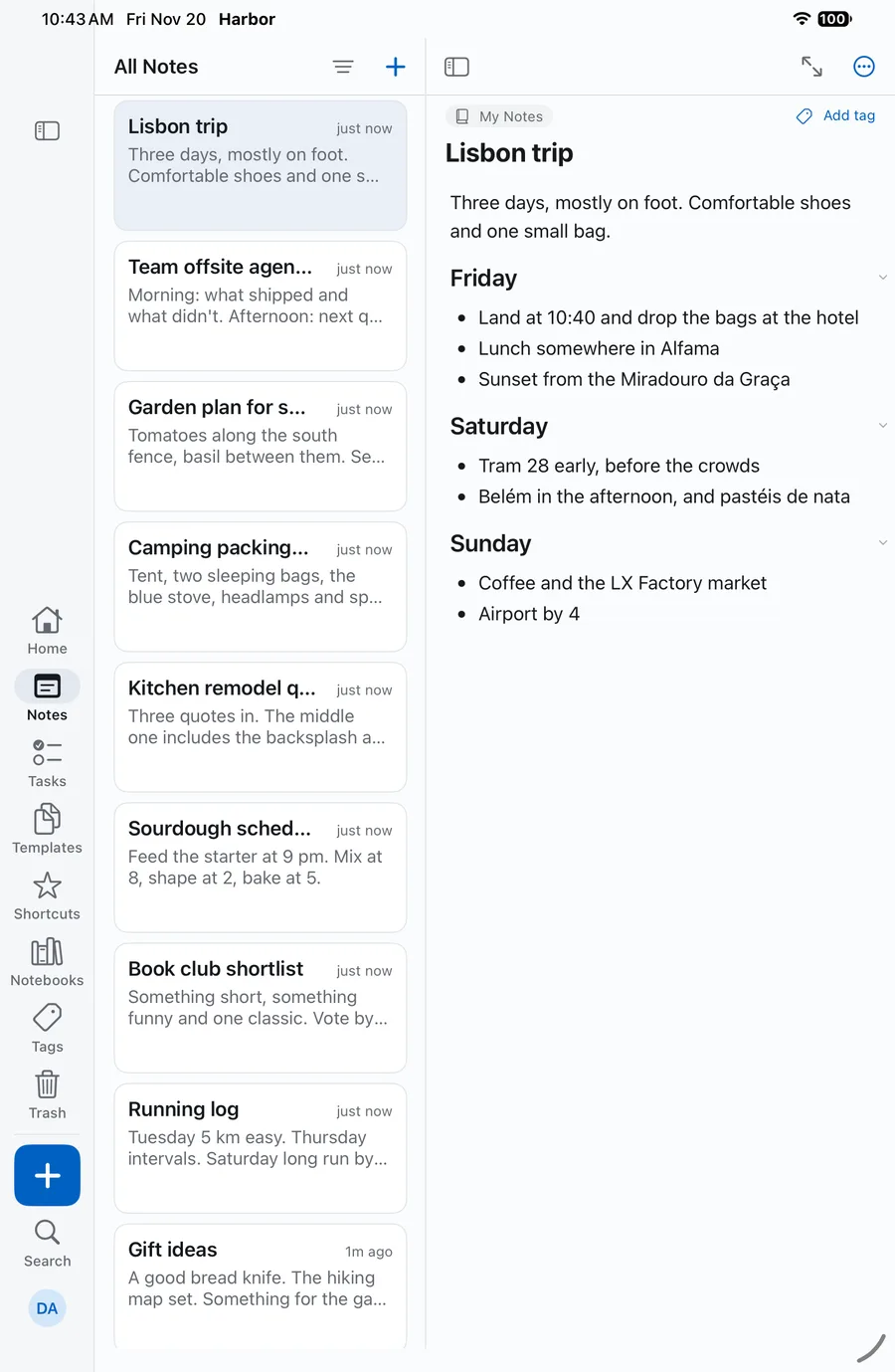
The rest of the layout is built around your hands. Hold an iPad and your thumbs rest near the bottom of the screen, so that’s where Create, Search and your account are.
The note beside its list
- Tap a note to open it on the right. The list stays put, with that note highlighted.
- Drag the line between them to make the list wider or narrower. It snaps to a few widths on the way. Drag it most of the way left and the list hides. Harbor remembers the width on this iPad.
- Drag two fingers down the list to select several notes at once. What you can do with them shows up at the bottom of the list.
- A note you open from somewhere else, like Home, Tasks or a link in another note, opens on its own with a Back button.
- A search result opens in All Notes, beside the list.
Hide note list and Focus mode
Two buttons at the top of the note give it more room.
- Hide note list is the button at the top left of the note. The list goes away and the note takes its space. Tap it again to bring the list back.
- Focus mode is the button with two arrows at the top right. It hides the list and the left bar, so it’s just the note. Tap it again to leave.
Harbor remembers both on this iPad.
The left bar
Held upright, an iPad shows a narrow bar down its left edge. Your sections, like Home, Notes and Tasks, sit at the bottom of it, each with its name under its icon. Below them:
- Create, the blue +, opens a menu: Note, Task, Attachment, Scan, Photo, Meeting Recording and Sketch. Note is always the row nearest your finger. Press and hold Create to skip the menu and start a note in the notebook you’re in.
- Search searches everything.
- Your avatar opens your account menu, with Settings, Keyboard Shortcuts, your workspaces if you use them, and Sign out. The rest of your account, like your plan, password, exports and Delete account, is in Settings: tap your name at the top to open Account.
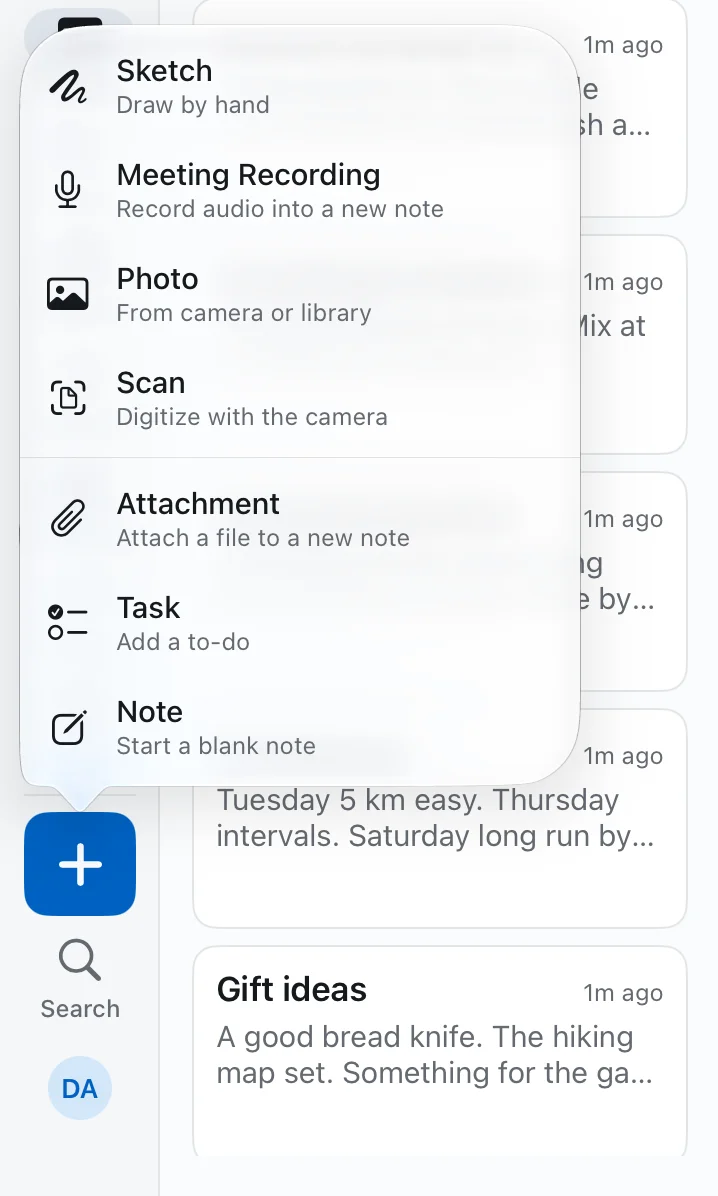
The + at the top of the note list opens the same menu, with Note at the top. Use that one while you’re typing, because the keyboard covers the bottom of the bar.
Tap the section you’re already in to go back to its first screen. In Notes, tap it again to scroll back to the top.
If your sections don’t all fit, the last ones move under More. The button at the very top of the bar opens the full sidebar.
Turn it on its side
On its side, an iPad has room for the full sidebar. Your sections get their names in full, Notebooks and Tags get an arrow that opens them to show your notebooks and tags, and Create, Search and your account are at the bottom, in the same order as on the bar. Turn the iPad and they stay at the bottom.
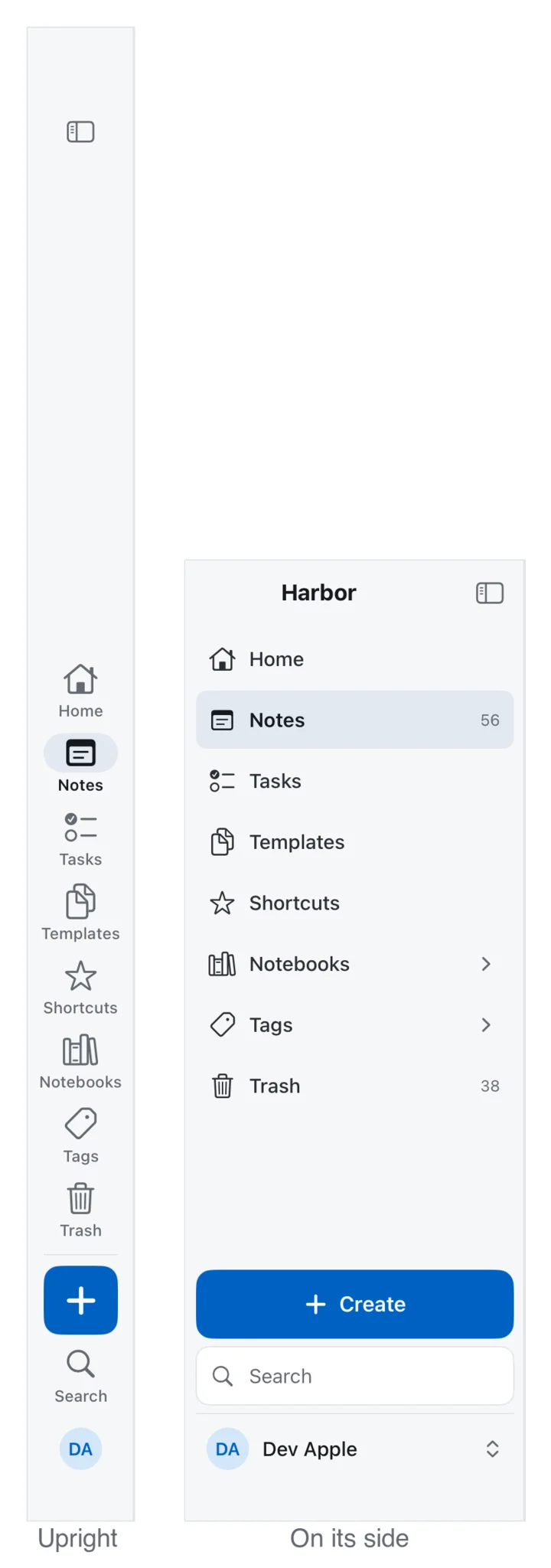
Like the bar better? Tap the button next to Harbor at the top of the sidebar to shrink it down. Harbor remembers on this iPad.
Turning the iPad never loses your place. The note you had open stays open, and the list keeps its spot.
The order of your sections comes from Settings → Sidebar. Here’s how to change it.
Split View and smaller windows
Harbor goes by the size of its window, not the size of the iPad. Make the window narrower, in Split View or Stage Manager, and it makes room for the note one step at a time:
- First the full sidebar turns into the bar.
- Then the sidebar tucks away. Tap the sidebar button at the top of the list to slide it out.
- Then you see one thing at a time: the list, then the note, with a Back button.
- At its narrowest, like Slide Over, Harbor looks the way it does on an iPhone. That includes your account: tap your picture at the top of Home.
The open iPhone Duo
Open an iPhone Duo like a book and Harbor works the way it does on an iPad: the bar down the left, the list on the left screen and the note on the right. The line between them sits on the fold.
- Unfold it with a note open and the note stays open, with a list beside it.
- Fold it and you get the note if you were reading or typing in it, or the list if you were scrolling it.
Folding or unfolding puts the keyboard away and starts a fresh undo history. Tap the note to keep typing.
Closed, the Duo works like any other iPhone.
Keyboard shortcuts
With a keyboard attached:
| Press | What it does |
|---|---|
| ⌘\ | Hide or show the note list |
| ⌃⌘S | Collapse or expand the sidebar |
| ⌘. | Focus mode |
| ⌘N | New note |
| ⇧⌘T | New task |
| ⌘K | Search |
| ⌘1 | Notes |
| ⌘2 | Tasks |
| ⌘I | Note info. In the note text it’s italic instead. |
| ⌘/ | Show every shortcut |
Used to press ⌘\ for the sidebar? That’s ⌃⌘S now. ⌘\ hides the note list, the same as on the Mac and the web.
The formatting buttons are bigger on an iPad too, and they sit right on top of the keyboard, across the whole window. More on those.
Android tablets
Android tablets and foldables get the same layout: the note beside its list, the bar and the sidebar, Create at the bottom, Hide note list and Focus mode. A few things work the Android way:
- Back closes the open note first, then steps back through the list.
- Your avatar or name at the bottom opens a menu with your workspaces, Settings and Sign out. That Settings is the phone’s More screen. Tap your name at the top for your account. Editor, Keyboard and About are under the Settings row, about halfway down.
- On a keyboard, Ctrl+\ hides the list, Ctrl+. is Focus mode and Ctrl+Alt+S is the sidebar. Ctrl+N, Ctrl+Shift+T, Ctrl+K, Ctrl+1 and Ctrl+2 do what their ⌘ versions do on an iPad.
- In the note text, Ctrl+. is superscript, so use the Focus mode button there.
- Dragging two fingers down the list doesn’t select notes. Press and hold a note, then tap Select notes.
- The sidebar’s order can’t be changed on Android yet, and it doesn’t show counts.
Don’t see any of this? Update Harbor to the latest version.
Related questions
Need more help?
Still stuck? Send us a message and a real person will get back to you.