How do I customize the sidebar?
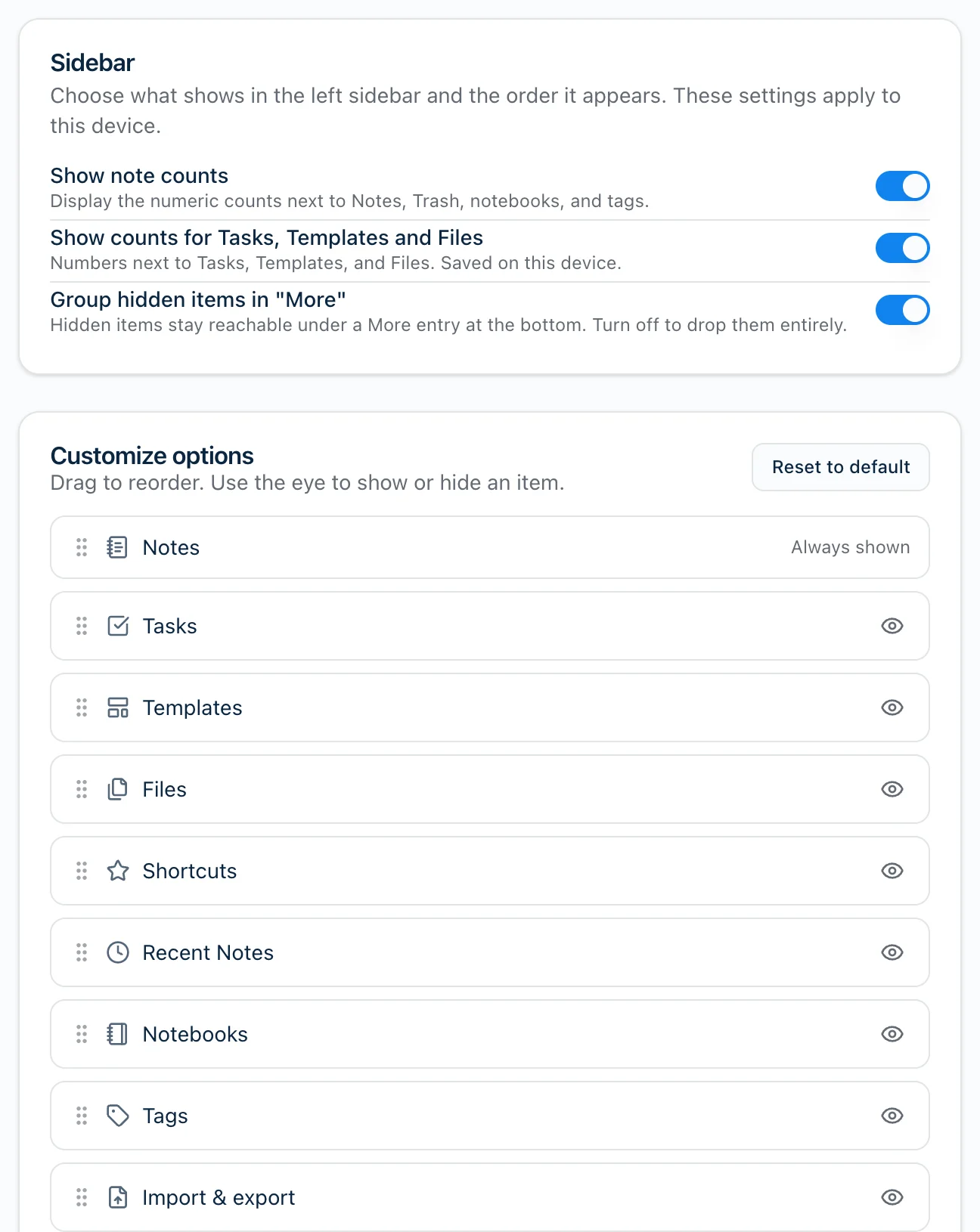
Open Settings → Sidebar. Everything about the sidebar lives on that one page: what’s in it, the order, and which numbers it shows.
It’s the same page on web, Mac and Windows. To get there:
- Web: click your name at the bottom of the sidebar, then Settings.
- Mac: press ⌘,, or click your name at the bottom of the sidebar and pick Settings….
- Windows: press Ctrl+,, or click your name at the bottom of the sidebar and pick Settings.
Reorder or hide items
The Customize options card lists every item in your sidebar.
- To move one, drag it by the grip on its left.
- To hide one, click the eye on its right. Hidden items fade out in the list. Click the eye again to bring it back.
- Notes can’t be hidden. It says Always shown instead of having an eye, so the sidebar is never empty.
- Reset to default puts the order and every hidden item back the way Harbor ships.
What happens to a hidden item depends on Group hidden items in “More”. On, which is the default, hidden items collect under a More entry at the bottom of the sidebar, so they’re still a click away. Off, they’re gone from the sidebar entirely.
Turn the numbers on or off
Show note counts puts a number next to Notes, Trash, your notebooks and your tags. It’s on by default. Turn it off and the sidebar shows no numbers at all.
Counts for Tasks, Templates and Files
Show counts for Tasks, Templates and Files adds numbers to those three as well. It’s off by default, because not everyone wants more numbers in the sidebar.
It only works while Show note counts is on. With that off, this switch is greyed out.
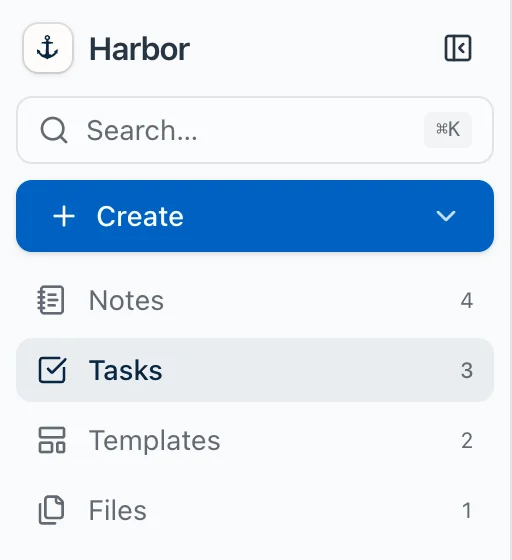
Each number is what you’d see if you clicked the item:
- Tasks counts the tasks you haven’t finished. Completed ones aren’t included.
- Templates counts every template on your Templates page, including the ones Harbor comes with.
- Files counts all your attachments, the same list as the Files page.
If you use workspaces, the numbers follow the workspace you’re in. A number that’s zero doesn’t show.
Saved on this device
These settings are saved per device, not per account. Hide Templates on your Mac and it’s still there on the web and on your Windows PC. That’s on purpose: a laptop screen and a big monitor rarely want the same sidebar.
iPhone, iPad and Android
The phone and tablet apps are laid out differently and don’t have this page. The counts settings are on web, Mac and Windows only.
Related questions
Need more help?
Still stuck? Send us a message and a real person will get back to you.