How do I download several notes, or a notebook, as one PDF?
Select the notes and click Download PDF. You get one PDF with all of them in it. For a whole notebook, open the notebook’s Export… and pick Export as PDF.
Either way, you choose whether each note starts on a new page or runs on after the one before it. And the PDF has an outline of note titles, so you can click a title and land on that note. A 300-page diary you can jump around in beats one you have to scroll.
Don’t see it? Update Harbor to the latest version.
Several notes
Select two or more notes in the list. ⌘-click them one by one (Ctrl-click on Windows), or Shift-click to select everything in between.
A bar appears along the bottom. Click Download PDF. It’s the page icon, between Index note and Delete. Hover over it and it tells you its name.

On the latest Mac and Windows apps, you can also right-click one of the selected notes. Download PDF… is in that menu, and it acts on the whole selection, the way Finder and File Explorer do.
That opens Download as PDF:
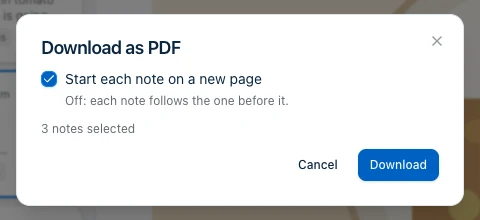
Pick how the pages break (more on that below) and click Download. On the web your browser downloads it. On Mac and Windows a save window opens. Harbor says PDF downloaded. The file is called Notes (3).pdf, with the number of notes in it.
The order is the list’s order, not the order you clicked them. Want a different order? Sort the list first, then select.
It holds up to 50 notes. Select more and the dialog says A PDF can hold up to 50 notes. For a whole notebook, use Export… on the notebook. Download stays grayed out until you select fewer.
A whole notebook
Open the notebook’s Export… from its menu: right-click the notebook in the sidebar, or use the menu on its header. On a phone or tablet, press and hold the notebook in your notebooks list, and Export… is in the menu that opens.
Export as PDF is the fourth button, under Export as Markdown:
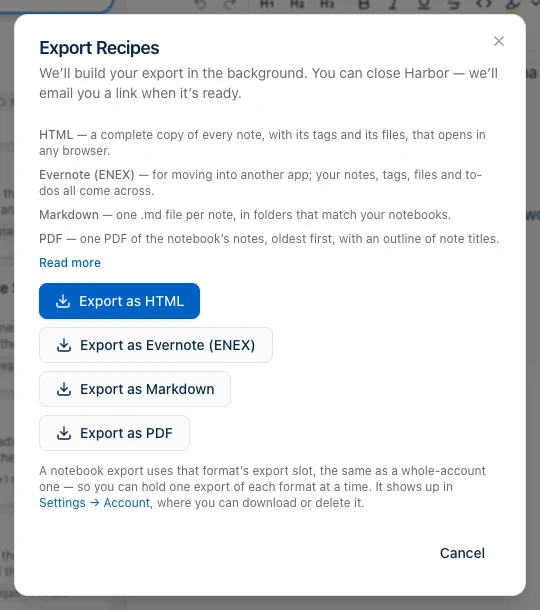
It doesn’t start anything yet. It asks the same page question first:
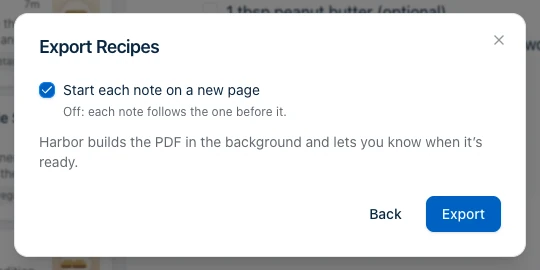
Click Export. A notebook can be big, so Harbor builds this one in the background, like every other export. You don’t have to wait around. Close Harbor if you like.
While it builds, Harbor shows its progress in the sidebar. When it’s done, you get an email, Your Harbor PDF is ready, with a Download PDF button, and the sidebar says Click here to download. The file is named after the notebook, like Recipes.pdf.
A notebook goes oldest first, by the date each note was created. So a diary reads in order, from the first day.
There’s no cap on the number of notes. The limits are on the file’s size and how many attached PDFs it holds. See below.
New page or one after another
The checkbox is Start each note on a new page, and it’s on to begin with.
- On: every note starts at the top of a fresh page. Good for printing, and for long notes.
- Off: each note follows the one before it, after a small gap. Good for lots of short notes, like a diary, where a page each would be mostly empty paper. A title that would land alone at the bottom of a page moves to the next one.
Harbor remembers your last choice, for a selection and a notebook alike. On the web, it’s remembered in that browser.
Each note starts like a single-note PDF: its title, a gray line with when it was created and last updated, and a rule.
The outline
The PDF comes with an outline: one entry per note, with its title, or Untitled if it has none. Click an entry and your PDF reader jumps to that note’s title, even when it starts halfway down a page.
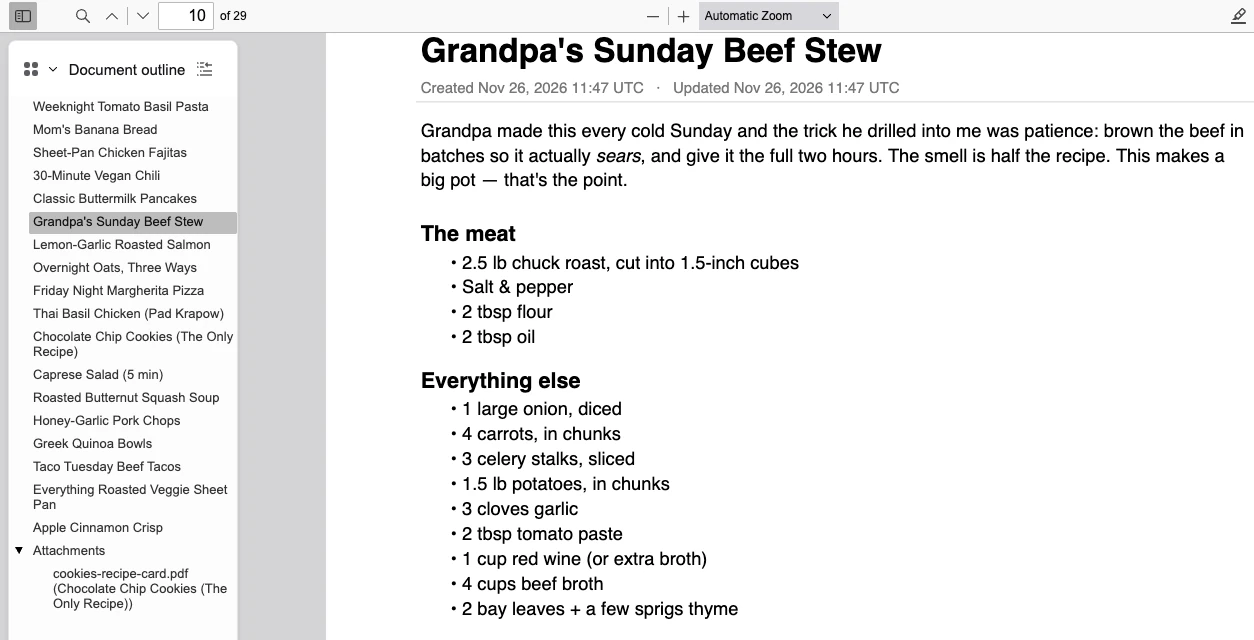
Most readers keep it in a side panel called Bookmarks, Outline or Table of Contents. In Preview on a Mac, it’s View → Table of Contents.
PDFs attached to your notes come after all the notes, each behind a page that says ATTACHMENT, the same as a single-note PDF. The outline ends with an Attachments entry that lists them, each with the note it came from in parentheses.
Links between notes still open Harbor, even when both notes are in the PDF. They don’t jump to a page.
Encrypted notes
Encrypted notes are left out. The PDF is built on our servers, and our servers can’t read them.
- The dialog tells you first. Select some and it adds a line like 1 encrypted note will be left out. After the download, the message says how many were left out.
- They don’t count toward the 50.
- If every selected note is encrypted, Download PDF is grayed out. Click it anyway and Harbor says Encrypted notes can’t be made into a PDF.
- A notebook PDF leaves them out too, and says how many when it’s ready. A notebook with nothing but encrypted notes stops with This notebook has no notes that can go in a PDF.
Need one of them on paper? Print it while it’s unlocked and save it as a PDF from the print dialog. That’s one note at a time.
Which apps have it
- Download PDF for a selection: web, Mac and Windows.
- Export as PDF for a notebook: every app. Web, Mac, Windows, iPhone, iPad and Android.
On iPhone, iPad and Android, the selection bar doesn’t have Download PDF. Use the notebook’s Export… instead.
Good to know
- One PDF export at a time. A notebook PDF has its own slot, separate from your HTML, Evernote and Markdown exports. Once it’s ready, it holds that slot until you delete it or the link expires after three days. Start a second notebook PDF before then and Harbor says You already have a PDF export. Delete the first one under Settings → Account, where it sits with Download PDF and Delete.
- One building at a time, too. Start a notebook PDF while another is still building and Harbor says A PDF export is already running. That includes the same notebook with the other page choice: Harbor keeps building the first one. Wait for it to finish, then export again.
- There’s no PDF of your whole account. The whole-account export offers HTML, Markdown and Evernote, and HTML is the one to read.
- Harbor can’t import a PDF back. A PDF is for reading, printing and sharing. For a copy you can bring back, keep an HTML, Markdown or Evernote export.
- A selection’s limits. 100 MB, 25 attached PDFs in all, and two minutes to build. If it takes longer, Harbor says This PDF took too long to build. Try fewer notes.
- A notebook’s limits. 200 MB and 200 attached PDFs. Go over and the export fails, and we email you the reason: This notebook is too big for one PDF. or This notebook has more attached PDFs than one PDF can hold.
- Big photos are scaled down to 1,600 pixels wide. That’s plenty for a printed page, and it keeps a notebook full of phone photos from turning into an enormous file.
- A damaged or password-protected attached PDF is left out. The rest still go in. For a selection, the message says how many couldn’t be combined.
- Pages are US Letter. There’s no A4 option.
From the terminal
The Harbor CLI does both. For a few notes:
harbor export pdf --notes <note-id>,<note-id>,<note-id>
The notes go in the order you type them, up to 50. Add --page-break continuous to run them on. The file lands in the folder you’re in as Notes (3).pdf. Add -o to save it somewhere else. Here’s how to find a note’s id.
For a whole notebook:
harbor account export --format pdf --notebook <notebook-id> --download .
It takes --page-break too. --download waits for the export to finish and saves the PDF, named after the notebook, in the folder you give it. harbor notebooks list shows your notebooks’ ids.
Related questions
Need more help?
Still stuck? Send us a message and a real person will get back to you.