How do I copy a link to a note?
Open the note’s ⋯ menu and choose Copy note link. It’s right under Note info.
Paste it wherever you keep track of things: a Slack message, an email to yourself, a task list. Click it later and you’re back in the note.
It’s in the web app now, from Harbor 1.0.69. The Mac, iPhone and iPad apps get it in their next update, and Android and Windows are coming too. Until your app has it, copy the link from the web app.
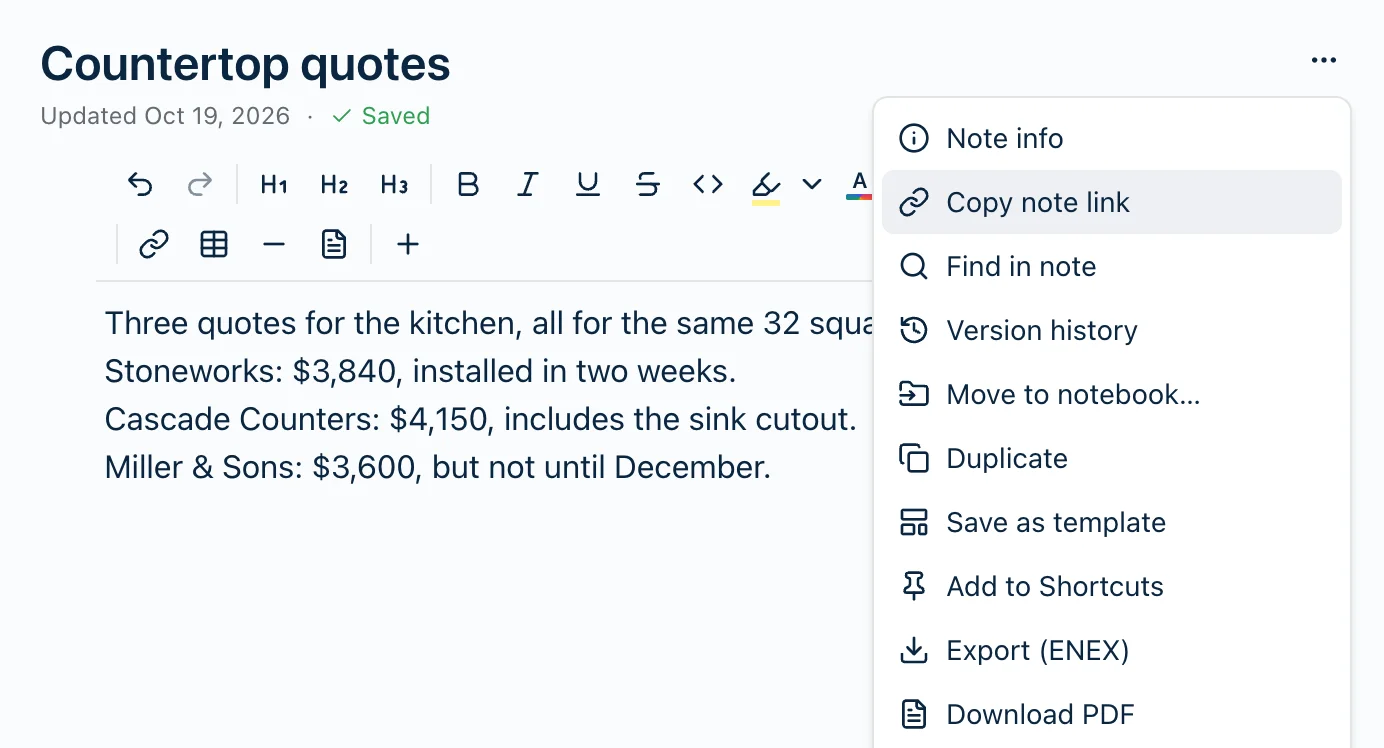
Where to find it
Every app has it in the note’s ⋯ menu. Each one has a quicker way too:
- Web: with a note open, press ⌘K (Ctrl+K in a browser on Windows) and pick Copy note link.
- Mac: right-click a note in the list, or choose File ▸ Copy Note Link. The shortcut is ⌃⌥⌘L, and it’s in the ⌘K list too.
- iPhone and iPad: press and hold a note in the list. On an iPad with a keyboard, press ⌃⌥⌘L.
- Android: press and hold a note in the list.
- Windows: right-click a note in the list. A note open in its own window has it in that window’s ⋯ menu.
Only the Mac and the iPad have a keyboard shortcut for it.
A locked encrypted note has a Copy note link button under Unlock, so you can grab the link without unlocking it.
A note in the Trash doesn’t have the command. Restore it first.
What you get
The note’s web address. It looks like this:
https://app.harbor.my/notes/9c2e7b10-1234-4abc-89ab-0123456789ab
The last part is the note’s ID, which never changes. Rename the note or move it to another notebook and the link still works.
What shows up when you paste depends on where you paste it. Apps that take formatted text, like Mail, Gmail, Word and Notion, get the note’s title as a link. A plain-text box gets the address.
An encrypted note pastes as the address only, so its title never leaves Harbor. A note with no title pastes as the address too.
It’s a private link
Only you can open it, signed in to your account. Anyone else who clicks it gets a sign-in page or a “not found” message.
That’s on purpose. It’s a bookmark for you, not a way to share. To show a note to someone else, make it public. That’s a different link, and anyone can open it.
One catch: where a link pastes as the note’s title, everyone who sees the message can read that title. Keep it in mind before you drop one into a shared channel.
What happens when you click it
- On a Mac, iPhone, iPad or Android phone with Harbor installed, the note opens in Harbor.
- Anywhere else, it opens in the web app. If you aren’t signed in, you sign in first and then land on the note.
That includes Windows. A link clicked in Outlook or Slack on a Windows PC opens the note in your browser, not in Harbor for Windows. Windows only hands web links to apps installed from a special Windows package, and Harbor for Windows uses a regular installer.
On a Mac, iPhone or iPad, where you click matters too. A link in Safari, Mail or Messages usually opens Harbor. Other browsers often open the web app instead.
A note link inside a Harbor note opens that note in Harbor, on every app. On the web it opens in the same tab.
Pasting it into another note
Paste a copied link into another Harbor note and it becomes a note link, the same kind you get by typing [[. It shows the note’s title, keeps up when you rename the note, and counts as a backlink.
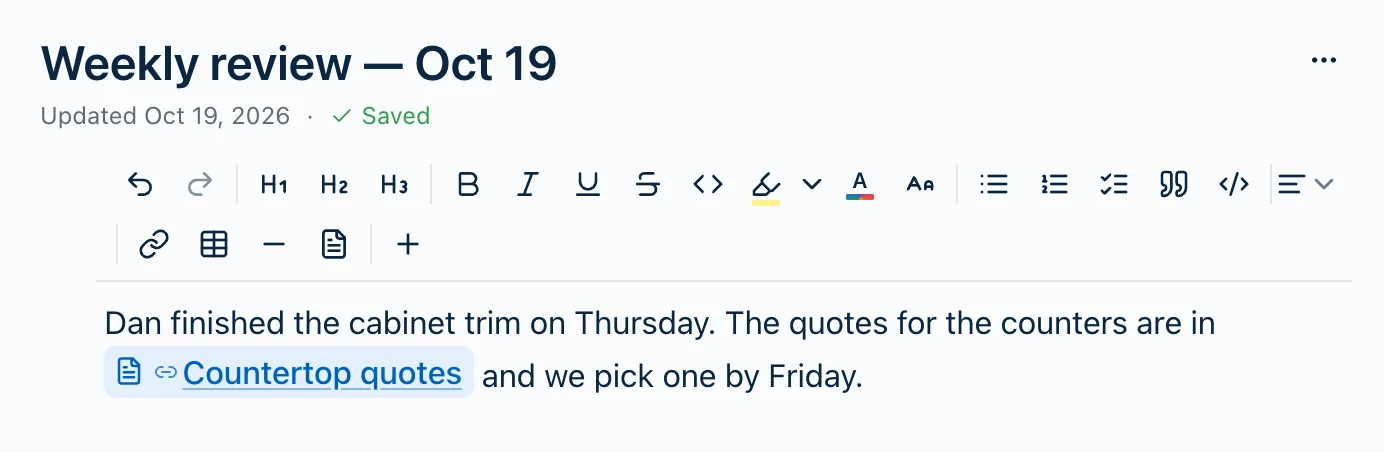
It doesn’t matter where the link came from: Slack, an email, or the web app’s address bar, even the longer address you see with a notebook or tag open.
A few pastes stay the way they are:
- Press ⌘⇧V (Ctrl+Shift+V on Windows) to paste it as plain text. The address stays text.
- Paste over selected words and those words become an ordinary link. It still opens the note, but it isn’t a backlink.
- Inside a code block or inline code, it stays text.
- Text you copied inside Harbor keeps its links as you wrote them. Copying a paragraph from one note into another won’t rewrite the links in it.
Links already sitting in your notes don’t change. Only a new paste converts.
A link to a note in the Trash
In the web app, a link to a note in the Trash says This note is in the Trash, with buttons to Restore it or Open Trash. Restore puts the note back and opens it right there.
The Mac app opens the note in the Trash, with Restore. The iPhone and iPad apps open it too.
Once a note is deleted for good, its link has nothing to open. The web app says Note not found, and the Mac, iPhone and iPad apps say Couldn’t open that note.
Related questions
Need more help?
Still stuck? Send us a message and a real person will get back to you.