Blog ·June 26, 2026 ·Spicer Matthews
How OCR search works in Harbor
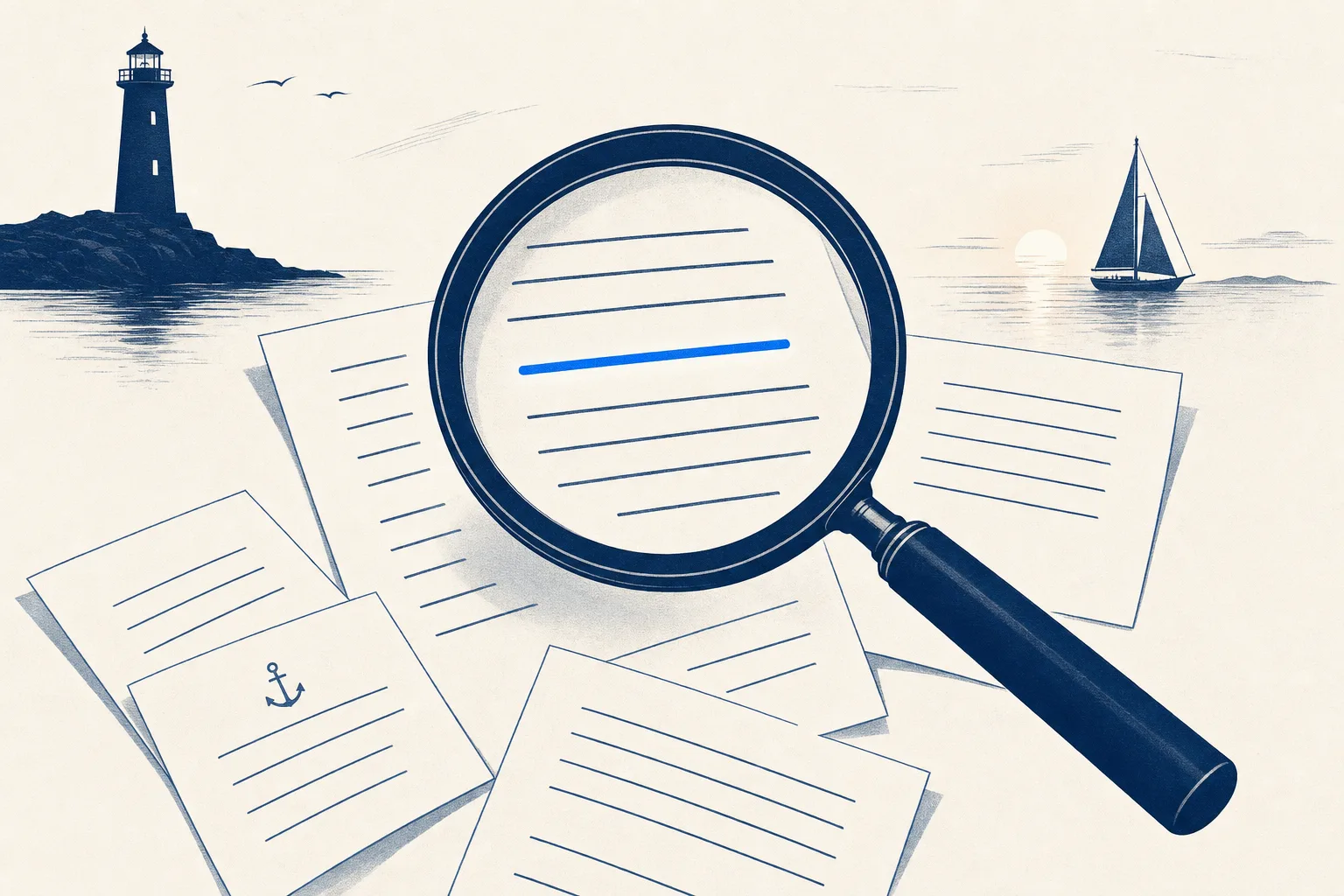
Give a second brain a few years and most of what it holds isn’t typed text. It’s photos of receipts, scanned mail, PDFs someone emailed you, an hour of recorded conversation. Whether you can search inside those files is the difference between a filing cabinet and a place you actually find things.
This is one of the features we’ve spent the most time on, so here’s a plain walkthrough of how search in Harbor works.
Harbor reads your attachments
When you add an image or a scanned PDF to a note, Harbor’s server runs OCR on it: it reads every word on the page and records where each word sits. Not just “this document mentions furnace,” but the exact position of the word on the exact page.
That includes the hard cases. Photos taken at an angle at the checkout counter. Multi-page scans of paperwork. Handwriting, within reason: the neater the writing, the better the read, and a scrawled grocery list is still a stretch for any OCR. But the notes you photographed off a whiteboard, the filled-in form, the handwritten letter your grandmother sent? Searchable. For a harder test, we ran a page of the 1860 census through it, copperplate and all; the results are in our guide for genealogists.
You don’t do anything to make this happen. Attach the file and it becomes findable.
The match is highlighted on the page
Most tools that claim OCR stop at “this note matched.” Harbor goes to the spot. Search for furnace, open the result, and the word is highlighted right on the photographed invoice, on the page where it appears. No re-reading a five-page scan to find why it matched.
This works even for attachments you haven’t downloaded to the device you’re holding, because the reading happened on the server when the file arrived. Your phone can find a word inside a 40-page scan that lives in the cloud.
Recordings become transcripts you can search — when you ask
Record a meeting or a call into a note, press Transcribe, and Harbor turns it into a transcript with speakers told apart and labeled. Unlike OCR, this one you ask for — recordings aren’t transcribed until you say so, so the ones you only wanted as audio stay that way. You can rename “Speaker 1” and “Speaker 2” to the actual people, and from then on the conversation is text: searchable like everything else. When the contractor said the quote out loud and nobody wrote it down, search still finds it.
A grammar you may already know
Simple searches are simple: type words, get notes containing all of them. When you need precision, Harbor speaks the search grammar Evernote users already know:
"exact phrase"in quotes-wordto excludetag:receiptsandnotebook:Houseto scopeintitle:insuranceto match titles onlyword*for prefix matching, plus date ranges for “sometime last spring”
You can save searches you use often, and on the desktop a command palette gets you to anything from the keyboard.
It works offline too
The web app keeps a real database in your browser, and the native apps keep one on the device, so this same search runs locally when you have no signal. The airplane test: full-text search of your whole library, mid-flight, no connection.
What search will never see
One boundary, stated plainly because it’s by design. If you encrypt a note, Harbor’s server truly cannot read it. We can’t OCR what we can’t read, so encrypted notes are excluded from search, from Spotlight, and from anything your connected AI can reach. That’s not a limitation we’re working around; it’s the proof the encryption is real. Encrypt the sensitive things and accept that they’re findable by memory, not by search. Everything else stays fully powered.
Scanned documents are the category where this bites hardest, so it’s worth deciding deliberately rather than by habit — we went through the whole trade, and what other notes apps give up to make it, in should you encrypt your notes?
Why we sweat this
A second brain earns its keep at retrieval time. Capture is easy to demo; finding the right thing four years later is the actual product. So we built search to see everything you’ve stored, in whatever form you stored it, and to take you to the exact word when it finds it.
There’s more detail, with screenshots, at search. And the best test is your own messy library: you can start free at Harbor, bring in a stack of scans, and go looking.