Blog ·October 30, 2026 ·Cloudmanic Labs
How to build a second brain with Claude

Search for “Claude second brain” and almost every result describes the same setup. Claude Code, a folder of Markdown files, usually Obsidian, and a file called CLAUDE.md that tells Claude where everything is.
It works. It also assumes you live in a terminal, on one computer.
Most people who use Claude don’t. They use it in a browser, in the desktop app and on their phone. This is the version for them, and it starts with a decision about where your second brain lives. Our answer: not in Claude.
A word about us first. We make Harbor, a notes app, and it’s one of the options here. We’ll say so again when we get there.
The short version
- Keep the second brain in a notes app. Claude reads it and files things into it. Claude doesn’t hold it.
- Connect the app to Claude under Customize > Connectors. A connector you add on the web works on your phone too.
- Write Claude one note to read first. Where things live, what to search, what it may change. It’s CLAUDE.md for people who don’t use a terminal.
- Point Claude at that note in its instructions, so every chat starts there.
- Let Claude’s own memory handle the small stuff. Your name, your job, how you like answers. Not your library.
Claude already remembers. Just not your stuff.
Claude has a memory now, and since March 2 it’s on free accounts too. It’s on by default. As you chat, Claude saves short topics about you, like your role, your projects and how you like answers, and brings them into new chats. You can see the list under Settings > Your Claude, next to Your memory, and edit or delete any of it.
On paid plans it can also search your past chats. And each project keeps a memory of its own, separate from everything else.
That’s useful. It isn’t a second brain, for one simple reason. It’s Claude’s notes about you, not your notes. Claude decides what’s worth keeping, writes it down in its own words, and keeps it where only Claude uses it.
Projects are the other built-in option. A project holds files you upload, plus its own instructions and memory, and free accounts get five. But an upload is a copy. Write a new note after you upload and the project never sees it, unless the file came from Google Drive or GitHub, which can sync.
A second brain is the original material. The contractor’s quote. The scan of the deed. The meeting notes, and why you decided what you decided. It needs to live somewhere you can open without Claude.
Why your notes, and not Claude
Three reasons, and they’re the same ones that make a second brain worth having at all.
You can read it without Claude. A note is yours to open, fix and reorganize. A memory is a summary Claude wrote, in Claude’s words, stored inside Claude.
It outlasts the chat app. If you switch to ChatGPT next year, or use both, your notes don’t care. Connect the next assistant to the same library and it picks up where the last one stopped.
Search finds the exact words. Memory paraphrases. When you need the clause in the contract or the number on the quote, you want the note, not a recollection of it.
We wrote about what a second brain has to do over decades in what a second brain actually needs. Durability is first on that list. It’s also the one a chat app’s memory can’t promise.
Three ways to set it up
| Claude Code and a folder | A notes app with a connector | Claude’s memory and Projects | |
|---|---|---|---|
| Where it works | One computer | Web, desktop and phone | Web, desktop and phone |
| Claude plan | Pro or higher | Any. Free gets one custom connector | Any. Free gets five projects |
| Who holds your notes | You, as files | Your notes app | Claude |
| Good for | Developers and tinkerers | Most people | Preferences and this month’s files |
Claude Code and a folder of Markdown
This is the setup in most of the guides. You point Claude Code at a folder of Markdown files, often an Obsidian vault, and write a CLAUDE.md file that explains it. Anthropic’s docs say Claude reads that file “at the start of every session,” so it never has to guess how your files are organized. Claude Code also keeps a memory file of its own now, on that one machine.
It’s good at scale. Claude can reorganize, link and rewrite hundreds of files in one go. It’s also a developer’s tool. It’s not on the Free plan, it runs in a terminal, and the folder lives on one computer, so Claude on your phone can’t reach it. Anthropic’s Cowork gives the desktop app the same kind of access to a local folder without the terminal, also on paid plans only.
Obsidian has no official connector for Claude. It has an official command-line tool now, and community-built MCP servers, but both run on your own computer.
If this is you, we wrote up how we work this way, with a coding agent writing into Harbor: a second brain and a second set of hands.
A notes app connected to Claude
Connectors are how Claude reaches other apps. Under the hood they’re MCP servers, which we explained in MCP servers for notes.
The notes apps in Claude’s connector directory today are Notion, Evernote, Craft, Mem and Tana. Any other app that runs a hosted MCP server can be added by its address as a custom connector. Free accounts get one custom connector. Anthropic doesn’t state a limit for paid plans. Add it once and Anthropic says it’s available “on the web, desktop, and mobile.”
There’s one more, if you’re on a Mac. Anthropic built a desktop extension called Read and Write Apple Notes. It lets the Claude desktop app list, read, create and update your Apple Notes. It has no delete. It only works in the desktop app on your Mac, because that’s where your notes are.
OneNote, Google Keep, UpNote and Notesnook have no connector for Claude. Bear and Joplin have servers that run on your own computer, so they work with Claude on that computer and nowhere else. We compared every app’s server in the best notes apps with an MCP server.
This is the setup we’d recommend to most people, and it’s the one the rest of this post walks through.
Claude’s memory and Projects
Use them for what they’re good at. Memory is for who you are and how you like to work. A project is for the handful of files one piece of work needs this month. Neither is the archive.
Set it up in five steps
1. Pick where your notes live
If your notes are already in an app with a connector, start there. Moving is a big job, and this isn’t a good enough reason to do it.
If they’re in Apple Notes and you’re on a Mac, the extension works in the desktop app. If they’re in Keep, UpNote or Notesnook, there’s no route in, and that’s worth knowing before you build habits around Claude.
2. Connect it
In Claude, open Customize > Connectors. If your app is in the directory, find it and connect. If it isn’t, select + Add, then Add custom connector, and paste the address your notes app gives you. Sign in to the app and approve the connection.
In a chat, the connector shows up in the + menu, where you can switch it off for that conversation.
3. Write Claude a note to read first
This is the part the Claude Code guides get right. CLAUDE.md works because Claude reads it every time, so it never guesses where things are. Your notes app can hold the same thing: one note, written for Claude.
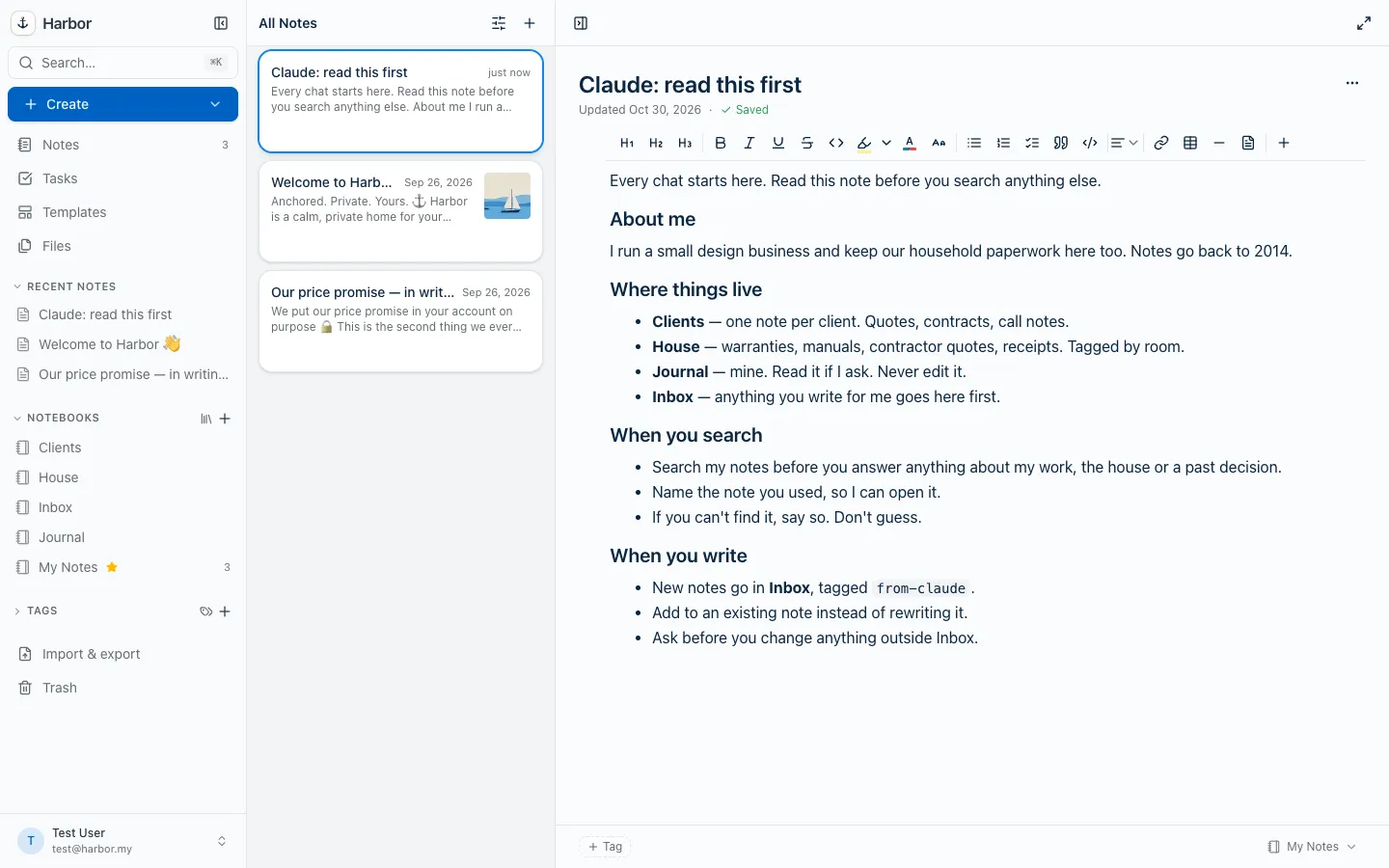
Three things belong in it:
- Where things live. Your notebooks or folders, and what’s in each. This saves Claude from searching everything for everything.
- How to search. Search the notes before answering. Name the note it used, so you can check. Say so when nothing turns up, instead of guessing.
- What it may change. Where new notes go, a tag so you can find them later, and what’s off limits.
Keep it short. Claude reads it every time, and you’ll read it too, the first time Claude does something odd.
Add one more line if you use Claude’s memory: when a note and a memory disagree, the note wins. Notes are the record. Memory is Claude’s impression of it.
4. Point Claude at it
Claude won’t open that note unless you tell it to. Go to Settings > Your Claude and fill in Instructions. Anthropic says those “will be applied to all of your conversations with Claude.” Something like:
My notes are in [your notes app]. Before answering anything about my
work, my home or a past decision, open the note "Claude: read this
first" and follow it.
If you only want this in one area of your life, put it in a project’s instructions instead. Those apply only to chats inside that project.
5. Decide what Claude may change
Back in Customize > Connectors, select your notes app. Under Tool permissions, each group of tools, or each single tool, can be set to Always allow, Needs approval or Blocked.
Here’s what we’d do. Let searching and reading run. Leave writing on Needs approval for a couple of weeks, and watch what Claude actually wants to change. If you want a read-only connection, block the write tools.
Also check whether your app’s connector can delete. Evernote’s can, to the trash. Notion’s and Harbor’s have no delete tool at all.
What to ask it
Once it’s set up, you don’t call anything. You ask.
What did the roofer quote us last spring, and what did it include?
Find every note about the kitchen remodel and list what we decided and why.
I’m meeting Dana tomorrow. What do my notes say about her project?
Write up what we just worked out and file it in my Inbox.
That last one is the habit that matters. A second brain only grows if things go into it, and most of what you work out with Claude disappears when you close the chat. End the good ones with “file this.”
What it won’t do
It only knows what you wrote down. Claude can’t find the decision you never recorded.
It searches the way your app searches. A connector hands Claude your app’s search, not a better one. If a search misses, ask Claude to try other words. It will.
Scans and PDFs depend on the app. Evernote’s connector searches the text inside scanned documents and photos. Most don’t. Harbor’s doesn’t, which we’ll come back to.
What Claude reads goes to Anthropic. That’s true of every setup on this page, Claude Code included. Your notes app’s privacy policy stops at the connection. If some notes should never leave, keep them out of reach. We wrote about the trade-offs in should you encrypt your notes?
Where Harbor fits
We make Harbor, so read this part knowing that.
Harbor has no AI built in, on purpose. You bring the AI you already pay for, and Claude is one of them. Harbor isn’t in Claude’s directory, so you add it as a custom connector with this address:
https://app.harbor.my/mcp
You sign in to Harbor and approve the connection. The full steps are here. It works in Claude on the web, the desktop app and the phone app.
Where it’s good. Claude can search and read your notes, create notes and add to them, file them into notebooks, tag them and manage tasks. There’s no delete tool, so it can’t throw a note away. Every change it makes is labeled, so you can tell its edits from yours. Encrypted notes stay out of reach. Claude gets a marker saying the note is locked, never its contents.
For the read-first note, you can give Claude the note’s ID instead of its title, so it opens exactly that note instead of searching for it. Copying the ID is one click. And if you use Claude Code too, the Harbor CLI and its agent skill go further than the connector, because they run on your own computer.
Where it’s behind. Two places, and both matter.
- It’s not in the directory. You paste an address instead of clicking connect. On Claude’s Free plan, it uses your one custom connector.
- Its search doesn’t reach inside attachments. Harbor’s apps read the text in your scans and PDFs, but search through the connector covers titles, text and tags. Claude can still open an attachment and read it. It won’t find a receipt by what’s printed on it the way Evernote’s will.
Whichever app you pick, the setup is the same. Connect it, write the one note Claude reads first, and tell Claude where it is. Claude will still forget the chat. It won’t forget where to look.
Sources
Anthropic: Claude’s memory · Release notes (memory for free users, March 2, 2026) · Projects · Personalization and instructions · Custom connectors · Getting started with connectors · Connector directory · Read and Write Apple Notes · Claude Code memory and CLAUDE.md · Cowork · Claude plans.
Notes apps: Evernote’s ChatGPT and Claude post (October 27, 2026) · Evernote in Claude’s directory · Evernote MCP · Notion MCP · Notion in Claude’s directory · Obsidian CLI.
Last checked: October 30, 2026. We read Anthropic’s help center, its connector directory and each notes company’s own documentation for this post. The example note was made in a Harbor test account and deleted afterwards. Anthropic moves things around often. Connectors now live under Customize, not Settings, which some older guides still say. If something here no longer matches what you see, tell us at hello@harbor.my and we’ll fix it and re-date this line.