Blog ·November 27, 2026 ·Cloudmanic Labs
How to digitize handwritten notes: turn them into text, or make them searchable
Every price and limit below re-checked on November 27, 2026
There’s a shelf in most houses with a row of notebooks on it. Meeting notes from two jobs ago. A journal you kept for a while. The class notes you swore you’d need. A box of index cards. You’d like all of it on your phone, where you can find things.
Before you pick an app, pick a job. Digitizing handwritten notes means one of two things, and they need different tools:
- Turn the handwriting into typed text you can edit, paste and send.
- Keep the page as it is and make it searchable, so typing a word finds the page you wrote it on.
Most of what you’ll find on this is a converter selling the first job, or a tablet maker selling a new way to write. If you have a shelf of notebooks, you probably want the second. Here’s how to tell, how to scan well, and what the apps you already have can do, each checked on its maker’s own pages on November 27, 2026.
A word about us first. We make Harbor, a notes app, and it’s in this post. It does the second job and not the first. We’ll say so again when we get there.
Typed text or a searchable page?
Typed text is for pages you’ll use. This week’s meeting notes, on their way into an email. A recipe you want to send your sister. A draft you wrote longhand and now want to edit. You want the words out of the picture, and you’ll read them over and fix the mistakes.
A searchable archive is for pages you’ll keep. The app reads the words in the background so search can find them, but what you look at is the page itself: your handwriting, the arrows, the sketch in the margin. You never see the text it read, and you don’t need to.
For a shelf of notebooks, the archive wins, for three reasons:
- It’s less work. You scan and you’re done. A transcript has to be checked line by line, because handwriting OCR makes mistakes, and ten years of notebooks is a lot of lines.
- A mistake costs less. A misread word in a transcript stays wrong unless you catch it. In an archive, it means one search misses, and the page is still there, correct.
- You keep everything. Diagrams, margins, the line you crossed out. Typed text keeps the words and drops the rest.
You can do both. Archive the shelf, and pull typed text out of the few pages you actually need to use.
Capture: a good picture does most of the work
Whichever job you pick, the result is only as good as the image. Your phone is plenty. These matter more than the camera:
- Use a scanner, not the camera app. A notes app’s document scanner finds the page’s edges, flattens the page and cleans it up. Apple Notes has one (in a note, tap the attachments button, then Scan Documents). So does Harbor’s iPhone and iPad app, and so do plenty of others.
- Light it evenly. Daylight from a window beats the ceiling light behind you. Watch for your own shadow across the page, and for glare off glossy paper.
- Get it flat. The curve by a notebook’s spine is where words get lost. Hold the page down at its outer edge.
- One page per shot. A two-page spread makes each page smaller in the frame.
- Don’t shrink the file. Your phone’s full resolution is fine. When we tested an old census page, a copy shrunk to 2,000 pixels wide did almost exactly as well as the original, but there’s no reason to throw away detail you might want later.
- Go easy on black-and-white. It makes print crisp, but it can drop faint pencil and highlighter. Color or grayscale is safer for handwriting.
Loose pages are different. A stack of index cards or torn-off legal pad sheets goes much faster through a sheet-fed document scanner. Most can save to a folder or email what they scan, and plenty of notes apps can pick up from either. Some people cut the binding off their notebooks to feed them through. It’s fast, and you can’t undo it. We wouldn’t, for a journal.
One PDF per notebook, or one image per page? For an archive, a multi-page PDF per notebook keeps it together, and apps that search inside PDFs take you to the right page. Check the limits first. Harbor reads the first 50 pages of a PDF, and Evernote doesn’t process a PDF over 52 MB for search, so a thick notebook may need splitting in two. For pages that don’t belong together, like index cards or whiteboard photos, one image each is simpler.
Turning handwriting into text
These are the tools you probably already have. All of them read print. For handwriting, most of their makers don’t say how well it works, and one says it won’t work very well. Try one on a page you care about before you trust it with a pile.
On an iPhone or iPad: Live Text
Open a photo of the page, tap the Detect Text button in the corner, then touch and hold the text. Drag the grab points to select what you want, and tap Copy Text. It works in Photos, Camera, Safari and more. If it isn’t on, it’s in Settings > General > Language & Region.
In Notes, Scan Text does the same straight from the camera. In a note, tap the attachments button, then Scan Text, point at the page, select the text and tap Insert.
Apple’s Live Text guide doesn’t say whether it reads handwriting. Try it on yours.
If you write on an iPad with an Apple Pencil, there’s a better answer for new notes. Scribble turns your handwriting into typed text as you write, and in Notes you can select handwriting and paste it as typed text into another note or app. That doesn’t help with the notebooks on the shelf, but the next one doesn’t have to be paper. More in Evernote vs Apple Notes.
In OneNote: two features for two kinds of handwriting
“OneNote handwriting to text” means two features, depending on where the writing came from.
A photo of paper: Copy Text from Picture. Put the photo on a page, right-click it (Control-click on a Mac), choose Copy Text from Picture, and paste. It works in OneNote on Windows and on a Mac. Microsoft says it’s “not possible in OneNote for the web.” Its Mac guide is blunt about handwriting: “Handwritten or highly stylized or script-like text will not work very well.” On a Mac the reading uses Microsoft’s online services. On both, Microsoft says some pictures can take “up to 24-48 hours” before the command is available. Its Windows guide doesn’t mention handwriting either way.
Ink you wrote in OneNote: Ink to Text. On the Draw tab, choose Lasso Select, drag around the writing, then choose Ink to Text. Microsoft says it isn’t available in OneNote for the web.
OneNote’s search also covers “text, handwriting, images,” so it can do the archive job too. How it compares on everything else is in Evernote vs OneNote.
Google: Keep, Lens and Drive
People search “Google Keep handwriting to text” a few hundred times a month, so here’s the plain answer: Keep’s current help pages don’t describe a way to do it. What Keep’s help does say is that you can search for text in photos, in English only, on the web, Android, iPhone and iPad.
You’ll find guides to a Grab image text option that copies a photo’s words into the note. Google described it in a 2017 tips post, which also said you could search what you’d handwritten in a drawing. Neither is in Keep’s help today. We didn’t test whether the option is still in the app.
The documented route runs through Google Lens. In the Google app on Android or iPhone, tap Lens, pick the photo, tap Select text, then Copy, and paste it into Keep. Google’s Lens help doesn’t mention handwriting. It does say to use “a clear and well-lit image.”
Google Drive converts too. Upload the photo or PDF, right-click it and choose Open with > Google Docs. Google says the file should be 2 MB or smaller, and its tip to “use common fonts, such as Arial or Times New Roman” tells you what it’s built for. Drive’s help doesn’t mention handwriting. More on Keep in Evernote vs Google Keep.
Evernote: both jobs
Evernote is the most complete answer here, and it’s worth saying so.
For the archive, Evernote’s help says it “can find and identify text — including handwritten text — inside” an image, and it searches PDFs and scans too. Matches inside images and PDFs are highlighted when you open the note. Image and document search is on every plan, Free included.
For typed text, it has AI Transcribe. Add a photo or scan to a note, hover over or select it, and click Transcribe. Evernote says it turns handwriting “into searchable, editable text,” and that accuracy “is highest with clear cursive or printed text.” Images can be up to 9,216 pixels on the longest side, and Evernote says your content “is not used to train AI models.” There’s a standalone web version at evernote.com/ai-transcribe, but you need an Evernote account to see and save what it makes.
Evernote’s plan table ticks AI Transcribe on every plan, Free included, though the row describes it as a feature for meetings. Free stops at 50 notes and one notebook. Starter is $99 a year for up to 1,000 notes, and Advanced is $249.99 a year with no note cap. Whether the rest of Evernote is worth that is its own question, which we tried to answer in is Evernote worth it?
Harbor (ours)
We make Harbor, so read this part knowing that.
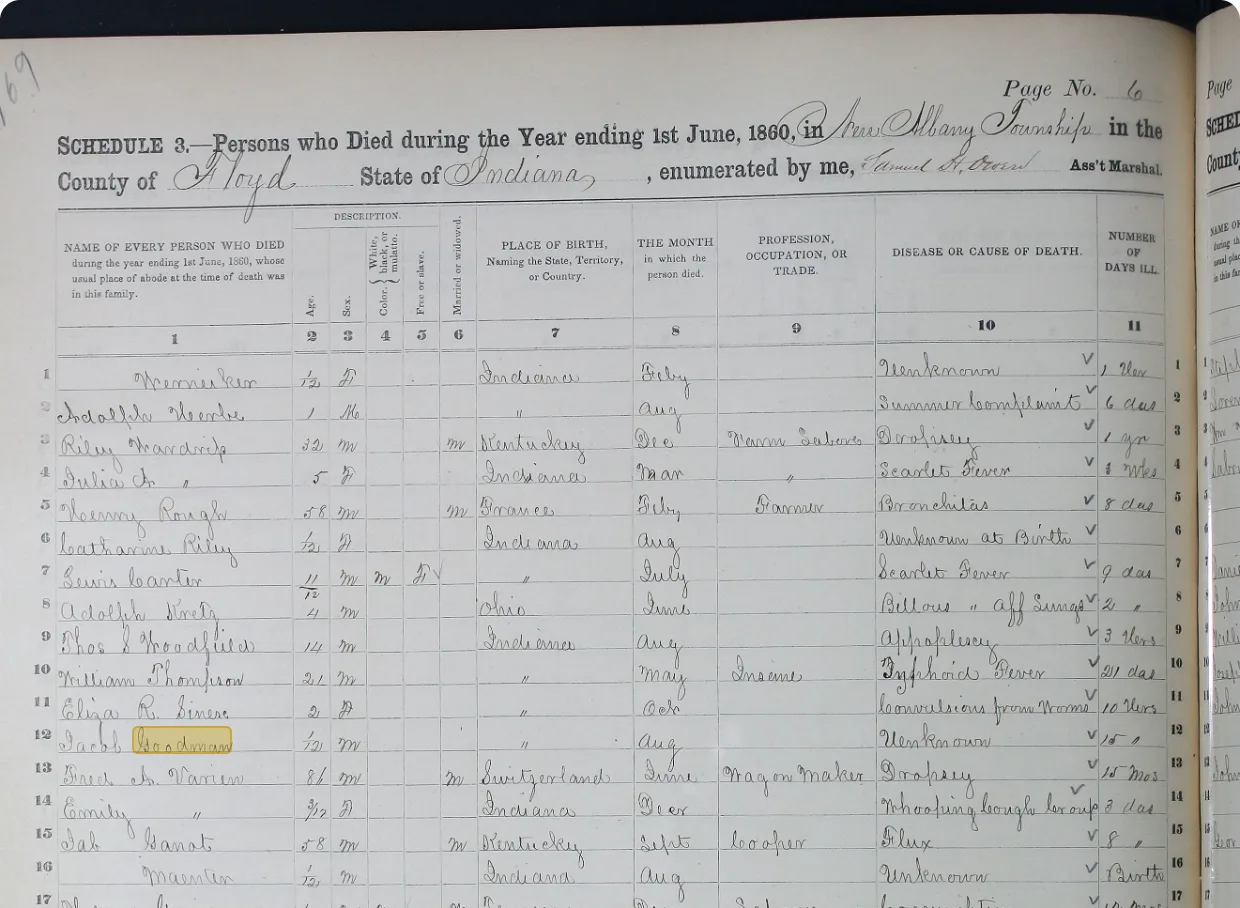
The archive job, yes. Scan pages with the iPhone or iPad app, or drag photos and PDFs into a note on the web, Mac or Windows. Harbor reads them on every plan, the free one included. Search a word and Harbor opens the page with that word highlighted where you wrote it. On a page of the 1860 census, search found 53 of the 73 words we tried, written up in our genealogy guide.
The typed-text job, no. This is where we’re behind. Harbor reads the words so search can find them, but there’s no button to see or copy what it read. Search results show a snippet around your match, and that’s it. Apple Pencil writing in Harbor’s sketch mode stays handwriting, too. If you want typed text, use Live Text, Lens, OneNote or Evernote.
There’s one roundabout route. If you connect Claude or ChatGPT to Harbor, your assistant can open a scanned PDF and get the text Harbor read from it, up to the first 50 pages. With a photo, it usually gets the picture and reads it itself.
Two more things to know. The reading happens on our servers, so your scans leave your device. And if you encrypt a note, its scans aren’t read at all, because we can’t see them. That’s the point of encrypting, but it’s a trade.
The details are in how OCR search works in Harbor and on the Search & OCR page. Does Harbor handle handwriting? has the short version.
AI chatbots
You can also hand a photo of a page to ChatGPT, Claude or Gemini and ask for a transcript. Read it against the page, the same as any tool here. And think about what you’re uploading. On ChatGPT’s Free, Plus and Pro plans, OpenAI says it “may use your content to train our models” unless you turn off Improve the model for everyone in Settings > Data controls. Check the settings before you send anything private, like a journal.
What to expect
How well any of this works depends on the handwriting more than the app.
- Neat print reads well.
- Everyday cursive reads respectably.
- A hurried scrawl is a coin flip.
Our one hard test was an 1860 census page in an assistant marshal’s copperplate. We read 73 words off it ourselves, searched for each in Harbor, and 53 came up, including 23 of the 32 names. One page in one hand isn’t a benchmark, but it’s a fair picture of old handwriting.
Check that it worked. Pick three words from one page: a name, a number and an unusual word. Search for them, or find them in the transcript. If all three turn up, the page was read. Do this on your worst page before you scan the other four hundred. Search for unusual words in general, too. A surname finds the page. “Meeting” finds everything.
Keep the original, either way. A transcript is a copy with mistakes in it. The image is the record, and tools get better. A page that reads badly today might read fine through something newer.
Organize it once
A scanned shelf is only useful if you can find the right notebook without guessing at search terms. A few habits help, in any app:
- One note per notebook for bound notebooks and journals, with the scan attached as a PDF. One note per page for things that stand alone, like index cards and whiteboards.
- Dates in titles. “Journal, Mar–Sep 2014” or “2019-04 Acme project meetings.” The list sorts properly by title, and the year is searchable even where OCR missed everything else.
- Type a line at the top. A sentence you typed yourself, with who, what and which project, turns up in every search, whatever the OCR made of the page.
- A notebook for the archive, tags for what cuts across. People, projects, places. A handful of tags you’ll actually use beats fifty you won’t.
- Whiteboards go in the meeting’s note. Snap it before someone wipes it, and drop the photo into the notes you already took.
Which app?
For typed text, use what’s on your phone: Live Text on an iPhone, Lens on Android, Copy Text from Picture if you live in OneNote, AI Transcribe if you’re in Evernote.
For an archive, you need an app whose search reads handwriting in photos and PDFs. Evernote does, on every plan, with Free capped at 50 notes. Harbor does, on every plan, and we make it. Apple Notes searches the text in its own scans and is free if you’re all-Apple, though Apple doesn’t say whether that includes handwriting on paper. We compared 16 apps’ OCR, plan by plan, in notes apps with OCR.
Then scan one notebook, your messiest, and search it. You’ll know in ten minutes whether the rest of the shelf is worth an afternoon.
Sources
Apple: Live Text on iPhone · Scan text and documents in Notes · Drawings and handwriting in Notes on iPad · Search notes on iPhone · Feature availability.
Microsoft: Copy text from pictures on Windows · on a Mac · on the web · Take handwritten notes (Ink to Text) · Search notes in OneNote.
Google: Search notes in Keep · Drawings in Keep · Google’s 2017 Keep tips · Select text in Lens · Convert PDF and photo files to text in Drive.
Evernote: AI Transcribe FAQ · Handwriting to text with AI Transcribe · AI Transcribe · Search overview · Compare plans.
OpenAI: How your data is used to improve model performance · Data controls FAQ.
Harbor: Does Harbor handle handwriting? · How do I scan a document? · Can I search inside PDFs and photos? · Harbor with Claude or ChatGPT · The 1860 census test.
Last checked: November 27, 2026. We read each company’s own help, product and pricing pages for this post. We didn’t test the other apps. Harbor’s part comes from our own help pages, the app’s code and the census test linked above. If something here no longer matches what you see, tell us at hello@harbor.my and we’ll fix it and re-date this line.