How does email to notes work?
Every Harbor account gets its own private email address — something like janedoe.k3f9qzab@m.harbor.my. Forward an email to it and it lands in Harbor as a normal note: the subject becomes the title, the body becomes the note, and any attachments come along with it. Images and PDFs are OCR’d, so search finds the words in them. A text or Markdown file’s words go straight into the note.
It’s the lowest-friction capture there is. No app to open, no clipper, no copy-paste. Forward the receipt, the flight confirmation, the contract, the long email you’ll want findable in five years, and move on.
Where to find your address
Open Settings → Profile and look for the Email to notes card. Copy puts the address on your clipboard.
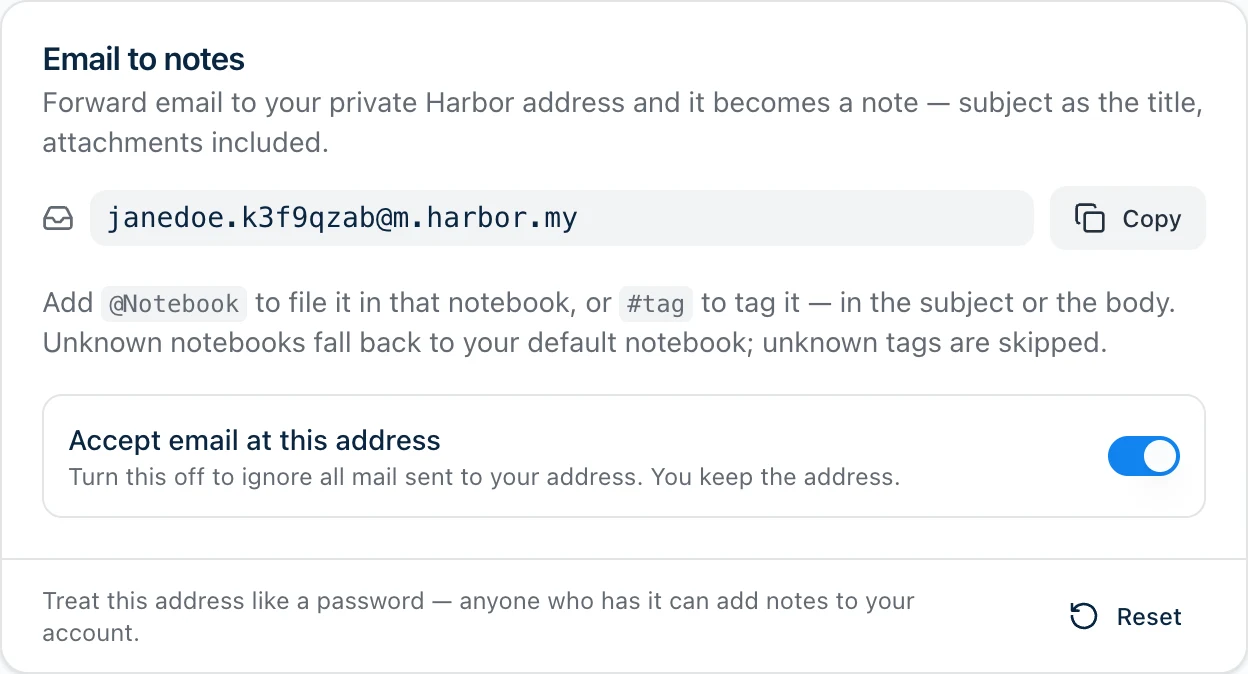
It’s in the same place in Harbor’s Mac, iPhone, iPad, Android, and Windows apps.
Your address is a secret — treat it like a password
Anyone who has your address can create notes in your account. That’s the whole security model: holding the address is the permission. There’s no second step, no login, no approval.
And here’s the part that surprises people, so it’s worth saying plainly: the address is not a password and it’s not a token. Signing out doesn’t revoke it. Changing your password doesn’t revoke it. Removing a device, or disconnecting an app you’d connected to Harbor, doesn’t revoke it either.
Resetting the address is the only way to revoke it. If it ever ends up somewhere it shouldn’t — pasted in a shared doc, CC’d onto a thread that got forwarded around, sitting in a mailing-list archive — reset it.
Harbor helps where it can: your address is shown only on your own profile, only to you, and only inside Harbor’s own apps. A third-party app you’ve connected to your account never receives it, so it can’t quietly keep a way in after you disconnect it.
Who can send to your address
It doesn’t matter who sends the mail. Your work account, a second mailbox, a scanner, an automatic forwarding rule, a service like Zapier — if it has your address, it can send to it. That’s what makes the address useful, and it’s why the section above matters.
Mail that fails the standard sender checks — SPF, DKIM or DMARC — is dropped, because that usually means it’s forged. Mail from an ordinary email provider passes. Mail sent through a mailing list or an automatic forward can sometimes fail a check along the way, and if it does, Harbor emails you to say so.
Harbor also accepts at most 60 emails an hour per account. Past that, the rest are dropped.
Harbor never answers the sender of a dropped message: no bounce, no error. That’s deliberate. A bounce would confirm to a stranger that the address is live, and it would spray bounces at whoever’s address they forged. Harbor tells you instead — more on that below.
What turns into what
| The email | Becomes |
|---|---|
| Subject | the note title (with any @Notebook / #tag stripped out) |
| Body | the note content |
| Attachments and inline images | note attachments — real files. Images and PDFs are OCR’d, and Harbor reads the words in Word, Excel, PowerPoint and text files, so search finds what’s inside them |
| Text and Markdown files | their words go into the note as well, and the file stays attached — more below |
A message with no subject takes its title from the first line of the body. With no body either, it’s the first line of the first text or Markdown file added to the note. Attachments are added at the end of the note. If one attachment is too large it’s skipped on its own — the note still arrives with everything else.
Emailed notes always arrive unencrypted. Harbor never holds your keys, so our server genuinely can’t encrypt on your behalf — see How does encryption work in Harbor? That’s also why an emailed note never goes into a notebook you’ve set to encrypt by default. An @Notebook that points at one sends the note to your default notebook instead, and Harbor emails you to say so. You can encrypt the note yourself once it’s in.
Text and Markdown files
When the file is what you’re sending — a transcript, a log, notes exported from another app — you want to read it in the note, not open it. So a text or Markdown file’s words are added to the note, whether or not the email has any words of its own. Each file’s words sit under its name, just above the file itself, in the order the files were attached. Markdown arrives formatted, with its headings, lists, checklists and links.
CSV files stay files. Rows of commas don’t read well as a note, and search finds their words anyway. Word, Excel and PowerPoint files stay files too.
A file with more than 1 MB of text stays a file only, and so does one that isn’t really text inside. Harbor never cuts a file off part way, because half a transcript reads as if the rest went missing. A note holds 5 MB of text in all. Once the next file won’t fit, it and every file after it stay files only. Whatever happens, the email still becomes a note.
Filing it as it arrives: @Notebook and #tag
Two tokens steer where the note lands. Put them in the subject or the body:
@Notebookfiles the note in that notebook. The first one wins — a note lives in one notebook.#tagapplies a tag. You can use several.
Matching ignores case in any alphabet, so @über finds a notebook called Über. Names with spaces go in quotes: @"Home Office", #"Q3 taxes". The curly quotes your iPhone, iPad or Mac types work too.
So a subject like:
Furnace warranty @"Home Documents" #warranty #hvac
files the note in Home Documents, tags it warranty and hvac, and titles it Furnace warranty.
Notebooks and tags are never created this way
If the notebook doesn’t exist, the note goes to your default notebook. If a tag doesn’t exist, it’s skipped. Harbor never creates a notebook or tag from an email.
That’s on purpose. Email is unattended — you’re not watching when it arrives — and a single typo would leave a permanent #warrenty in your account forever. Worse, anyone who got hold of your address could flood it with junk structure. So email files into things you already have, and nothing else. (An Evernote import is different — that does create notebooks and tags, because you’re right there watching it happen.)
Tokens in the body are read carefully
A body is full of quoted replies, signatures, and forwarded chatter, so Harbor is conservative about what it treats as an instruction there:
- A token has to be a standalone word — the
@or#at the start of a line or right after a space. That alone keepshttps://example.com/page#sectionfrom tagging anything. - An
@token that looks like an email address is ignored, sobob@example.comin a signature never files your note into a notebook called “example.com”. - A
#tag in the body must contain a letter, so#1and#2in a punch list stay prose. - Only the plain-text version of the body is read, never the HTML — markup is full of
#and@no human typed. - An attached text file is never read for instructions. An
@Notebookor#taginside one stays in the note as written.
And once an instruction is carried out, it’s removed: a @Notebook or #tag you typed above a forward disappears from the note body, the same way subject tokens disappear from the title. Tokens that didn’t match anything stay put as ordinary text, and Harbor never edits the quoted message below your own lines.
The subject is taken at face value: you wrote it deliberately, so Harbor doesn’t second-guess it.
When Harbor emails you back — and when it doesn’t
A clean delivery sends you nothing. The note showing up in Harbor is the confirmation. If you’re waiting for a “we got it” email, it isn’t coming, and nothing has gone wrong.
You’ll get exactly one heads-up email when something in the subject didn’t resolve:
- an
@Notebookthat doesn’t exist — telling you the note went to your default notebook instead, or - one or more
#tagsthat don’t exist — telling you which ones were skipped.
An @Notebook that points at a notebook set to encrypt by default gets the same heads-up, whether it was in the subject or the body, at most once an hour.
Unresolved tokens in the body are silent. They’re honored when they match something and treated as ordinary prose when they don’t — otherwise every forwarded thread mentioning @everyone would land another email in your inbox.
And when a message sent to your address doesn’t become a note at all, Harbor emails you to say why — the address is switched off, say, or the message was too big, failed the sender checks, or hit your plan’s limit. You’ll get at most one of these an hour, however many messages were dropped, so a flood aimed at a leaked address can’t flood your inbox too. Spam and viruses are the exception. Those are dropped without a word, because there’s nothing for you to do about them.
Resetting your address
Reset when the address has leaked, or when it starts collecting mail you didn’t send.
Settings → Profile → Email to notes → Reset. Harbor asks you to confirm first:
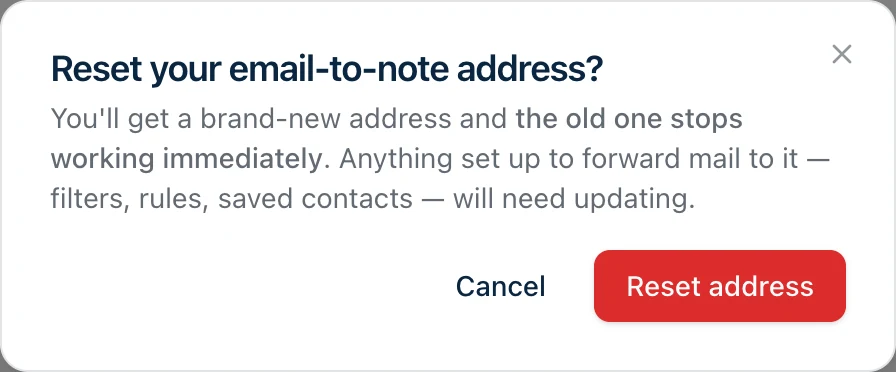
The old address stops working immediately. There’s no grace period and no forwarding from the old one, so anything you’d pointed at it will quietly stop delivering — a mail rule, an inbox filter, a saved contact, a scanner set up to email documents in. Update those right after you reset, or mail will vanish without a word.
You’ll keep the readable first half of the address; only the random part changes. Resetting doesn’t change whether the address is switched on.
Turning it off
If you’d rather not have the feature at all, switch Accept email at this address off. Mail sent to your address is dropped from then on. If mail keeps arriving, Harbor emails you, at most once an hour, to say the address is off.
The address doesn’t disappear — it stays on the card, marked Off, and switching it back on gives you the same address back. Nothing to re-copy, nothing to re-configure.
Other quick ways in
- The Web Clipper saves web pages in a click from Chrome, Edge, Firefox, or Safari.
- On the Mac, Quick Capture sits in the menu bar behind a global hotkey.
- On iPhone and iPad, the document scanner turns paper into searchable notes.
- A watched folder imports anything dropped into it — the better answer for a scanner that saves files rather than emailing them.
Related questions
Need more help?
Still stuck? Send us a message and a real person will get back to you.