How do I rotate a picture in a note?
Open the picture in Annotate. On the web, hover over the picture and pick the pen button. On Mac and Windows, it’s in the picture’s ⋯ menu. On iPhone, iPad and Android, tap the picture, then Annotate.
Press Rotate right or Rotate left. They’re the two round arrows in the toolbar, after the size dots, and they don’t have a keyboard shortcut. Each press turns the picture a quarter turn, so a sideways photo takes one press and an upside-down one takes two.
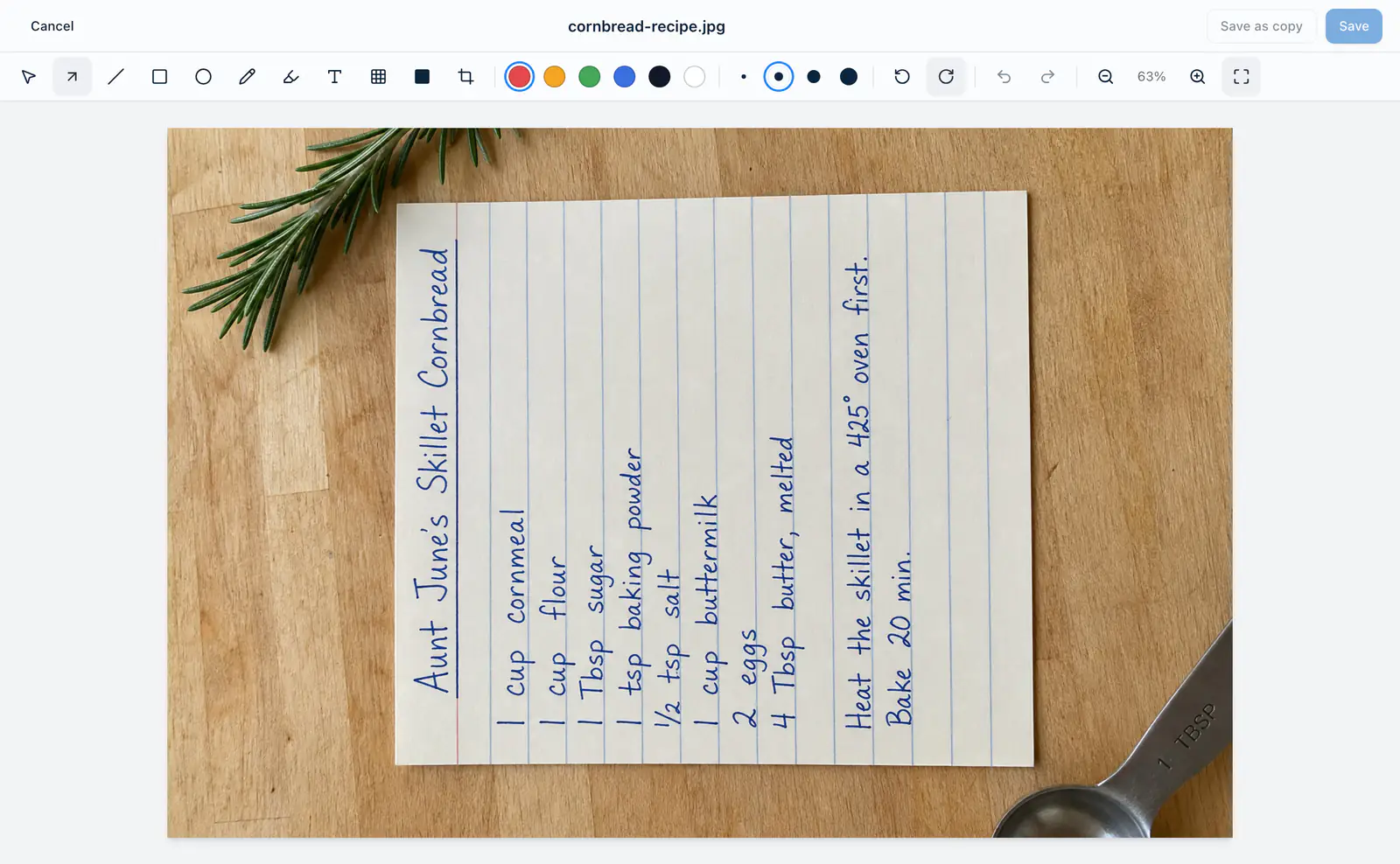
Then press Save. The turned picture replaces the original, which is deleted. To keep the original, press Save as copy instead, and the turned one goes in right below it.
Anything you’ve drawn turns with the picture, and so does a crop, but text stays right side up. Undo turns it back one press at a time. Everything else the editor does is on the Annotate page.
If a photo looks right in your phone’s Photos app but sideways in Harbor, that’s a bug on our end. Email help@harbor.my and tell us which app you added it from. If it’s sideways in Annotate too, Rotate puts it right.
Related questions
Need more help?
Still stuck? Send us a message and a real person will get back to you.