How do I jump to All Notes with the keyboard?
Press Ctrl+Shift+1 and Harbor opens All Notes, even from the middle of a note. In the Mac, iPhone and iPad apps it’s ⌘1. On the web on a Mac it’s ⌃⌥⌘1: hold Control, Option and Command, then press 1.
Each of the sidebar’s main places has a number, and it’s the same number in every Harbor app:
| Number | Opens |
|---|---|
| 1 | All Notes |
| 2 | Tasks |
| 3 | Files |
| 4 | Notebooks |
| 5 | Tags |
The key opens the same page as clicking that place in the sidebar, where All Notes is called Notes. Templates, Shortcuts, Recent Notes, Import & export and Trash don’t get a key.
The keys on each app
| App | Keys | Row in Keyboard Shortcuts |
|---|---|---|
| Web on Windows, Linux or a Chromebook | Ctrl+Shift+1–5 | Go to All Notes to Go to Tags, under General |
| Web on a Mac | ⌃⌥⌘1–5 | Go to All Notes to Go to Tags, under General |
| Windows | Ctrl+Shift+1–5 | Go to All Notes to Go to Tags, under Tabs |
| Mac | ⌘1–5 | All Notes to Tags, under Go. They’re in the Go menu too. |
| iPhone and iPad with a keyboard | ⌘1, ⌘2, ⌘4, ⌘5 | All Notes, Tasks, Notebooks and Tags, under Go |
| Android tablet with a keyboard | Ctrl+1, Ctrl+2, Ctrl+4, Ctrl+5 | All Notes (tablet) to Tags (tablet), in Android’s own list (Android 16 and earlier) |
The iPhone, iPad and Android apps don’t have a Files screen, so key 3 does nothing there.
On the web on a Mac, Harbor’s Keyboard Shortcuts window writes the keys as ⌃ ⌘ ⌥ 1. They’re the same keys. The order you hold them in doesn’t matter.
Use the number keys along the top of the keyboard, not the number pad. On the web, the Mac, Windows and Android, a German or French keyboard uses the same top-row keys, whatever characters they type. On a German keyboard, Shift+3 is §, and Ctrl+Shift+3 still opens Files.
Why Ctrl+Shift? Harbor for Windows uses Ctrl+1 to Ctrl+9 for its tabs, and in a browser they switch browser tabs. Alt with a number already opens your shortcuts. On the web on a Mac, the browser owns ⌘ with a number, ⌃⌘ opens your shortcuts, and ⌥⌘ makes headings in a note. ⌃⌥⌘ is the shortest set that’s free.
A few details
- The numbers never move. Reorder your sidebar or hide Tasks from it and 2 still opens Tasks.
- All Notes opens the top note. On the web on a wide screen, and in Harbor for Windows, All Notes opens with the note at the top of the list already showing, the same as clicking Notes in the sidebar. So if you’re already in that note, the key looks like it did nothing. You’re already there.
- On Windows, the place opens in the tab you’re in. From a note in its own window, it opens in the main window.
It works while you type
The keys work from anywhere in Harbor, including the middle of a note, and nothing gets typed. They do nothing while a dialog or menu is open in front of you. Hold one down and it opens the place once.
Pick different keys
On the web, the Mac and Windows, you can change them. Open the Keyboard Shortcuts window with ⌘/ on a Mac or Ctrl+/ on a PC. On Windows it’s also in Settings, under Keyboard shortcuts.
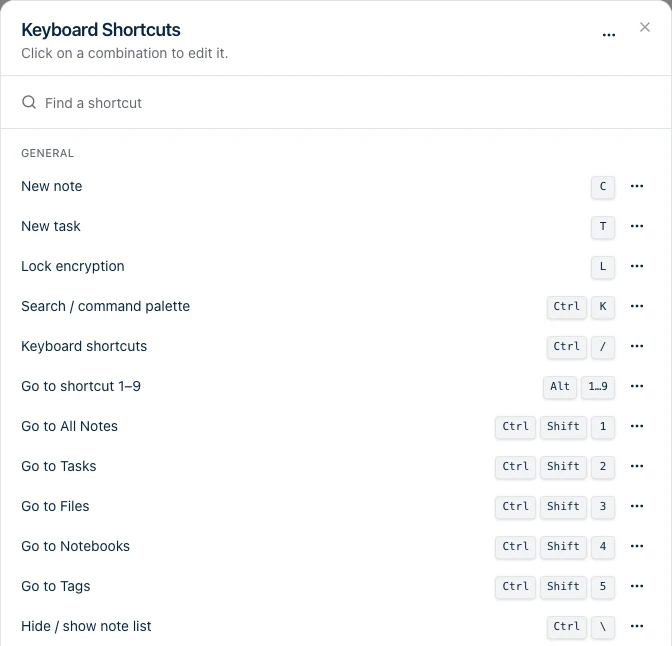
Each place has its own row. Click the keys on one and press the keys you want instead.
Harbor checks them first:
- Already doing something else in Harbor? You’ll see which, and you can reassign it. On a PC, for example, Alt+3 opens your third shortcut.
- Belongs to the browser or the system? Harbor says so and keeps what you had. In a browser, ⌘ or Ctrl with a number “switches browser tabs”. ⇧⌘3, ⇧⌘4 and ⇧⌘5 take screenshots on a Mac. In the Mac app, ⌃ with just a number switches desktops. Ctrl+Alt+Shift+3, 4 and 5 are Quick Capture in Harbor for Windows, and Windows keeps keys like Alt+Tab and the Windows key for itself.
- One of the note’s own keys? Refused, since these keys work while you type. ⌥⌘0 to ⌥⌘6 (Ctrl+Alt+0 to 6 on a PC) set normal text and headings, and ⇧⌘7 and ⇧⌘8 (Ctrl+Shift+7 and 8) make lists. Harbor for Windows also refuses Ctrl+Shift+9 and the note’s other keys, like Ctrl+B for bold.
- Types a character? Refused too. On a Mac, ⌥ with a number types a character, so ⌘ or ⌃ has to be one of the keys. On a PC, Ctrl+Alt is the same as AltGr, which types characters, so use Ctrl or Alt but not both.
Like every row, each one has Disable to turn the key off and Restore default to bring it back. Your choice is saved on this device, not synced to your account.
Already put one of these keys on something else? You keep yours, and that place’s row starts turned off. Turn it on in Keyboard Shortcuts if you want it.
If a key never reaches Harbor, something else on your computer is using it first. On Windows, that can be a Ctrl+Shift+number key you’ve set to switch to a keyboard language, in Windows’ advanced keyboard settings. Pick a different one here, or turn that off.
iPhone, iPad and Android
Here the keys are fixed. They need a hardware keyboard, and on Android they work in the tablet layout only.
On an iPhone, ⌘5 opens Tags inside More, where Tags lives.
To see them with Harbor’s other keys, press ⌘/ on an iPhone or iPad. On an Android tablet running Android 16 or earlier, press Meta+/ to see Harbor’s keys in Android’s own list. Android 17’s new list doesn’t show any app’s own keys.
Related questions
Need more help?
Still stuck? Send us a message and a real person will get back to you.