How do I import from UpNote?
Two steps. Export your notes from UpNote as Markdown, then hand the folder to Harbor, in a Harbor app or on the web. Your notebooks, dates, tags, pictures and files come with them.
1. Export from UpNote
Do this in UpNote on a computer: Mac, Windows or Linux. UpNote’s phone apps export one note at a time, not everything.
First, switch on notebook names and dates in UpNote’s export settings. UpNote only writes them into the export when you ask it to. Leave them off and your notes still come across, but they all land in one notebook, and their dates come from the files rather than from UpNote. If you can’t find the settings, update UpNote. Older versions don’t have them.
Then choose Export all notes and pick Markdown. On a Mac it’s in the File menu. On Windows it’s under Settings → General.
UpNote makes a folder with a name like UpNote_2026-04-01_22-34-01. That’s the folder Harbor wants. Your pictures and files are in the Files folder inside it.
2. Bring it into Harbor
Do this once, in an app or on the web. Doing both gets you two of every note.
In a Harbor app, pick the folder
Every Harbor app takes the folder as it is and zips it for you.
- Mac and Windows: open Import & Export, set Import from to UpNote (folder), click Choose export folder…, then Start import. On Windows, Ctrl+Shift+I opens it.
- iPhone and iPad: tap your picture at the top of Home, tap Choose export folder… under Import from UpNote, then Start import. The folder has to be somewhere the Files app can reach, like iCloud Drive.
- Android: tap your picture at the top of Home, or your name at the top of the More tab. Then tap Choose export folder… under Import from UpNote. It starts as soon as you pick the folder.
Stay on that screen until Harbor says it’s importing your notes. Until then the app is zipping and uploading the folder, and leaving stops it. On Android, it cancels the import. After that the import runs on our servers, and closing Harbor doesn’t touch it.
Don’t see UpNote? Update Harbor to the latest version.
On the web, zip it first
The web app at app.harbor.my takes a zip, not a folder. Right-click the folder UpNote made and compress it: Compress on a Mac, Compress to → ZIP file on Windows 11, Send to → Compressed (zipped) folder on Windows 10.
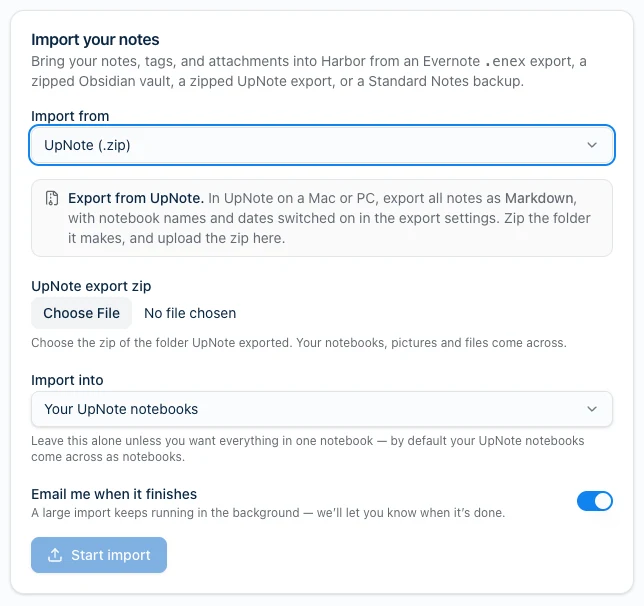
Then open Import & export from the sidebar, set Import from to UpNote (.zip), choose your zip, and press Start import.
Stay on the page until Harbor says it’s importing. The zip uploads from your browser, and closing the tab before then stops it. After that the import runs on our servers, and you can go. Leave Email me when it finishes on and we’ll write to you.
What comes across
| In UpNote | In Harbor |
|---|---|
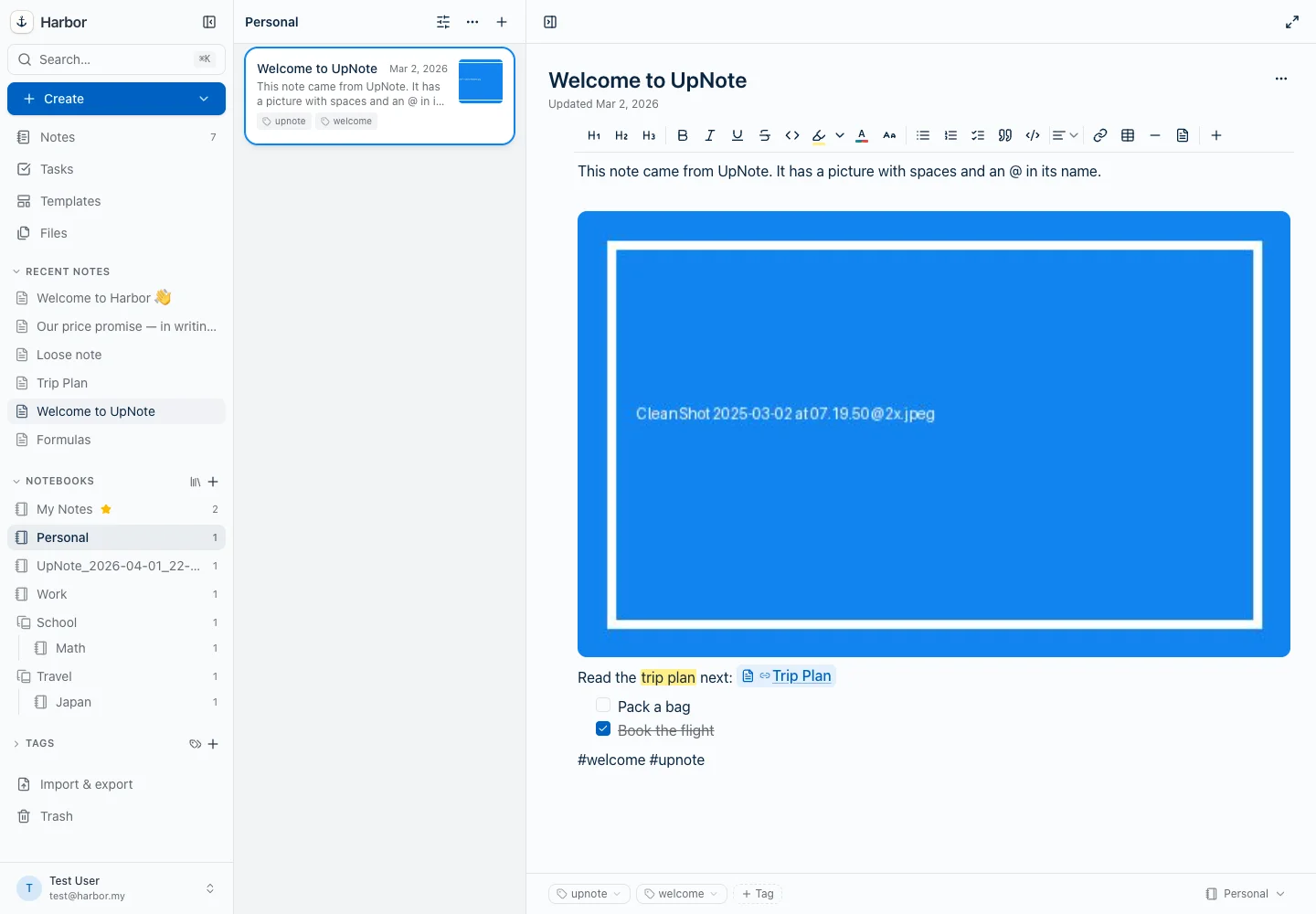
| A notebook | A notebook with the same name |
| A notebook inside a notebook | A notebook inside a stack. Travel / Japan becomes the notebook Japan in the stack Travel |
| Notebooks nested deeper than that | Their notes go into the second-level notebook. Harbor has stacks and notebooks, two levels |
| A note in more than one notebook | The first notebook. Each of the others becomes a tag with that notebook’s name |
| A note in no notebook | A notebook named after the export |
| Created and updated dates | The same dates |
#tags | Tags |
| Pictures | Pictures in the note |
| Voice memos, videos, PDFs and other files | Attachments in the note. Audio and video play in place |
| A YouTube video | A YouTube video you can play in the note |
| Checklists, highlights and tables | Checklists, highlights and tables |
| Links between notes | Harbor links you can click through |
Pictures and PDFs also get OCR’d, so the words inside them turn up in search.
Exports from some UpNote versions hold a second copy of every note in a notebooks folder. Harbor skips the copies, so you get each note once.
What doesn’t come across
- Text colors, underline, collapsible sections and pins. UpNote’s Markdown export leaves them out, so Harbor never sees them.
- Formulas come across as code. You keep the formula’s text, but Harbor doesn’t draw math.
- A TIFF picture comes across as a file to download, not a picture. Most browsers can’t show a TIFF.
- A file no note links to stays behind. Files come in because a note uses them.
- UpNote’s own backup file (
.upnx) won’t import. Use the Markdown export.
Already imported it the wrong way?
If you ran your UpNote export through the Obsidian importer, or imported it once already, move those notes to the Trash first. A new import doesn’t replace them. It adds to them, and you’d have two of everything.
Everything in one notebook instead
The Import into choice controls this, on the web, Mac, Windows, iPhone and iPad. Leave it on Your UpNote notebooks and your notebooks come across as notebooks. Pick a notebook and everything lands there instead. Android always uses your UpNote notebooks.
Leave it alone unless you already know you want the second thing.
If something doesn’t make it
When the import finishes, Harbor lists any note that didn’t come through, with a plain-English reason, on the screen where you started it.
If Harbor says there was nothing to import, it didn’t find any notes in what you gave it. Pick, or zip, the folder UpNote made: the one with your .md files in it.
A big export takes a few minutes. Fifteen thousand notes took about five in our tests.
It’s a copy, not a sync
Once the import finishes, Harbor and UpNote are unrelated. Change a note in UpNote afterwards and Harbor won’t hear about it. Import the same export twice and you get two copies of every note. (Notebooks are the exception: one that matches a notebook you already have gets used, not doubled.)
Coming from somewhere else too? There’s Evernote, Obsidian and Standard Notes.
Need more help?
Still stuck? Send us a message and a real person will get back to you.