How do I import from Standard Notes?
Harbor imports Standard Notes directly. Standard Notes keeps your notes and your file attachments in two separate exports, so you’ll download two files from Standard Notes and hand both to Harbor. There’s nothing to zip or combine — Harbor takes it from there.
Getting the two files out of Standard Notes is the same on a Mac or a PC.
1. Export your backup from Standard Notes
This file holds your notes, tags, and folders.
In Standard Notes, open Preferences → Backups. Under Data backups, choose Decrypted, then click Download backup.
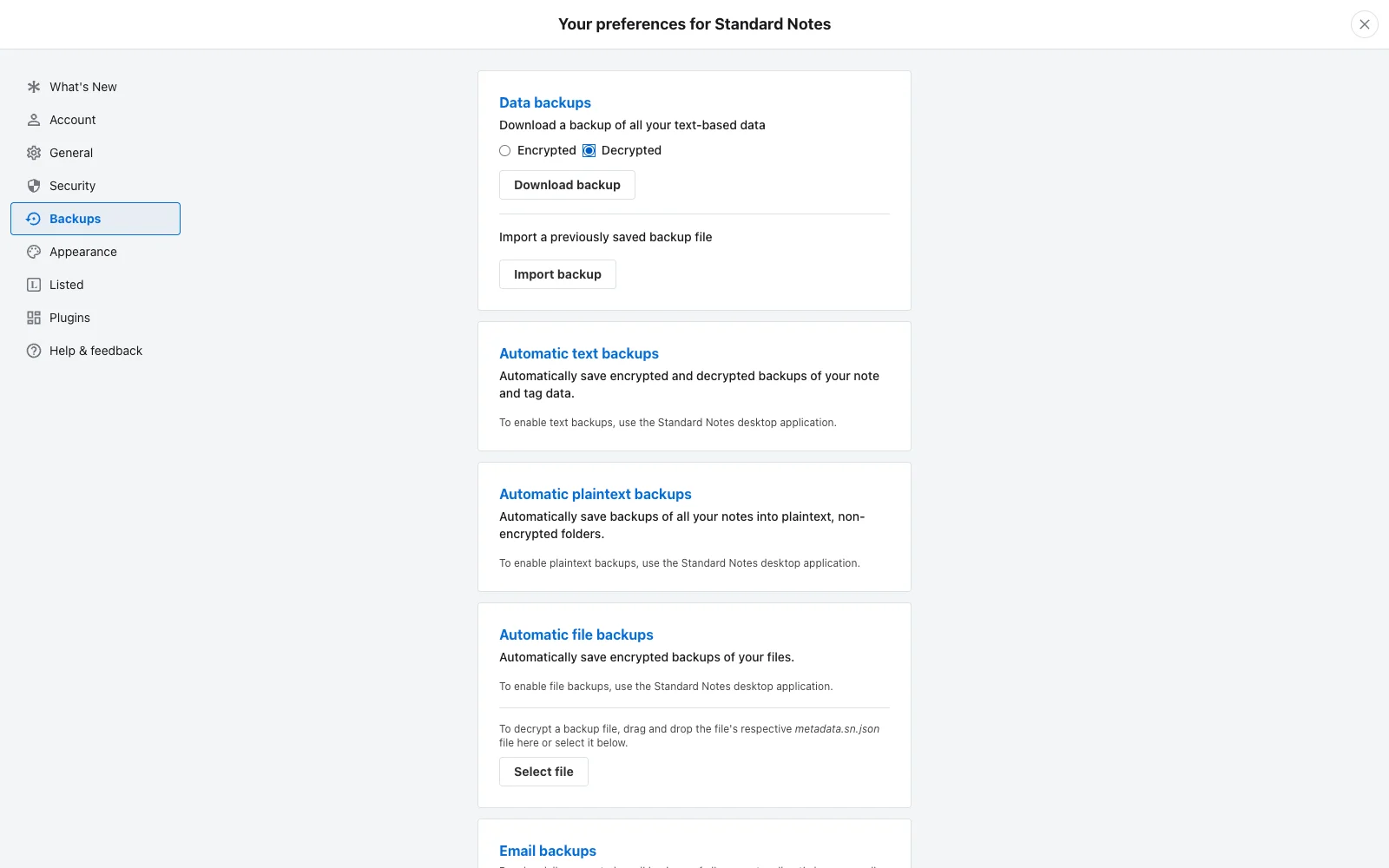
Why decrypted? Standard Notes encrypts everything, and Harbor can’t read an encrypted backup. The decrypted download is plain text that Harbor can import. It lands in your Downloads folder like any other file — keep it somewhere safe and delete it when you’re done.
2. Export your notes with their attachments
The backup above doesn’t include your files. To bring your images, PDFs, and audio across, export the notes too.
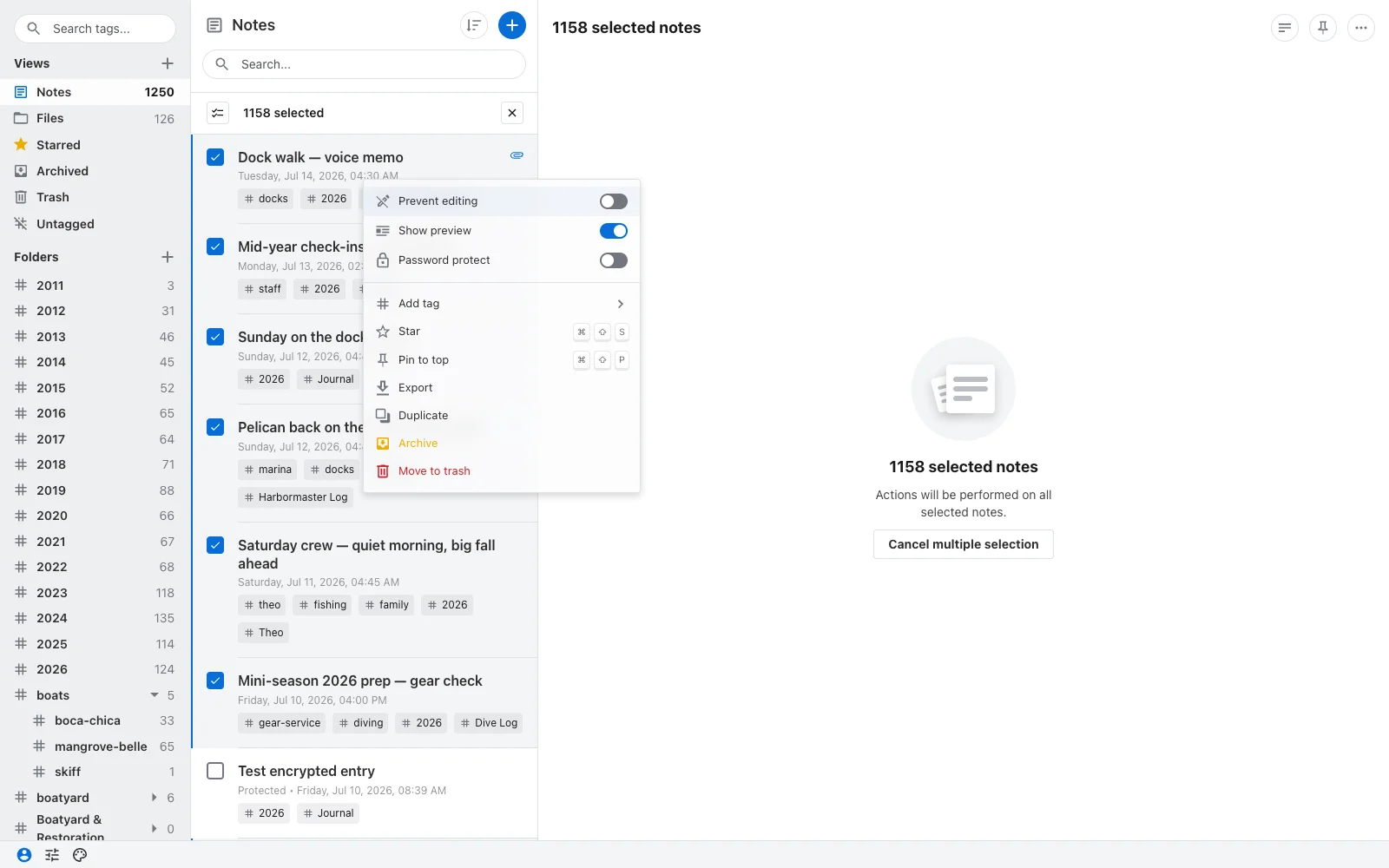
Select all your notes (click one in the list, then press ⌘A on a Mac or Ctrl+A on a PC), right-click, and choose Export.
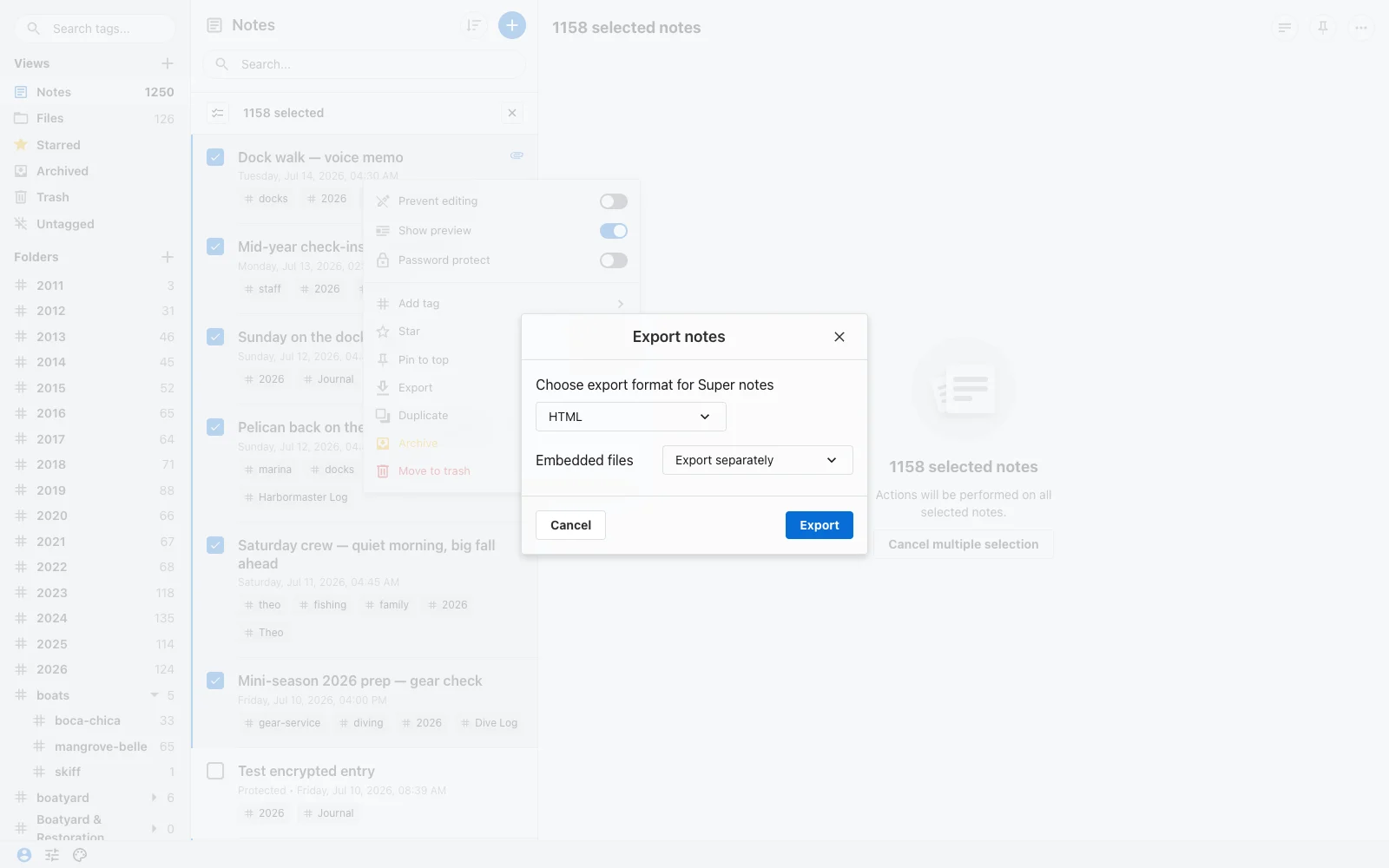
In the dialog, set the format to HTML and Embedded files to Export separately, then click Export.
You now have two files in your Downloads folder: the backup from step 1 and this notes export.
3. Bring both into Harbor
In Harbor, open Import & export from the sidebar and choose Standard Notes under Import from. The web app, the Mac app and the Windows app all have it. (There’s no Standard Notes importer on the phone and tablet apps, so do this on a computer.) Pick your two files:
- Standard Notes export — the backup from step 1.
- Attachments (optional) — the notes export from step 2.
Then click Start import.
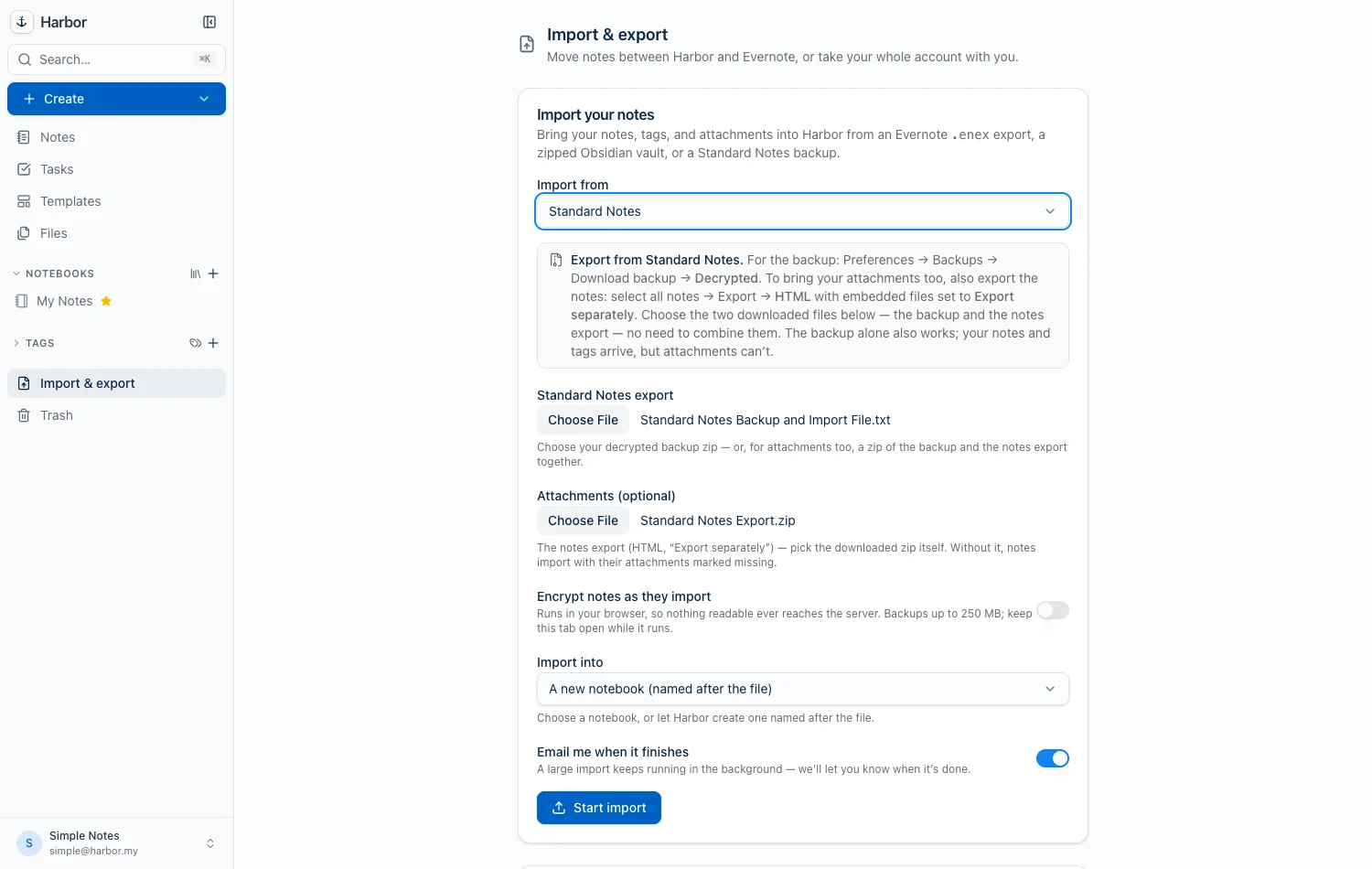
That’s it. Your notes, tags, folders, and attachments arrive together.
Before you start a big one: can you walk away? Only if you’re on the web or in the Windows app with Encrypt notes as they import left off. That’s the one combination that runs on our servers, and it keeps going with Harbor closed — we email you when it’s finished.
Everything else runs on your own machine. The Mac app always does, because it keeps this importer native rather than sending your backup to us. So does any app with the encrypt toggle on, and that one can’t work any other way: we hold no key, so the sealing has to happen where the key is. Neither sends an email, and closing Harbor — or the tab — stops the run part-way, leaving whatever it had already written. So leave it open until the counter finishes.
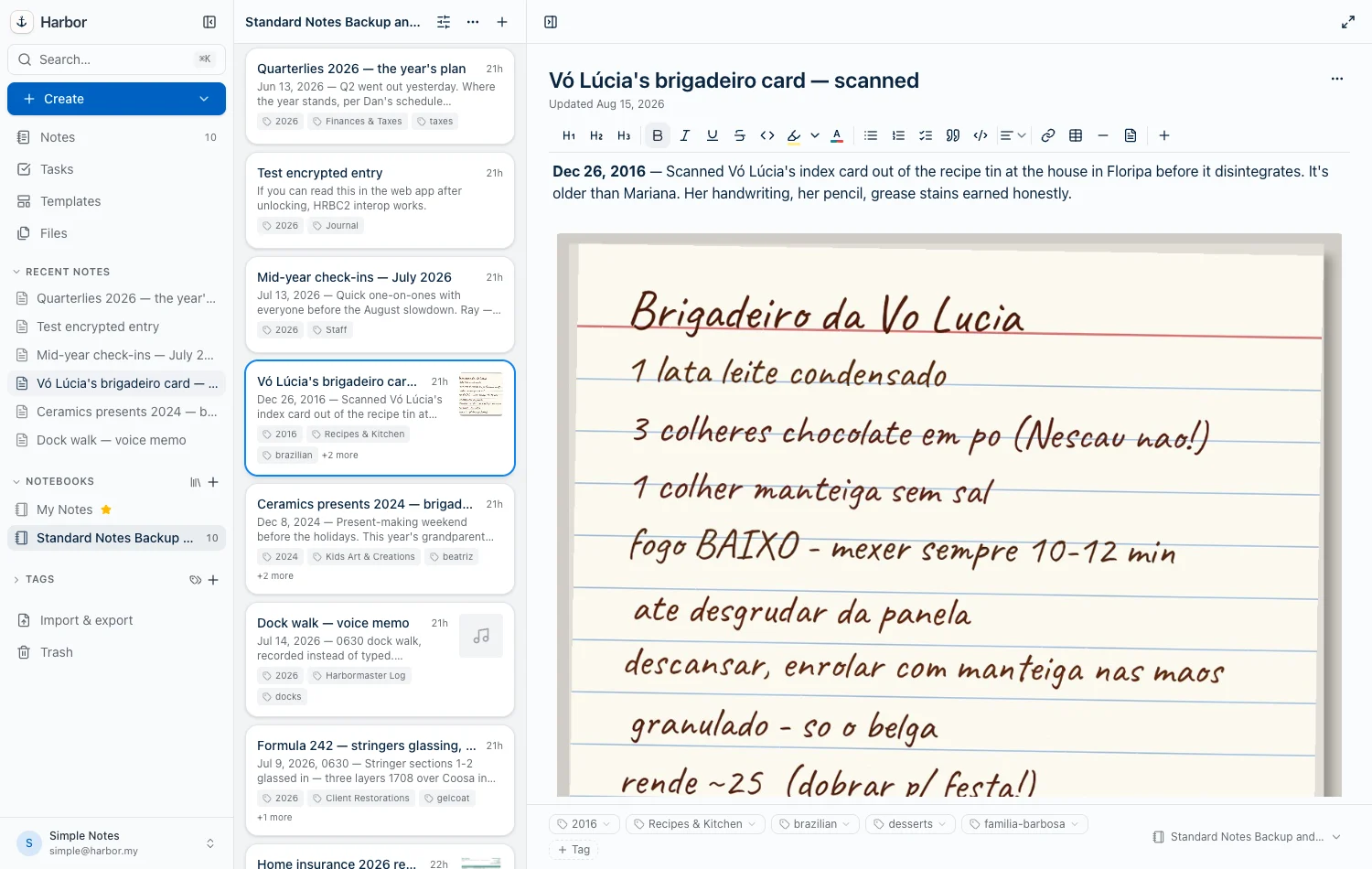
Once imported, everything gets Harbor’s full treatment: attachments run through OCR so the words inside them become searchable, and it all syncs to every device you use.
A few things worth knowing
- The backup alone works. If you skip step 2, your notes and tags still import — only the attachments come up missing. You can always re-run the import later with the notes export added.
- Exactly what carries over — notes, tags, folders, dates, and attachments — is spelled out in What comes across in a Standard Notes import?
- Prefer to keep it encrypted end-to-end? Turn on Encrypt notes as they import on the import screen. Your notes are sealed on your own device before they ever reach Harbor’s servers — it has to work that way, because we hold no key. That’s the case above where you need to stay put, and in a browser it also caps the backup at 250 MB. Doing it in the Mac or Windows app instead has no such limit. See How does encryption work in Harbor?
- Take it at your own pace: a common path is to import once as a test, look around, and you’re done — there’s nothing to undo.
Coming from more than one app? Harbor also imports an Obsidian vault and an Evernote export.
Related questions
Need more help?
Still stuck? Send us a message and a real person will get back to you.