How do I import from Obsidian?
On Android, just pick the folder — the app zips it for you. It’s the More tab, then tap your name at the top — or the avatar on Home — and then Choose vault folder… under Import from Obsidian.
Stay on that screen while it works. Android zips the vault on the phone before uploading it, and leaving the screen part-way cancels the whole thing — the upload aborts and the temporary zip is deleted. It’s a longer wait than it looks for a big vault.
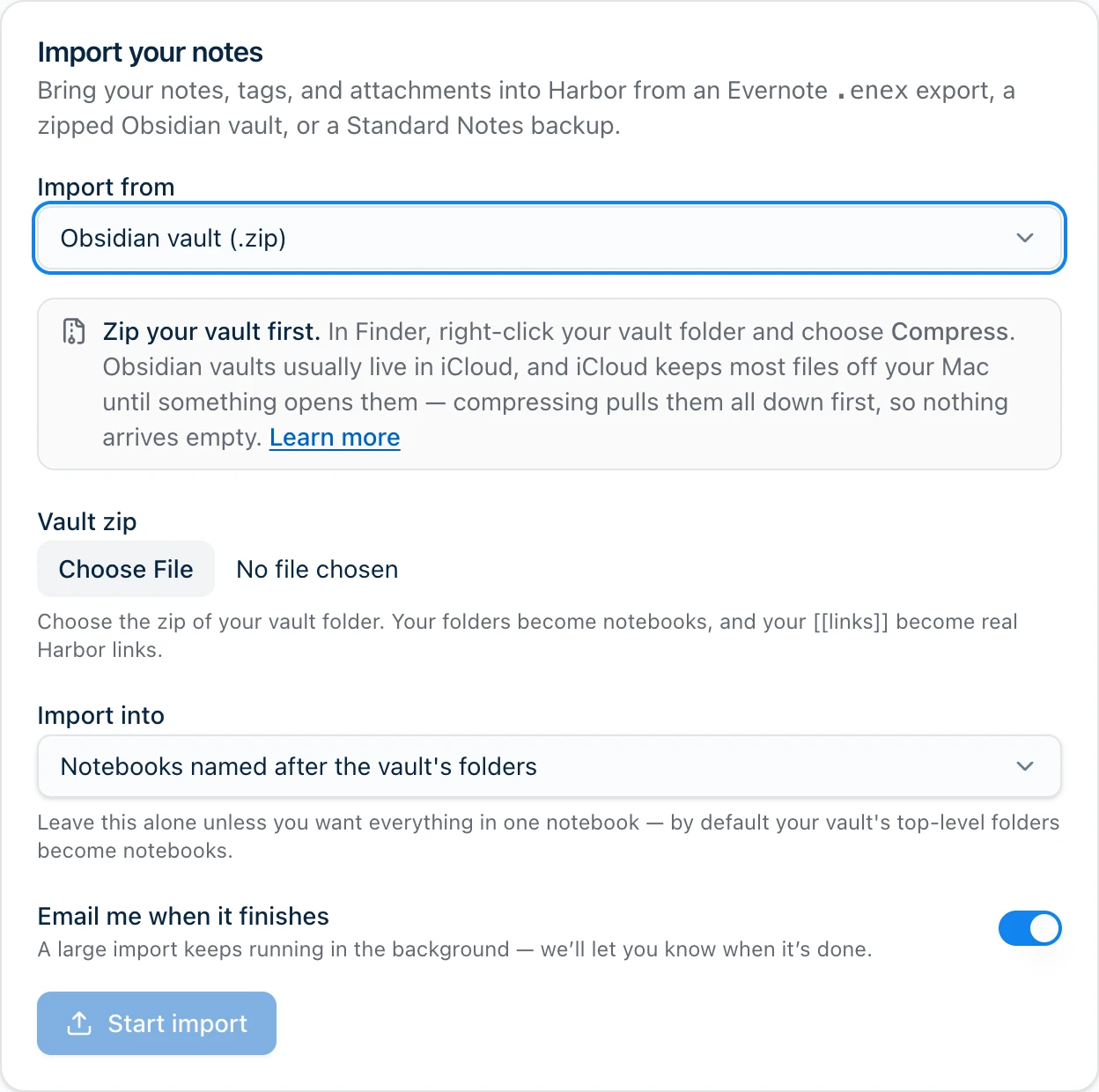
Everywhere else, use the web app at app.harbor.my, and zip the vault yourself first. No other Harbor app imports Obsidian yet — the web app does, in any browser on any computer.
Zip your vault first
This is the step to get right, and it’s the one most people skip.
Right-click your vault folder and compress it — Compress on a Mac, Compress to → ZIP file on Windows 11, Send to → Compressed (zipped) folder on Windows 10. Upload the .zip that appears, not the folder.
The reason is iCloud, and it mostly bites Mac users. Obsidian vaults usually live there, and iCloud keeps most files off your Mac until something opens them: the filenames are on disk, the contents aren’t. Hand Harbor the folder and a lot of your notes arrive empty. Compressing pulls everything down first, so nothing does.
This isn’t hypothetical. On a real vault, almost none of the files are actually on the computer until you compress it.
A big vault takes a few minutes to compress and needs room on the disk while it works. That’s normal.
Then open Import & export in the web app, choose Obsidian vault (.zip), pick your file, and press Start import.
Stay on the page until Harbor says it’s importing. The zip uploads from your browser and then takes a moment to be assembled — close the tab during either and nothing is imported at all. Once the page tells you the import continues on the server, it does, and you can go. Leave Email me when it finishes on and we’ll write to you.
What you get
| In Obsidian | In Harbor |
|---|---|
| A folder | A notebook with the same name |
| Folders inside folders | Their notes go into the top-level folder’s notebook |
| Notes at the top of the vault | A notebook named after the vault |
[[Links between notes]] | Real Harbor links you can click through |
#tags, and tags in frontmatter | Tags — an inline #tag also stays in the text |
| Images, PDFs, audio, video | Attachments on the note — and images and PDFs get OCR’d, so the words inside them turn up in search |
| Canvas, Bases and Excalidraw files | Attached to a note, so you keep the file |
Your links are worth calling out. Harbor reads the whole vault before it writes anything, so [[wikilinks]] come out as real links between real Harbor notes — including links pointing at notes it hasn’t imported yet.
Your created and updated dates come across too — from the note’s frontmatter if it has them, otherwise from the file’s own timestamp — so an imported vault doesn’t arrive all stamped today. A source in the frontmatter becomes the note’s source URL.
What doesn’t come across
Said plainly, because you should know before you start rather than after:
- Deep nesting is flattened. Harbor has notebooks and stacks, not folders inside folders inside folders. Everything under a top-level folder lands in that folder’s notebook.
- A transclusion becomes a link, not the content.
![[Another note]]doesn’t pull the other note’s text in — you get a link to it, with a stray!left in front. Embedding a file,![[diagram.png]], works properly; it’s notes that don’t embed. - A link’s alias and heading are dropped.
[[Meeting|last Tuesday]]links to the right note but shows the note’s own title, and[[Note#Heading]]lands on the note rather than the heading. - A link to a note that isn’t in the vault stays as text. Better than a link that goes nowhere.
- An ambiguous link stays as text too. If two notes in different folders share a filename and the link doesn’t say which one it means, Harbor won’t guess — and it tells you which ones it skipped.
- Callouts become quotes. The words survive; the colored box doesn’t, and the
[!note]marker is left visible at the top of the quote. - Plugin syntax arrives as text. Dataview, Templater and the rest come across as what they literally are.
- Canvas, Bases and Excalidraw files are kept, not rendered. You get the file attached to a note, so nothing is lost, but Harbor can’t draw them.
- Frontmatter other than title, tags, dates and source is dropped.
aliases,cssclasses, Dataview fields and the rest don’t come across, and aren’t dumped into the body either. - An attachment no note points at isn’t imported. Files come in because a note embeds them, so anything orphaned in an
attachments/folder is left behind. .obsidian/,.trash/and dotfiles are skipped, along with folders that hold only attachments — they never become notebooks.
Everything in one notebook instead
The Import into selector controls this. Leave it alone and your folder structure comes across as notebooks. Pick a notebook and everything lands there instead, structure flattened.
Leave it alone unless you already know you want the second thing.
If something doesn’t make it
When the import finishes, Import & export shows a list, each entry with a plain-English reason: notes that didn’t come through, and notes that imported fine but had an ambiguous link Harbor refused to guess at. A link whose target simply isn’t in the vault isn’t listed — it just stays as text. Very messy vaults have the list capped at the first hundred.
The list is kept — it’s the import’s own details page, and it stays there — but nothing in the app links back to it and the completion email doesn’t either. So it’s much easier to read it when it appears than to find it again. If you expect a messy vault, wait on the page.
It’s a copy, not a sync
Once the import finishes, the two are unrelated. Harbor doesn’t watch your vault, and your vault doesn’t hear about anything you change in Harbor. Import the same vault twice and you get two copies of everything.
That’s deliberate — a one-time move, not a mirror. (Notebooks are the exception: a folder matching a notebook you already have goes into it rather than making a second one.)
What we’d actually do with it
Compress the vault, import it, and then spend ten minutes clicking through your most heavily linked note. Links are the thing you’d miss most and the thing worth checking first, and the import list won’t tell you about the ones that quietly stayed as text.
Coming from somewhere else too? There’s Evernote and Standard Notes.
Need more help?
Still stuck? Send us a message and a real person will get back to you.