How do I clear my account?
Clearing empties your account. It doesn’t delete it.
Everything in it goes — notes, notebooks, tags, tasks, files, the lot — and you stay signed in, on the same plan, with the same email address, looking at an empty account. It’s the same place a brand-new signup starts from.
It’s the answer to “I want to start over,” and to “my import went wrong twice and now I have eight thousand duplicates.”
Export first if you want a copy
Clearing is immediate and there is no undo, so if there’s anything in the account you’d want later, export it first and download the file.
⚠️ An export still sitting on our servers is destroyed by the clear too. It’s a complete copy of the notes you’re about to empty, so it goes with them. Downloading it takes a moment; getting it back afterwards isn’t possible.
What goes
- Every note, notebook and tag
- Tasks and their reminders
- Attached files, images, and recordings with their transcripts
- Shortcuts, saved searches and templates
- Note history and search history
- Public links you’ve shared — they stop working
- Watched folders, so nothing starts refilling the account minutes later
- Your avatar, your app preferences, and your encryption passphrase
What stays
- Your email address, name and password
- Two-factor and any passkeys you’ve set up
- Your subscription and plan — clearing your notes doesn’t cancel anything you’ve paid for. That’s the separate Cancel subscription flow.
Your other devices empty themselves
Nothing signs you out anywhere, and that’s deliberate: a signed-out device can’t sync, so it would sit there holding a full copy of the account you just emptied. Instead every device stays signed in and drains the deletions the next time it syncs.
There is no undo
Deleting your account gives you 30 days to change your mind. Clearing gives you none — it starts immediately and cannot be reversed. That’s why the confirmation asks for your password and a typed phrase.
Clear or delete?
They sit next to each other in Settings and they’re both irreversible, so it’s worth being sure which one you want.
| Clear | Delete | |
|---|---|---|
| Your account | Stays. You’re still signed in. | Goes. |
| Your notes | Destroyed right away. | Destroyed after 30 days. |
| Undo | None. | Cancel any time in those 30 days. |
| Your subscription | Untouched. | Cancelled. |
If you want to leave Harbor entirely, you want delete. If you want to stay and start from nothing, you want clear.
How to do it
Wherever your account settings live:
- Web, Mac and Windows — Settings, then Account.
- iPhone and Android — the More tab, then tap your name at the top.
- iPad — open Home in the sidebar, then tap your avatar at the top left.
The card sits just above Delete account on all of them.
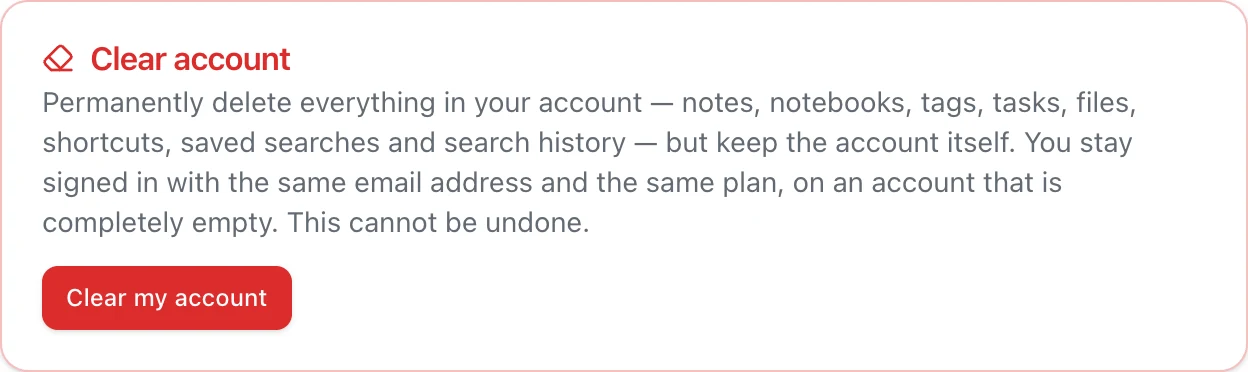
Press Clear my account and you’ll be asked for your current password and to type CLEAR MY ACCOUNT exactly. Both, on purpose — this is not a button anyone should be able to hit by accident.
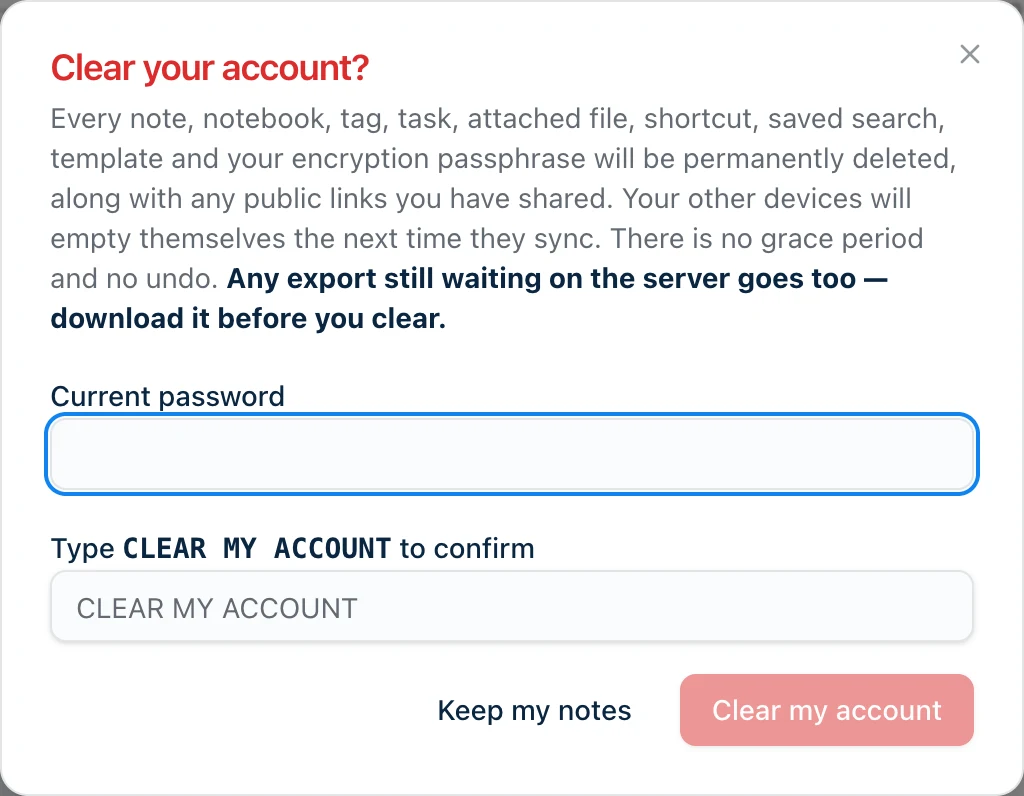
Signed in with Google or Apple? The clear dialog asks for a password, and if you’ve only ever signed in with a provider you never set one — so this won’t work for you yet. Email help@harbor.my and we’ll clear it for you. (The web app handles this for deleting — it offers a Continue with Google or Apple button. Clearing doesn’t, on any app.)
It can take a few minutes if you had a lot of attachments. That’s normal — the app shows progress and finishes on its own, and you don’t have to sit and watch it.
What we’d actually do with it
Export first, every time, even when you’re certain. It costs one download and it’s the only version of this decision you can walk back.
And if what you actually want is to leave — not to start again — delete the account instead. Clearing keeps billing you.
Related questions
Need more help?
Still stuck? Send us a message and a real person will get back to you.