Can I play YouTube videos in a note?
Yes. Paste a YouTube link on a line by itself and it becomes a player, right there in the note. Press play and the video plays without leaving Harbor.
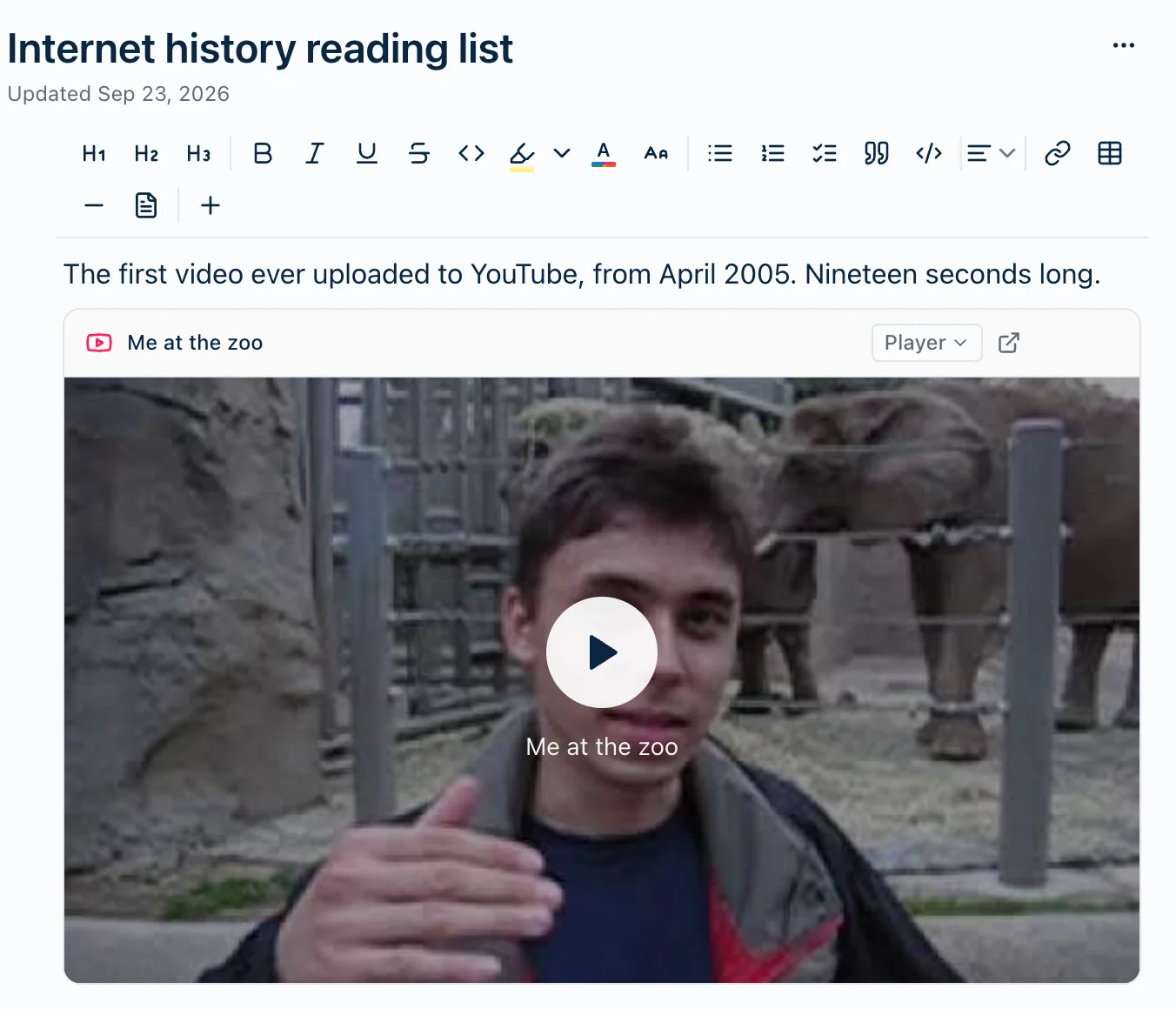
Adding a video
There are two ways.
Paste the link on its own line. Copy a link from YouTube, put your cursor on an empty line, and paste. It turns into a player straight away. Changed your mind? Undo once — ⌘Z, or Ctrl+Z on Windows — and you’re back to a plain link.
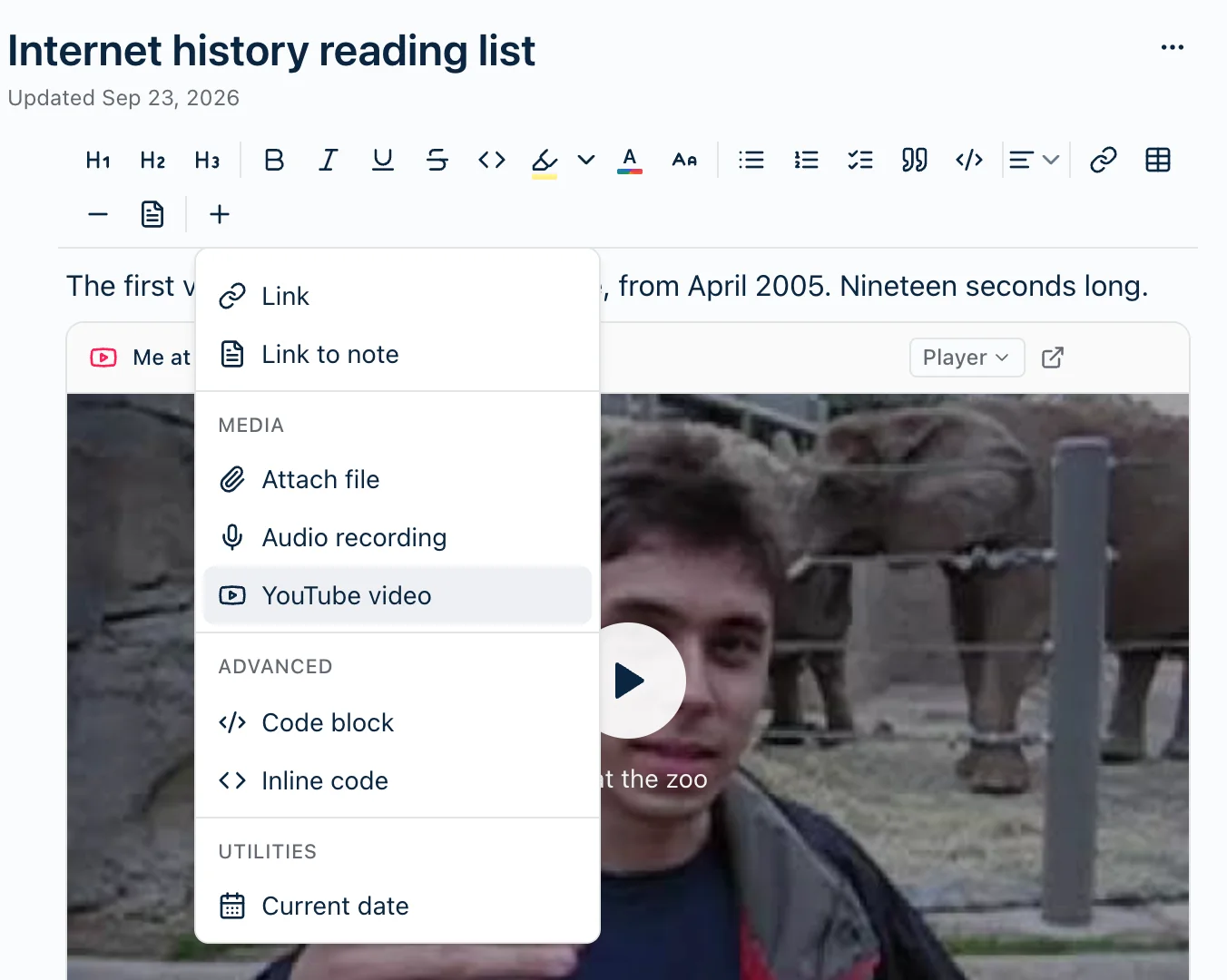
Use the menu. Type / on an empty line and pick YouTube video. In the web app, Windows and Android it’s also in the + insert menu, under Media.
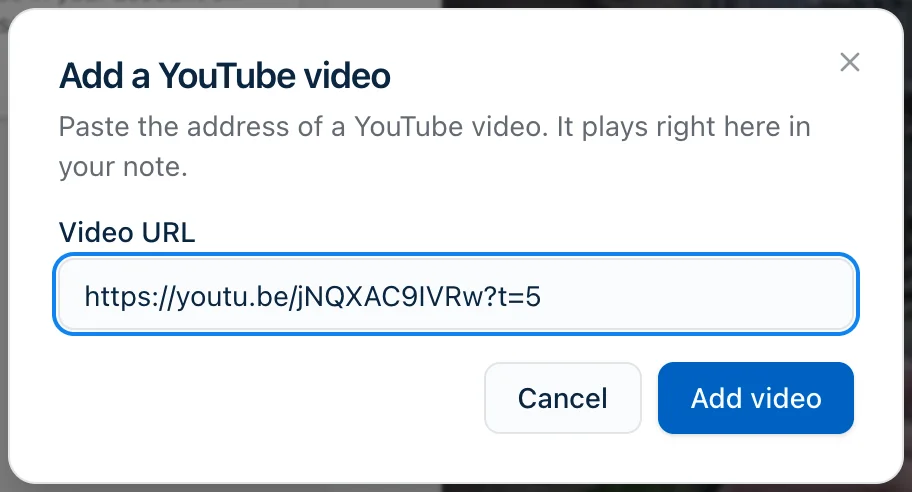
Harbor asks for the link. Paste it and click Add video.
Any link YouTube hands you works: a normal youtube.com/watch link, a short youtu.be one, a Shorts link, or one copied on your phone. If Harbor doesn’t recognize it as a YouTube video, the dialog says so rather than adding something that won’t play.
Why a link in a sentence stays a link
A YouTube link turns into a player only when it’s on a line by itself. Paste one into the middle of a sentence and it stays an ordinary link, so the sentence still reads like a sentence. The same goes for a link inside a heading or a code block.
That’s on purpose. Sometimes you want to watch the video in your note. Sometimes you’re just mentioning it.
Player or Link
Every video has a small menu in the top corner of its frame that says Player or Link. Click it to switch.
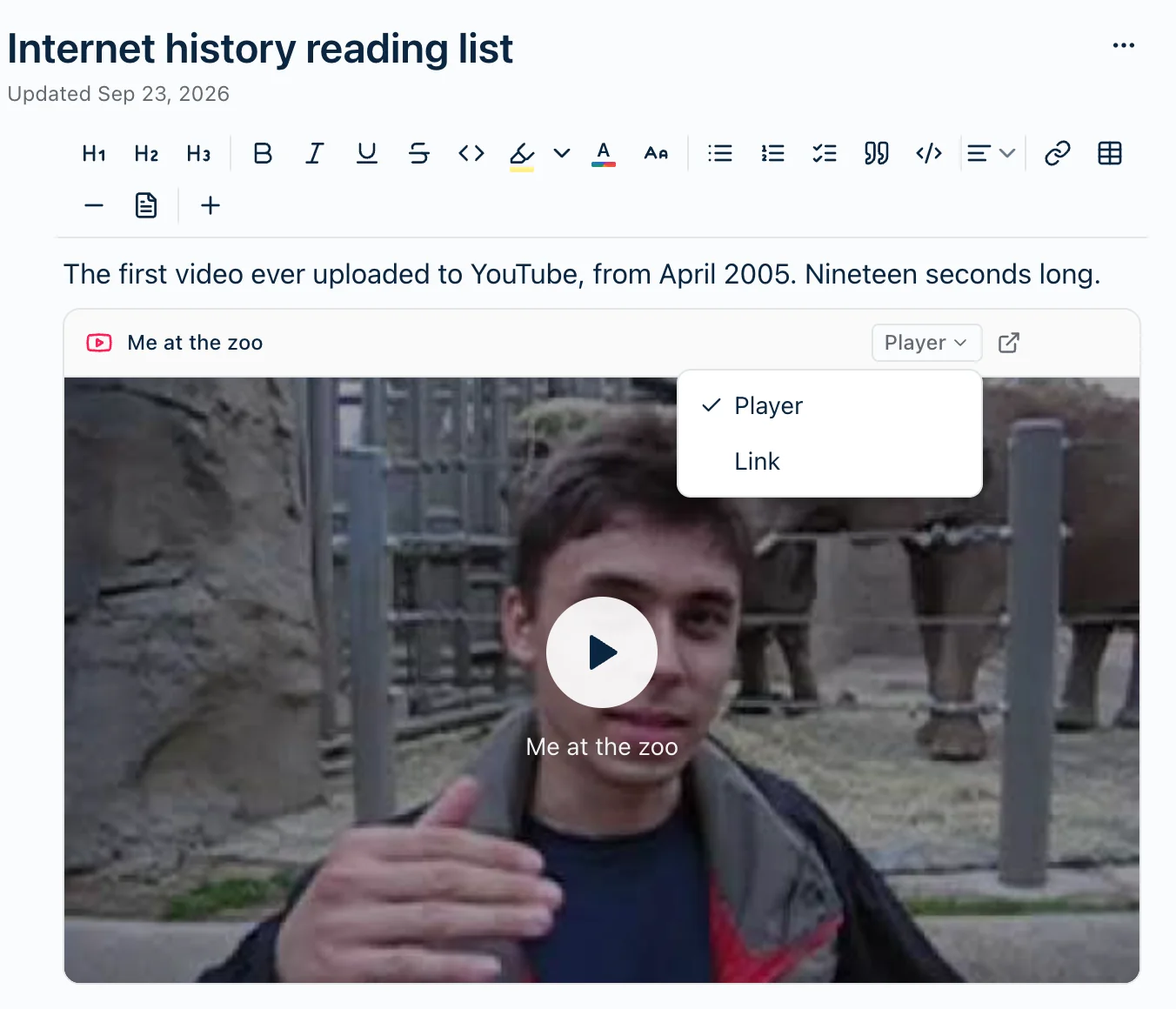
- Player shows the video, ready to play. It’s the default.
- Link folds it down to a single line with the video’s name. Handy when a note has a lot of videos in it, or when you want the note to stay short.
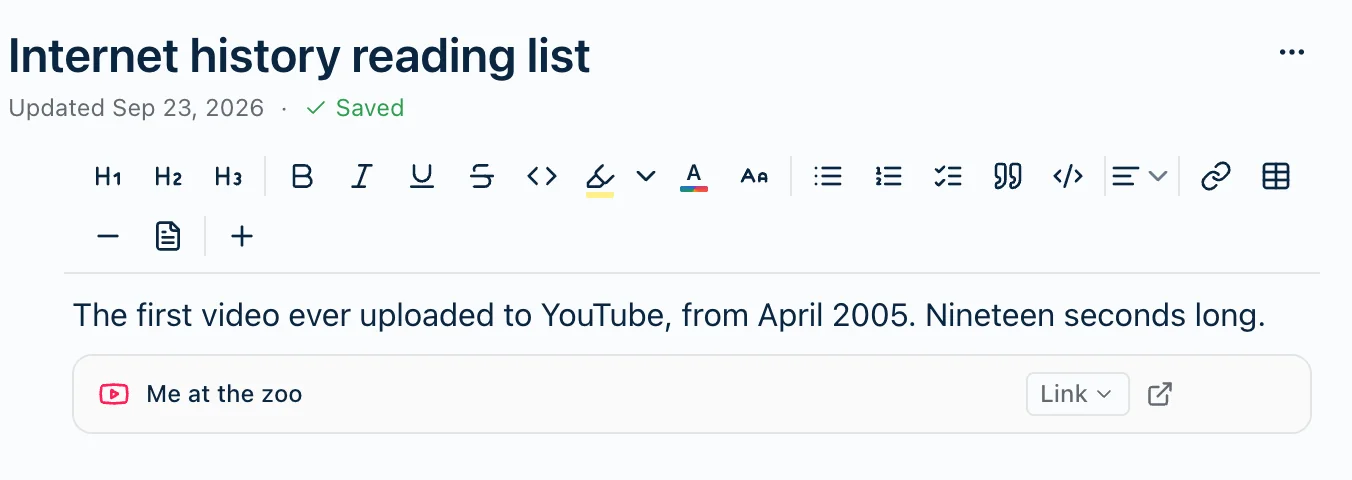
Your choice is saved with the note. Switch a video to Link on your Mac and it’s a link on your phone too.
Either way, the arrow button next to the menu opens the video on YouTube in a new window.
Starting at a particular time
On YouTube, click Share, tick Start at, and copy the link. When you paste it into Harbor, the video starts from that moment. A link with the time already in it, like ?t=90, works the same way.
Nothing loads from YouTube until you press play
Opening a note with a video in it doesn’t tell YouTube anything. The still image and the title you see come from Harbor, not from YouTube. Harbor fetched them once, the first time the video turned up, and keeps its own copy.
YouTube’s player loads only when you press play. From then on you’re watching a YouTube video, so YouTube knows about it the way it would anywhere else. We use its privacy-enhanced mode, youtube-nocookie.com, for that part.
If the still hasn’t arrived yet, or the video is private or has been taken down, the frame shows a plain black panel with the play button instead. That’s all it means.
Offline
A video needs the internet to play. Offline, the frame still shows the video’s name, with a note that it’s available when you’re back online. Reconnect and it plays.

Where it works
Videos play in the web app, Mac, iPhone, iPad, Android and Windows. A video you add on one shows up on all the others.
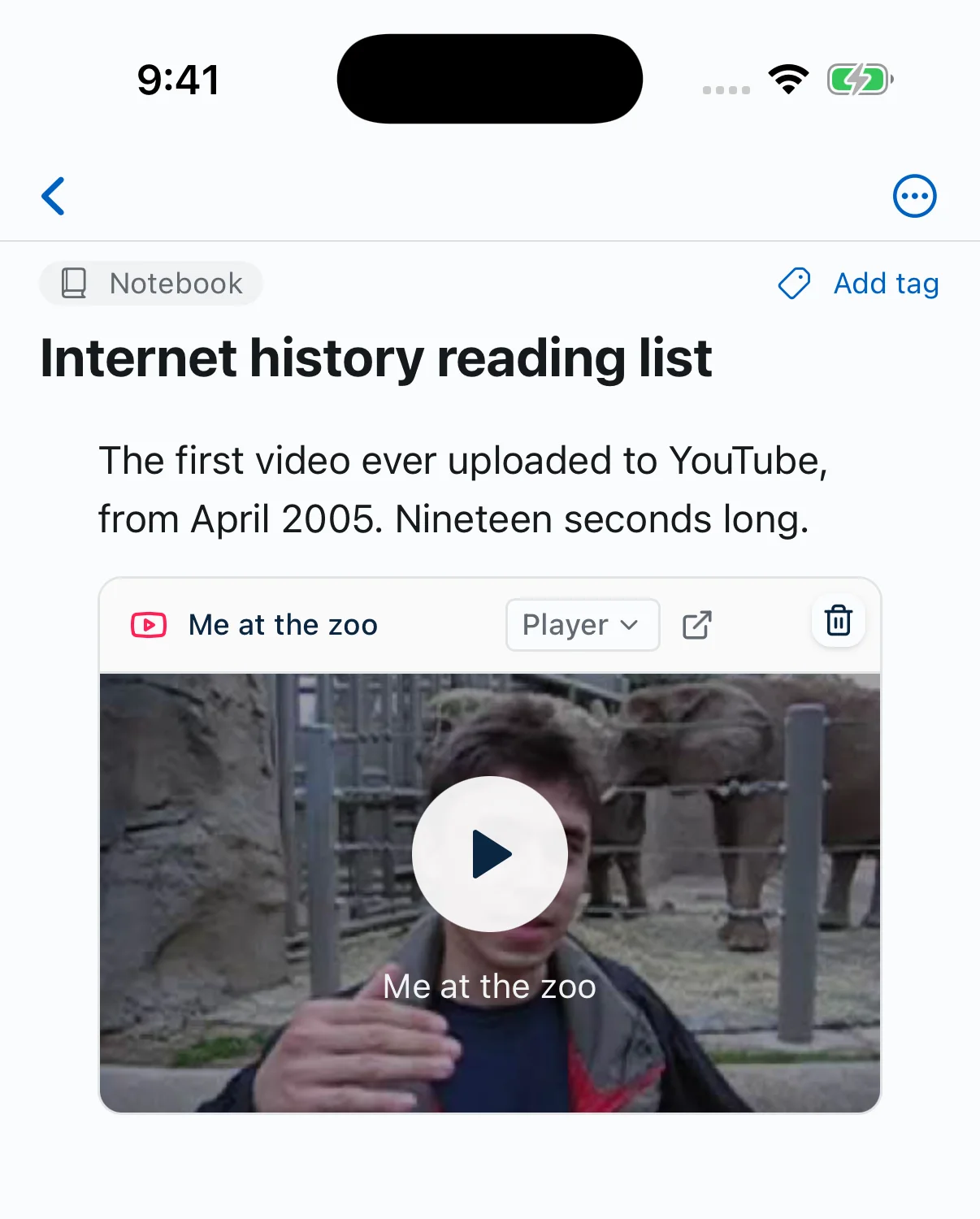
If you share a note as a public link, people who open it can play the video too. They see it the way you left it, Player or Link, without the menu to change it.
What it doesn’t do
- It’s YouTube only, for now. A Vimeo, Loom or Twitch link stays an ordinary link.
- An Evernote export turns videos back into links. Evernote files have no way to hold a video that lives on another site, so when you export to Evernote each video comes out as a link with its title. Nothing is lost, and importing the file back gives you a working link.
Related questions
Need more help?
Still stuck? Send us a message and a real person will get back to you.