How do I spell-check in more than one language?
Mostly, you set it up on your device, not in Harbor.
Harbor doesn’t check spelling itself. The red underlines in a note come from your Mac, your PC, your browser or your phone, and most of them can already check several languages at once. They only need to know which languages you write in.
Harbor doesn’t guess a note’s language either. Your device does the checking, so your device’s settings decide.
| Where you use Harbor | What checks your spelling | Several languages at once? |
|---|---|---|
| Mac, plus Safari and Chrome on a Mac | macOS | Yes, a paragraph at a time |
| Windows app | Windows | No, one at a time |
| Chrome on Windows or Linux, and Edge | The browser | Yes |
| Firefox | Firefox | Yes, once you pick them |
| iPhone and iPad | The keyboard you’re typing with | Some language pairs |
| Android | Your phone’s spell checker, usually Gboard | Yes, your phone’s languages |
First, check that spell-check is on in Harbor. It’s the Spellcheck switch:
- Web, Mac and Windows: Settings → Preferences → Editor → Spellcheck.
- iPhone and iPad: Settings → Editor → Spellcheck. On iPhone, Settings is on the More tab.
- Android: More → Settings → Editor → Spellcheck.
It’s saved to your account, so turning it off on one device turns it off everywhere.
Mac
A Mac already checks more than one language. It works out each paragraph’s language and checks it against the right dictionary, so a note with an English paragraph and a German one gets both checked properly. Harbor, Safari and Chrome all use it.
To choose the languages it covers:
- Open System Settings → Keyboard.
- Under Text Input, click Edit.
- Find Spelling. It’s set to Automatic by Language unless you’ve changed it.
- Open that menu, choose Set Up, tick every language you write in, and click Done.
That’s all most people need.
Harbor’s Spell-check language setting
Harbor for Mac also lets you lock its spell-check to one dictionary. It’s in Settings → Preferences → Editor, right below Spellcheck:
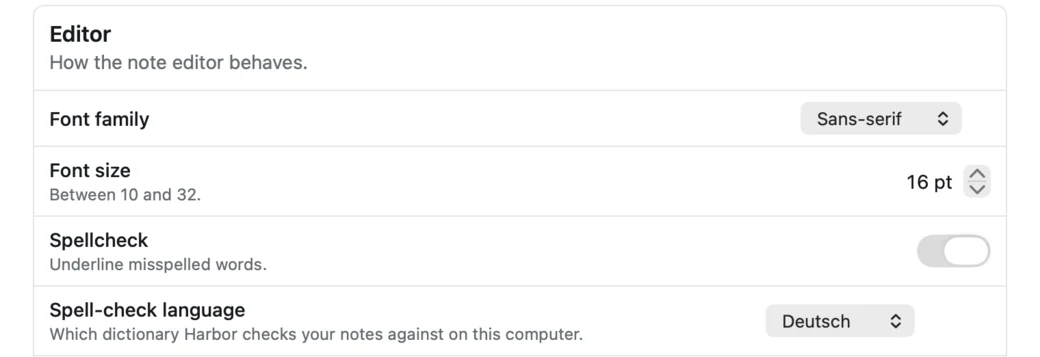
- Automatic is the default. Harbor leaves it to your Mac, as described above.
- A language makes Harbor check every note against that one dictionary. The list shows every dictionary on your Mac by its own name, like Deutsch or Français.
It changes right away, in the note you have open. No restart. Words that are already underlined stay that way until you type in that paragraph, click into it or open the note again. It’s greyed out while Spellcheck is off, and it’s saved on this Mac only, so your other devices aren’t affected.
Leave it on Automatic unless your Mac keeps guessing wrong. Picking one language means words in every other language get underlined.
Older versions of Harbor for Mac didn’t underline anything, even with Spellcheck on. That was our bug. If you’ve never seen a red line in a note on your Mac, that’s why. Don’t see Spell-check language? Update Harbor to the latest version.
Windows
The Windows app checks one language at a time. That isn’t a setting we left out. Harbor shows your notes through a Microsoft component that takes one dictionary, and we tried every way around that we could find.
So pick the language you write in most:
- Add the language to Windows if it isn’t there already: Settings → Time & language → Language & region, then Add a language next to Preferred languages. On Windows 10, it’s Settings → Time & Language → Language. You don’t need to make it your Windows display language.
- In Harbor, open Settings → Preferences → Editor → Spell-check language, right below Spellcheck, and pick it.
- Click Restart now. Harbor needs a restart to switch dictionaries.
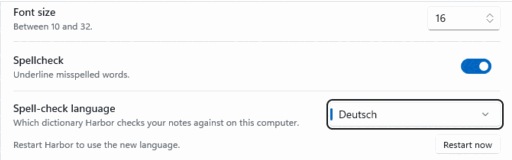
Automatic is the default. It checks spelling in your Windows display language.
The list only shows languages Harbor can really check on Windows, so not every language you add will be in it. Regions are folded together, too: German from Germany, Austria or Switzerland all show up as Deutsch.
Like on the Mac, it’s greyed out while Spellcheck is off and saved on this computer only. One thing doesn’t follow it: the message box in Contact Support checks spelling in your Windows keyboard language. Windows doesn’t let us change that.
Need two languages at once on a Windows PC? Use Harbor on the web in Chrome or Edge. They check every language you turn on.
On the web
The browser checks your spelling, so it depends on which one you use.
Chrome
On Windows and Linux:
- Open Chrome’s Settings → Languages.
- Under Preferred languages, click Add languages and add each language you write in.
- Under Spell check, make sure Check for spelling errors when you type text on web pages is on.
- Under Use spell check for, switch on each language. That list only shows up once you’ve added a second language.
Chrome checks all of them at once. On a Mac, Chrome uses your Mac’s spelling settings instead. See Mac.
Edge
Same idea as Chrome. Go to edge://settings/languages, add each language you write in, and turn spell-check on for each one in the Writing assistance section.
Safari
Safari uses your Mac’s spelling settings. See Mac.
Firefox
Firefox has its own dictionaries, and it can use several at once.
- Get the dictionaries. Right-click in a note, open Languages and choose Add Dictionaries…. Install one for each language you write in.
- Pick them. Right-click in a note again, open Languages and tick every language you want checked.
Firefox remembers that choice for Harbor, so you only do it once per browser.
If you never pick, Firefox goes by Language (locale) in Harbor’s Settings → Preferences → Language & region, as long as you have that dictionary installed. Type a code like de-DE there and click away to save it. That’s enough if you only write in one language and it isn’t your browser’s.
iPhone and iPad
Your iPhone or iPad checks spelling in the language of the keyboard you’re typing with. So add a keyboard for each language:
- Open Settings → General → Keyboard → Keyboards.
- Tap Add New Keyboard and pick a language. Repeat for each one.
To switch while you type, touch and hold the globe or emoji key, then pick a keyboard. Spell-check switches with it.
Some pairs don’t need switching. For a few combinations, like English (US) and Spanish (Latin America), you can add the second language to the same keyboard and type in both. When you add a keyboard, look for Add to [language] Keyboard.
If nothing gets underlined at all, check that Check Spelling is on in Settings → General → Keyboard.
Android
Android checks spelling with its spell checker, which is usually Gboard’s. Gboard’s checks every language on your phone’s language list at once, so add yours there:
- Open Settings → System → Language & region. It’s just Languages on some phones.
- Tap Add a language and pick one. Some phones put it one tap further in, under System Languages. Keep your main language at the top of the list.
Gboard usually adds the new language as a keyboard language too. If it doesn’t, add it in Gboard’s settings under Languages.
Then check the spell checker is set to follow those languages: Settings → System → Keyboard → Spell checker → Languages should say Use system languages. That’s the default, so you probably won’t need to change anything.
Underlines can stop for a moment right after you add a language. If they don’t come back, restart your phone.
These menus move around between Android versions and phone makers. On older versions they’re under Settings → System → Languages & input. If you can’t find them, search Settings for Spell checker.
Don’t see Spellcheck in Harbor’s Editor settings on Android? Update Harbor to the latest version.
Related questions
Need more help?
Still stuck? Send us a message and a real person will get back to you.